
How do I log in to my community as the admin?
On your community you are the host, which is what we call the admin. There are two ways to log in as the host: one press from your Community dashboard, or Sign in on the community itself with the email you use for Replicants. About a minute either way.
Updated 2 October 2026
Open my Community dashboard
Press Open my community as host on your Community dashboard
It is under Your community, the line with your community's address. The same button is at the top right of Community, then Members.
Your community opens in a new tab, already signed in as the host. No email and no password.
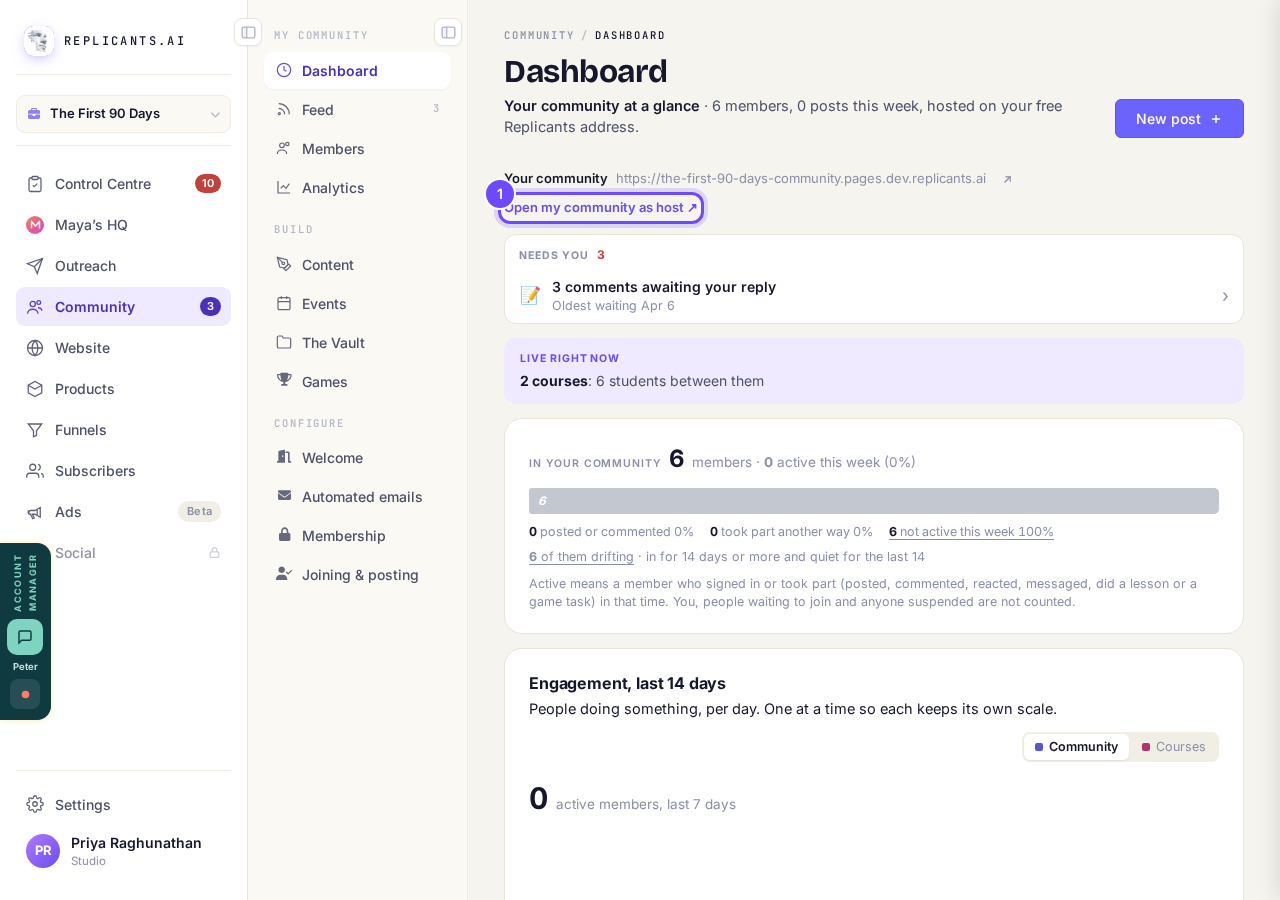
Open my community as host, under your community's address.
Open my Community dashboardPress Sign in at the top right of your community
Go to your community's own address, the one under Your community on the dashboard. This way works on any computer or phone, even one where you are not signed in to Replicants.
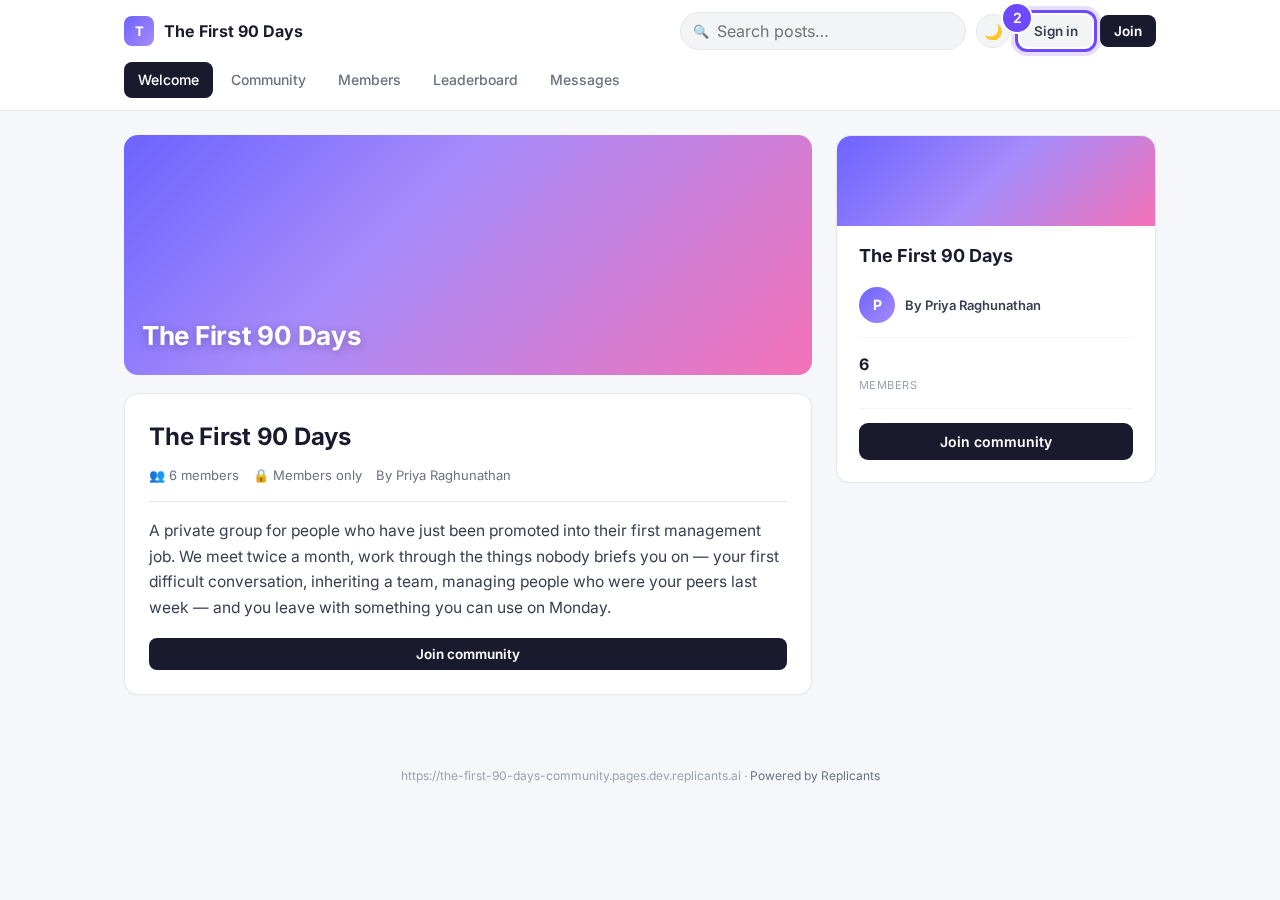
Sign in, beside Join.
Type the email you use for Replicants and press Send link
Use the same email you sign in to Replicants with. That is what makes you the host. Any other email signs you in as an ordinary member.
If your Google account uses that same email, Continue with Google works too.
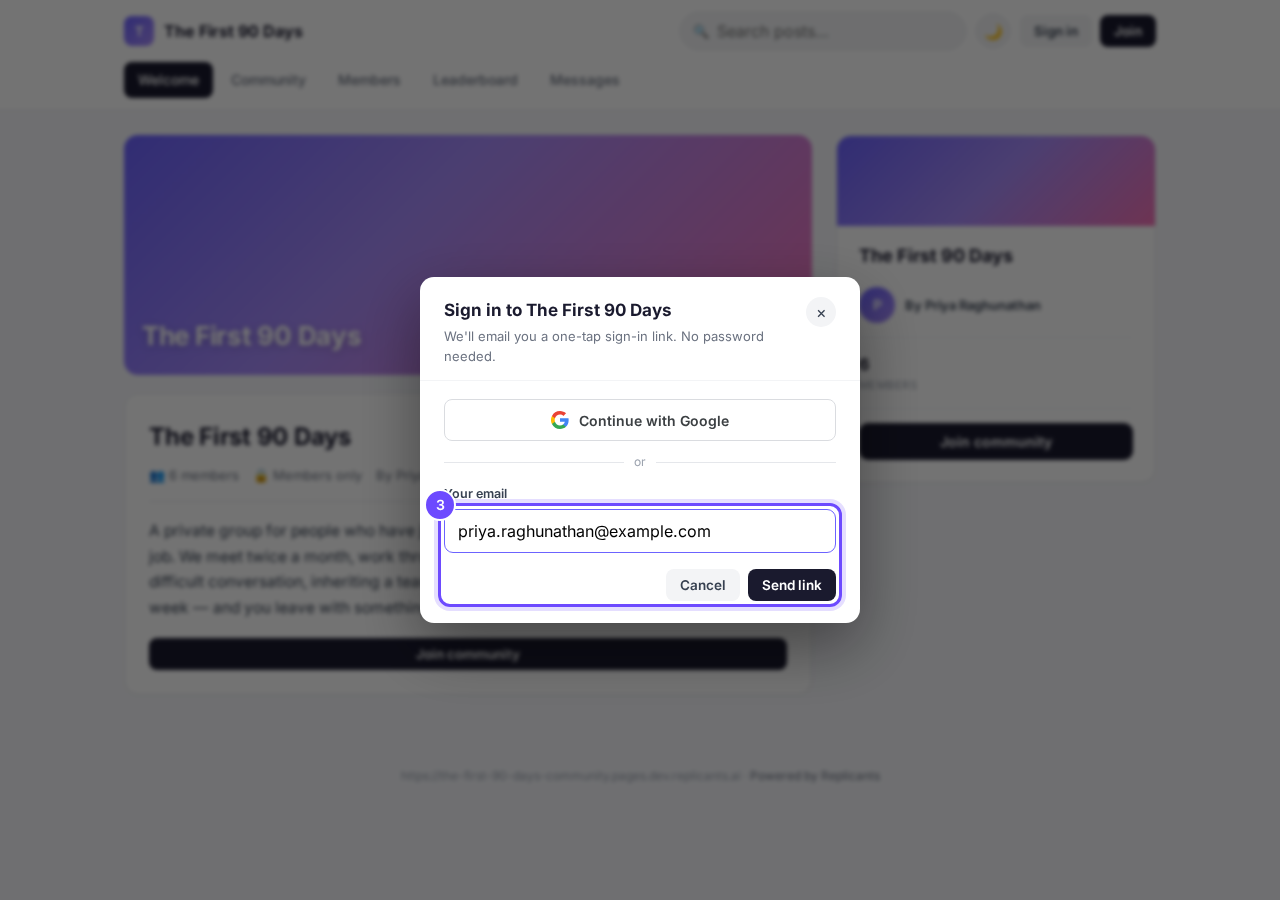
Your Replicants email, then Send link.
Open the email and press Sign in
The email is called Your (your community's name) sign-in link and usually arrives within a minute. If it is not there, look in your spam folder.
The link works once, for 30 minutes. If it has run out, go back to step 2 for a new one.
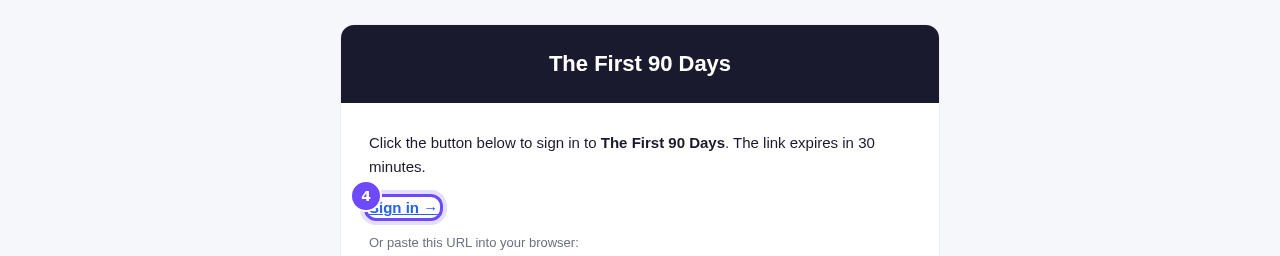
The sign-in email, with its Sign in link.
Press Sign in on the page that opens
The page says Tap the button to sign in. This one extra tap stops email security tools from using your link before you do.
Your community then opens, with you signed in.
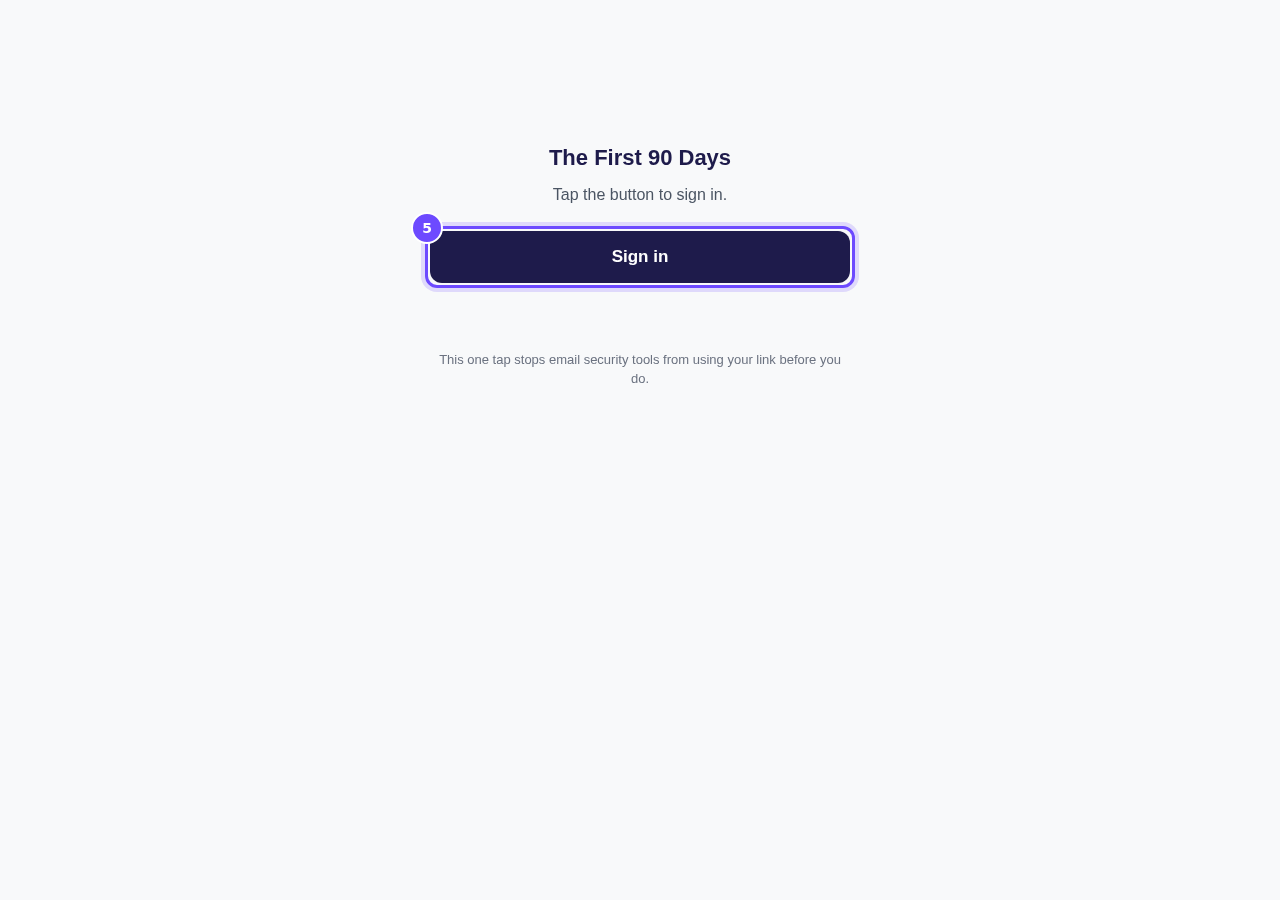
One more press, on the page the link opens.
Check that HOST shows beside your name
It is at the top right of your community, on a phone too. As the host, your posts and comments go out as you, the coach, with the Host tag.
No HOST beside your name? You signed in with a different email. Press your name, then Sign out, and sign in again with your Replicants email.
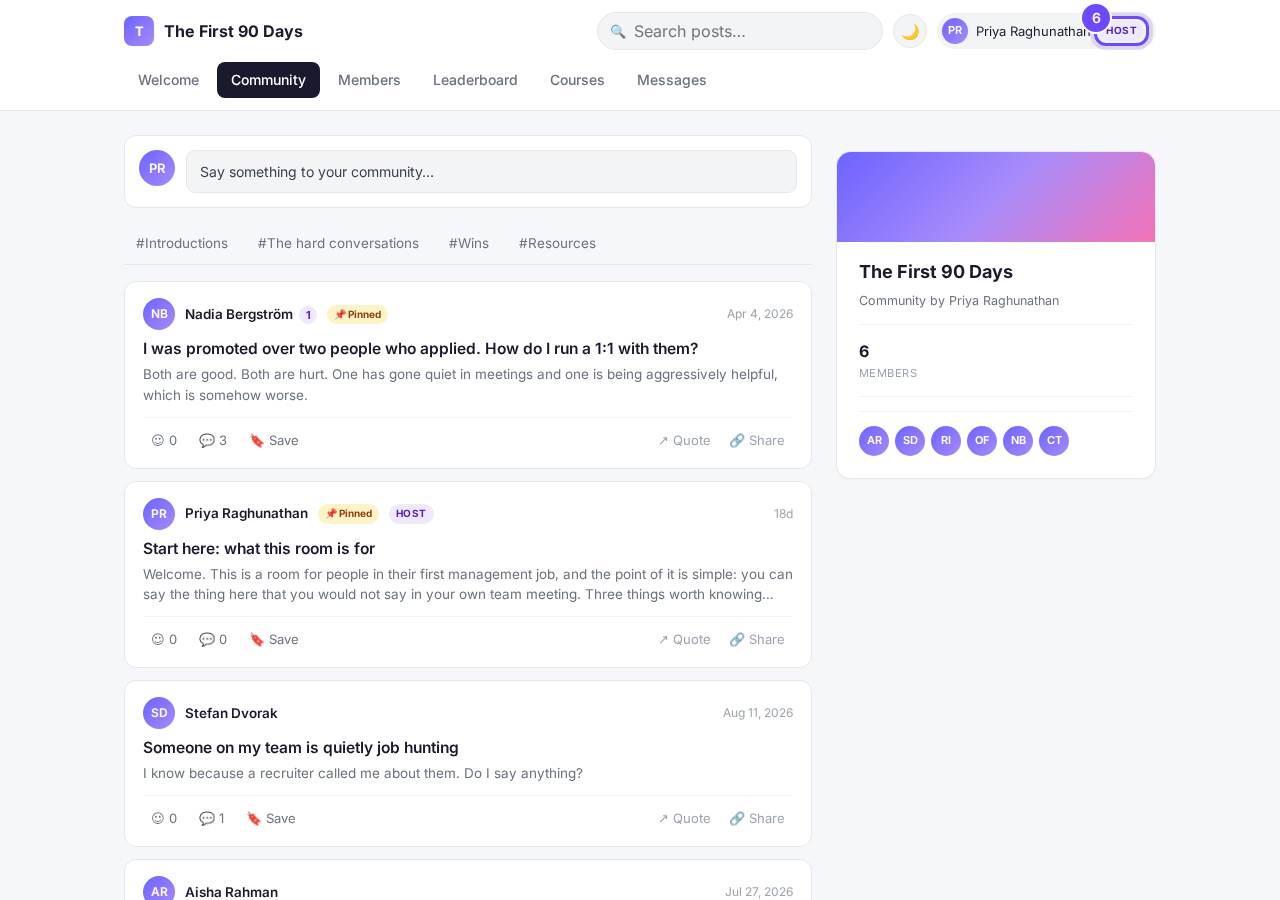
HOST, beside your name.
Press your name to switch between host and yourself
The first line, Acting as the host, is the switch. Press it and your posts, comments and messages go out as yourself instead, and the tag beside your name says MEMBER.
To go back, press your name and press that line again.
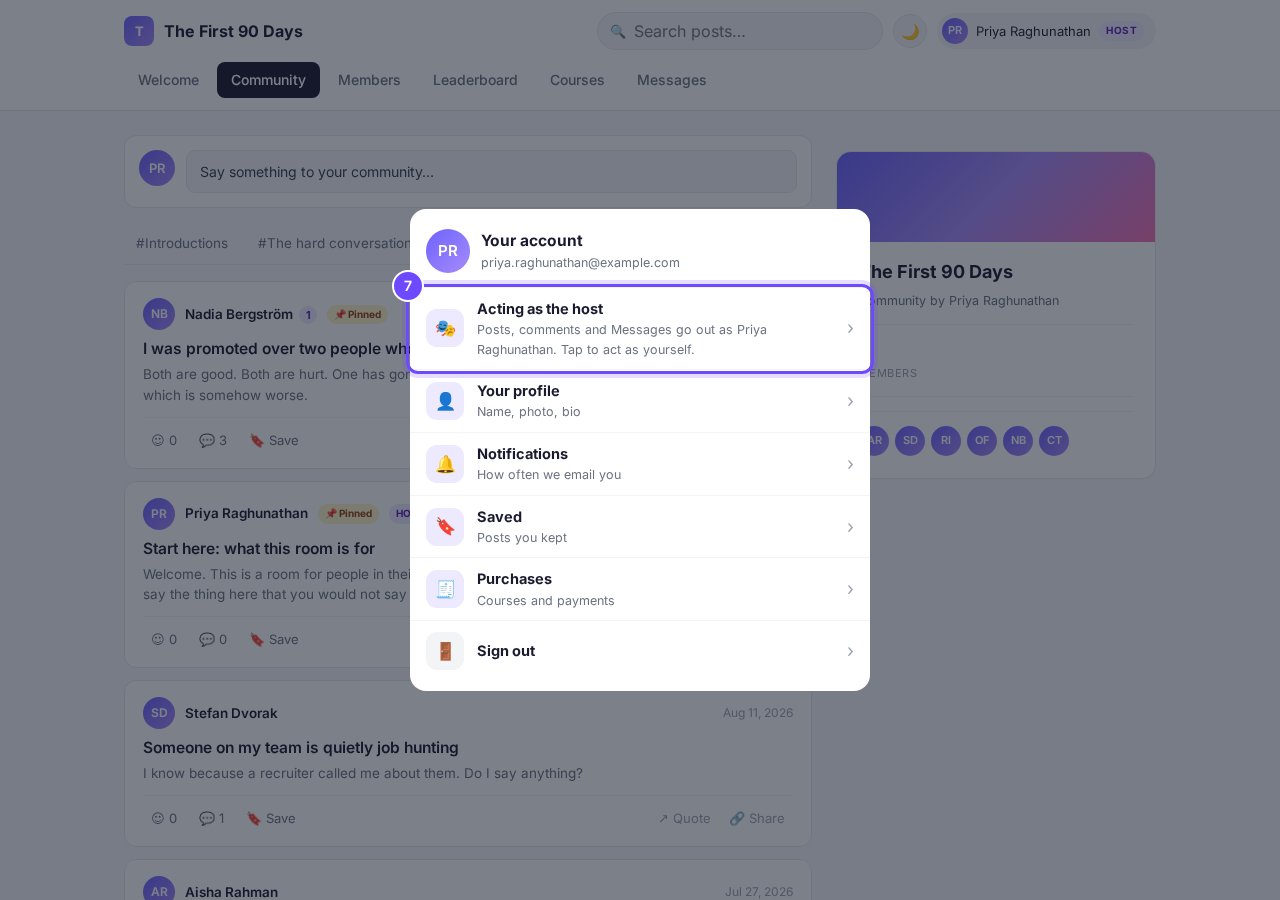
Acting as the host, the first line under your name.
Change your community's settings in the app, not on your community
Your community is where you post, reply and send messages. Its settings are in the Replicants app: Settings, at the bottom of the left menu, then Community.
On a phone, press the menu button at the top right, then Settings, then Community. How your community looks (colors, images, logo) is on Community, then Welcome.
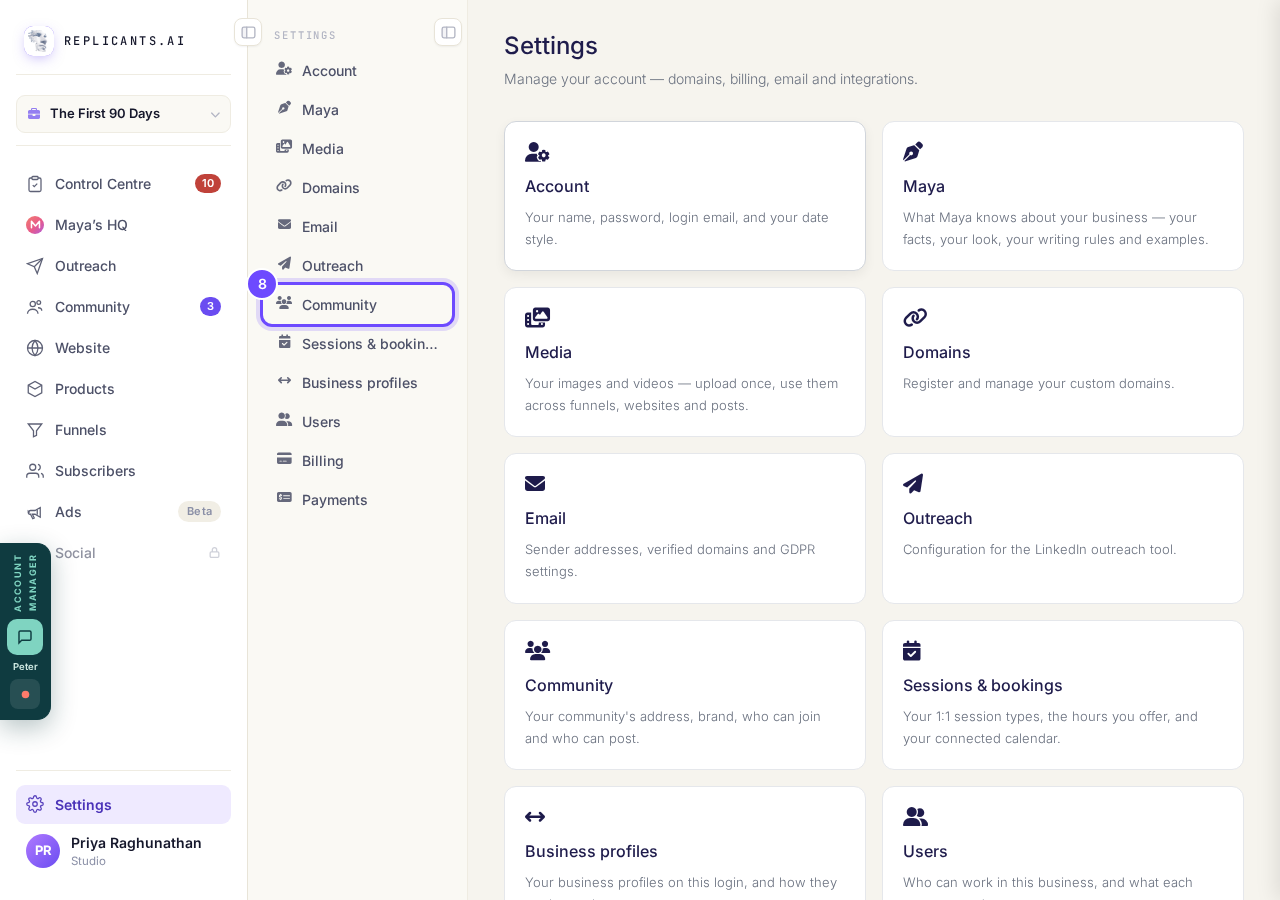
Community, in the Settings list.
Open my community settings


Where do I change how my community looks?
Related articles
Can I approve new members before they get into my community?
Yes. Switch on approval and anyone who asks to join waits in a Requests list in Members until you let them in, the way a private LinkedIn or Facebook group works. People you invite, and people who pay, still go straight in. About five minutes to set up.
Can I check comments before they go up?
Turn on comment approval and every member comment waits for you. It's a separate switch from the one for posts.
Can I keep my community hidden until I'm ready to launch?
Your community goes live once it is made and your email is confirmed, and there is no switch that takes it offline. Two settings work together instead: one keeps your posts from anyone who isn't a member, the other means nobody gets in until you let them.