
Can I approve new members before they get into my community?
Yes. Switch on approval and anyone who asks to join waits in a Requests list in Members until you let them in, the way a private LinkedIn or Facebook group works. People you invite, and people who pay, still go straight in. About five minutes to set up.
Updated 24 September 2026
Switch it on in Community settings
Press the button below and find Who can join, just under Approve posts before they go live. Choose You approve each one and press Save.
Underneath it is a second switch, People who arrive from your outreach. It covers people who come in from a LinkedIn invitation or an outreach email, and it is set separately, so you can approve one kind of arrival and not the other. An outreach arrival asks to join the first time they open your community, and they are not sent the usual outreach welcome email while they wait.
If you later switch back to Anyone while people are waiting, the screen asks: 3 people are waiting to join. Let them all in? Choose Let them in or Keep them waiting, then save.
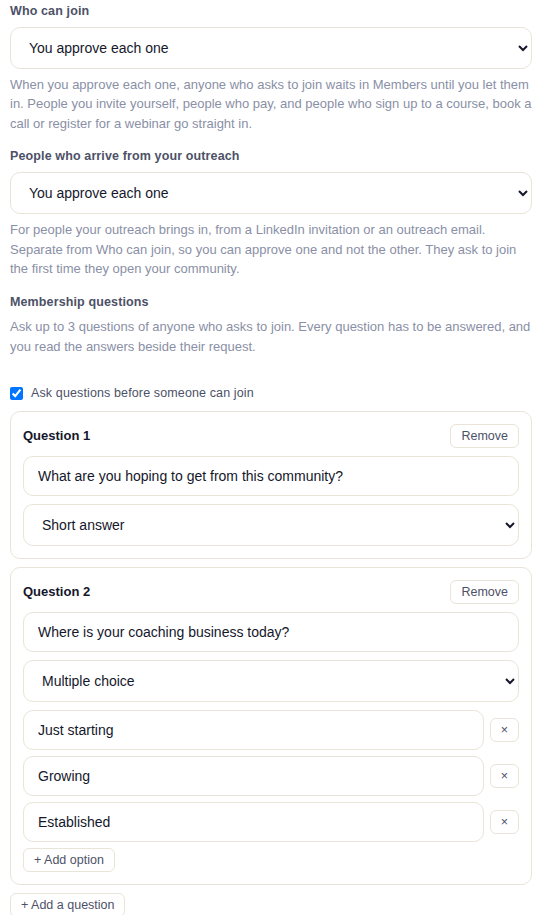
Who can join, the separate outreach switch, and the membership questions.
Open Community settingsAdd membership questions, if you want them
On the same screen, tick Ask questions before someone can join. You can ask up to three, and each one is a short answer, a multiple choice or an email address.
Every question has to be answered before the request reaches you. The person sees the questions the moment they ask to join, and you read their answers beside their request. The answers stay on their record after you let them in.
Questions are only asked of people who have to wait. On a community where anyone can join, nobody is asked.
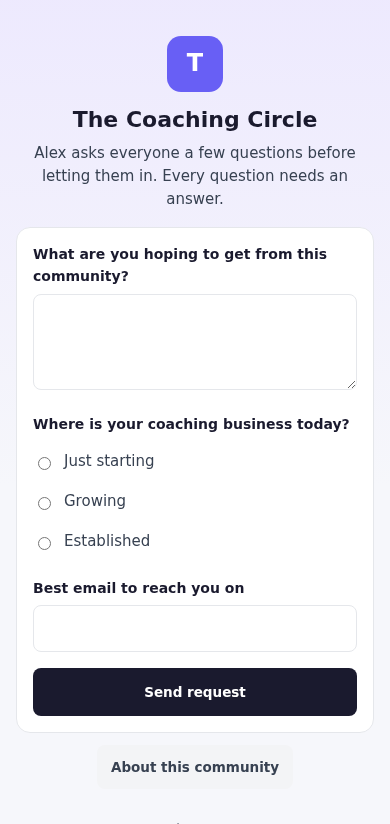
What someone asking to join sees when you ask questions.
Open Community settingsWhat the person asking sees
Once they have asked, they see a Request sent screen with your community's name: Thanks. Your name reviews every request personally. You will get an email the moment you are let in.
Nothing inside the community is visible to them until you let them in. They can open About this community, and they can sign out. Signing in again shows the same screen.
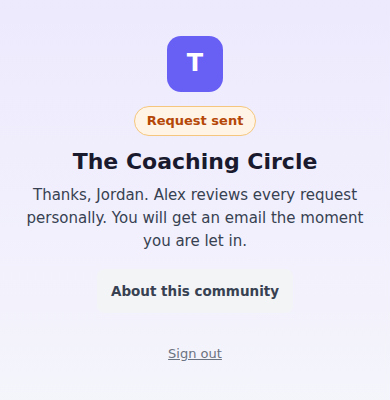
Request sent, until you let them in.
Let people in, or turn them away
You will know someone is waiting in three places: a number beside Members in your community menu, a line on the Needs you card in Control Centre, and an email saying someone is asking to join. The email comes at most once an hour, however many people ask.
In your community, open Members. The Requests card sits at the top, oldest first, and only appears when someone is waiting. Each request shows who they are, how they arrived and when they asked. Clicking a name opens their details and their answers.
Press Let in or Turn away on each one, or tick several and do them together. You have five seconds to press Undo.
Let in makes them a member straight away, and that counts as the day they joined, so anything you have set to happen when someone joins your community happens then.
Turn away is silent. Nobody is told, and they keep seeing Request sent. After 30 days they can ask again and they come back into your Requests. If by then you no longer approve new members, they simply come in.
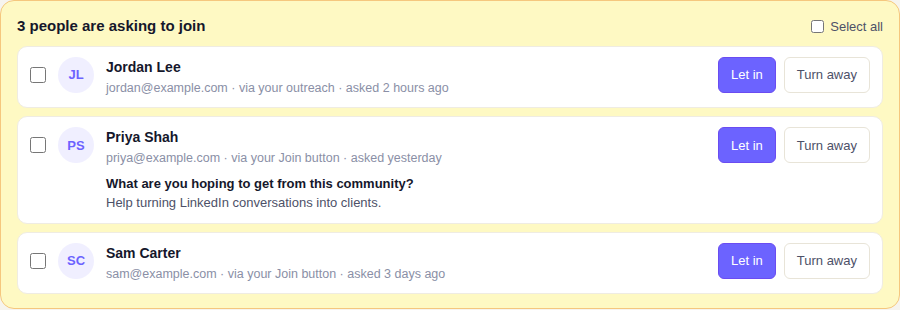
The Requests card at the top of Members.
Check the email they get when you let them in
The moment you press Let in, the person gets a You're in email with a button that signs them straight in.
Open Automated emails, the screen headed Emails & DMs, and choose the You're in tab. It only appears while approval is on. It starts with standard wording you can use as it is, or change. You can use their first name, your community's name and the sign-in button, and if you leave the button out it is added for you. Reset to standard wording puts the original back.
To stop it being sent at all, switch off You're in on the Automated emails tab of the same screen.
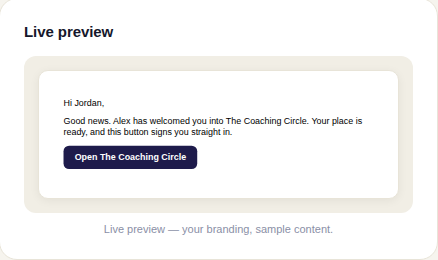
The You're in email, as the person receives it.
Open Automated emails
Only people who arrive on their own ever wait: someone who presses Join, signs in with Google, or asks for a sign-in link. With the outreach switch on, people your outreach brings in wait too.
These always go straight in, whatever the switches say: people you invite, import or add to a game yourself, anyone who pays or buys a course, free course signups, people who book a call, form signups and webinar registrations. If somebody is already waiting and then does one of these, they are let in.
Approval works on free communities. If you charge for membership in any way, including Free with a paid tier, paying is the approval and nobody is held.
Can I check comments before they go up?
Related articles
Can I check comments before they go up?
Turn on comment approval and every member comment waits for you. It's a separate switch from the one for posts.
Can I message one member privately, and can members message each other?
Message one member from Community, then Members. Their reply comes back to that screen, not your email. Members messaging each other is a separate setting.
Can I read what members post before it goes up?
Yes — one setting. Off, member posts appear at once. On, nothing appears until you've read it. The waiting ones don't sit in the Feed.