
Can I keep my community hidden until I'm ready to launch?
Your community is live from the moment it is made, and there is no switch that takes it offline. Two settings work together instead: one keeps your posts from anyone who isn't a member, the other means nobody gets in until you let them.
Updated 25 September 2026
Open Settings, then Community
Settings is at the bottom of the main menu (on a phone, tap the three lines at the top right first). Press the Community tile. This one screen holds your link, who can read your posts and who can join.
Open Community settingsUnder Who can read the feed, choose Members only
Press Members only — sign-in required. It saves the moment you press it and says Visibility saved, so press carefully: Public — anyone can read saves just as fast.
Someone who follows your link now has to sign in before they see a single post. Your Welcome page stays public whatever you choose (the screen calls it About), so a visitor still sees your community's name and description.
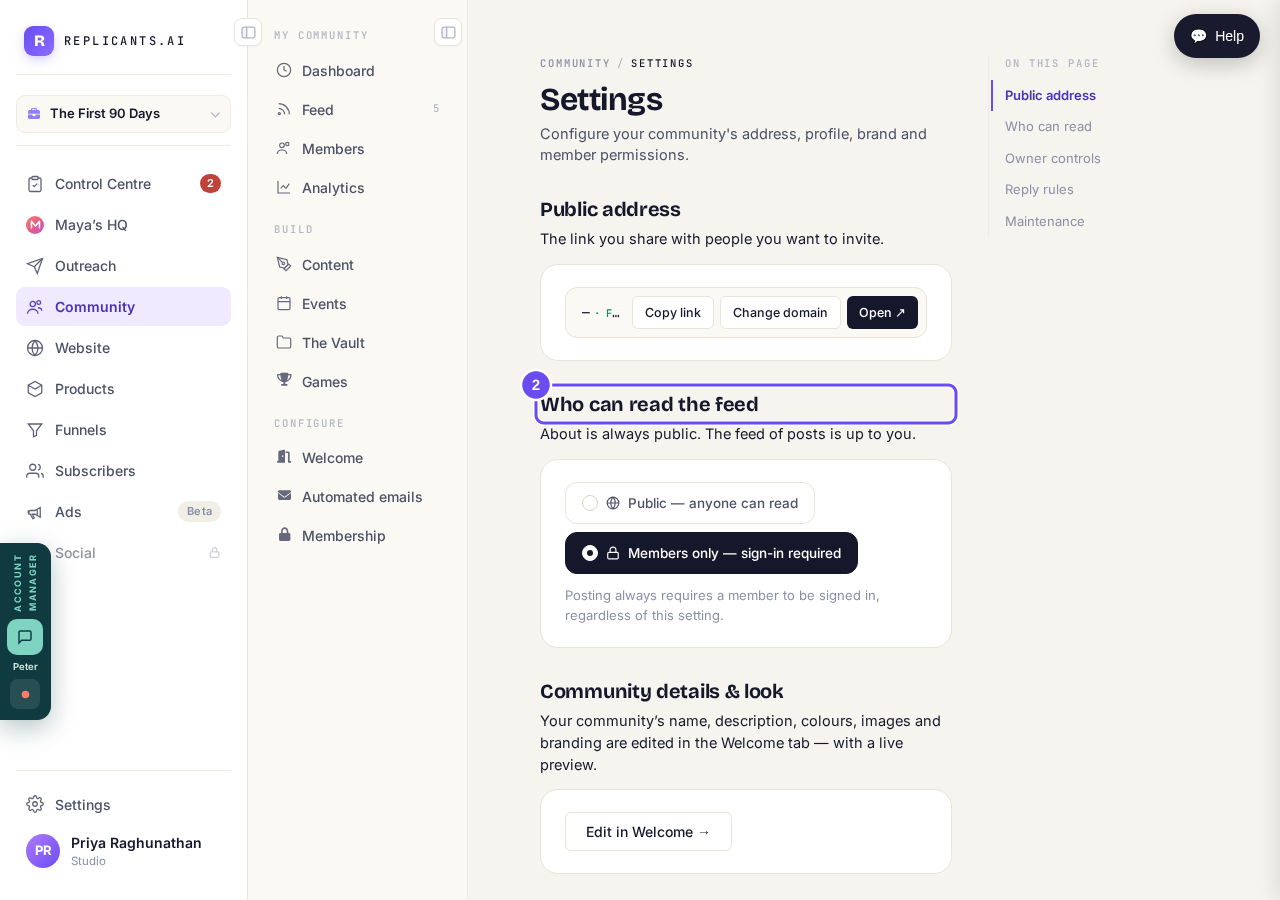
Members only: a visitor sees your Welcome page and nothing else.
Under Who can join, choose You approve each one
It is further down the same screen, under Posting & content. Choose You approve each one, then scroll to the bar at the bottom and press Save settings. It is not saved until you do, and you will see the word Saved once it is.
Now anyone who presses Join community waits in Members until you let them in. People you invite yourself, people who pay, and people who sign up to a course, book a call or register for a webinar still go straight in.
If you use Outreach, the setting just below, People who arrive from your outreach, is separate. Choose You approve each one there too.
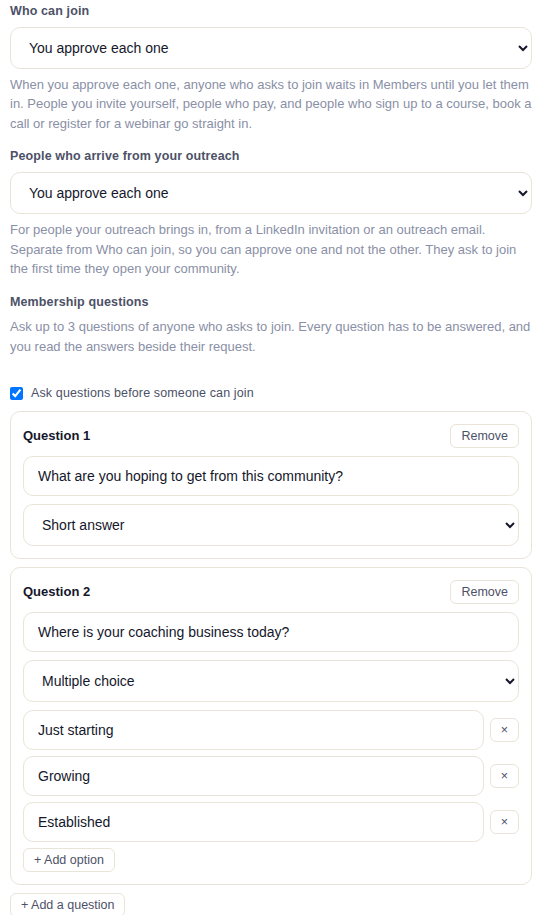
Who can join: You approve each one. The outreach setting and the questions below it are optional.
Take me thereGet your Welcome page ready
It is the one thing a visitor always sees: the first tab when they open your link. It is made from your community's name and description on the Welcome page, in the Community menu. Make it read the way you want before you share anything.
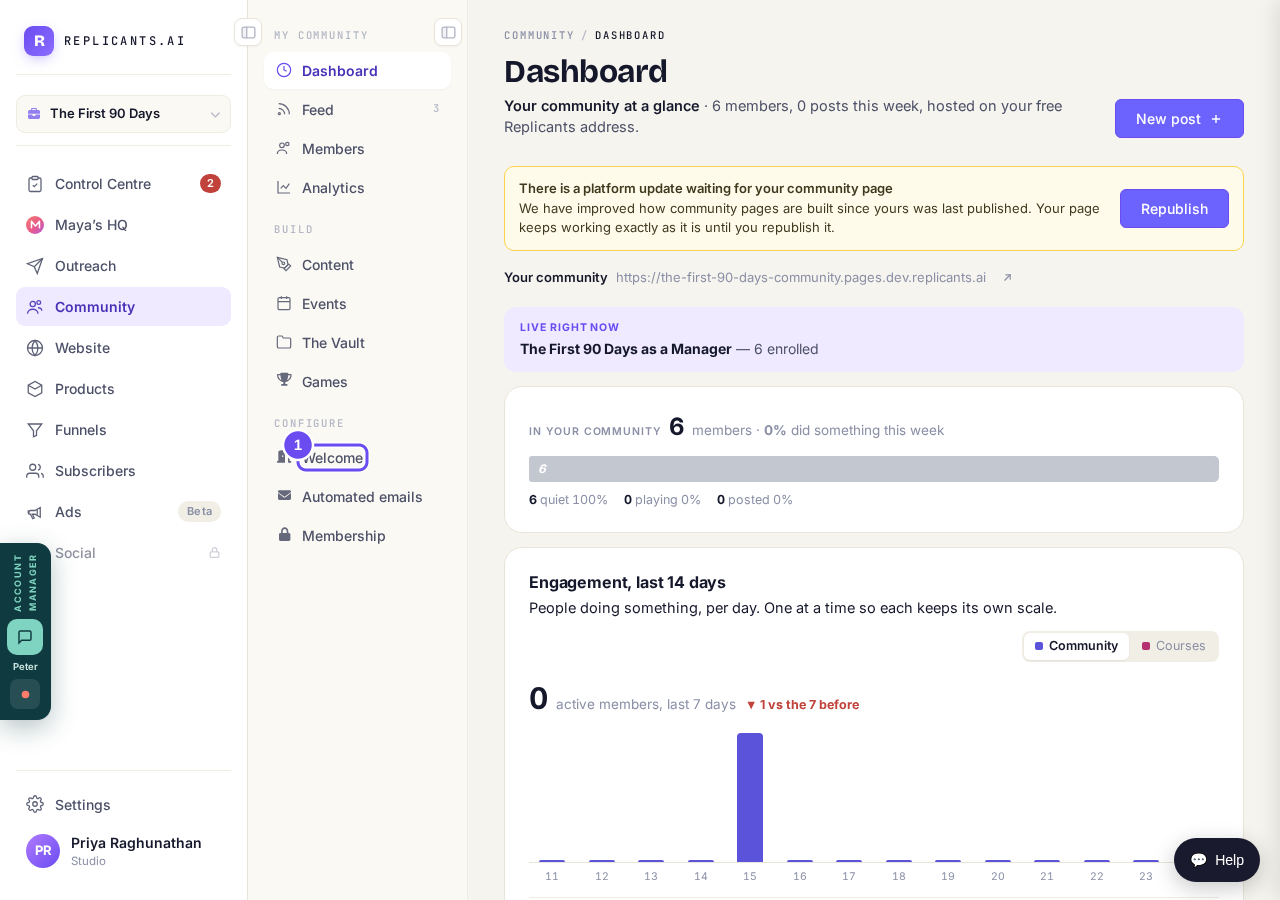
Welcome, in the Community menu, is the page every visitor sees first.
On launch day, open it up and share your link
Come back to the same screen. Choose Public — anyone can read if you want strangers to read your posts, and choose Anyone under Who can join if you want people to join without waiting, then press Save settings. Press Copy link at the top of the screen and send it: the address itself may be too long to read on a small screen.
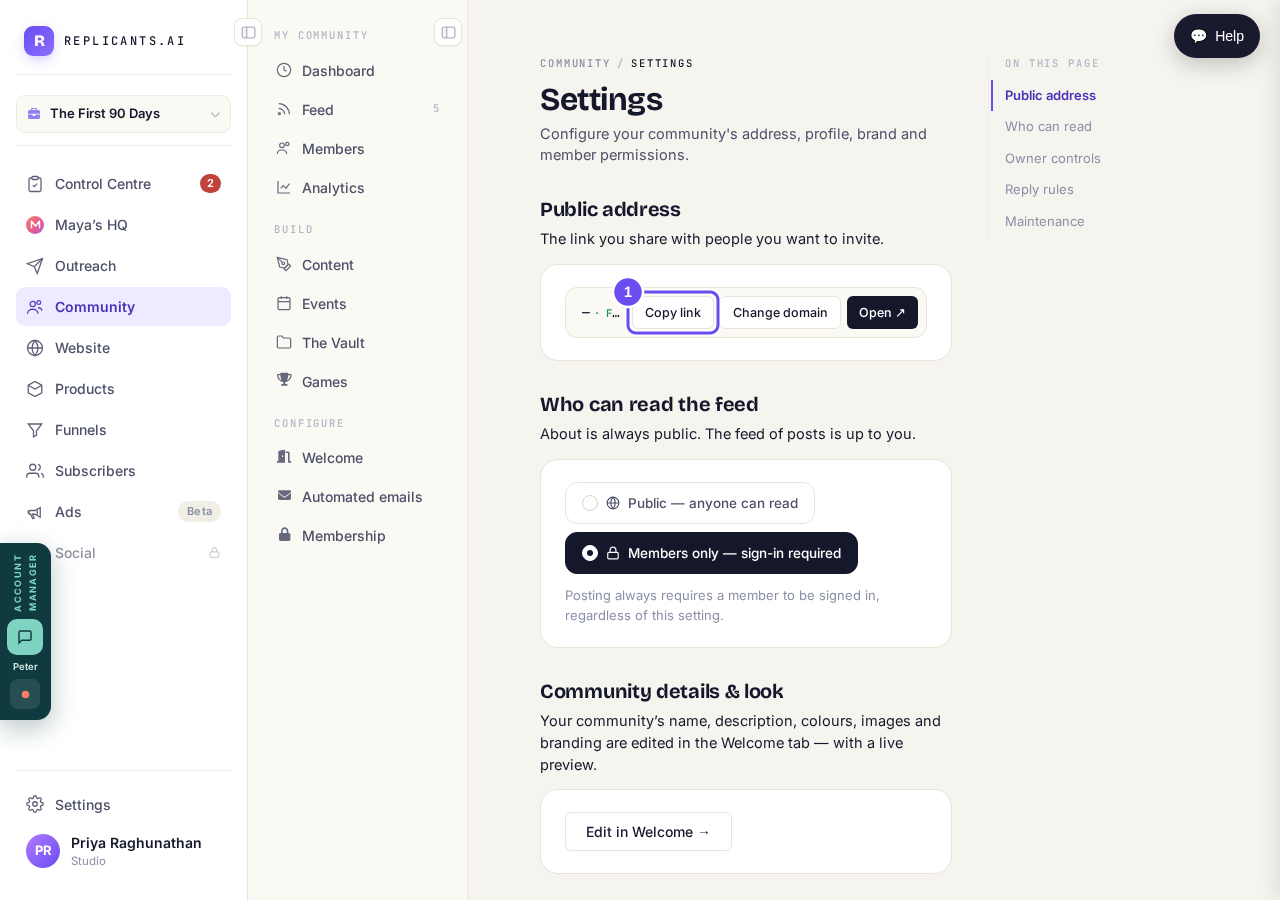
Copy link is at the top of the same screen.
Take me there
Where is my community link, and how do I share it?
Related articles
Can I approve new members before they get into my community?
Yes. Switch on approval and anyone who asks to join waits in a Requests list in Members until you let them in, the way a private LinkedIn or Facebook group works. People you invite, and people who pay, still go straight in. About five minutes to set up.
Can I check comments before they go up?
Turn on comment approval and every member comment waits for you. It's a separate switch from the one for posts.
Can I message one member privately, and can members message each other?
Message one member from Community, then Members. Their reply comes back to that screen, not your email. Members messaging each other is a separate setting.