
Where do I change how my community looks?
The look lives on a screen called Welcome, and there are two separate things to change: your colour, and the big picture across the top. Colour first, because it is what most people mean.
Updated 17 September 2026
Open my community
Open the Branding tab and set your colour
The row above the editor holds seven tabs and only the first four fit. Press the tab you want and the row brings it into view; Branding is the last one.
Accent colour takes a hex code, the six characters after a hash that name an exact colour. If you do not have one, use one of the six swatches beside the box.
One thing worth knowing before you type: the box shows a faded code when it is empty. That is an example, not your setting. If the code is grey it is not set.
Press Save branding. The confirmation is small and easy to miss, so check the result rather than the button.
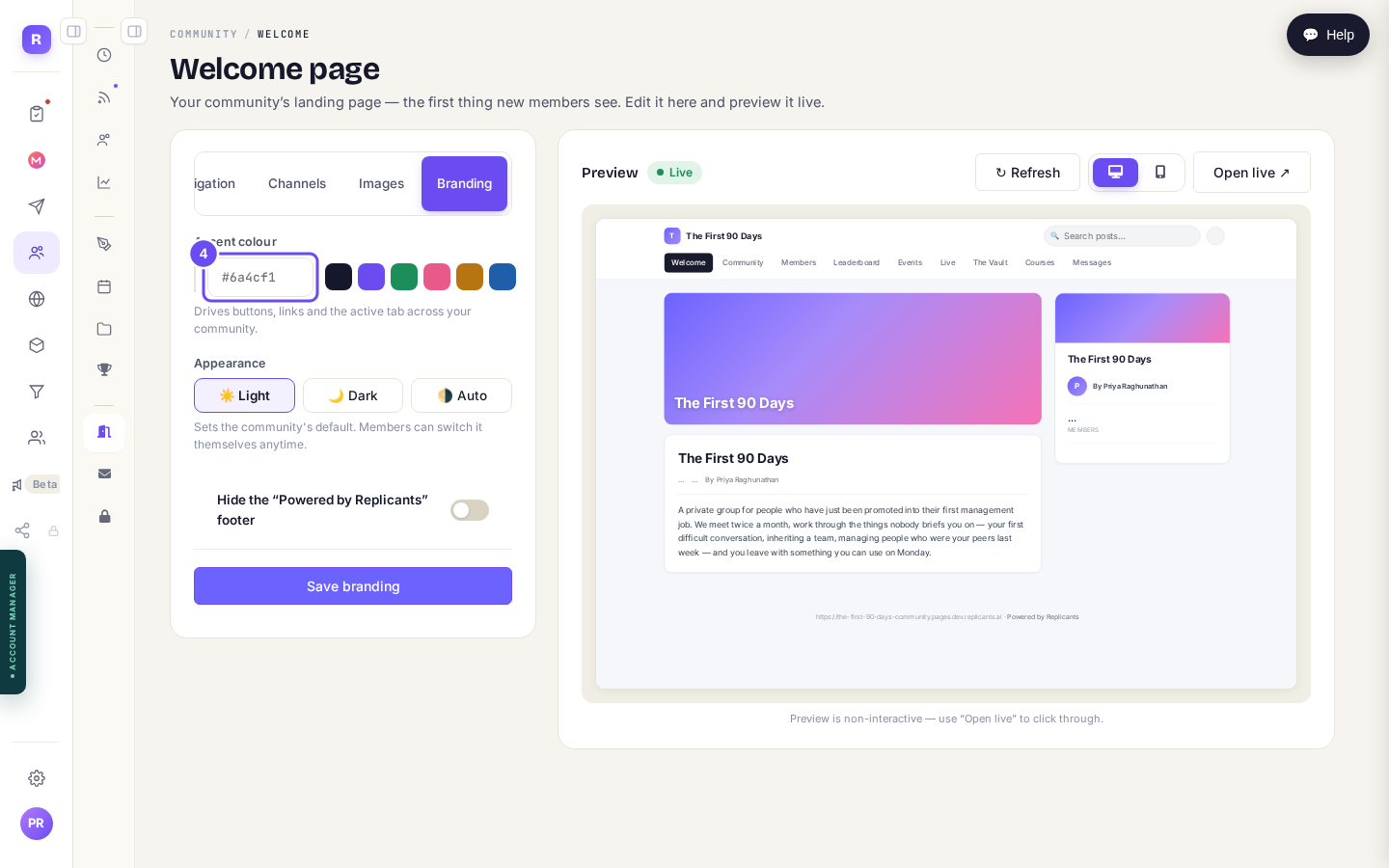
A hex code or a swatch. Buttons, links and tabs, not the banner.
Open my communityReplace the banner, on the Images tab
Your colour does not touch the banner, so if the purple and pink gradient is still bothering you, this is the separate job.
The first control is Cover image. Press Choose or upload and you get a Media Library with a Stock Photos tab: a search box and buttons for Coaching, Consulting, Entrepreneur, Headshots and more. Search for a subject rather than a colour, because searching for a colour returns whatever happens to be that colour.
Pick one and it applies straight away. There is no separate save for the cover; the Save gallery button lower down belongs to the Hero gallery under it.
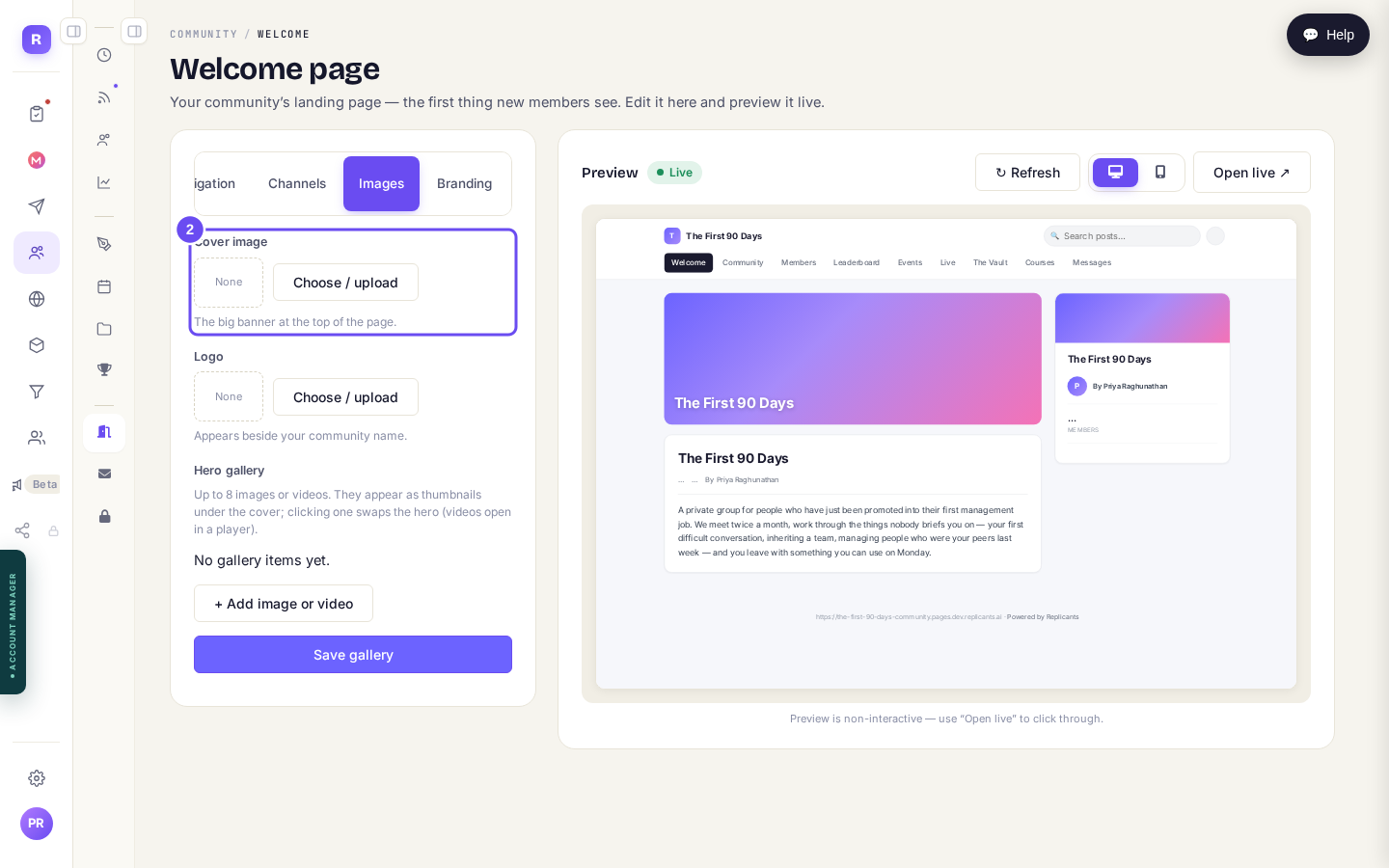
Cover image is the banner. It takes a picture, never a colour.
Your logo, and the circle with your initial
Under the cover is Logo, which appears beside your community name. Under that is Hero gallery: up to 8 images or videos shown as thumbnails, and that one does need Save gallery.
The round mark carrying your initial is on the Your profile tab instead, and it is the last purple thing most people are left with. It is not a colour you can change; it is a picture you have not added yet. There are three ways to add one: Upload, Camera, or Generate, which offers a set of drawn avatars if you have no photograph to hand.
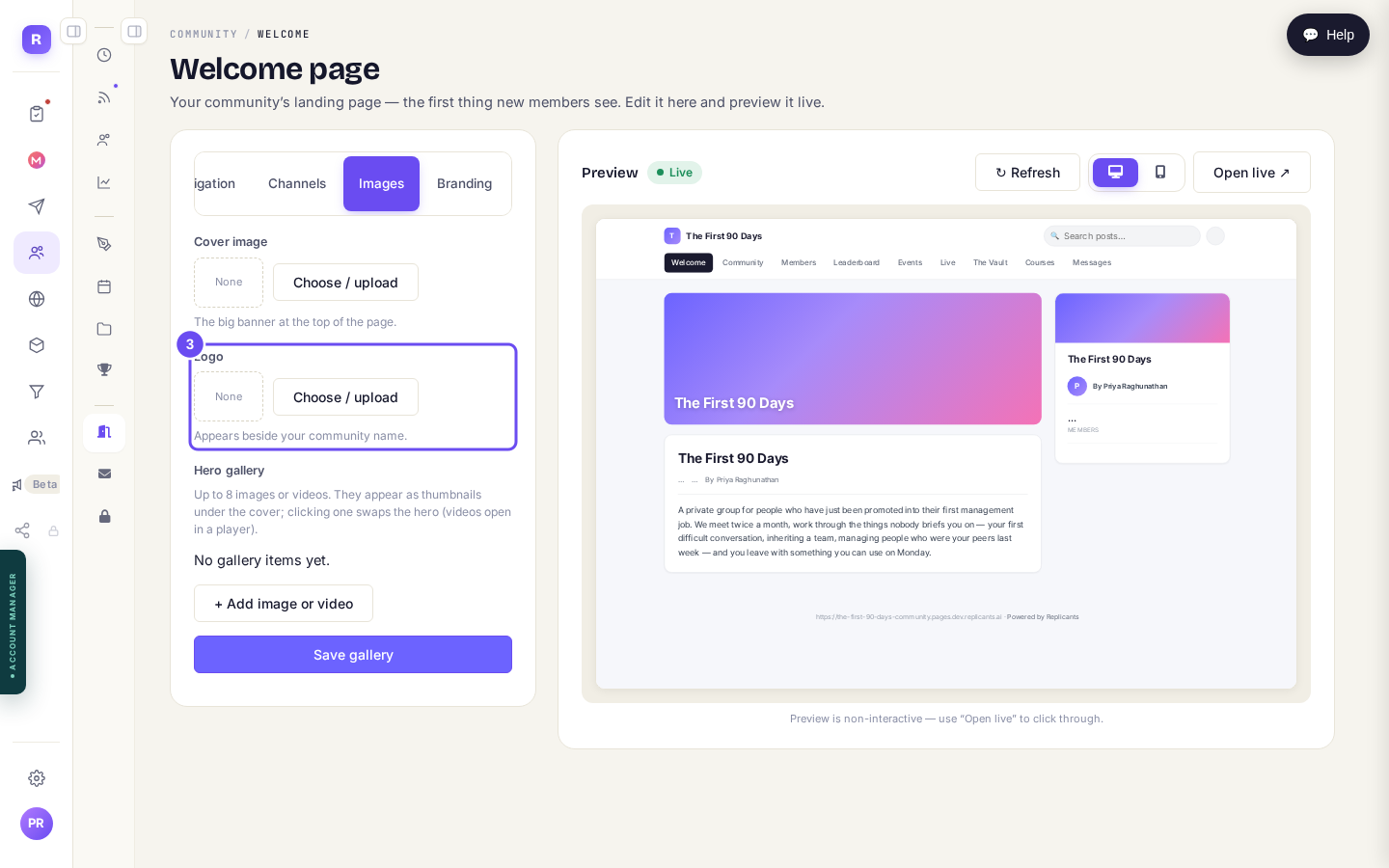
Logo above, Hero gallery below.
Check it on the real page
Press Open live, above the preview. That opens your community the way a member sees it.
The small preview beside the editor is useful, but it has been seen showing a change before it was saved and showing the old version for a while after a save, so it is worth confirming on the real page.
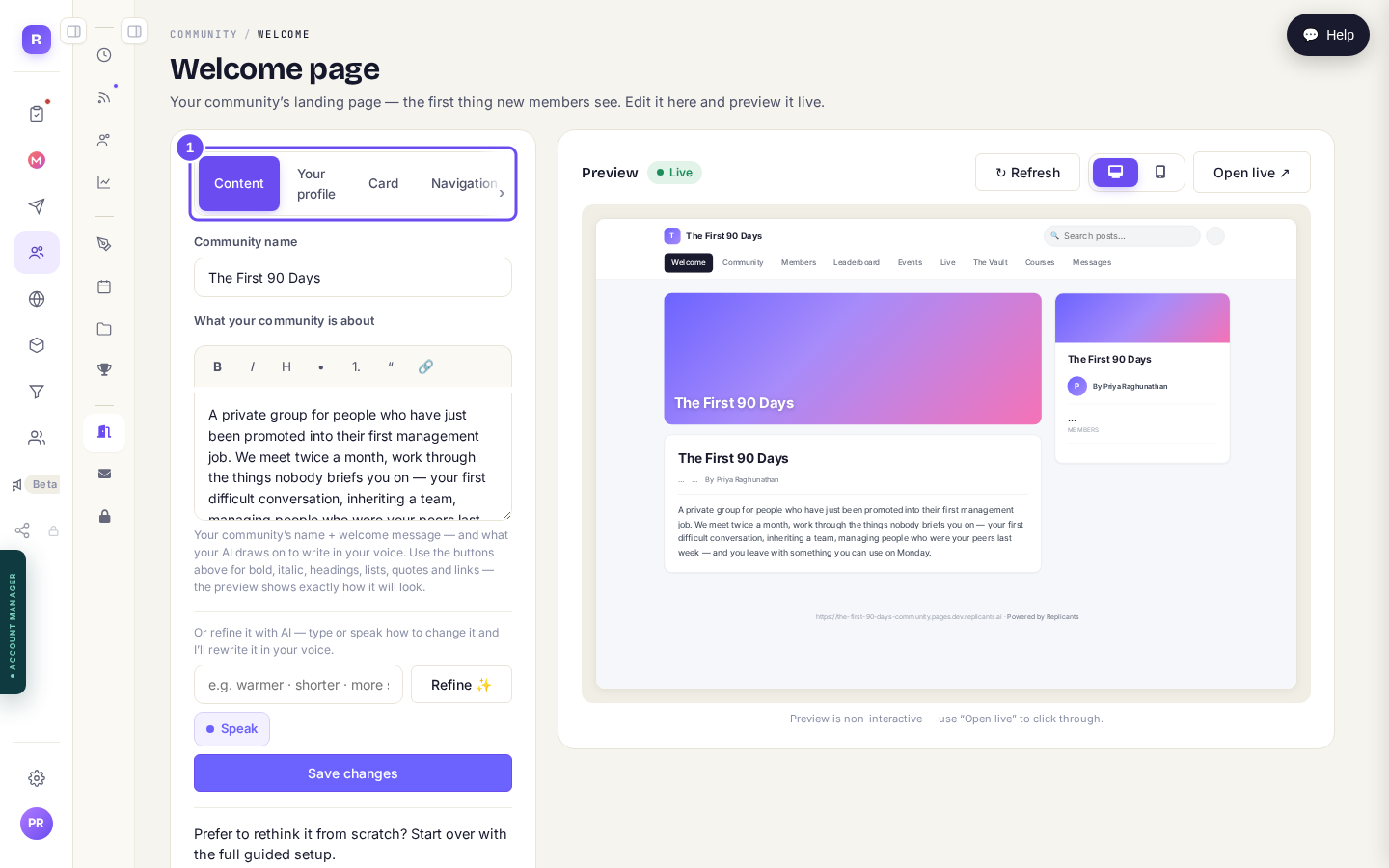
The tab row, and the preview and Open live beside it.
The banner has to be a picture. If your brand is a flat colour and you want the top of your community to be that colour, there is no setting for it: the nearest you can get is a graphic in that colour, which you would have to make and upload yourself.
One colour, a few images, and a light or dark default is the whole of what this screen changes. It is not a page builder, so you cannot move sections around or change the fonts. The community shell stays the same everywhere so members always know where they are.
Related articles
Can I check comments before they go up?
Turn on comment approval and every member comment waits for you. It's a separate switch from the one for posts.
Can I message one member privately, and can members message each other?
Message one member from Community, then Members. Their reply comes back to that screen, not your email. Members messaging each other is a separate setting.
Can I read what members post before it goes up?
Yes — one setting. Off, member posts appear at once. On, nothing appears until you've read it. The waiting ones don't sit in the Feed.