
How do I switch my community to dark mode?
Your community can open in light, in dark, or follow each member's device. About a minute.
Updated 6 October 2026
Open Community, then Welcome
Welcome is under the grey CONFIGURE heading. On a phone, press the menu button at the top right first.
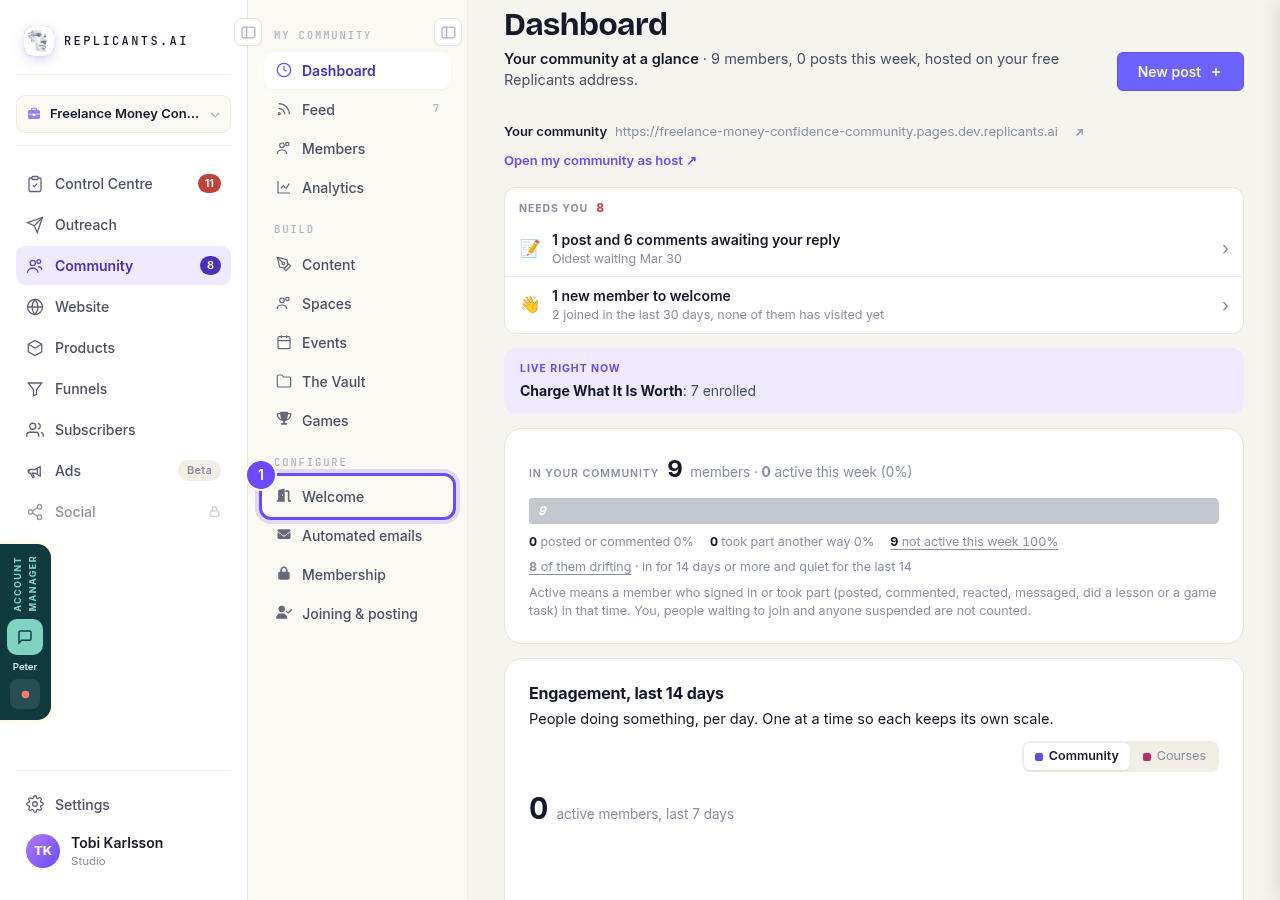
Welcome, under Configure.
Open my communityPress Branding
It is along the top of the Welcome page, after Images.
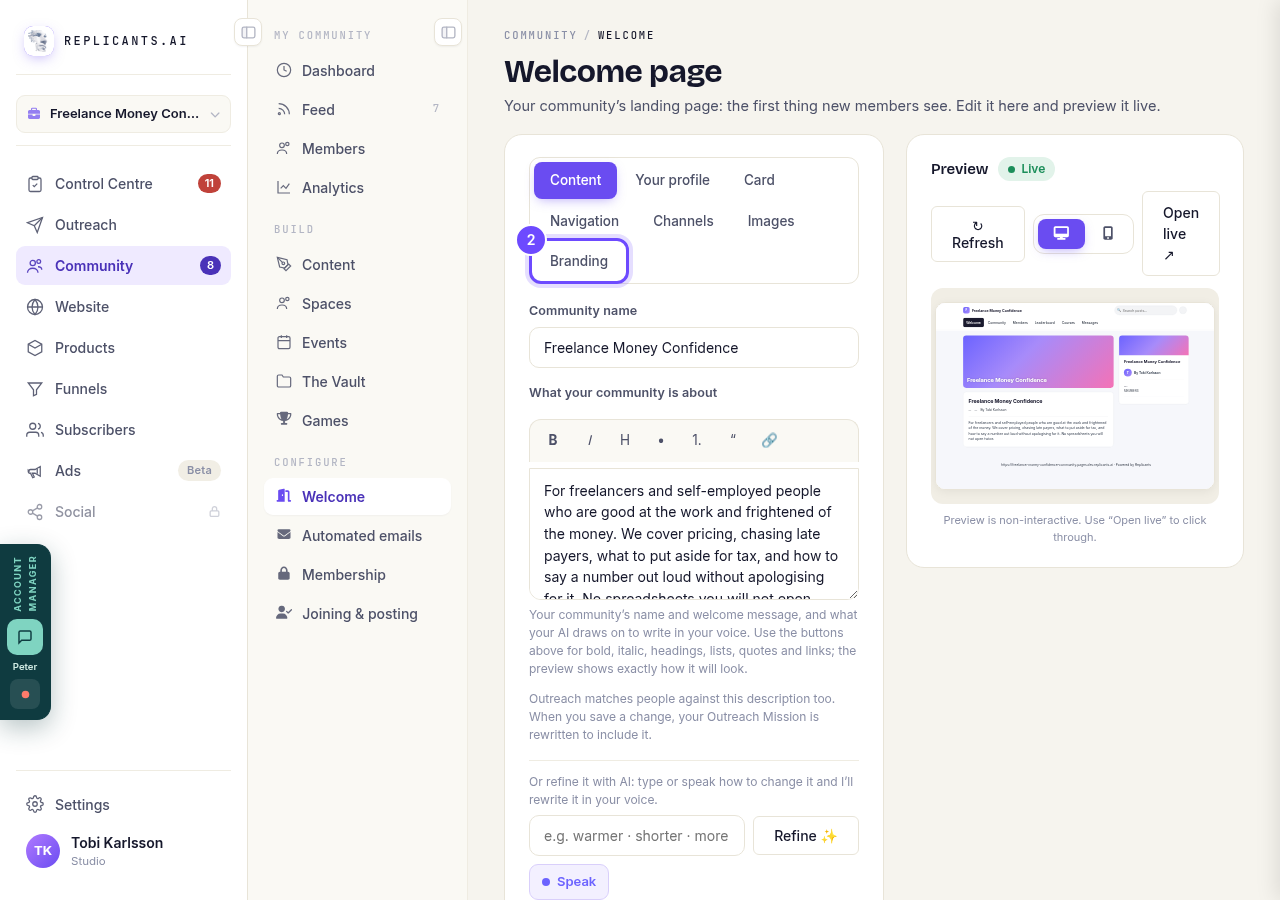
Branding, along the top.
Choose Light, Dark or Auto under Appearance
Light, Dark, or Auto, which follows each member's own phone or computer setting.
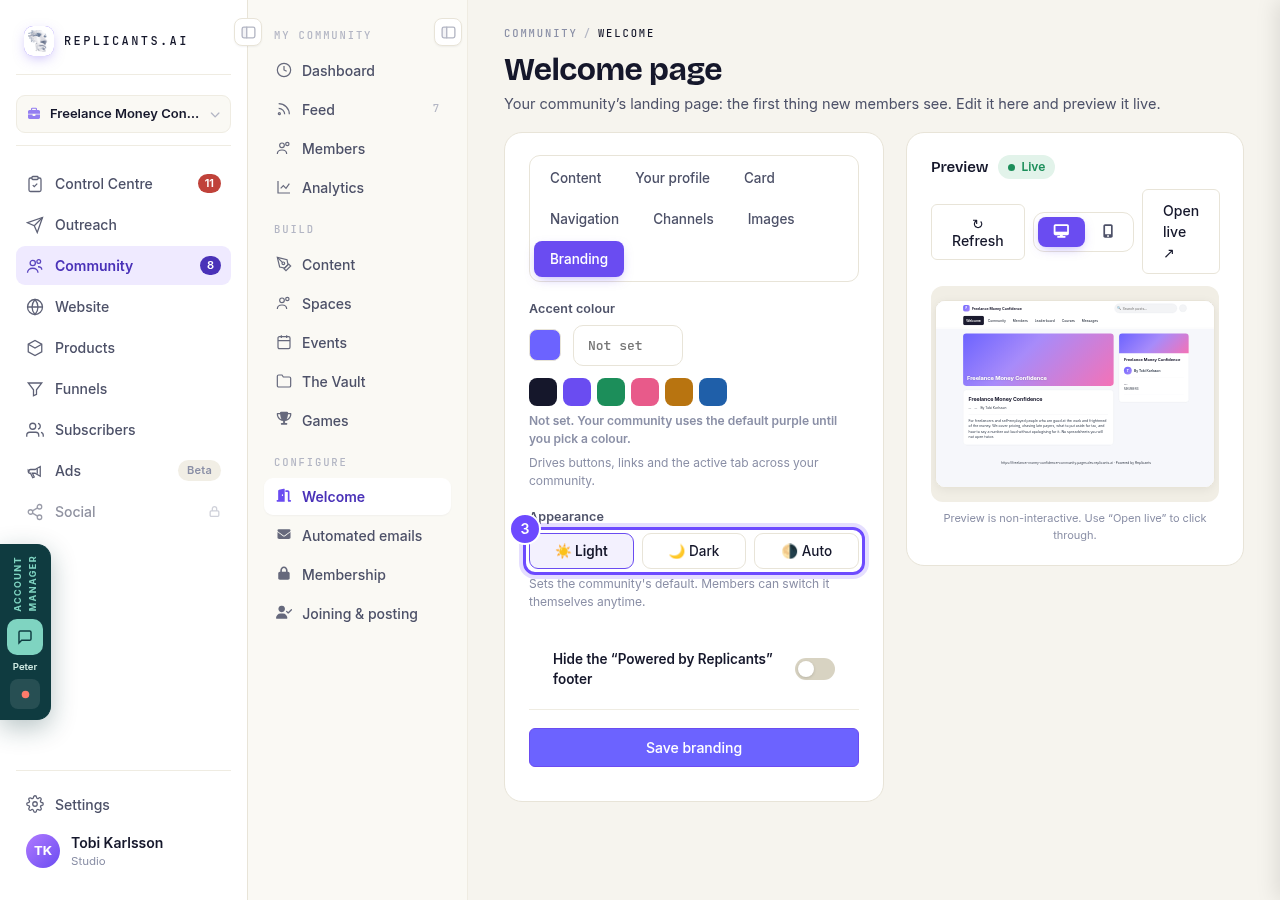
Appearance: Light, Dark and Auto.
Press Save branding
It is at the bottom of Branding. Members can still switch the look themselves with the moon or sun at the top of your community.
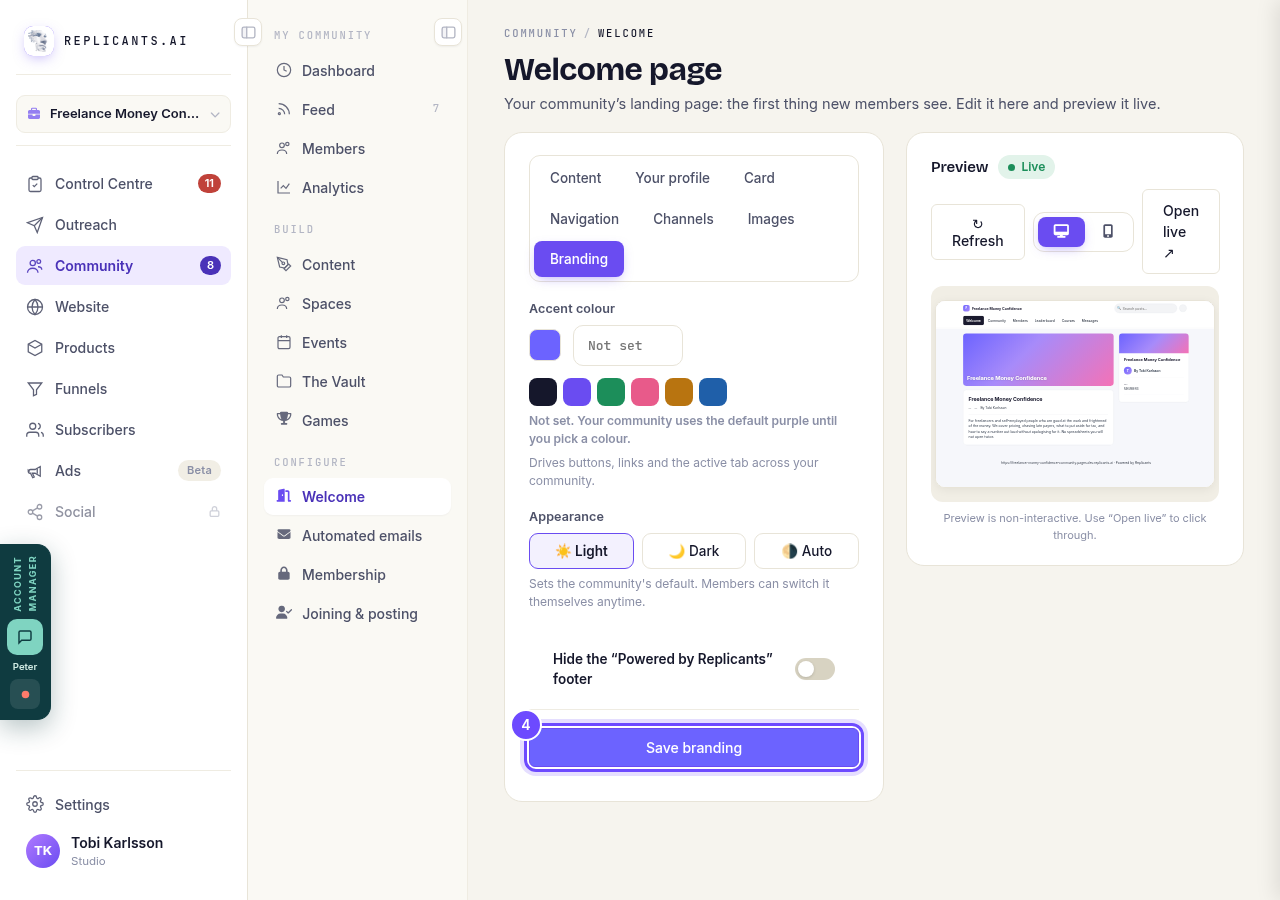
Save branding, at the bottom.


Related articles
Can I approve new members before they get into my community?
Yes. Switch on approval and anyone who asks to join waits in a Requests list in Members until you let them in, the way a private LinkedIn or Facebook group works. People you invite, and people who pay, still go straight in. About five minutes to set up.
Can I check comments before they go up?
Turn on comment approval and every member comment waits for you. It's a separate switch from the one for posts.
Can I keep my community hidden until I'm ready to launch?
Your community goes live once it is made and your email is confirmed, and there is no switch that takes it offline. Two settings work together instead: one keeps your posts from anyone who isn't a member, the other means nobody gets in until you let them.