
How do I post in my community as the host or as myself?
Sign in to your community with your own email and you're the host. One switch decides whether you post as the host or as yourself.
Updated 27 September 2026
Sign in with your own email
Open your community, press Sign in and type the email you use for Replicants. Press Send link, then tap the link in the email.
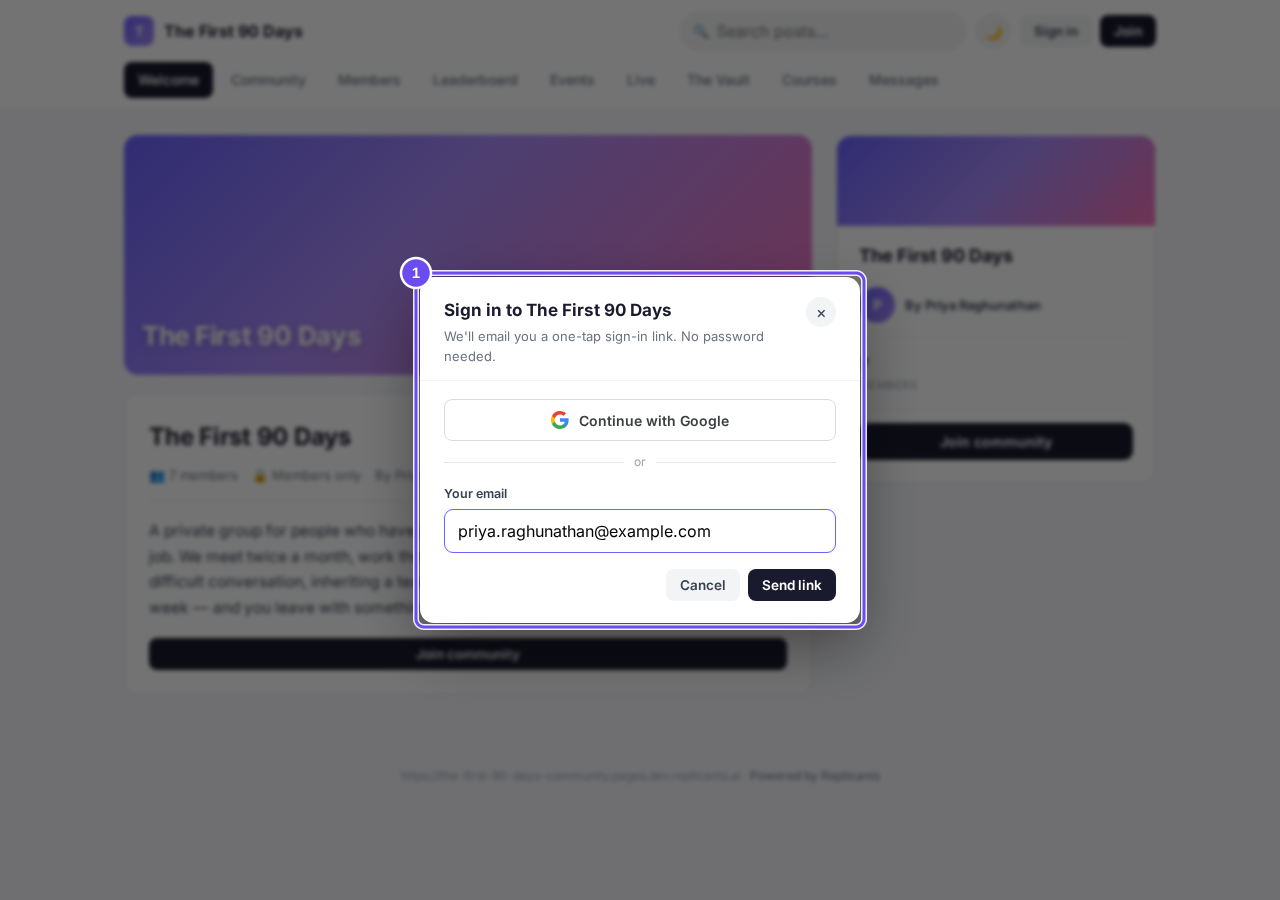
Sign in, with the email you use for Replicants.
Check you're the host
The first time, type the name members should see and press Save. Your name then shows at the top.
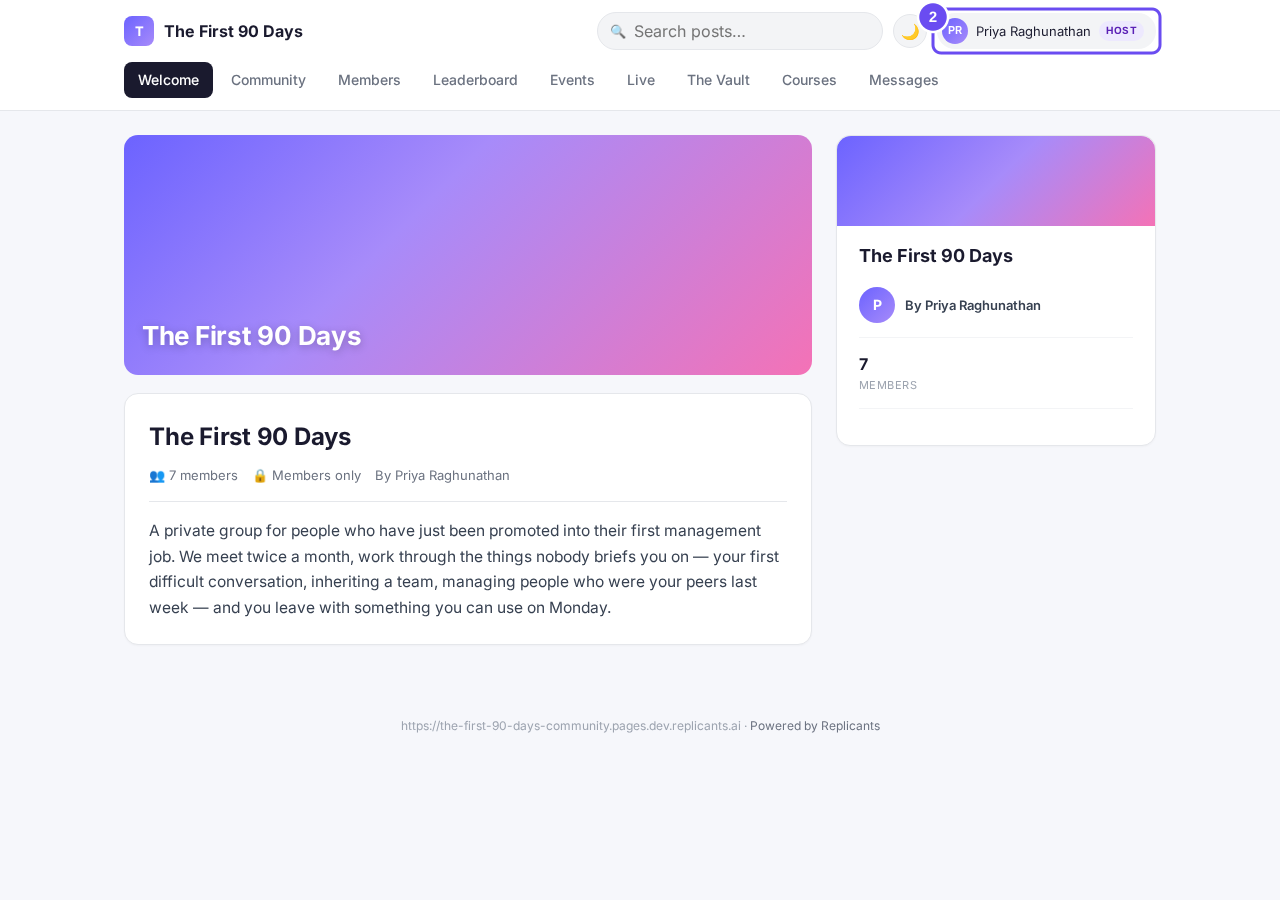
Your name at the top. On a laptop it's marked Host.
Start a post
Open Community and press Say something to your community. It says Posting as, then your name and (Host).
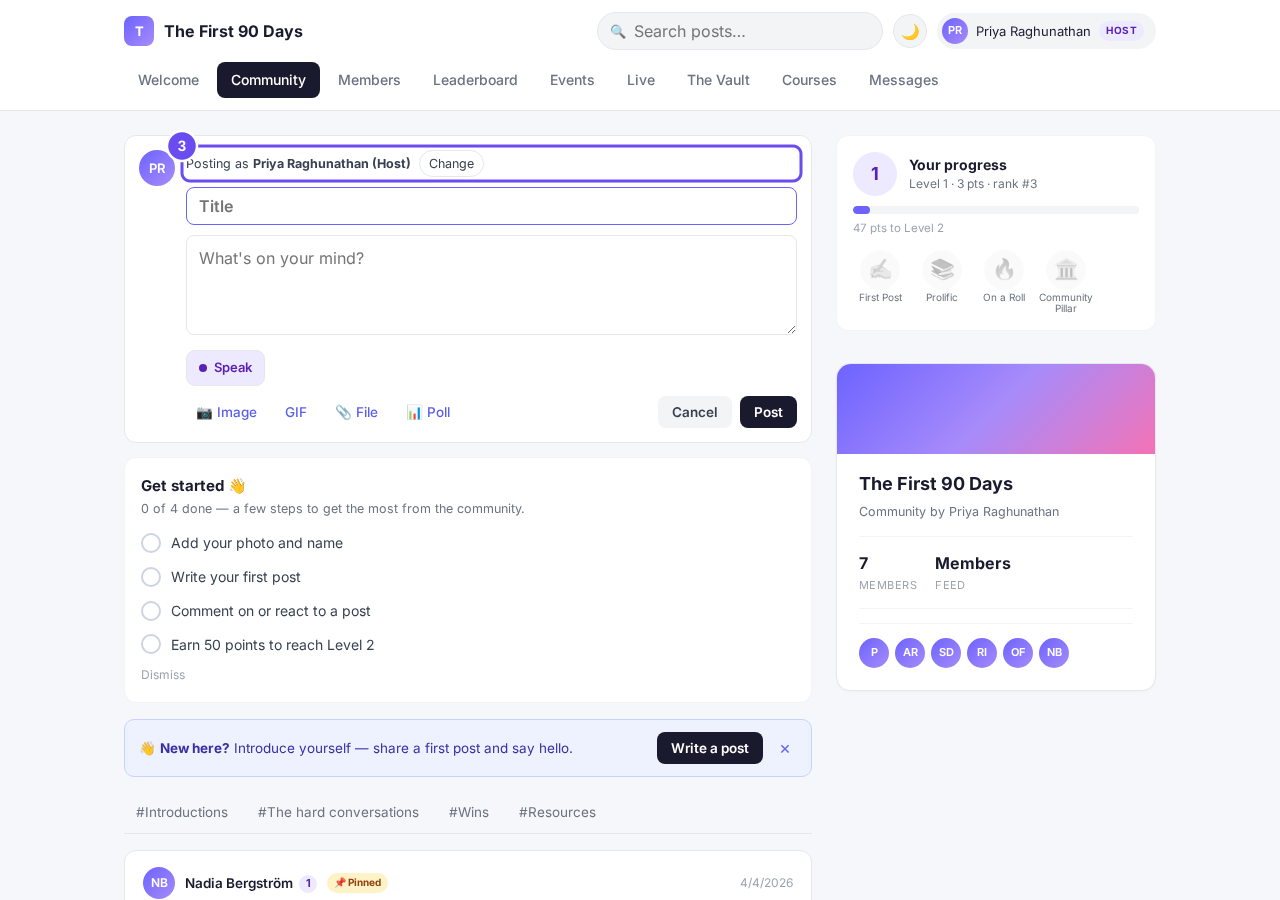
Posting as the host.
Switch to yourself
Press Change, then Acting as the host. Your posts, comments and Messages now go out as yourself.
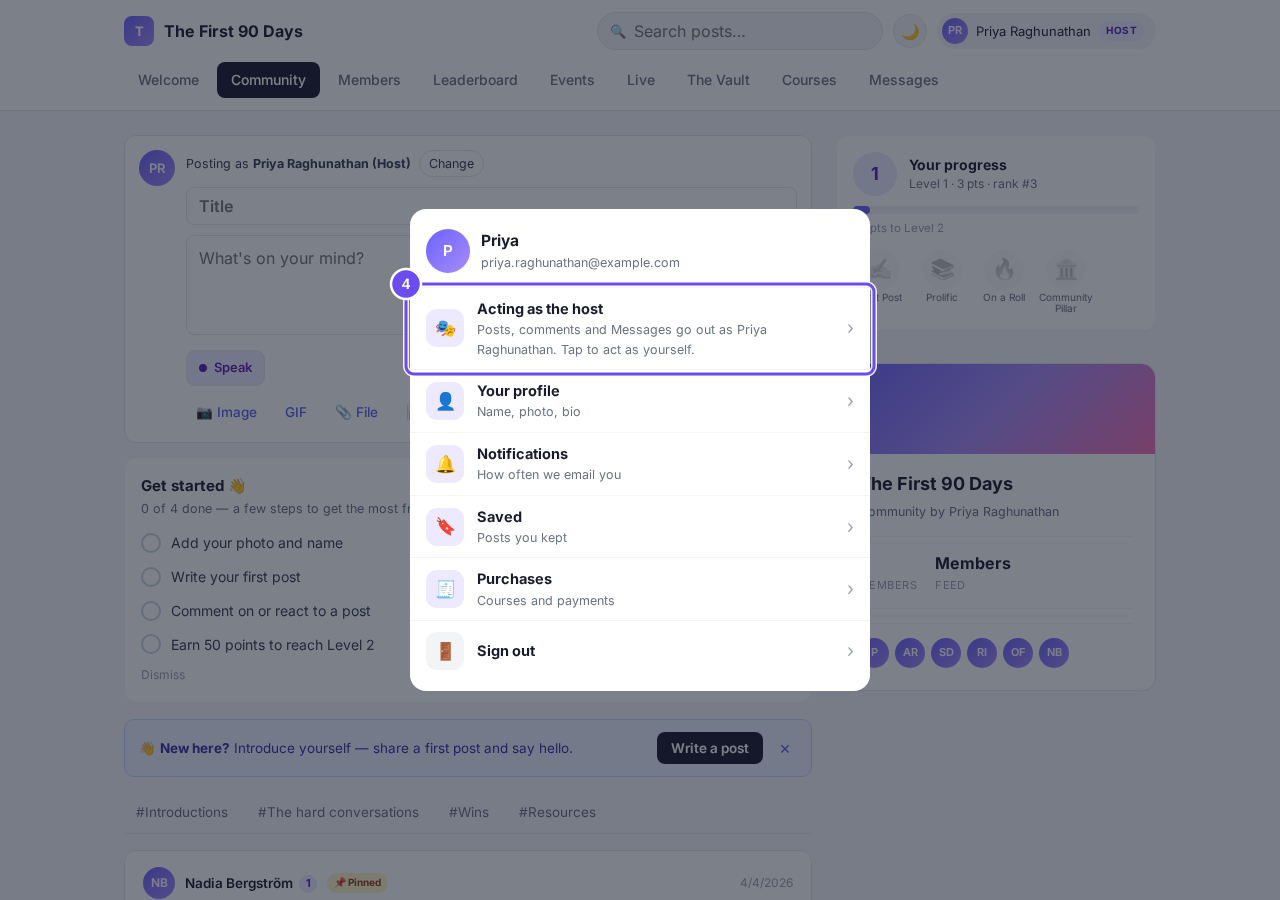
The switch, in your profile menu.
Check who you're posting as
The post box now says (yourself). To go back, press Change, then Acting as yourself.
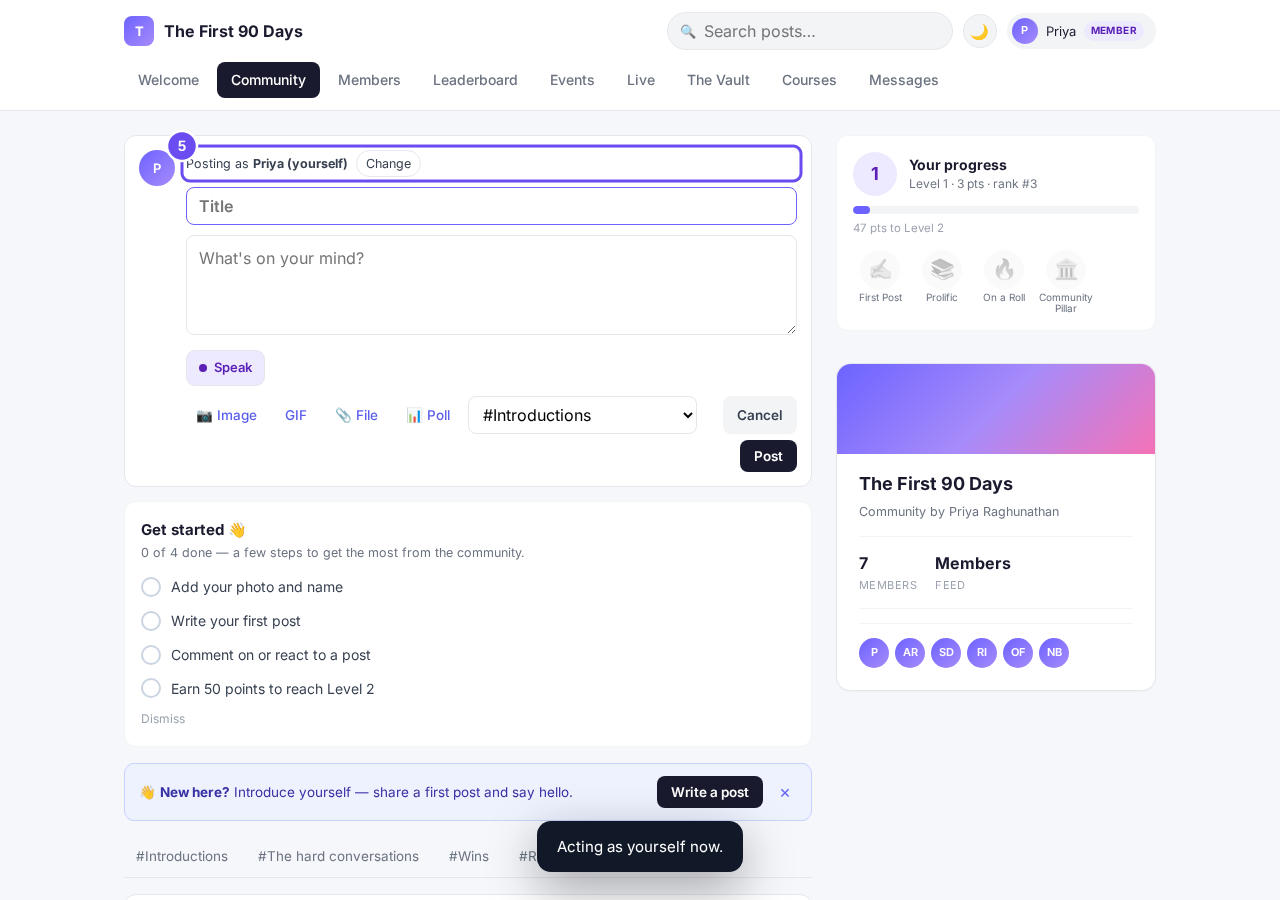
Posting as yourself.


Where is my community link, and how do I share it?
Related articles
Can I approve new members before they get into my community?
Yes. Switch on approval and anyone who asks to join waits in a Requests list in Members until you let them in, the way a private LinkedIn or Facebook group works. People you invite, and people who pay, still go straight in. About five minutes to set up.
Can I check comments before they go up?
Turn on comment approval and every member comment waits for you. It's a separate switch from the one for posts.
Can I keep my community hidden until I'm ready to launch?
Your community goes live once it is made and your email is confirmed, and there is no switch that takes it offline. Two settings work together instead: one keeps your posts from anyone who isn't a member, the other means nobody gets in until you let them.