
How do I name and shape my community?
Your community's name and description live in one place: Community, then Welcome. That page is what a new member sees when they arrive.
Updated 15 September 2026
Open Community, then Welcome
Open Community in the left menu. Welcome is nine rows down, which is why most people don't find it. It's what somebody sees when they arrive, before they've joined.
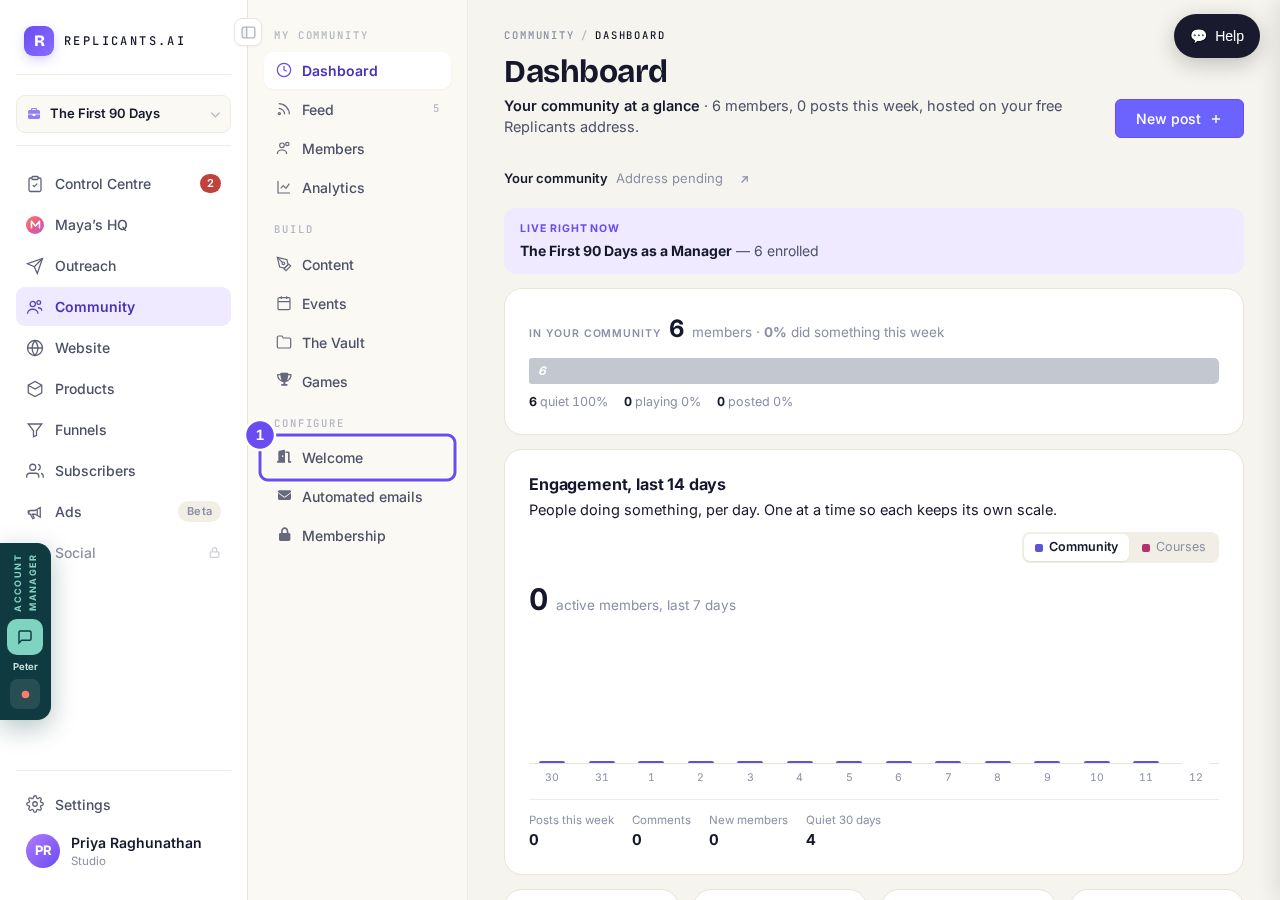
Community, then Welcome. It sits below Games in that column.
Take me thereName it, then say what it's for
The top box is the name members see. The box under it is your welcome message, and it's also what your AI draws on when it writes in your voice later.
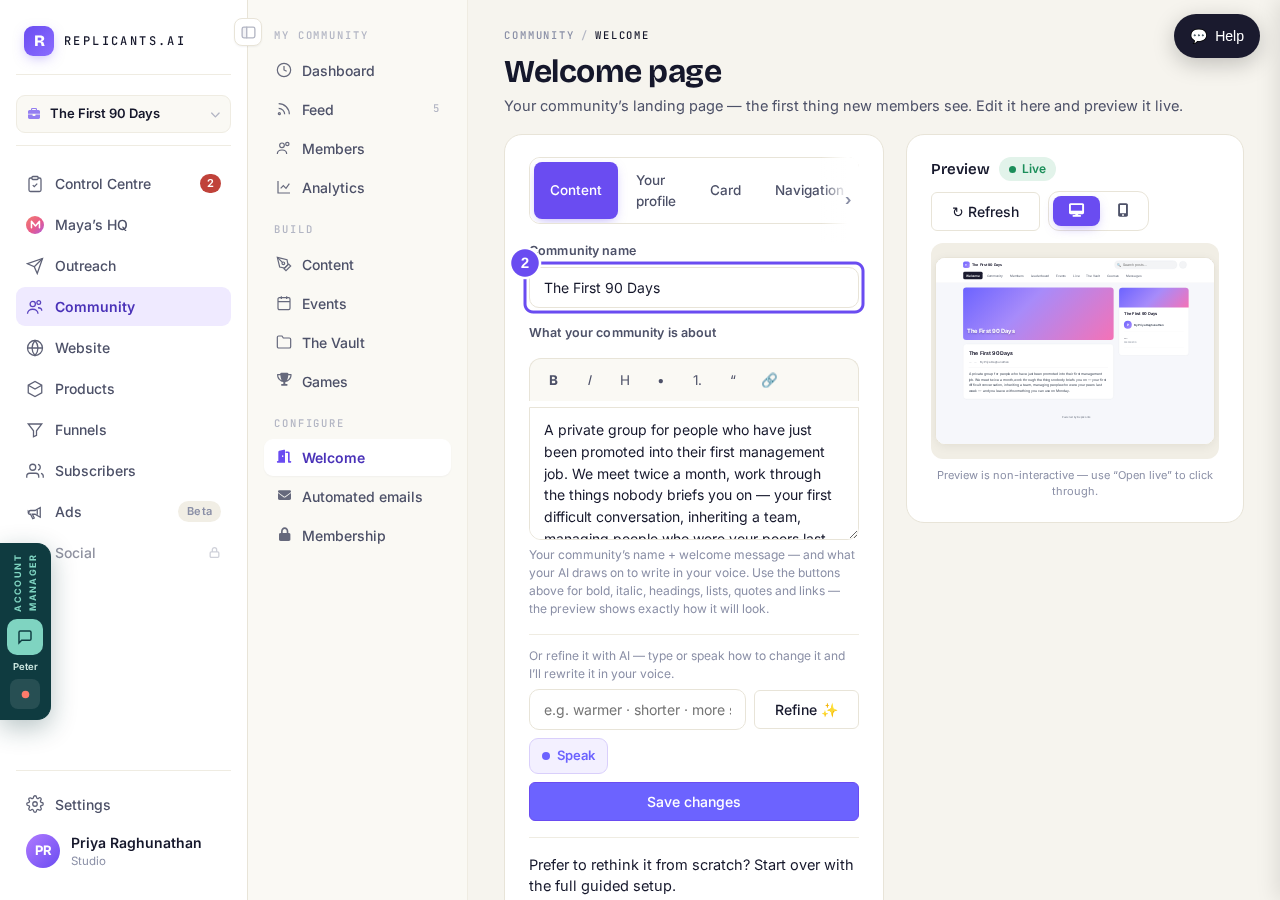
The name on top. Underneath, what it is about.
Say what you want different, press Refine
Say what's wrong in one sentence — make it warmer, or say it's for women over fifty — then press Refine. Press Speak to say it aloud instead of typing.
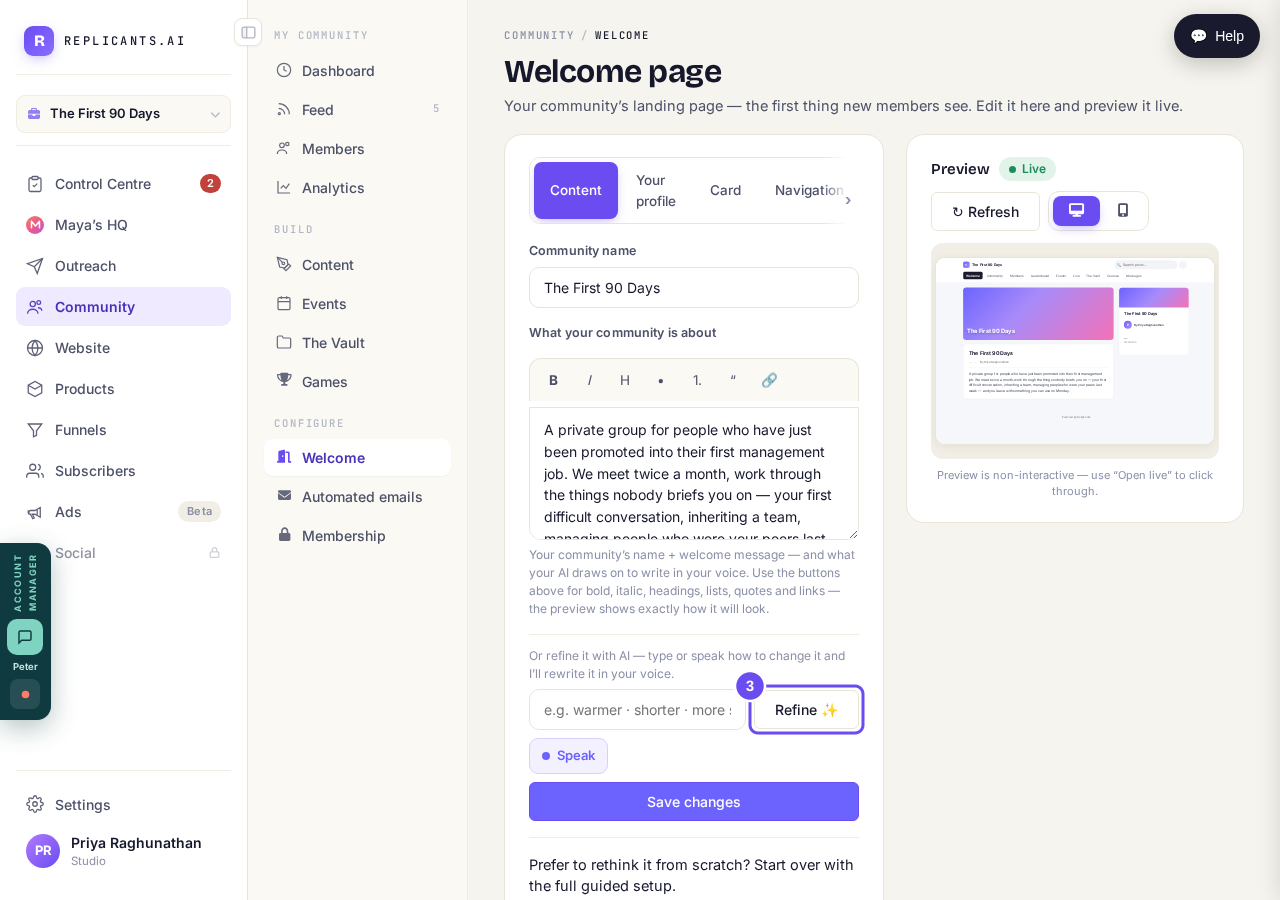
Say what you want different, or speak it. Then press Refine.
Press Save changes, and read it back
Press Save changes to make it live. Beside the boxes is a preview, with a button to open the live page. Start over, at the foot, redoes the guided setup.
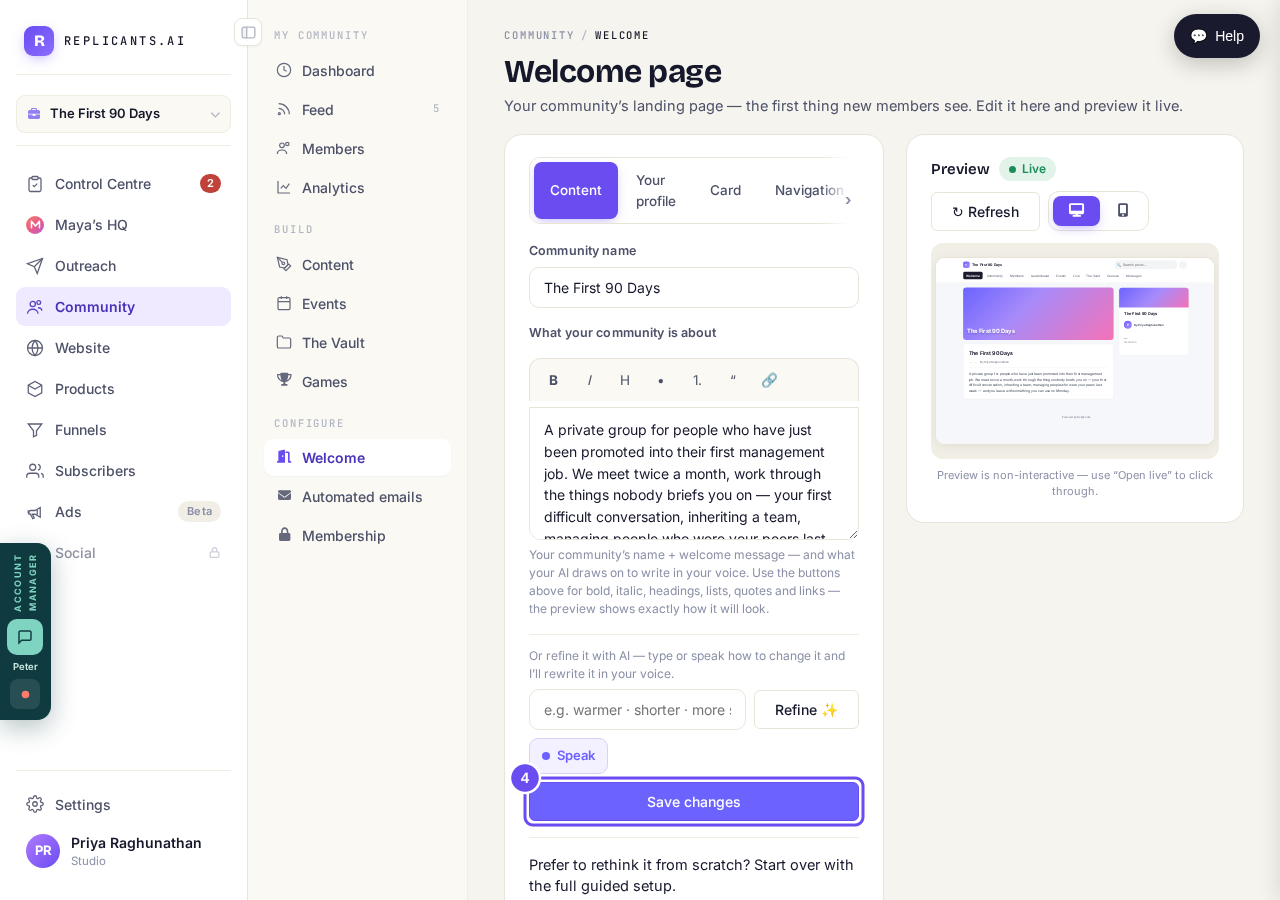
Nothing is live until you press Save changes.
Who can see my community, and can I keep it private?
Related articles
Can I check comments before they go up?
Turn on comment approval and every member comment waits for you. It's a separate switch from the one for posts.
Can I message one member privately, and can members message each other?
Message one member from Community, then Members. Their reply comes back to that screen, not your email. Members messaging each other is a separate setting.
Can I read what members post before it goes up?
Yes — one setting. Off, member posts appear at once. On, nothing appears until you've read it. The waiting ones don't sit in the Feed.