
How do I choose the order posts show in my community?
Your community starts on Balanced: the newest post at the top, then a mix of the best posts from different people, so nobody fills the page on their own. You can pick another order, or let each member choose. About two minutes.
Updated 8 October 2026
Open Community, then Joining & posting
Your feed is in the Posting box. On a phone, press the menu button at the top right first.
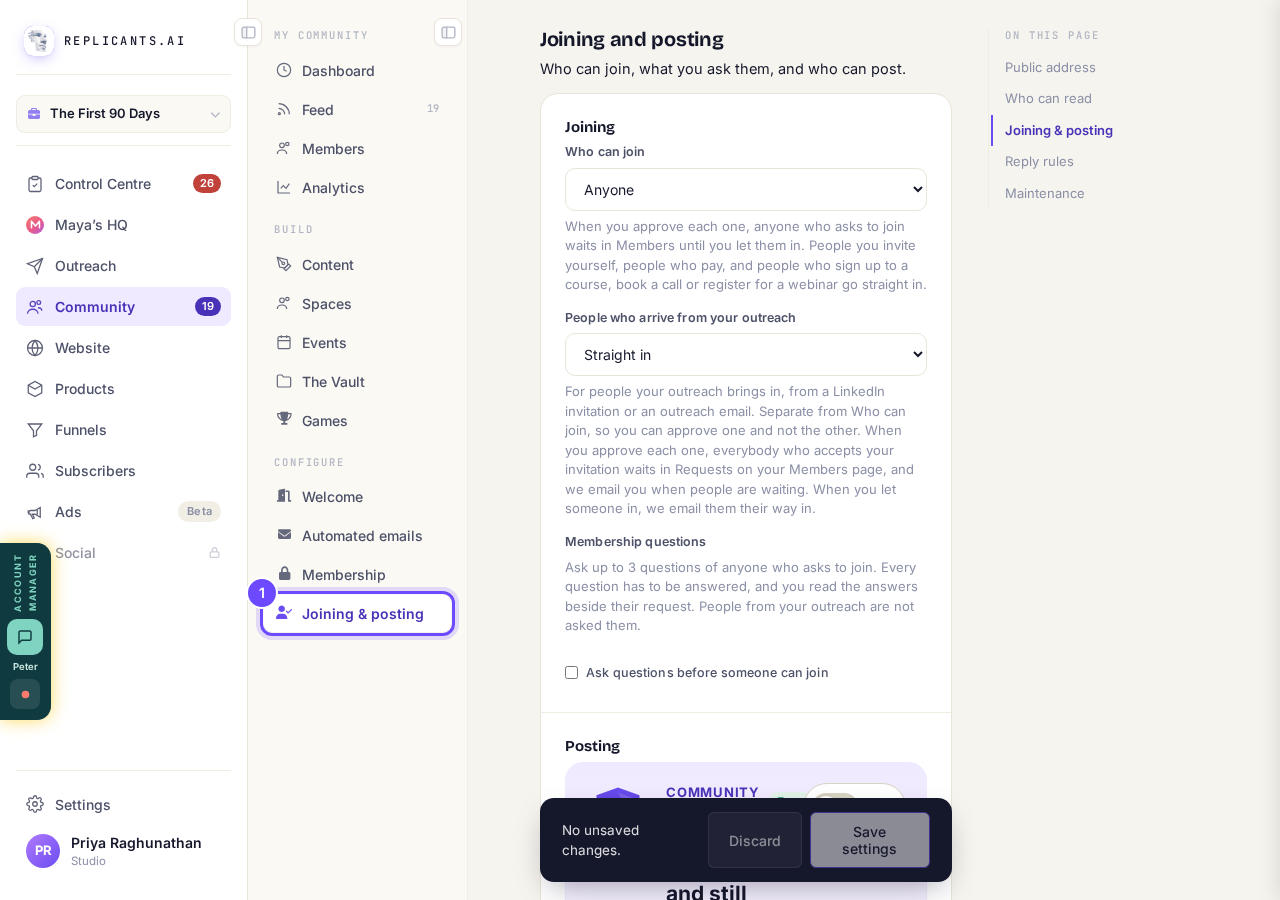
Joining & posting, in the Community menu.
Community settingsRead the line about your community
It counts the posts and the people in your last two weeks, and suggests an order. If one or two people post a lot, Balanced keeps everyone else in view.
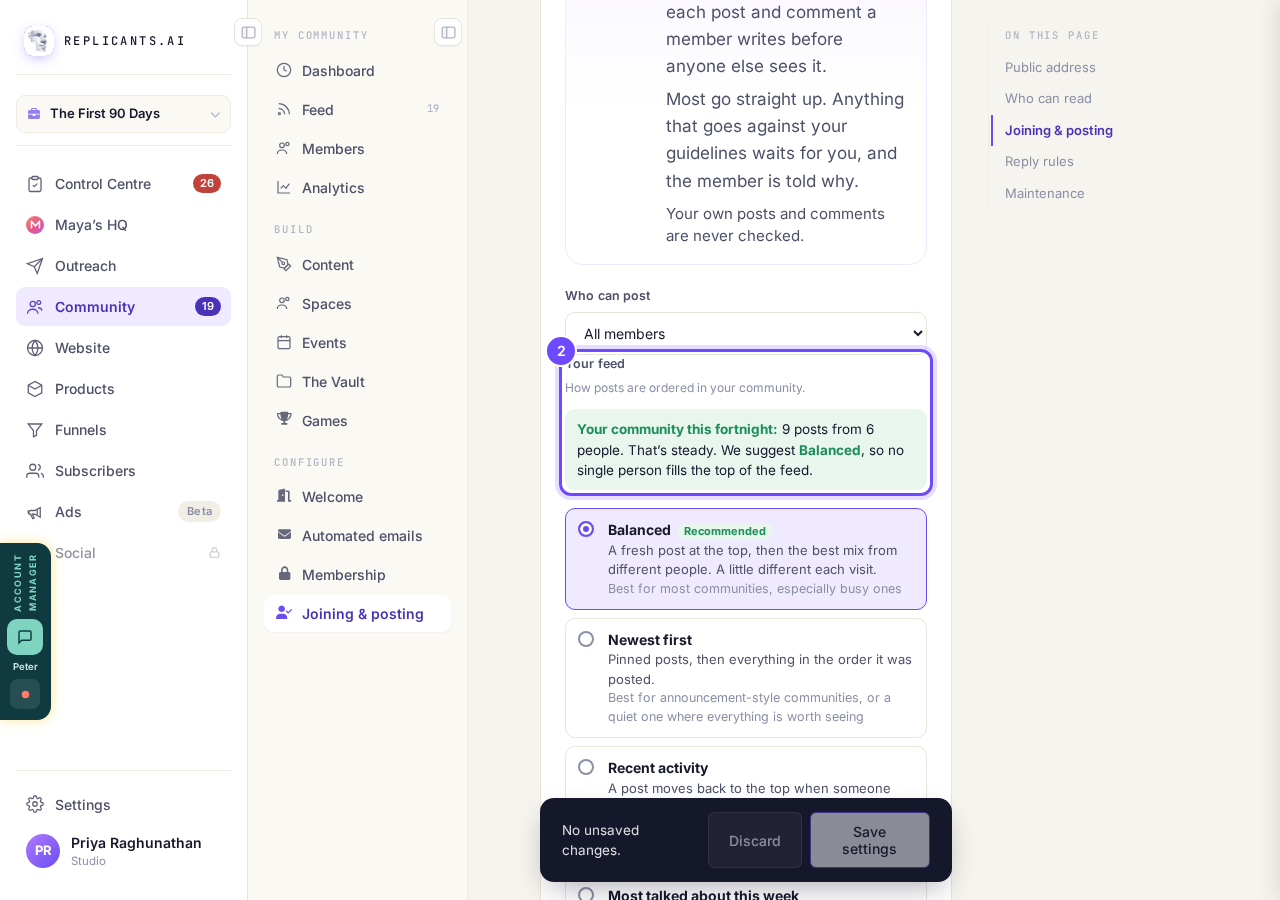
Your last two weeks, with a suggestion.
Pick an order
Balanced (recommended): a fresh post at the top, then the best mix from different people. Newest first: everything in the order it was posted, good for announcements or a quiet community. Recent activity: a post comes back to the top when someone comments. Most talked about this week: the posts with the most comments and reactions in the last 7 days.
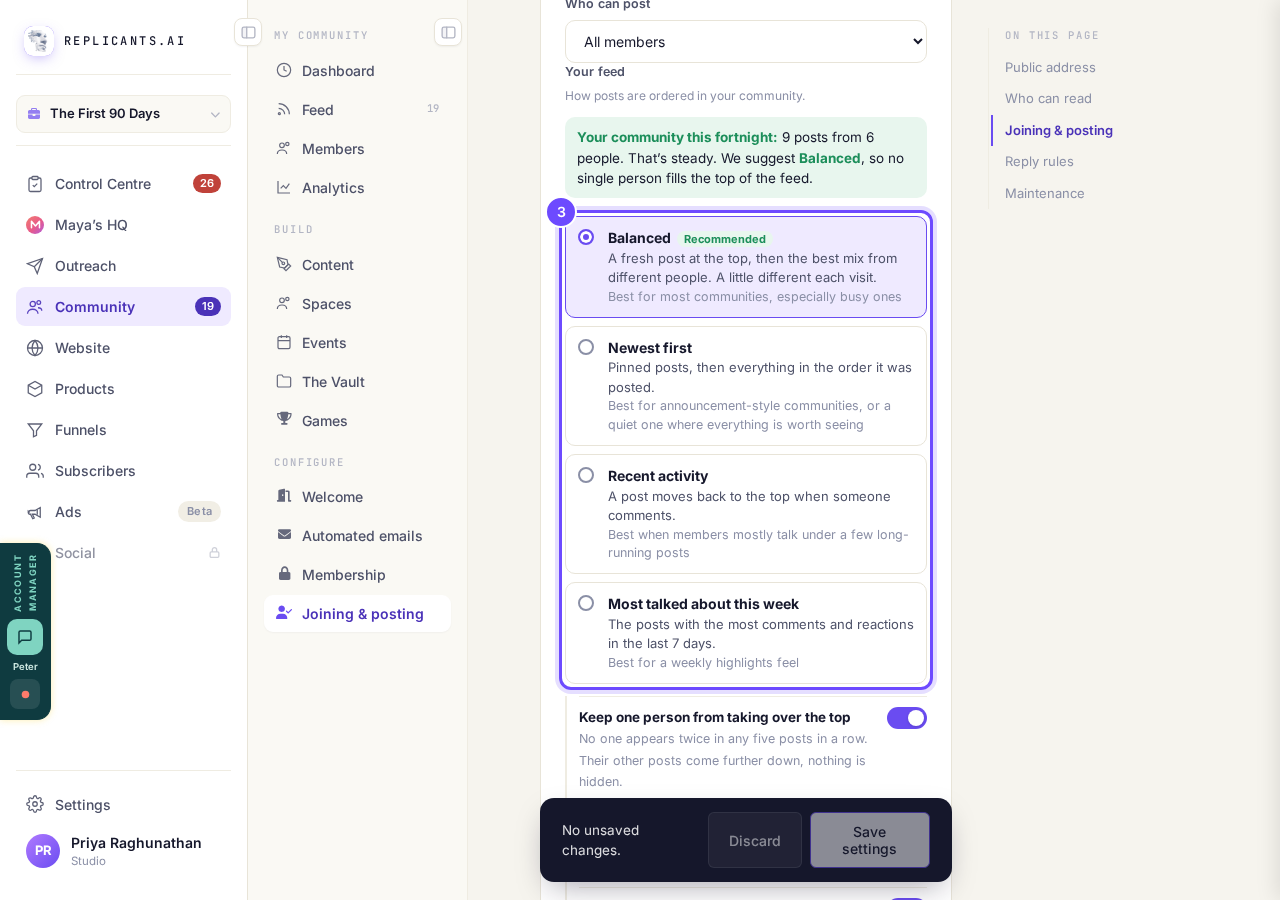
The four orders, with what each one is best for.
Leave the three Balanced switches on, or turn one off
Keep one person from taking over the top: nobody appears twice in any five posts in a row. Lift first posts from new members: a newcomer's first post gets a little extra room. Bring back good older posts: now and then a post people talked about comes back round.
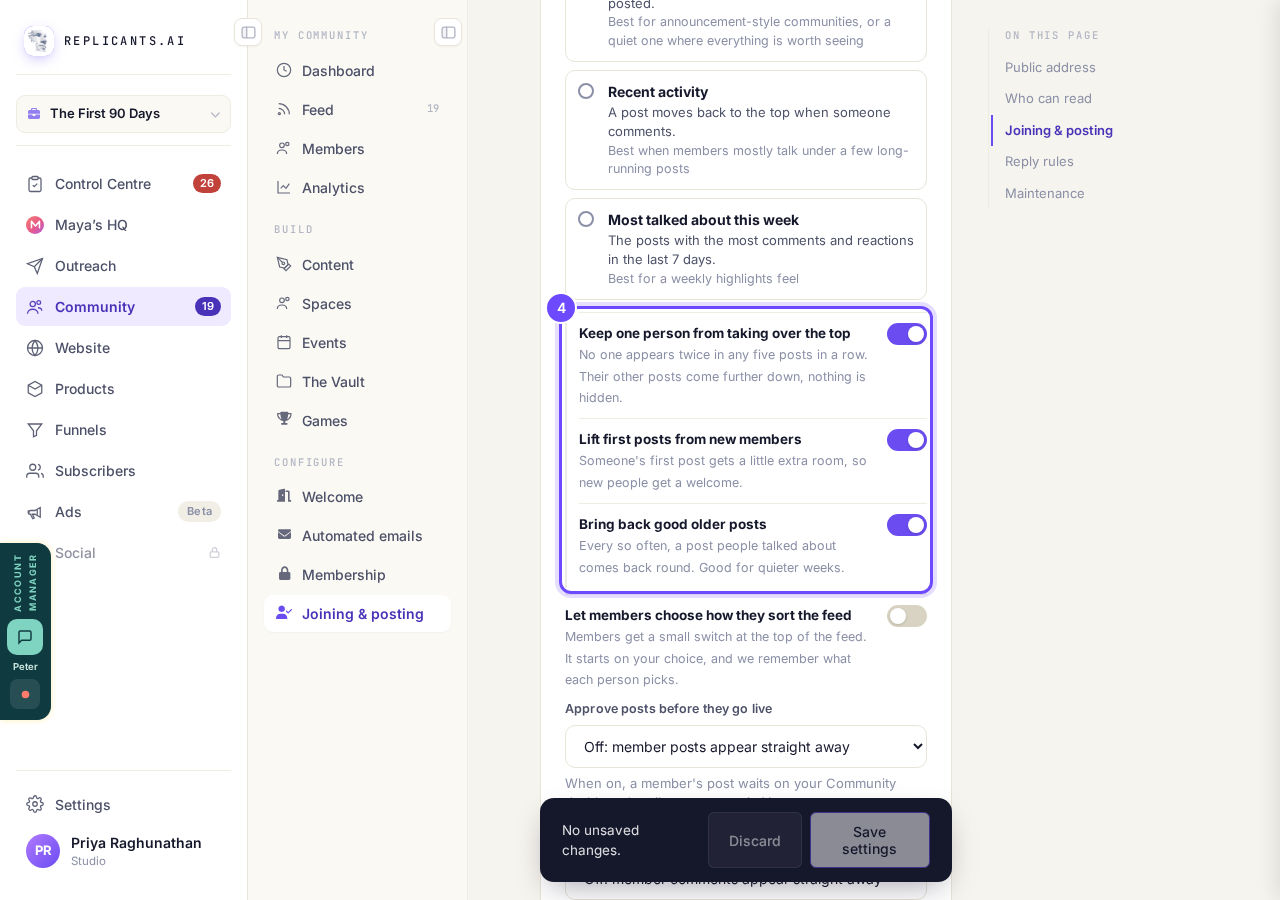
The three Balanced switches, all on to start with.
Choose whether members can sort it themselves
Turn on Let members choose how they sort the feed and members get a row of four buttons at the top of the feed. It starts on your choice, and each person's pick is remembered on their phone or computer.
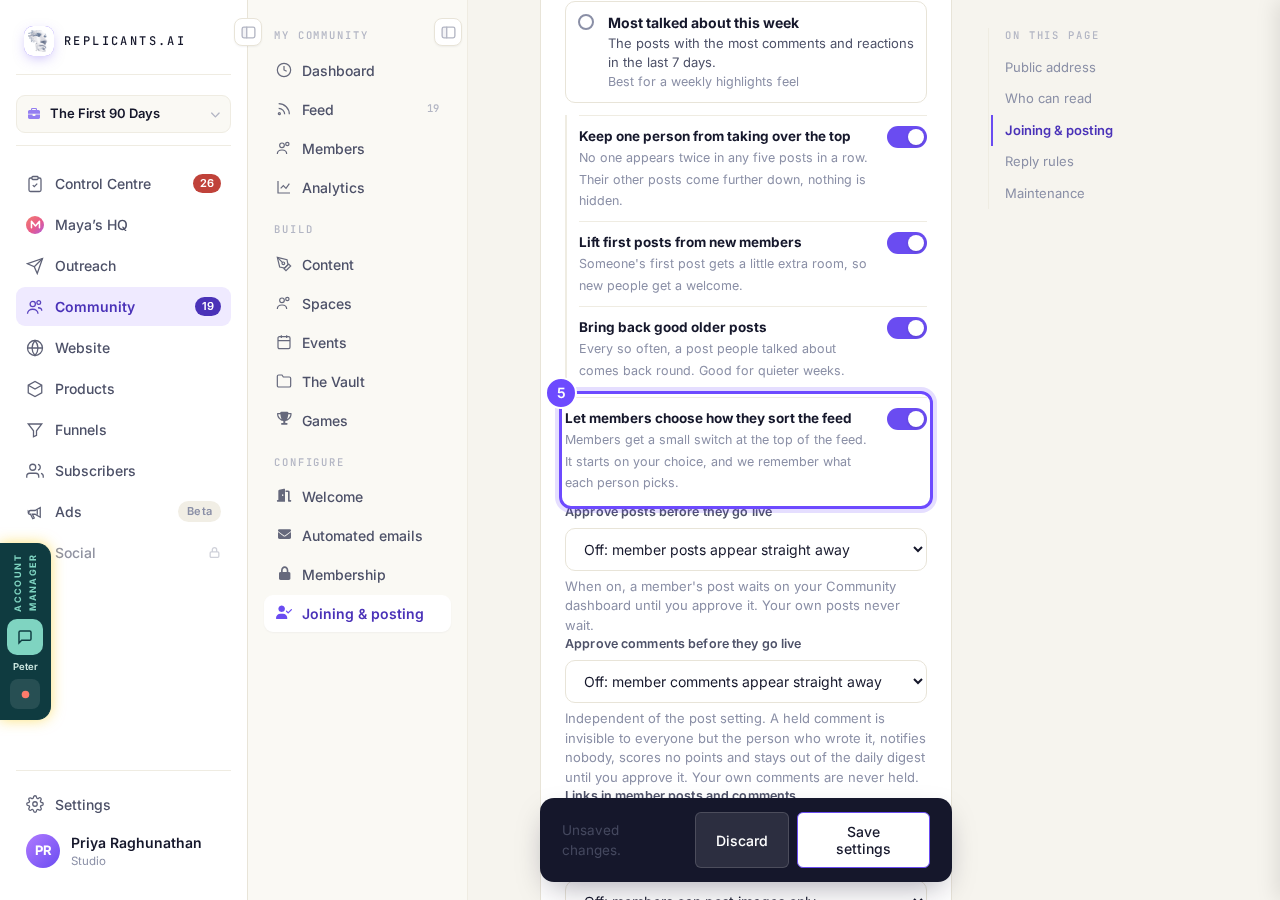
Let members choose how they sort the feed, switched on.
Press Save settings
It is in the dark bar near the bottom of the page. Members see the new order the next time they open the community or refresh the page.
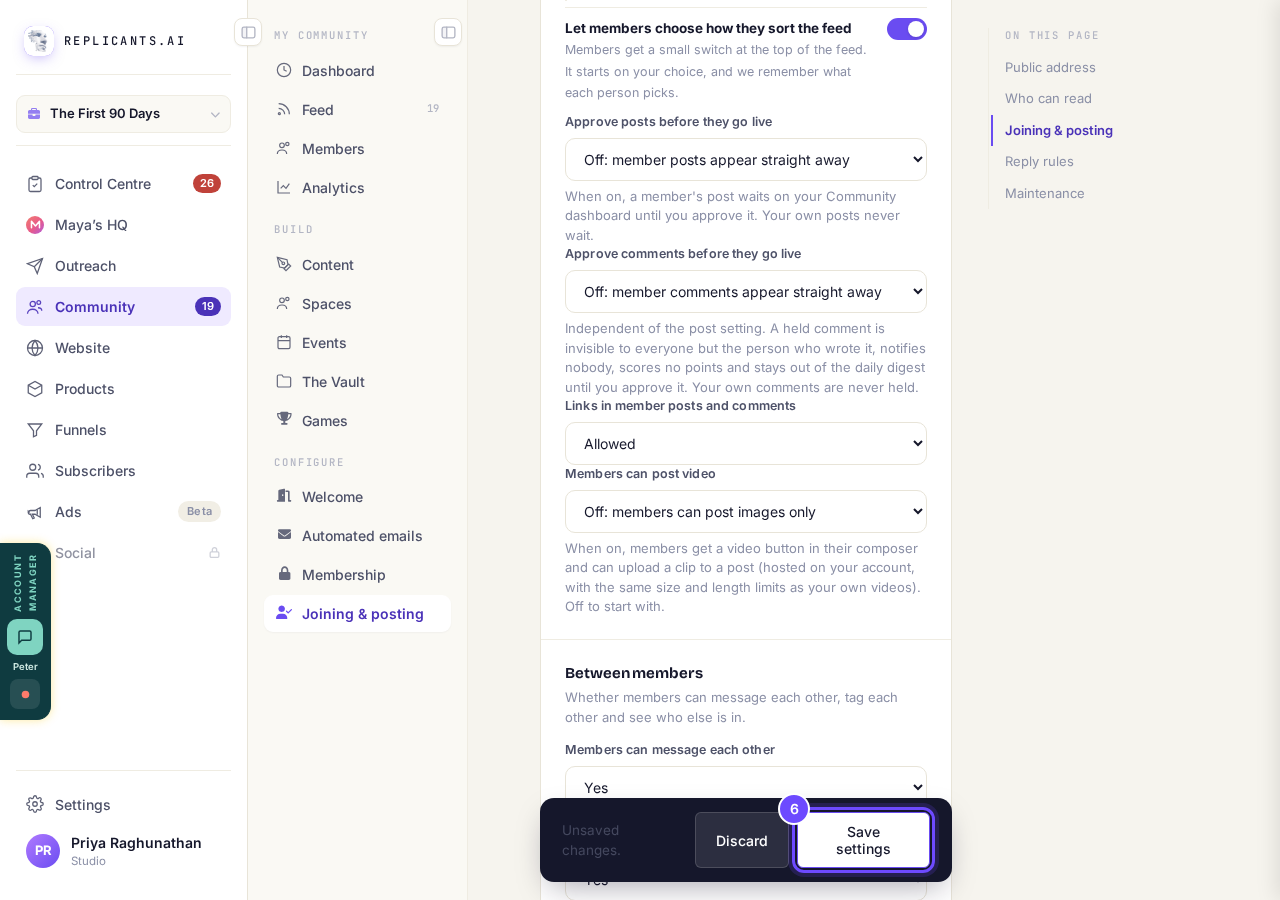
Save settings, in the dark bar.
See what members see
With members choosing, the row sits at the top of the feed: Balanced, Newest, Recent activity and Top this week. If your community was published before this arrived, press Republish on your Community dashboard first.
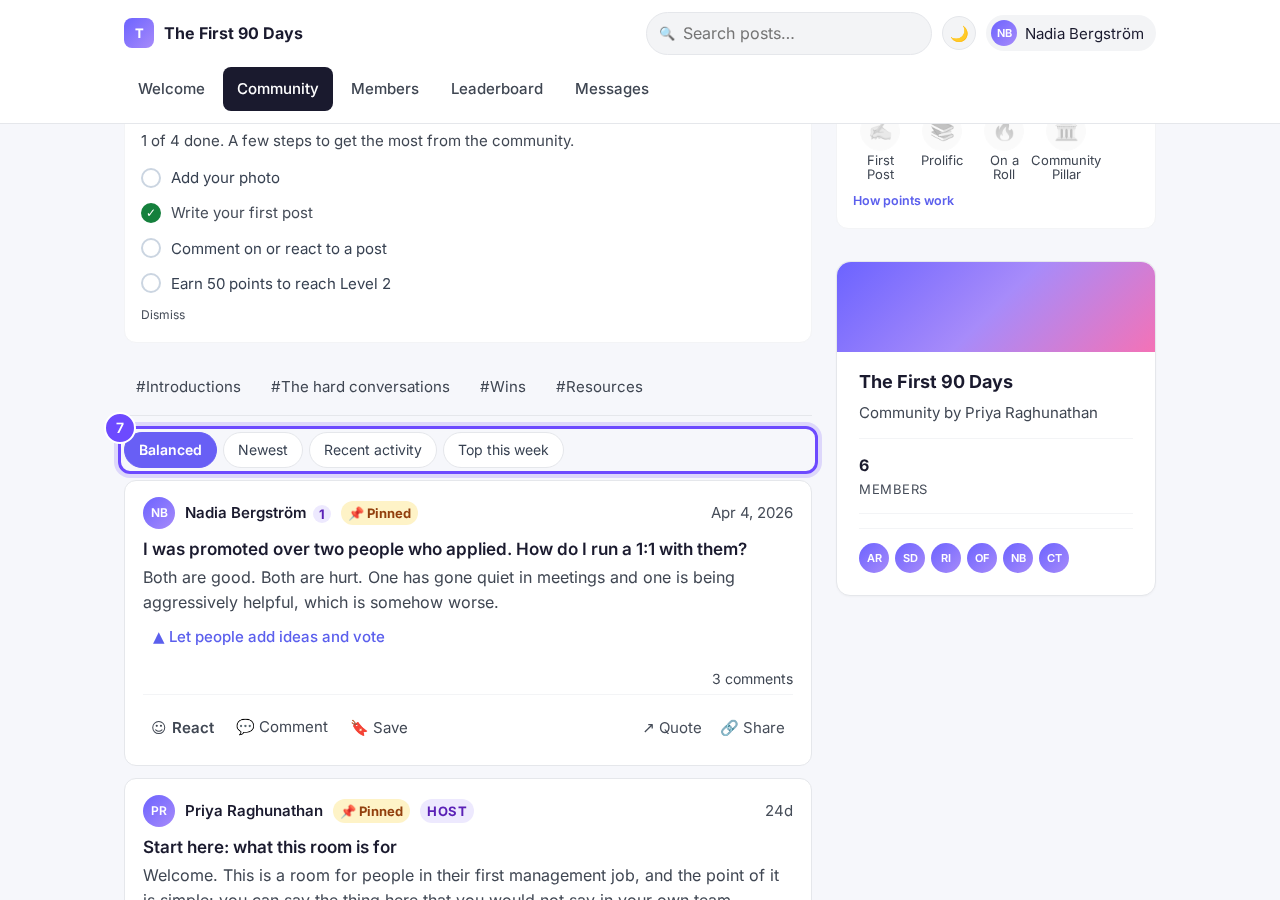
The sort row, at the top of the community.
Good older posts come back round
About every sixth post, one from five or more days ago that people talked about (four comments or more) comes back, marked From earlier. It helps in a quieter week.
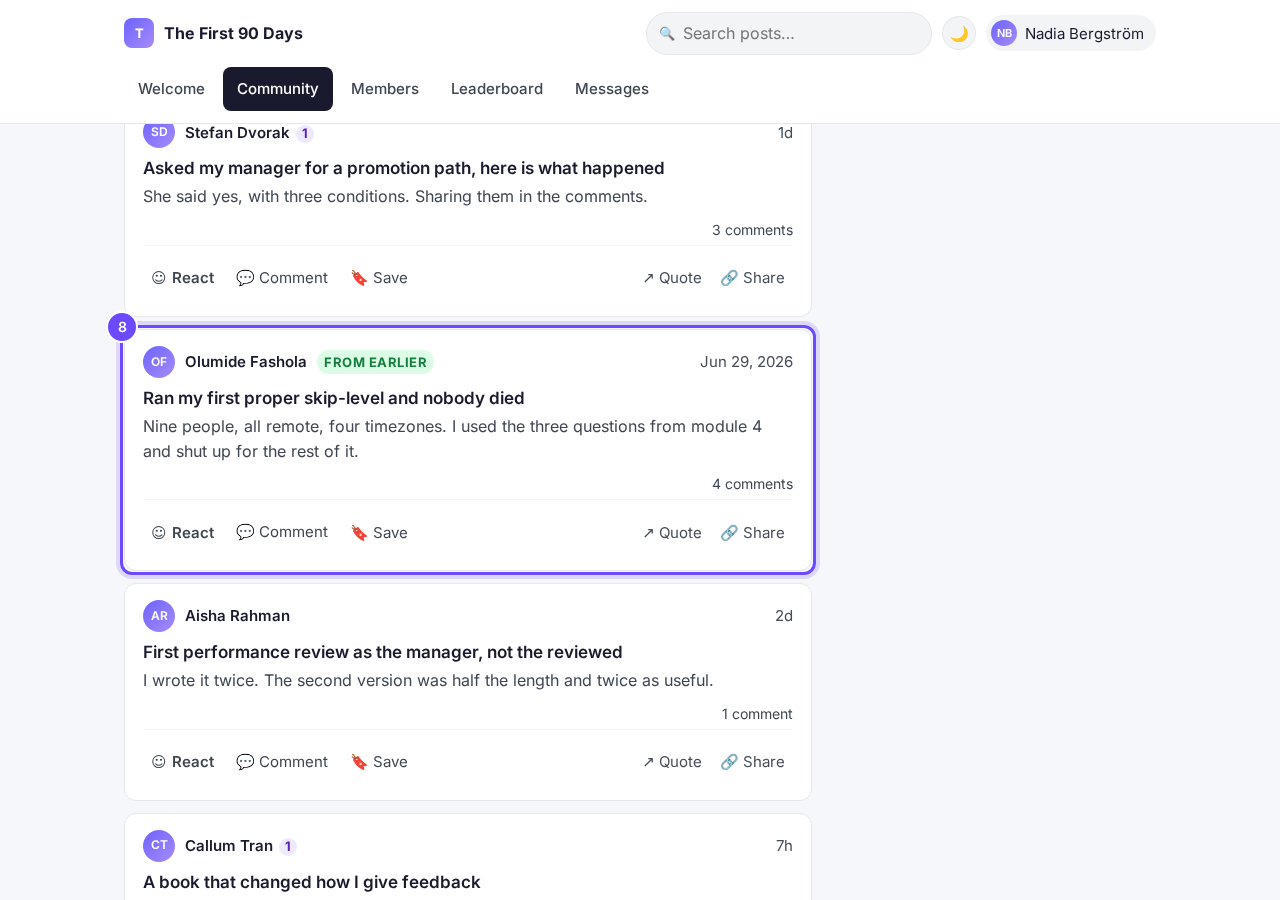
A post brought back round, marked From earlier.
New posts wait at the top
Posts never jump in under someone who is reading. Every 45 seconds or so the community checks for new ones, and a button at the top says how many are waiting, for example 1 new post. Pressing it brings them in at the top.
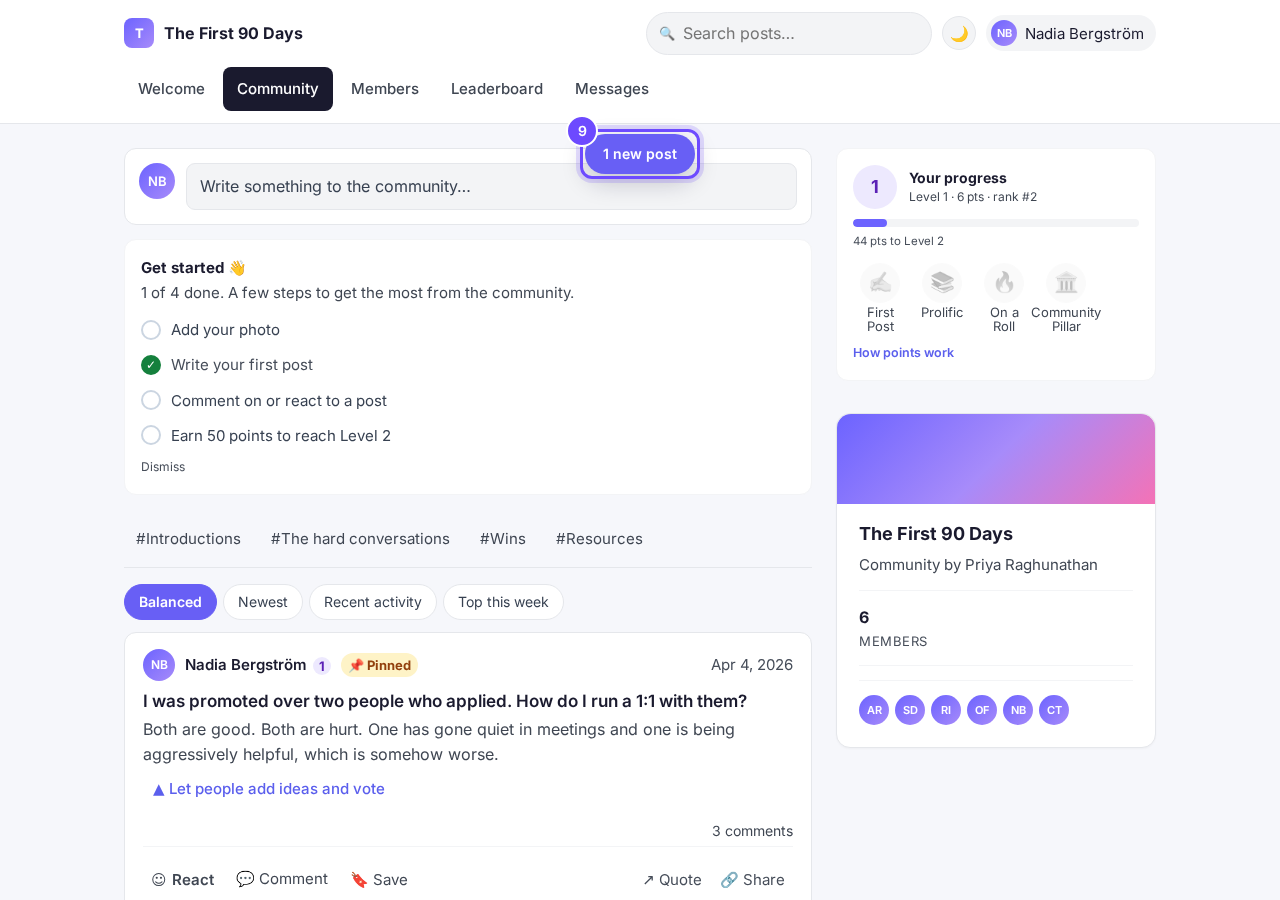
1 new post, waiting at the top.


How often does my community's email digest go out, and what goes in it?
Related articles
Can I approve new members before they get into my community?
Yes. Switch on approval and anyone who asks to join waits in a Requests list in Members until you let them in, the way a private LinkedIn or Facebook group works. People you invite, and people who pay, still go straight in. About five minutes to set up.
Can I change a member's post before I approve it?
No. A post waiting for your approval can only be approved or rejected, so you cannot change a member's words. If a few words need changing, approve it and add a comment, or message the member and reject it.
Can I check comments before they go up?
Turn on comment approval and every member comment waits for you. It's a separate switch from the one for posts.