
How do I approve several posts at once?
When a month of posts is waiting for your yes, you can approve them in one go from the Control Centre. Each one still goes out at its own time. About a minute.
Updated 6 October 2026
Open your Control Centre and find Approvals
The Control Centre is the first item in the menu. Scroll past your calendar to Approvals, which lists everything waiting for your yes. Press it if it is closed.
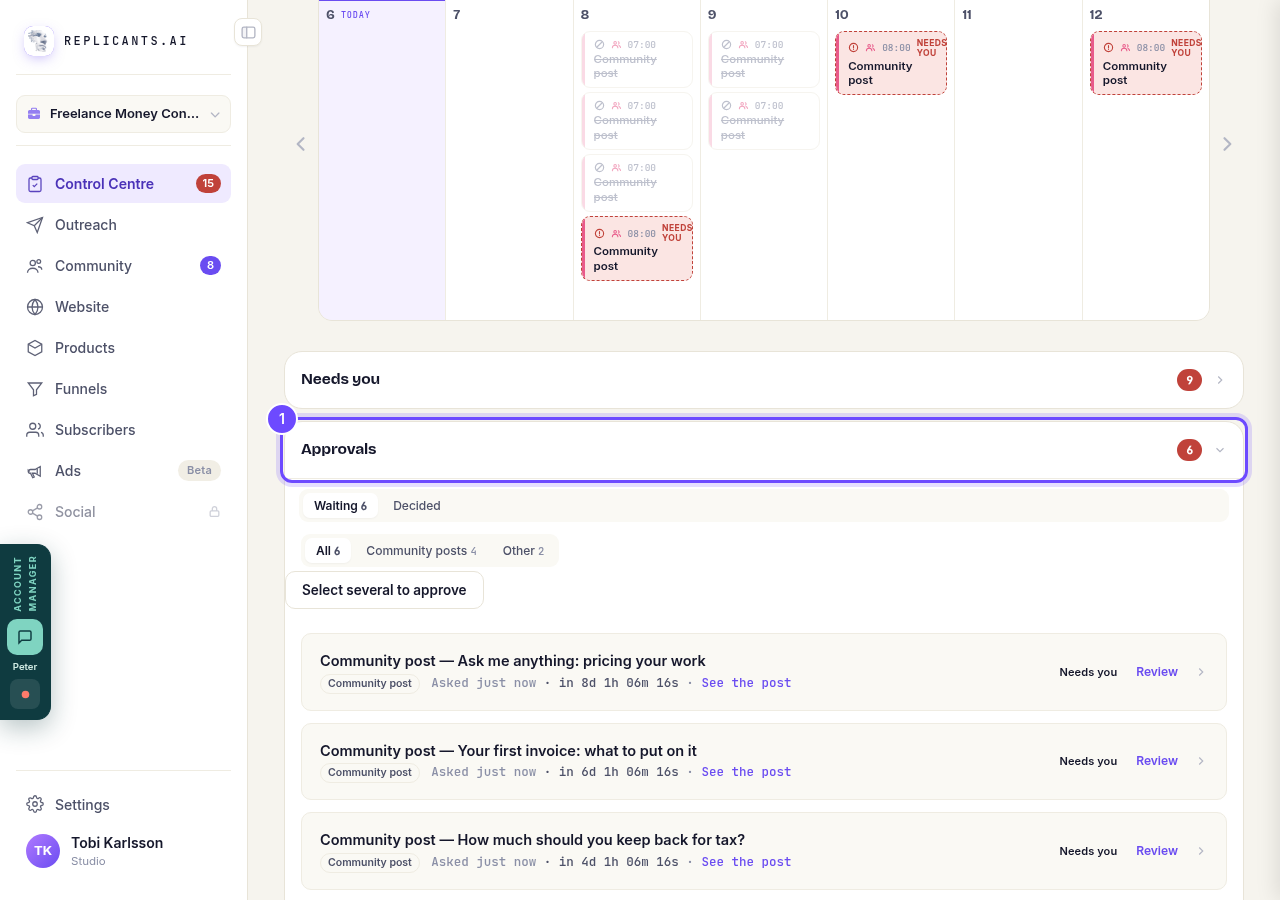
Approvals, under your calendar.
Press Select several to approve
It sits above the list. A tick box appears beside every item you can approve from here.
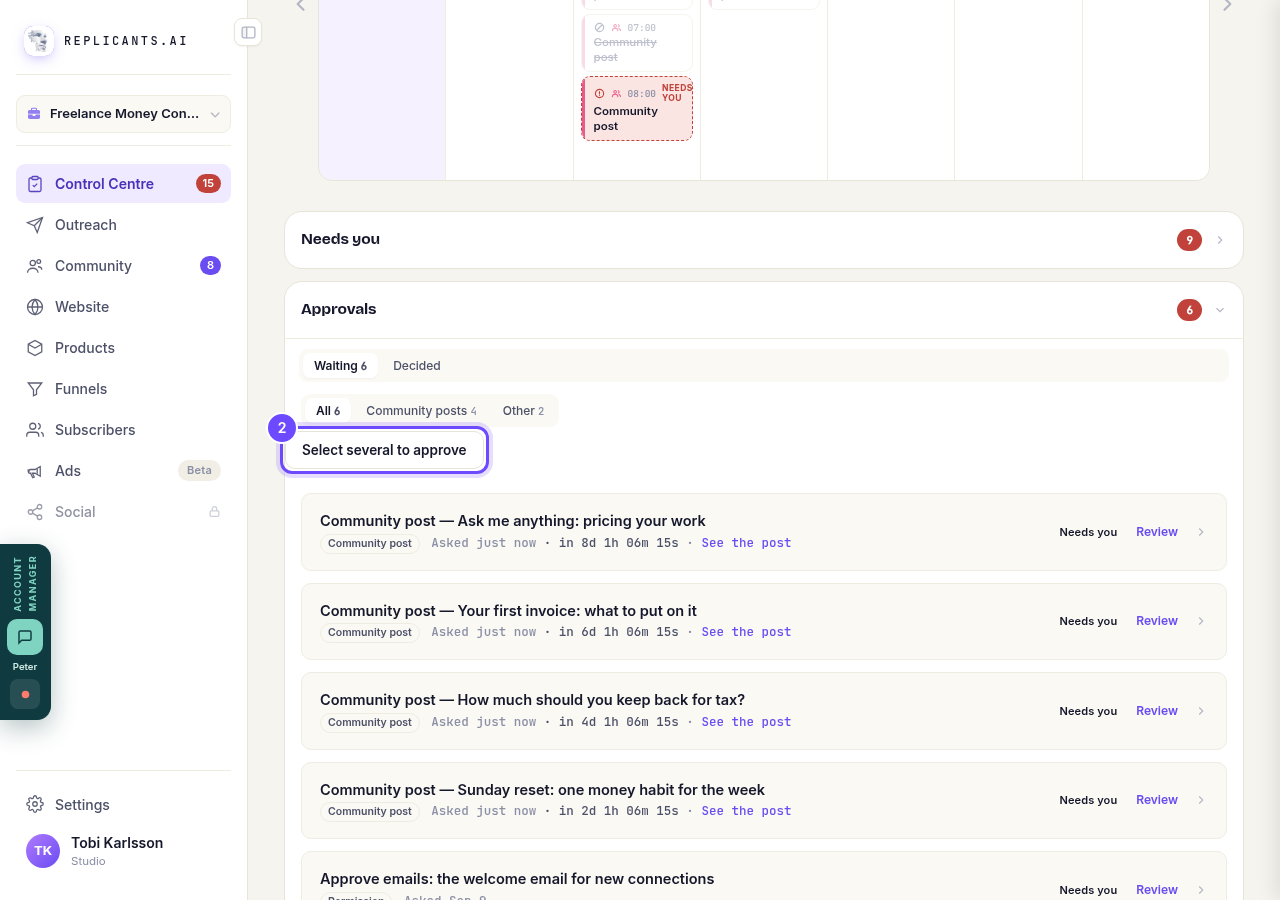
Select several to approve, above the list.
Tick the ones you want
Tick each item you are happy with, or press Select all to tick everything. The line above says how many are selected. Press See the post on any row to read it first.
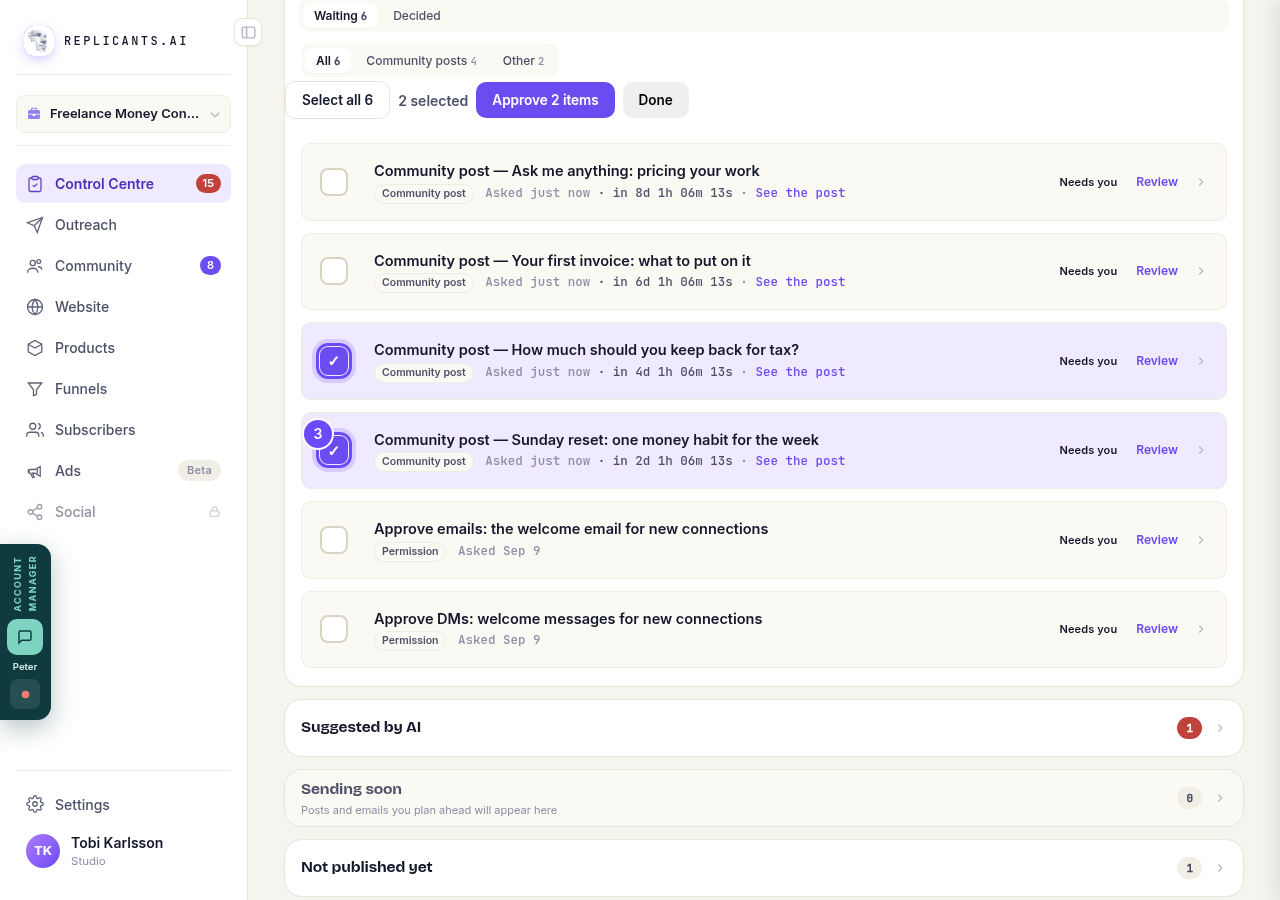
Two posts ticked.
Press Approve
The button says how many you picked, for example Approve 2 items. Done puts the tick boxes away without approving anything.
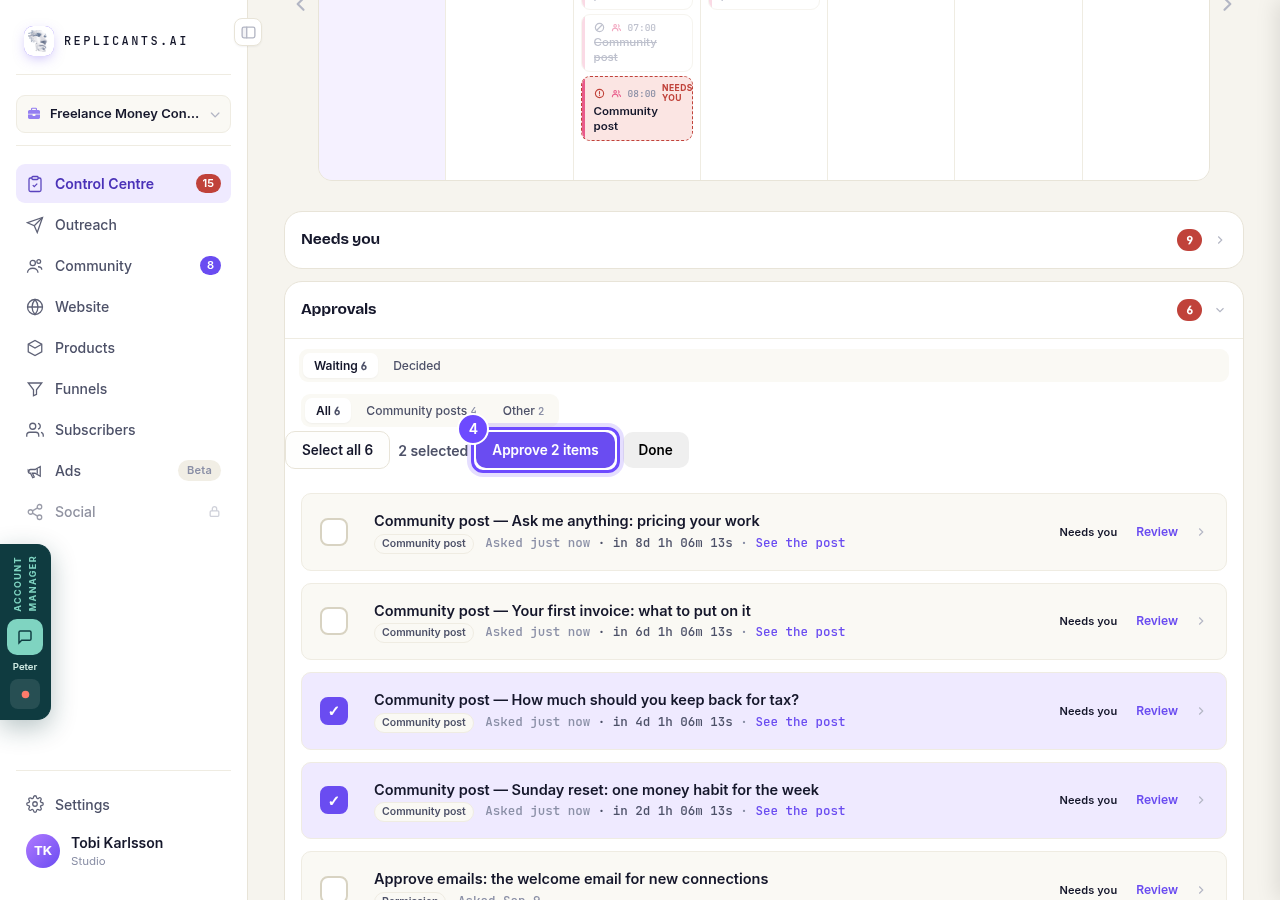
Approve 2 items, beside how many are selected.
Check the list, then press Approve 2
A box lists every item you picked with its title and the time it goes out. If it is right, press Approve 2 in the box (the number is how many you picked). Cancel goes back with nothing approved.
If an item's time has already passed, nothing is sent for it and the message afterwards says so.
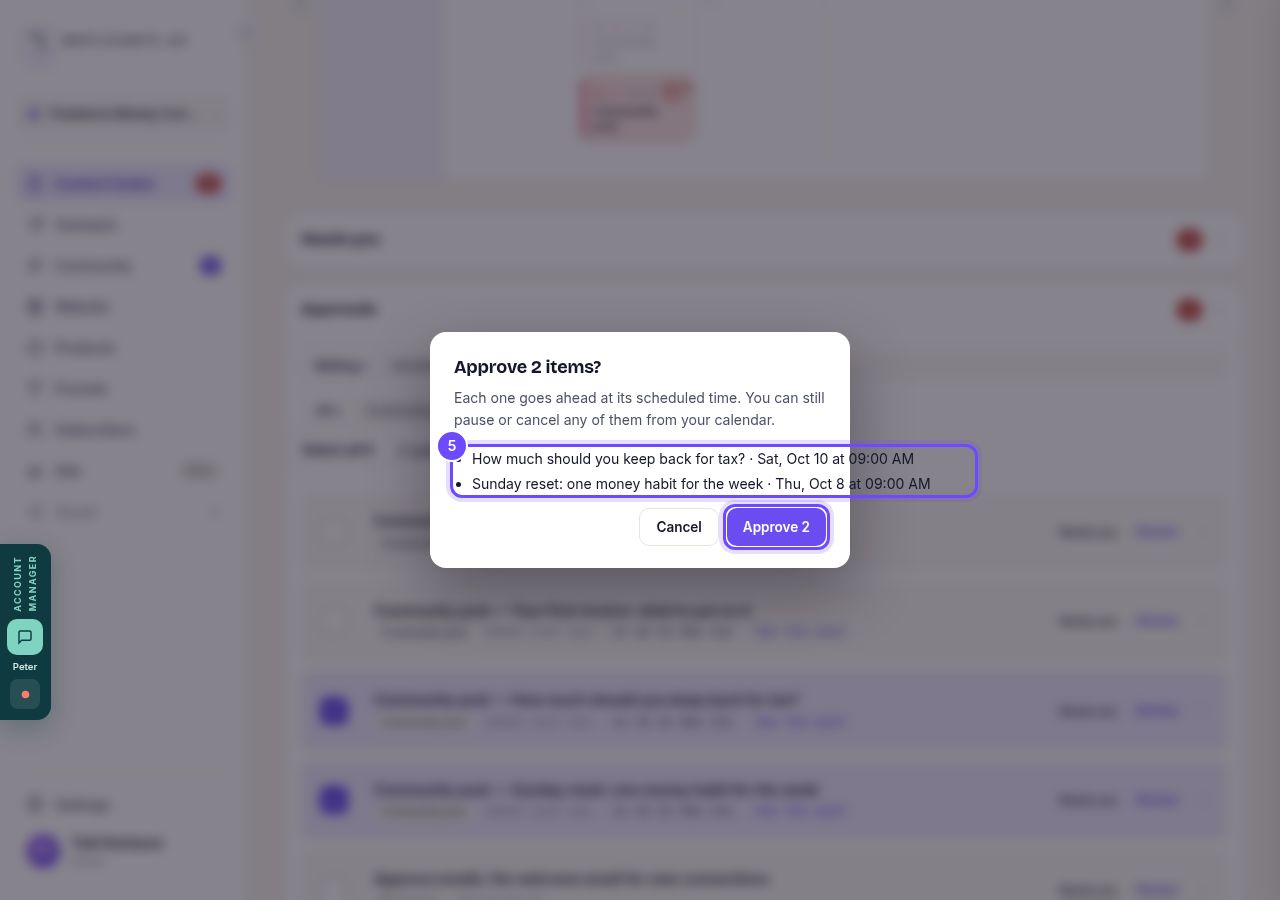
Every item you picked, by title and time, and Approve 2.


Related articles
Can I approve new members before they get into my community?
Yes. Switch on approval and anyone who asks to join waits in a Requests list in Members until you let them in, the way a private LinkedIn or Facebook group works. People you invite, and people who pay, still go straight in. About five minutes to set up.
Can I check comments before they go up?
Turn on comment approval and every member comment waits for you. It's a separate switch from the one for posts.
Can I keep my community hidden until I'm ready to launch?
Your community goes live once it is made and your email is confirmed, and there is no switch that takes it offline. Two settings work together instead: one keeps your posts from anyone who isn't a member, the other means nobody gets in until you let them.