
Where do my uploads go, and how do I add a PDF or document?
Everything you upload lives in one place: your Media library. There is one **Upload** button for every kind of file, and each file goes to its own tab by itself, so a PDF lands in Documents and a photo lands in Images.
Updated 6 October 2026
Open Settings
Your Media library lives in Settings.
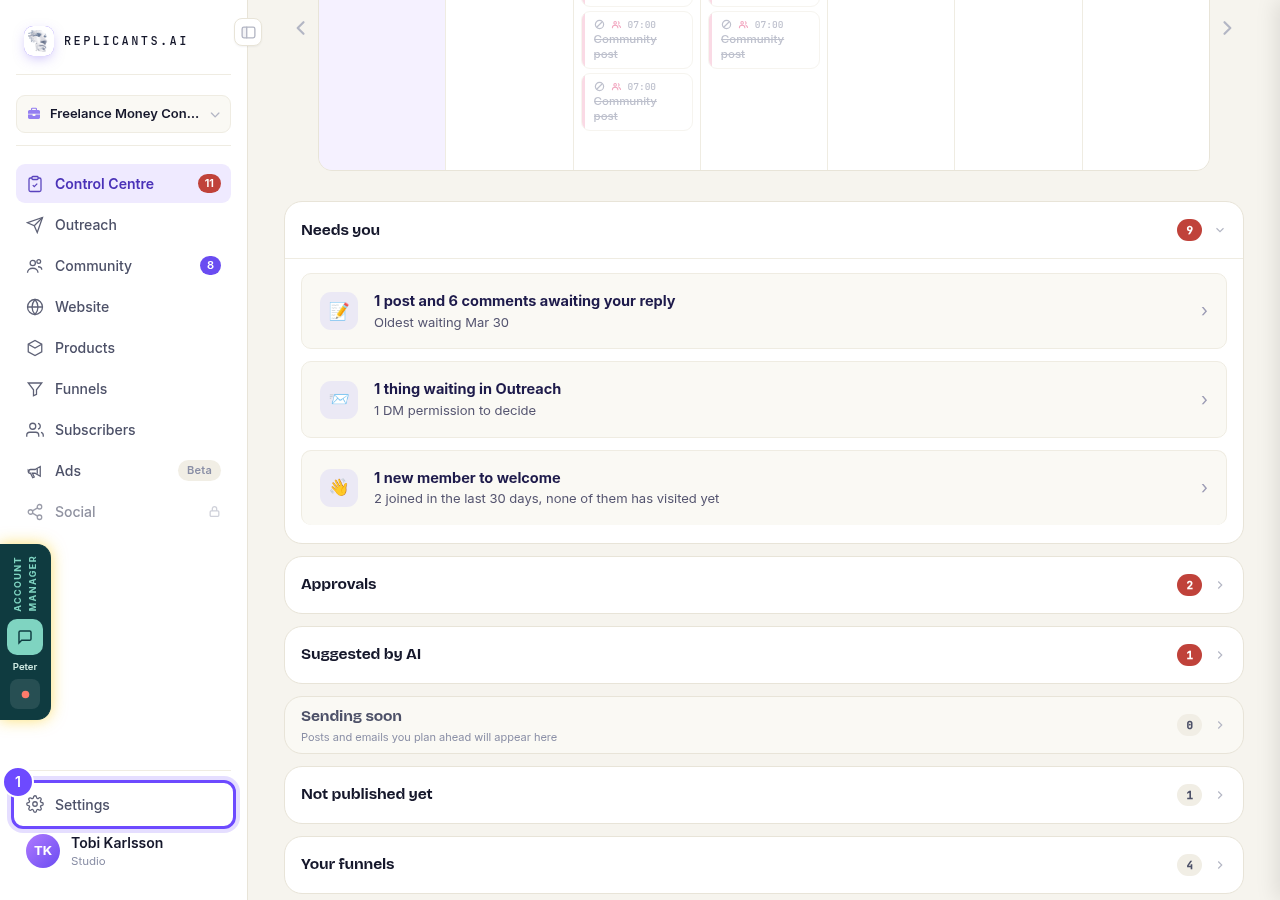
Press **Settings** at the bottom of the menu on the left.
Open Media
This is the one home for all your images, videos and documents.
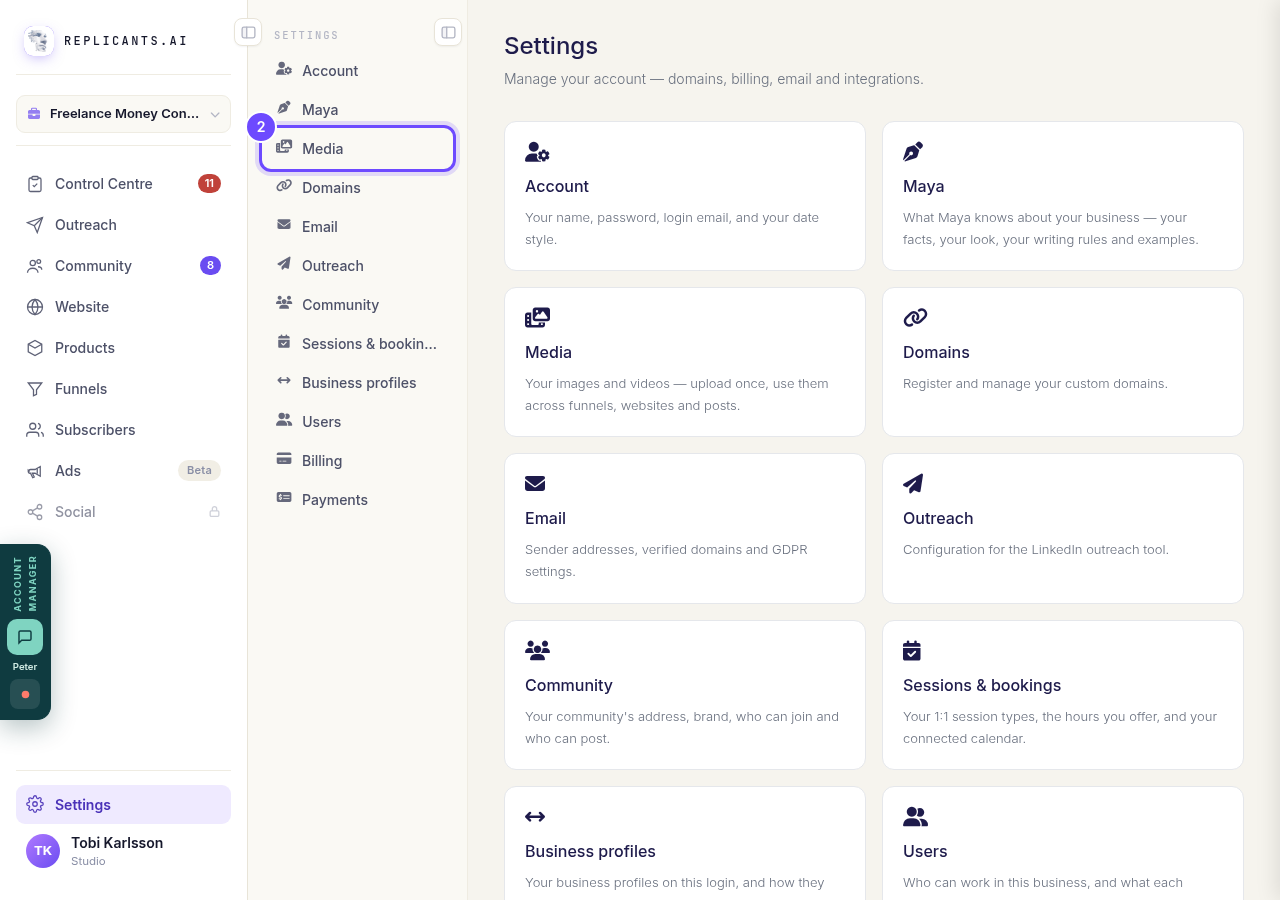
Press **Media**.
Open MediaPress Upload
Your computer's file window opens. Choose your PDF, or several files at once. It does not matter which tab is open: each file is sorted into the right tab for you.
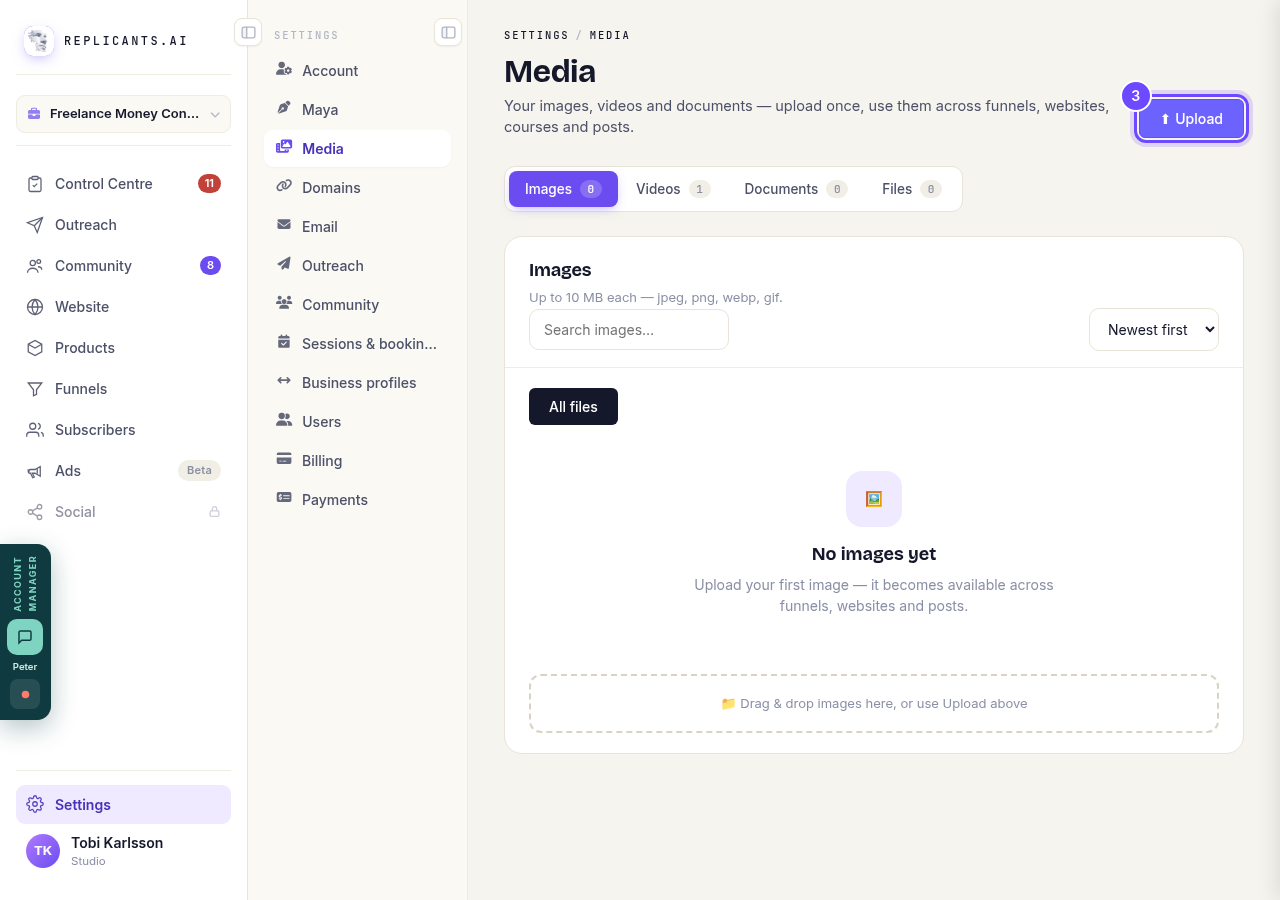
Press **Upload**.
Know the four tabs
Photos go to Images, videos to Videos, PDFs and other documents to Documents, and zip bundles to Files. The number on each tab tells you how many you have. After an upload the screen opens the tab your files went to.
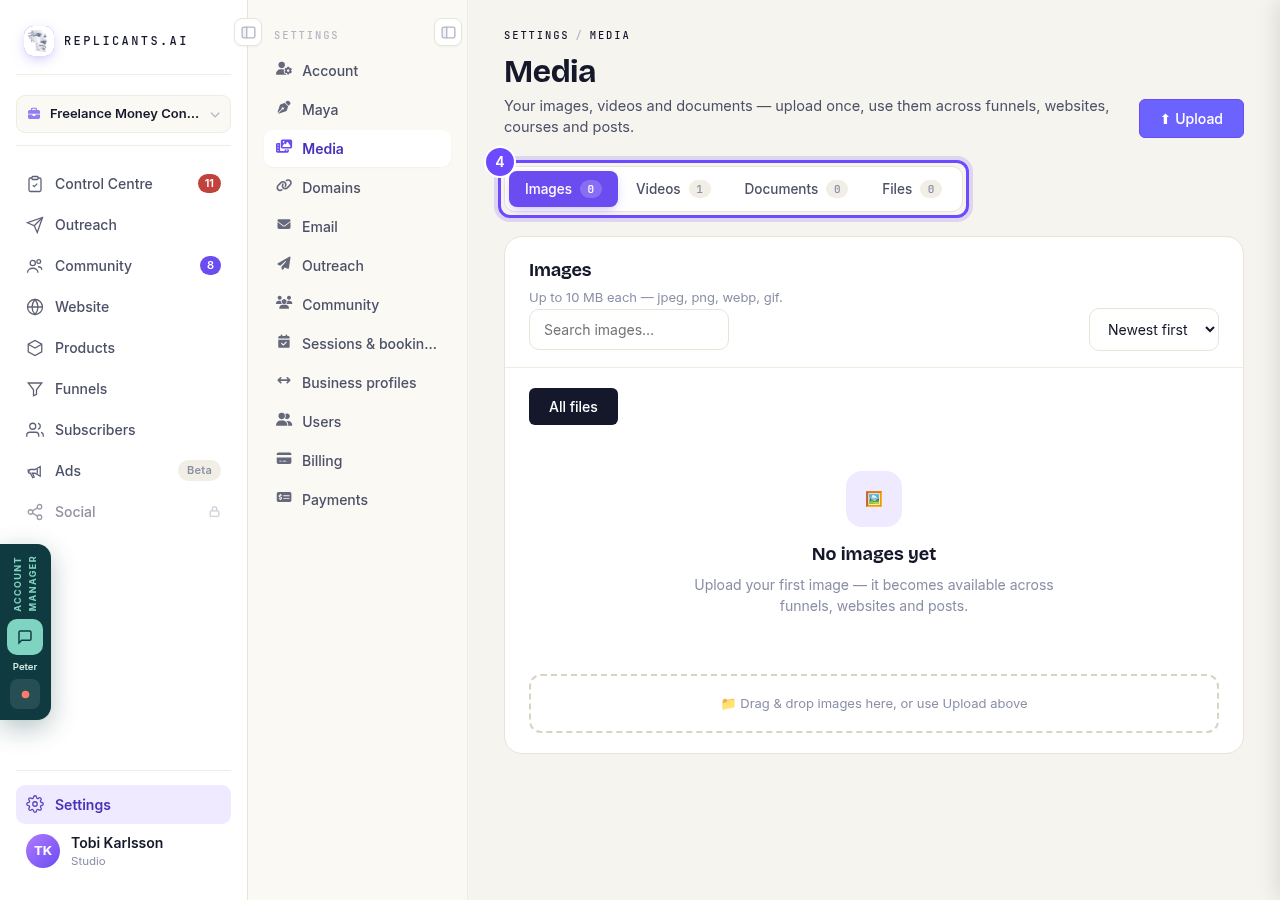
Press a tab to see what is in it.
Find your document
Your PDF is under Documents. Word files, slides, spreadsheets and audio go here too, up to 90 MB each. You can attach them to course lessons as downloads, or link to them anywhere.
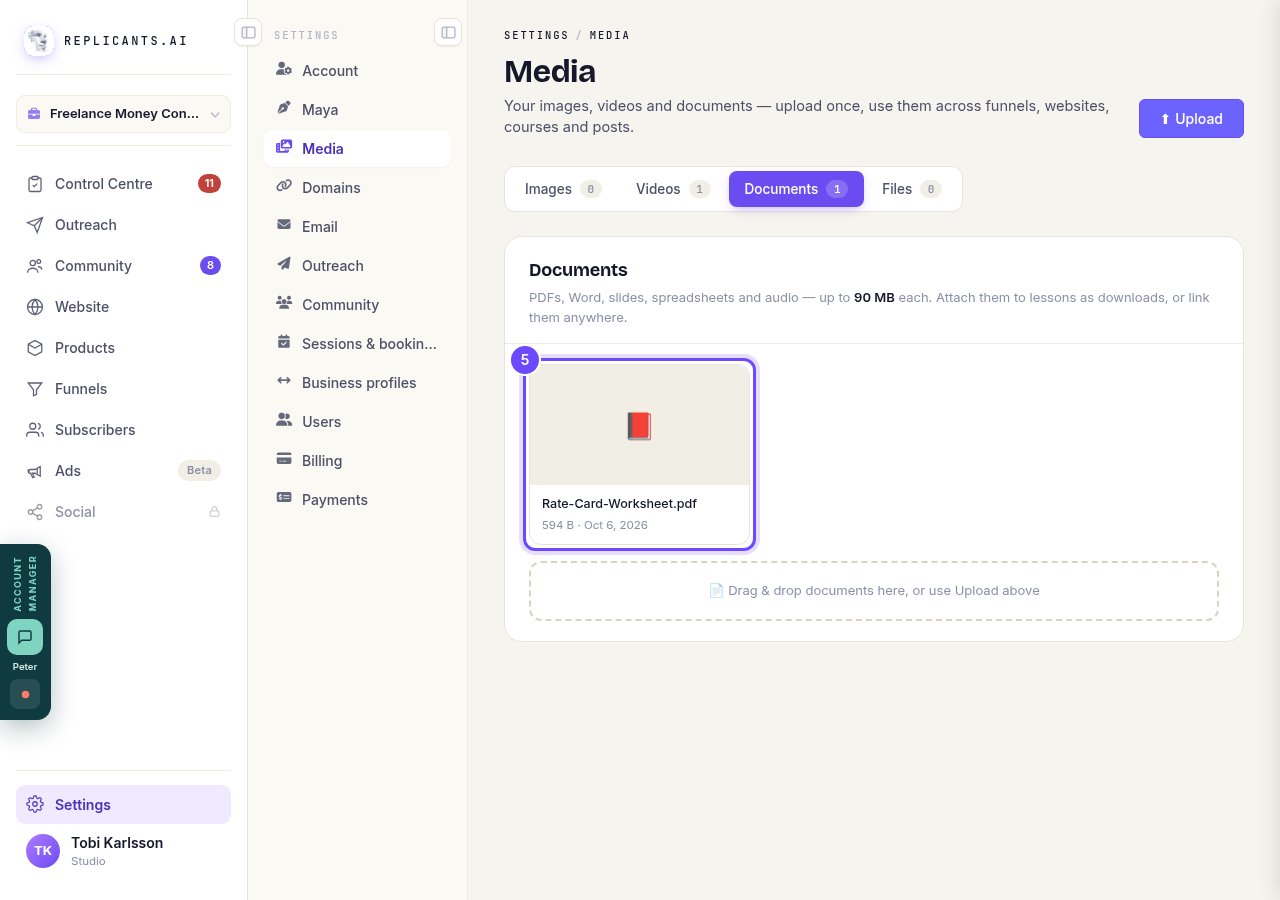
Press its name to open it.


Related articles
Can I talk instead of typing?
Under the boxes you type into there is a **Speak** button. Press it, talk, press **Stop**, and your words are typed into the box for you. It works on a laptop and on a phone.
Do I have to decide on the leads offer right now?
No. Your community is free and works without it. The price for leads is Outreach, a separate paid tool that finds people for your community, and you can say no and carry on building.
How do I ask for help, and where do I see the reply?
Your account manager is one press away on every screen. You write, add a screenshot or leave a voice note, and the reply comes back to the same place. About a minute to send.