
How are my social posts doing?
Open Socials, then Analytics. You see your posts, views, likes, comments, shares and new followers, each against the same stretch of time before (except on All), and every post on its own.
Updated 19 October 2026
Open Socials, then Analytics
Analytics is the last item beside Socials.
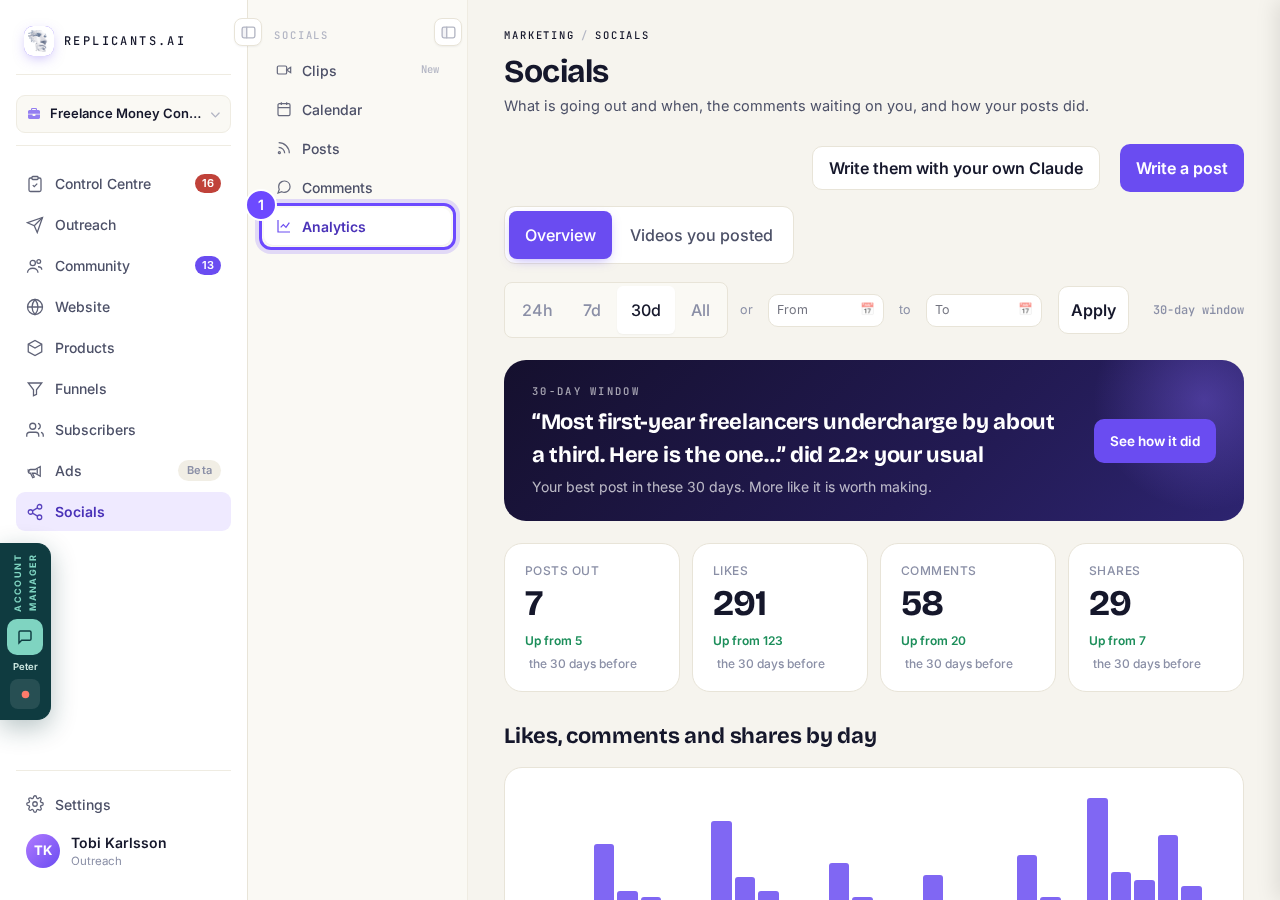
Analytics, beside Socials.
Choose how far back to look
Press 24h, 7d, 30d or All, or pick two dates and press Apply. It starts on 30 days.
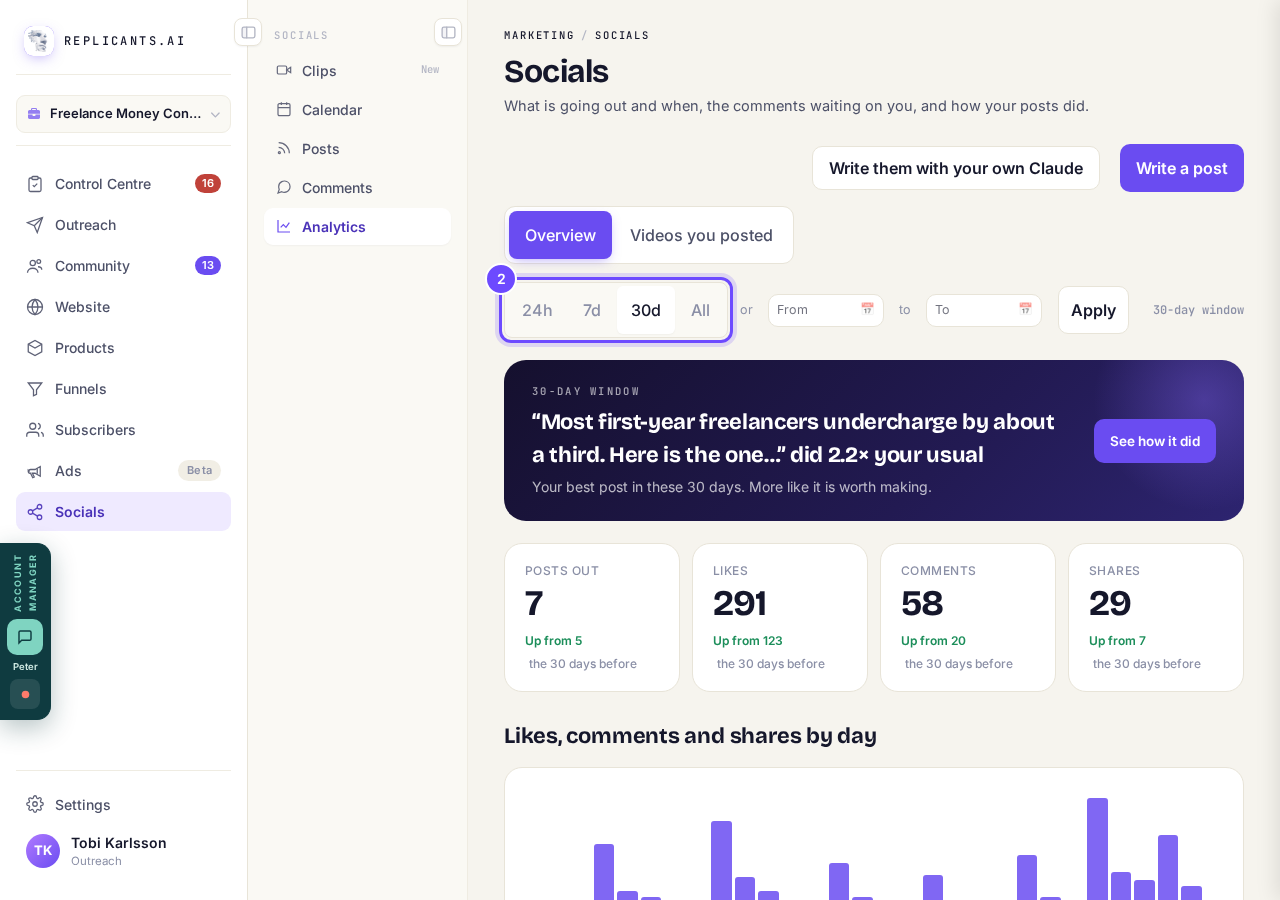
24h, 7d, 30d and All.
Read the numbers at the top
Each one says Up from, Down from or Same as against the same number of days before, except on All, which has nothing before it. A number a network does not report is left out, never shown as nought.
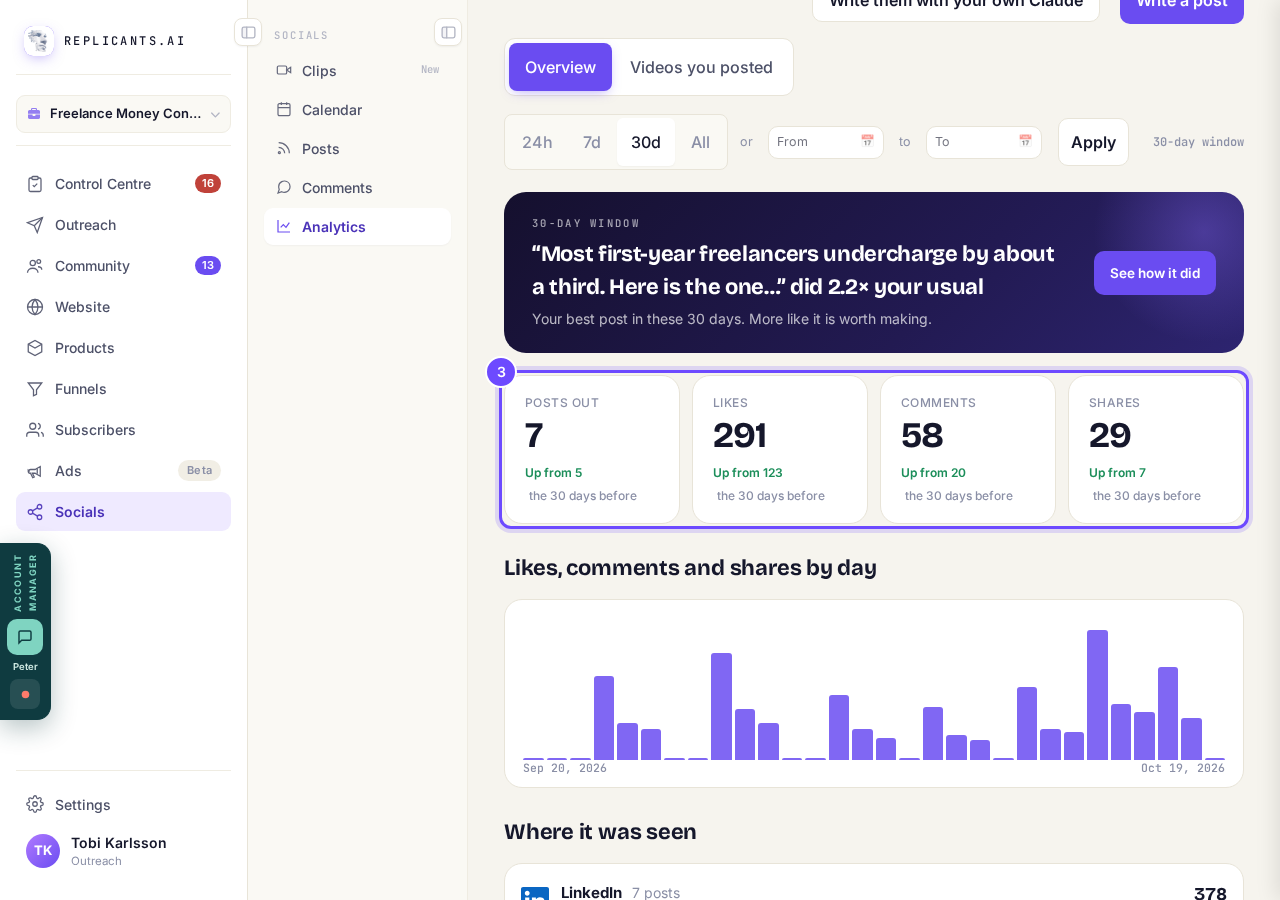
Posts out, Likes, Comments and Shares, each against the 30 days before.
Look under Where it was seen
Each network, busiest first, with how many posts went there and their views where it reports them, or else their likes, comments and shares together. The chart above it shows the same over time.
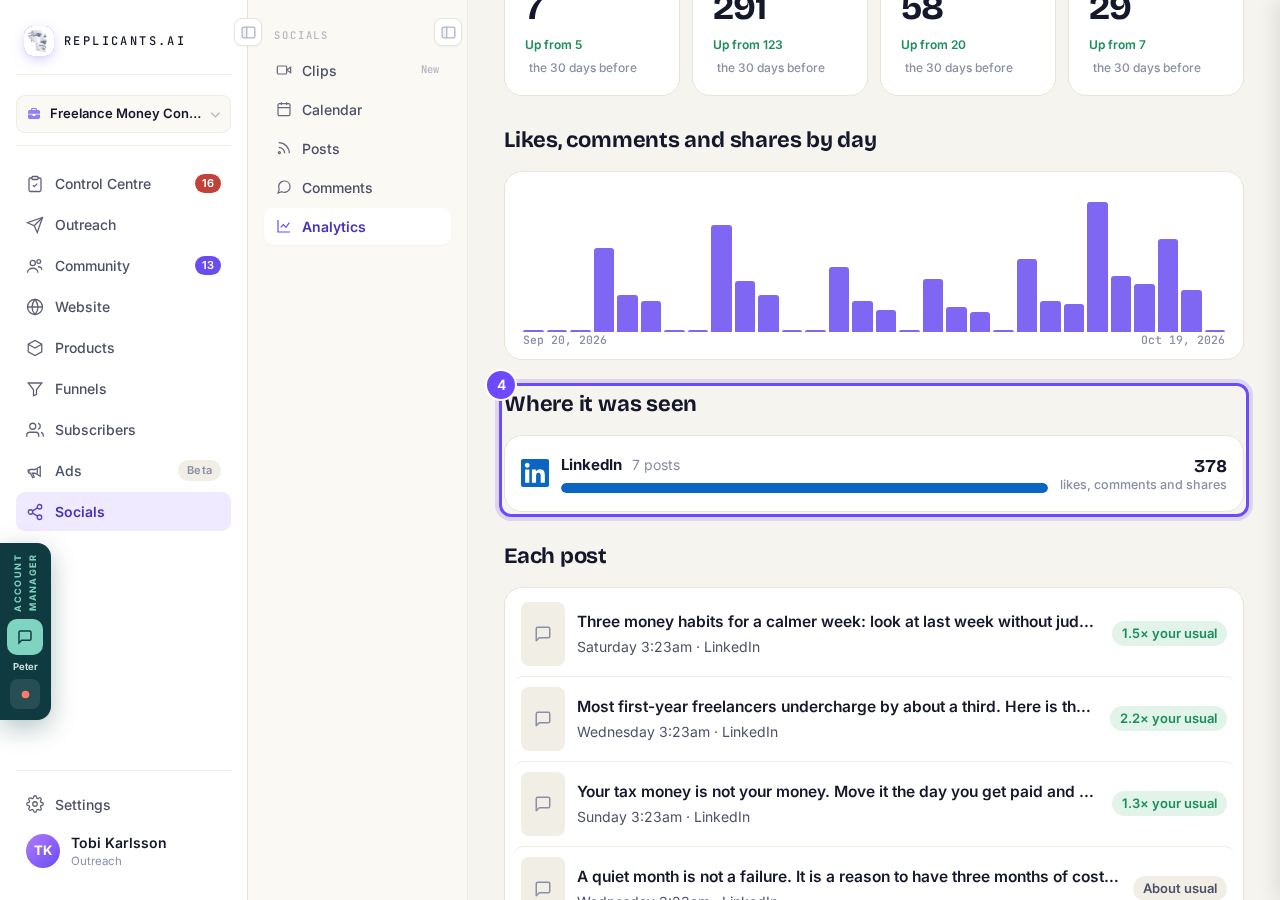
Where it was seen, one line for each network.
Press a post under Each post
It opens that post's own report: its first 24 hours against your usual, then its likes, comments and shares. Posts are newest first, and Show more posts brings in the rest.
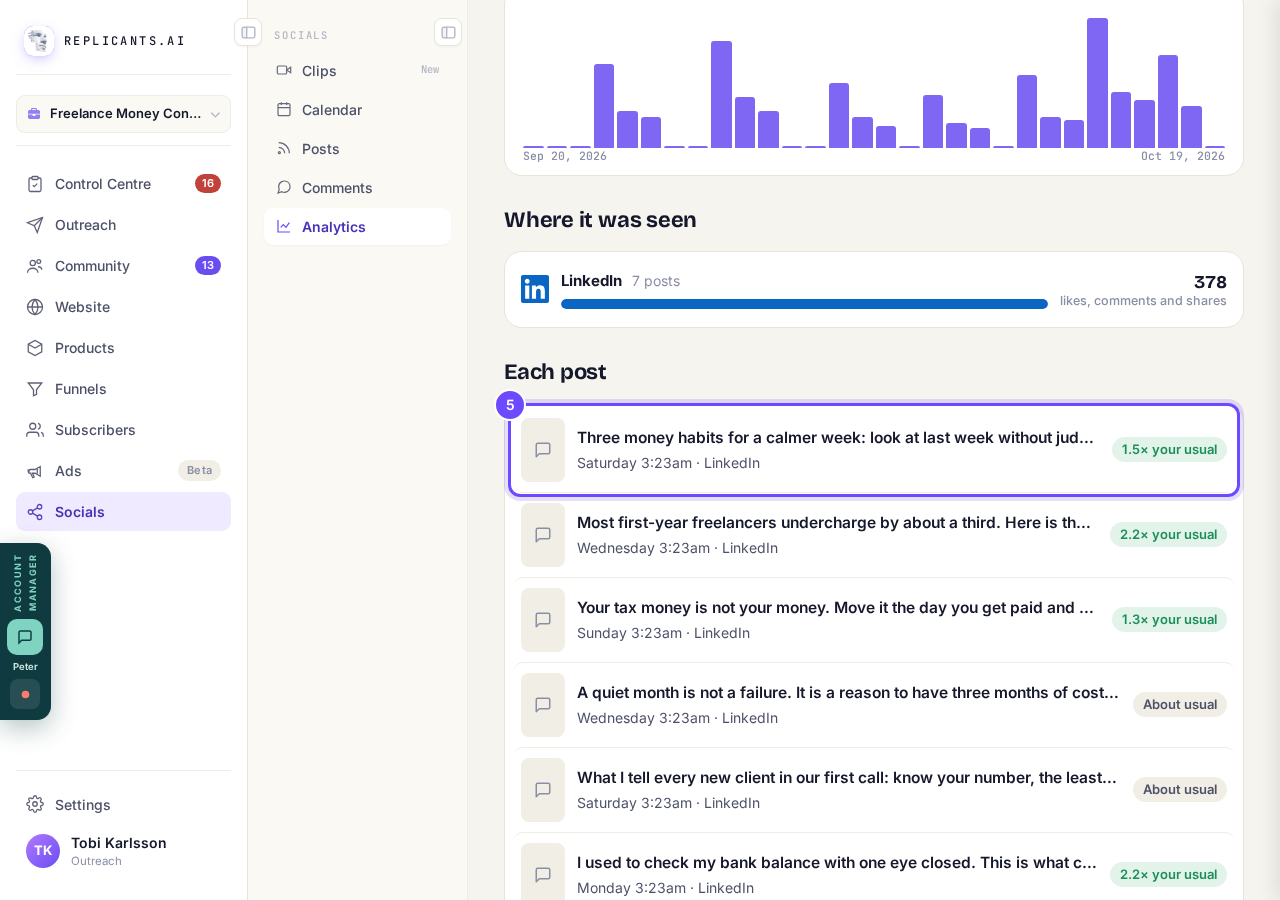
A post under Each post.
Press Videos you posted to see your videos
Choose All videos, or Clips only for the ones you made in Clips.
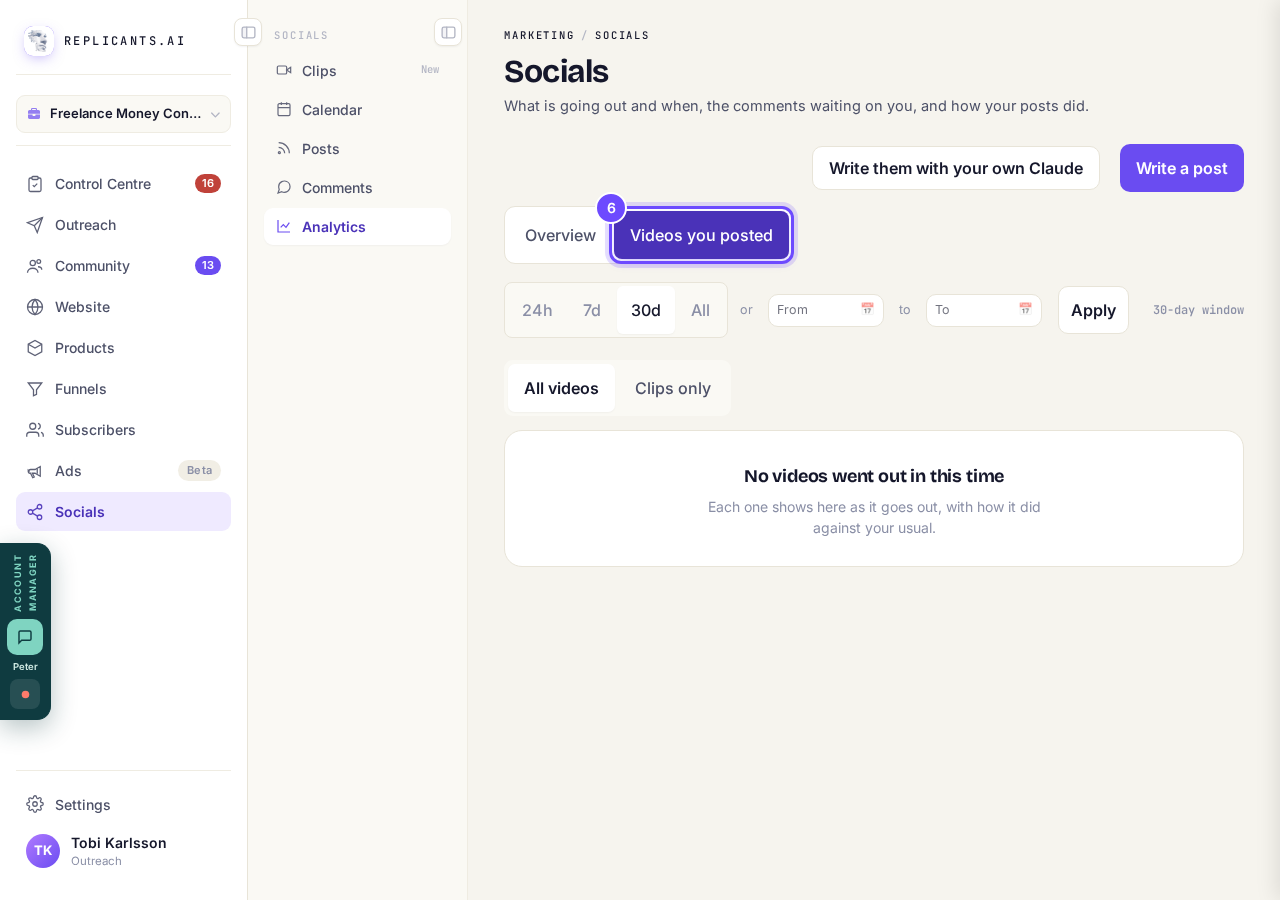
Videos you posted, with All videos and Clips only.


Posts you schedule from Calendar, Posts or Clips show here once they go out.
Related articles
Can I talk instead of typing?
Under the boxes you type into there is a **Speak** button. Press it, talk, press **Stop**, and your words are typed into the box for you. It works on a laptop and on a phone.
Do I have to decide on the leads offer right now?
No. Your community is free and works without it. The price for leads is Outreach, a separate paid tool that finds people for your community, and you can say no and carry on building.
How do I ask for help, and where do I see the reply?
Your account manager is one press away on every screen. You write, add a screenshot or leave a voice note, and the reply comes back to the same place. About a minute to send.