
How do I see everything I have scheduled, and fill my calendar?
Your **Control Centre** opens on one calendar with everything you have scheduled: social posts, broadcast emails and community posts. Anything waiting for your yes is marked in red. You can also plan a whole month of posts in one go with your own Claude.
Updated 6 October 2026
Open Control Centre
It is the first item in your menu.
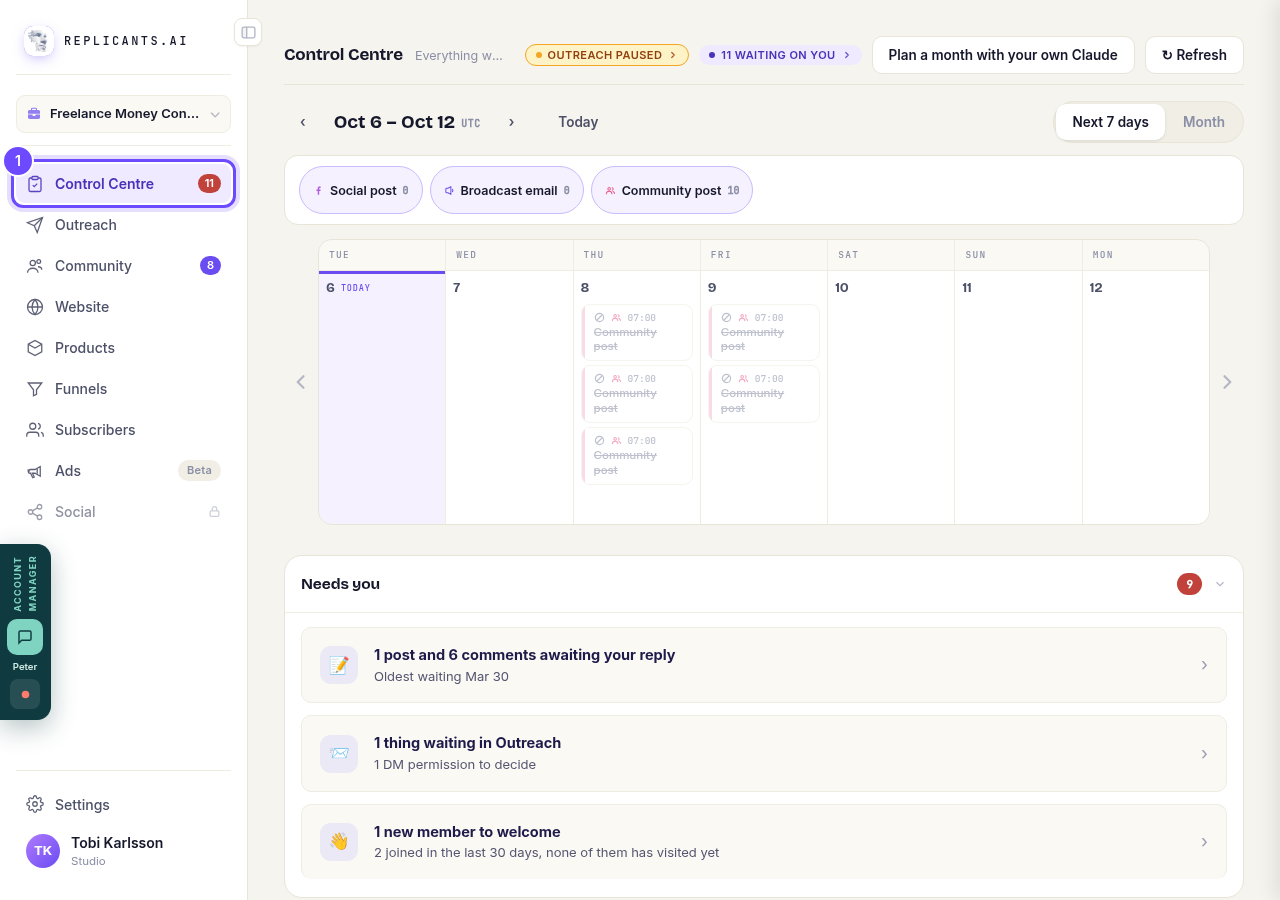
Press **Control Centre**.
Read your calendar
Each day shows what goes out and at what time. The buttons along the top count your social posts, broadcast emails and community posts. Red items marked Needs you are waiting for your yes. Items crossed out were cancelled.
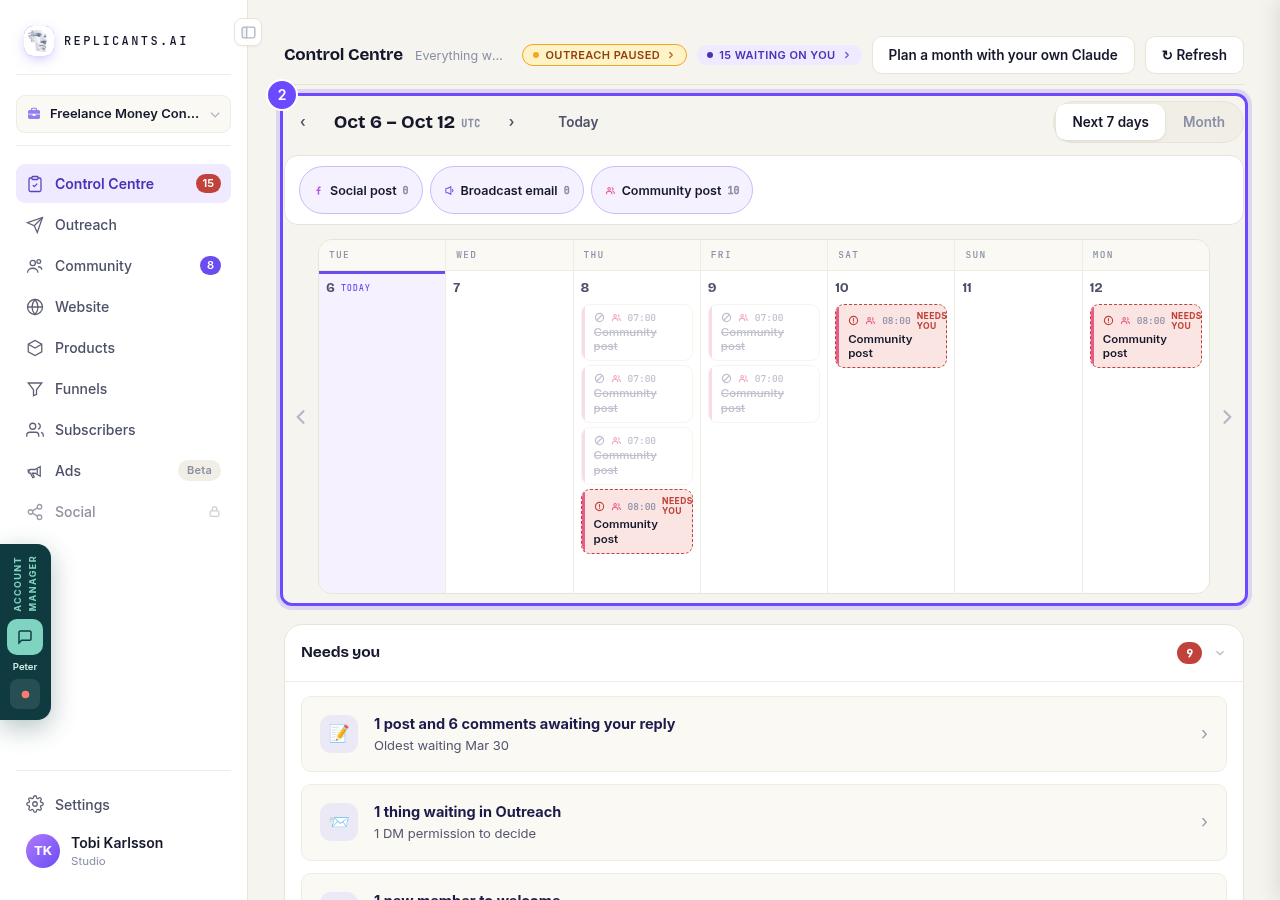
Look at the calendar. Press the arrows to move a week at a time.
See the whole month
Next 7 days shows the coming week. Month shows the whole month. On a phone the buttons read 7d and M.
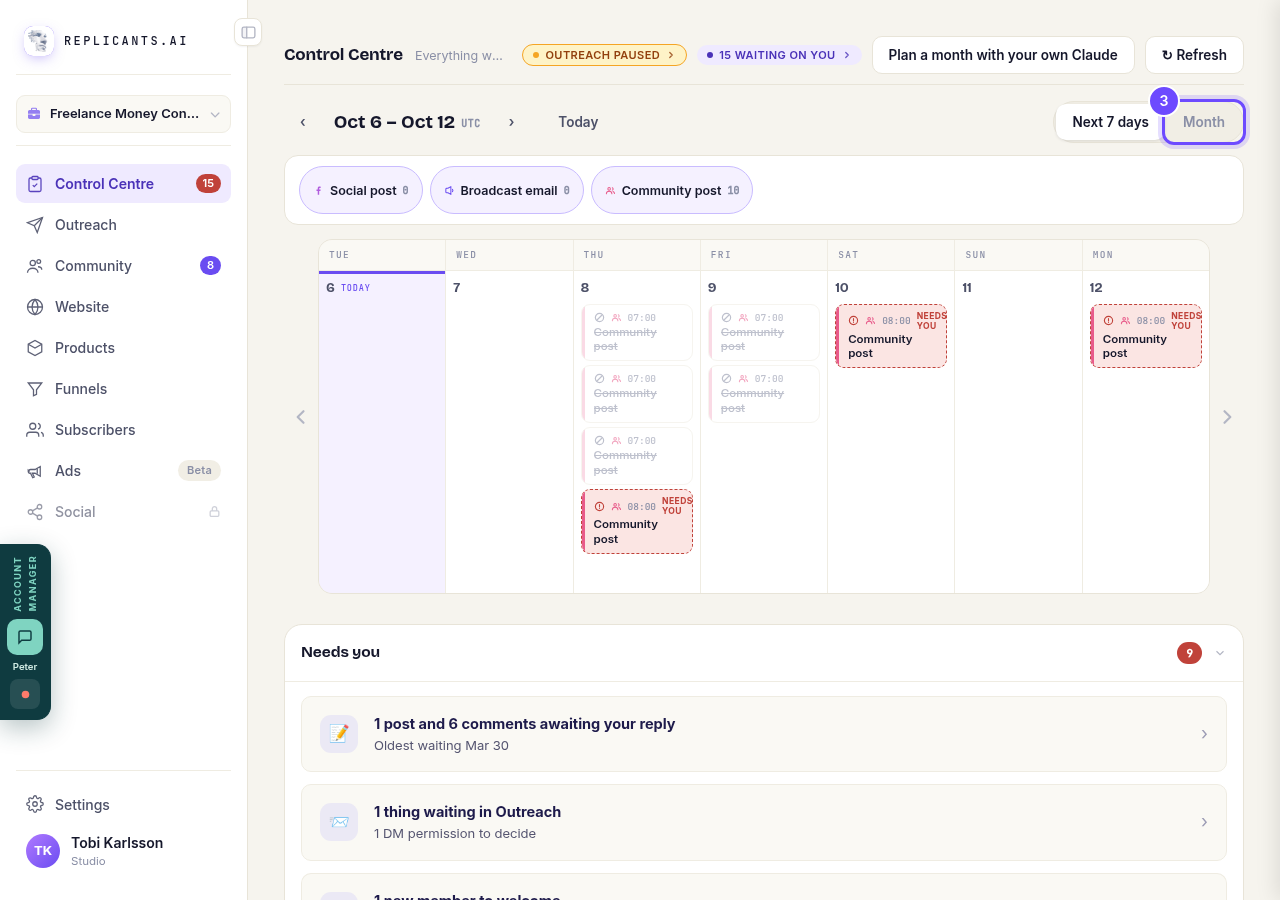
Press **Month**.
Open one item
You see exactly what will go out, and you can approve it, change it or cancel it.
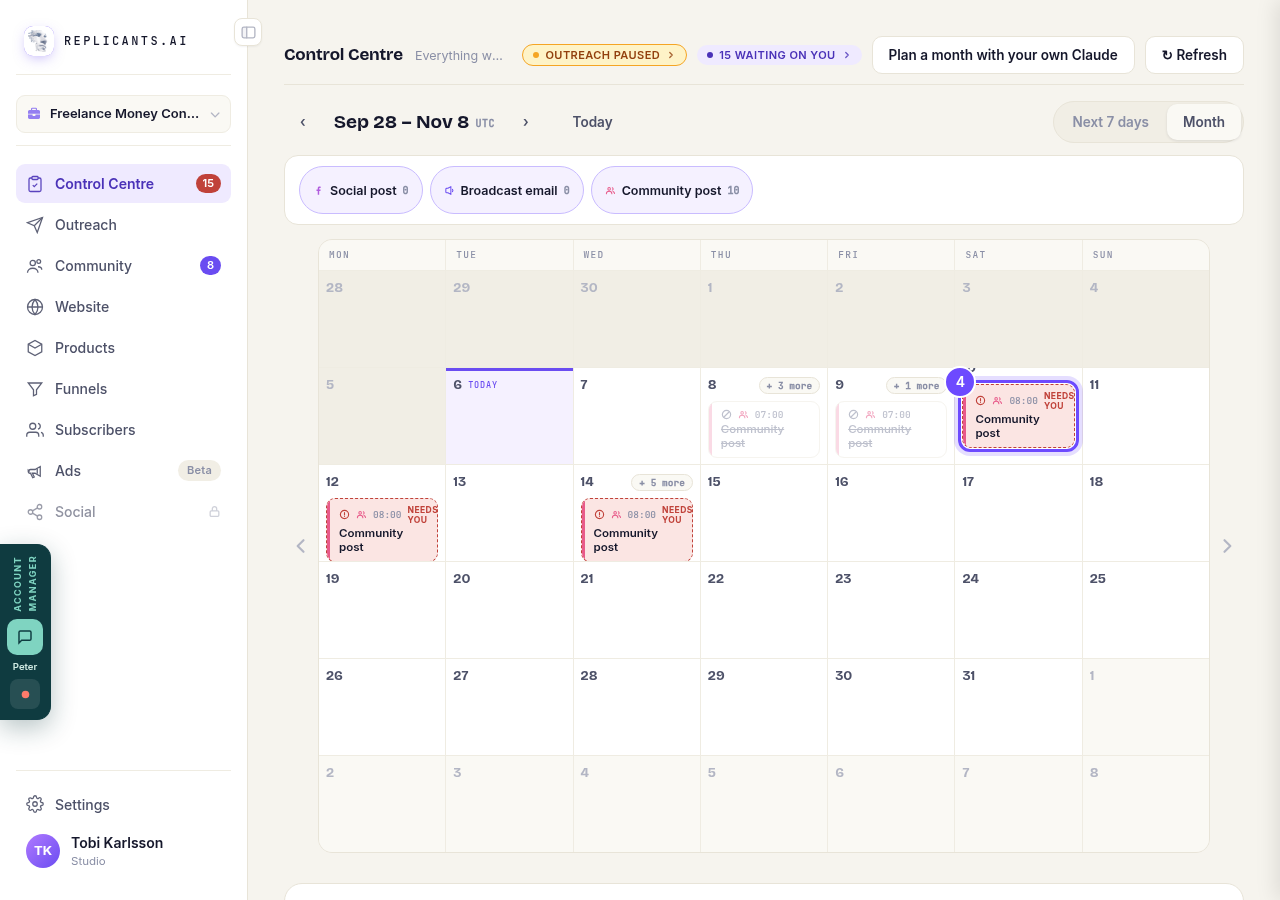
Press an item on the calendar.
Fill a month with Claude
A guide opens that connects your own Claude and plans a month of posts with you in one conversation. Every post lands on this calendar waiting for your yes. This button is on the laptop screen only.
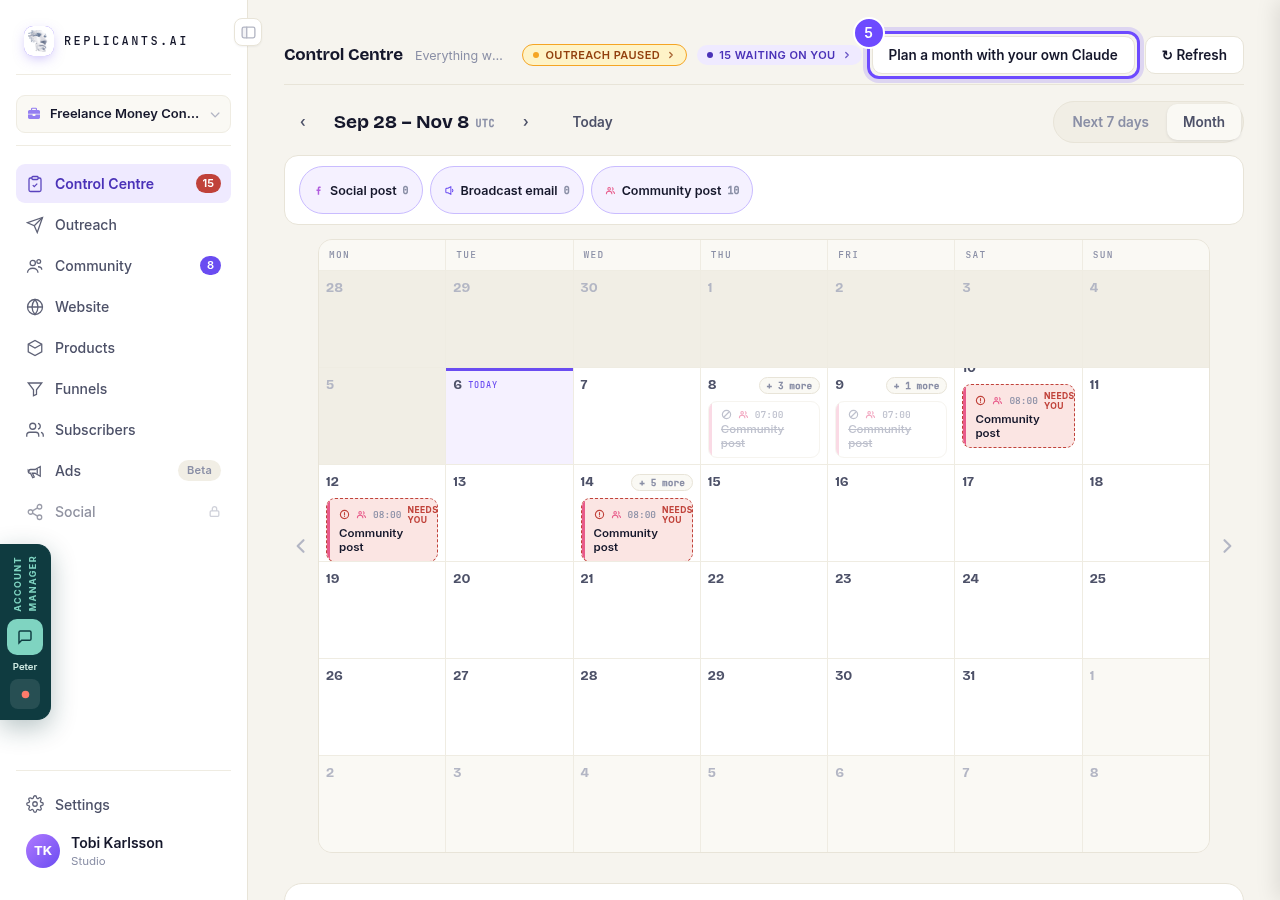
Press **Plan a month with your own Claude**.


Related articles
Can I talk instead of typing?
Under the boxes you type into there is a **Speak** button. Press it, talk, press **Stop**, and your words are typed into the box for you. It works on a laptop and on a phone.
Do I have to decide on the leads offer right now?
No. Your community is free and works without it. The price for leads is Outreach, a separate paid tool that finds people for your community, and you can say no and carry on building.
How do I ask for help, and where do I see the reply?
Your account manager is one press away on every screen. You write, add a screenshot or leave a voice note, and the reply comes back to the same place. About a minute to send.