
How do I refund a student on my course?
Open the student, press ⋯, then Their order and refund, and press Refund. About two minutes; Stripe usually returns the money to their card within 5 to 10 working days.
Updated 18 October 2026
Open the student
Open Products, then Courses, then Manage on your course, press Students, and press the person’s name. On a phone, press the menu button at the top right first, and slide the row under the course name left to find Students.
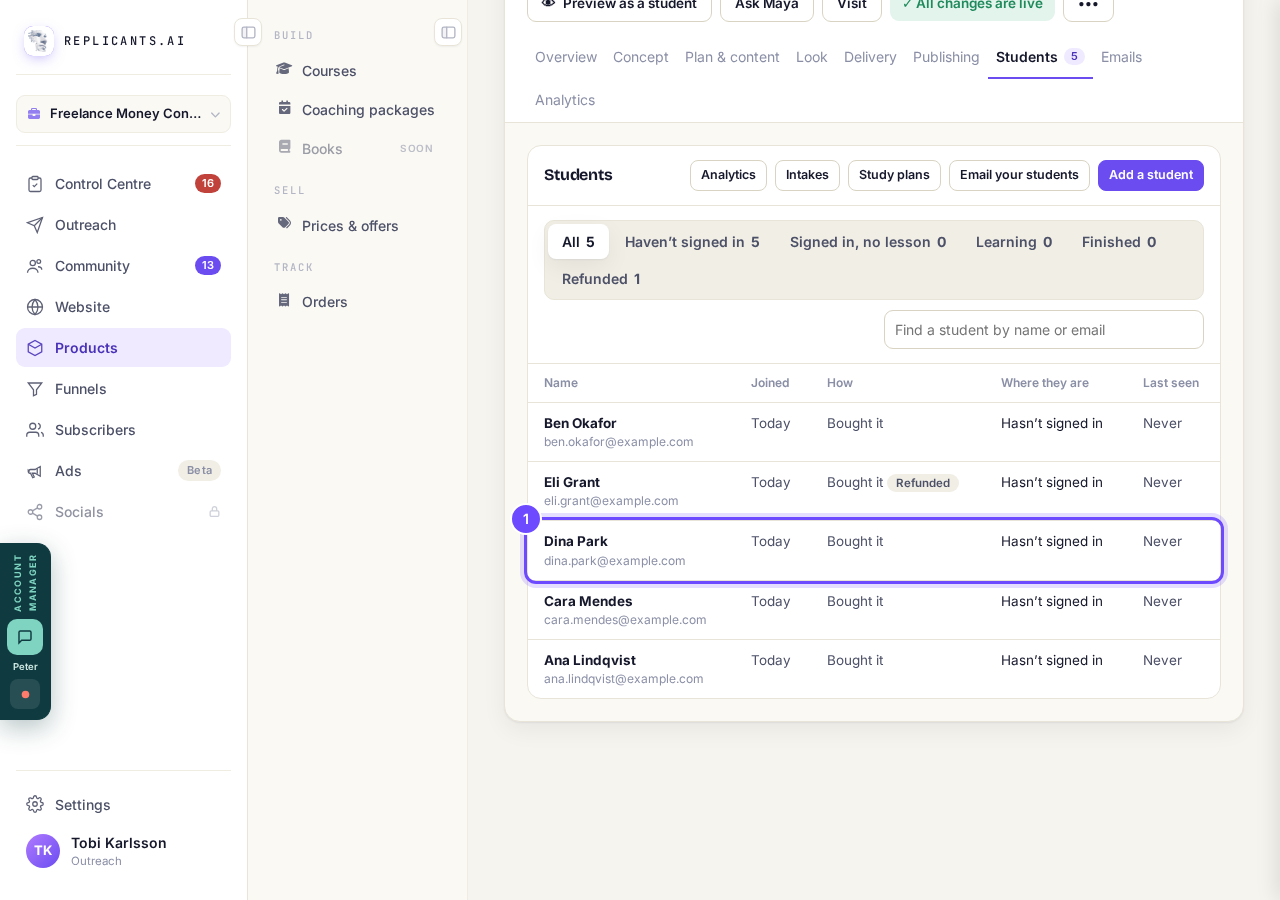
The buyer, on Students.
Press ⋯, then Their order and refund
Press ⋯ beside Message, then Their order and refund. It only appears for someone who bought the course.
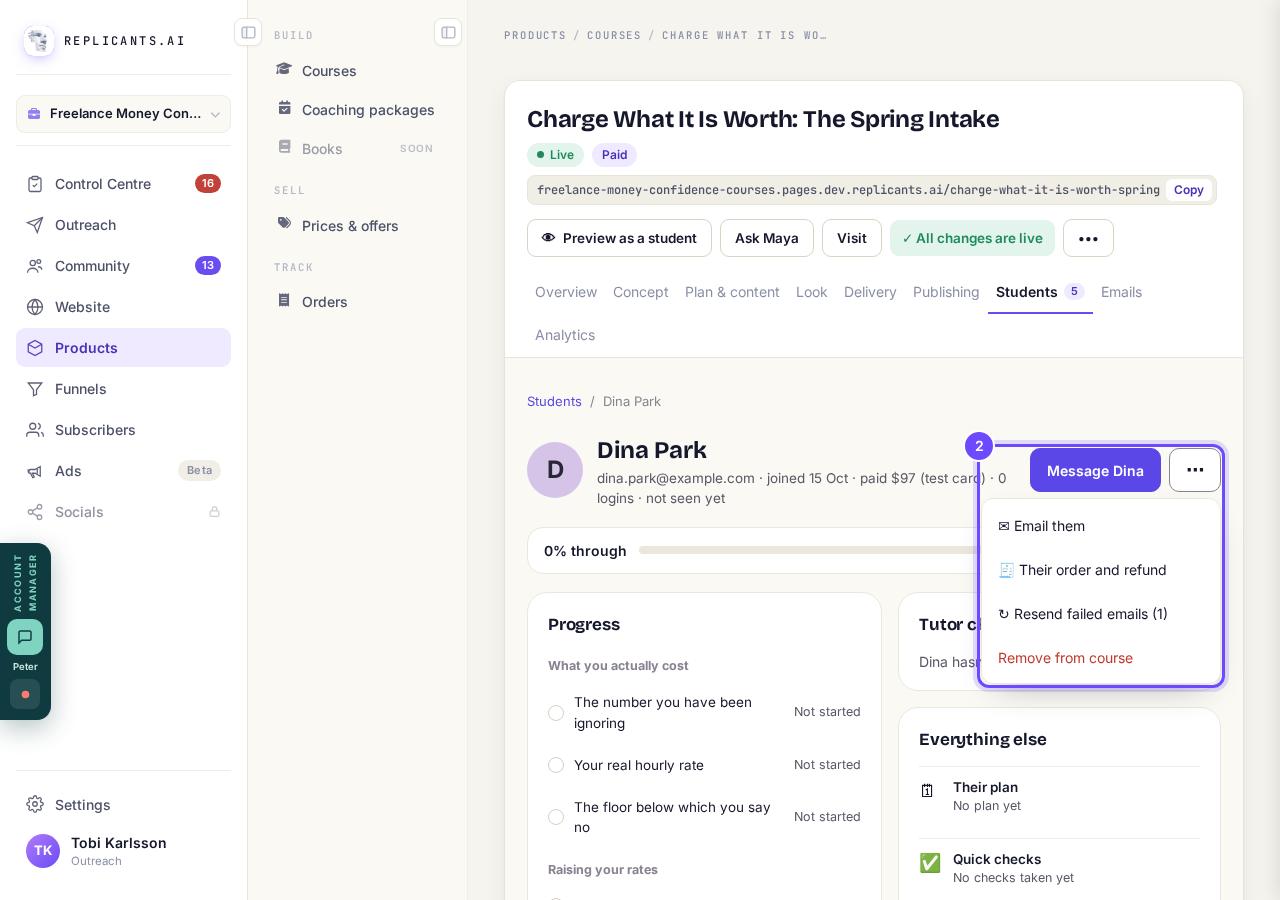
⋯ and Their order and refund.
Press Refund
Press Refund on their order, which shows what they paid and how much can still be refunded.
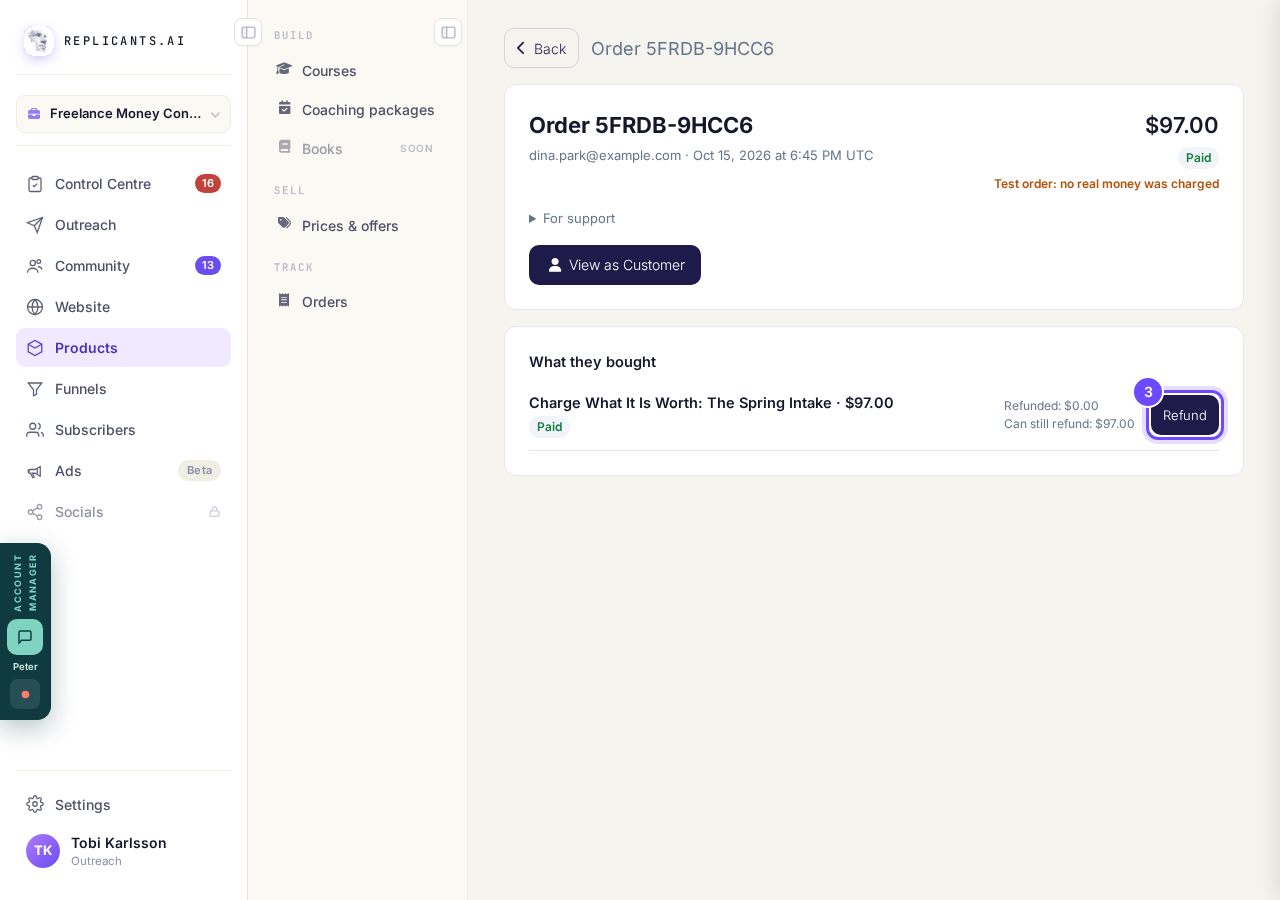
Refund, on their order.
Choose the amount and the reason
Type the Refund amount (it starts at the whole amount), choose Why are you refunding it?, and press Review refund. Your note (optional) is only for you.
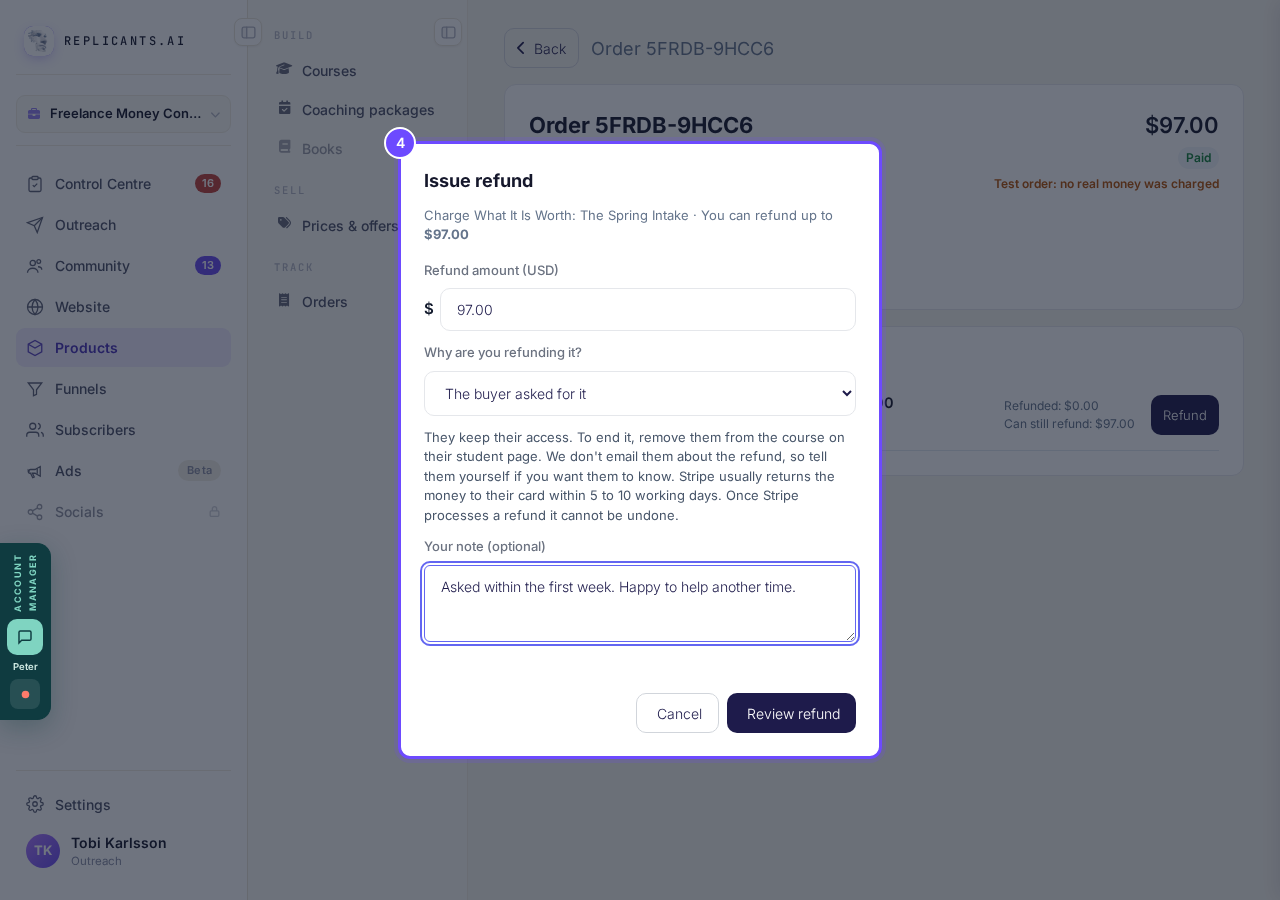
Issue refund: amount, reason and your note.
Check, then press Refund
Press the button with the amount, for example Refund $97.00. Once Stripe processes a refund it cannot be undone.
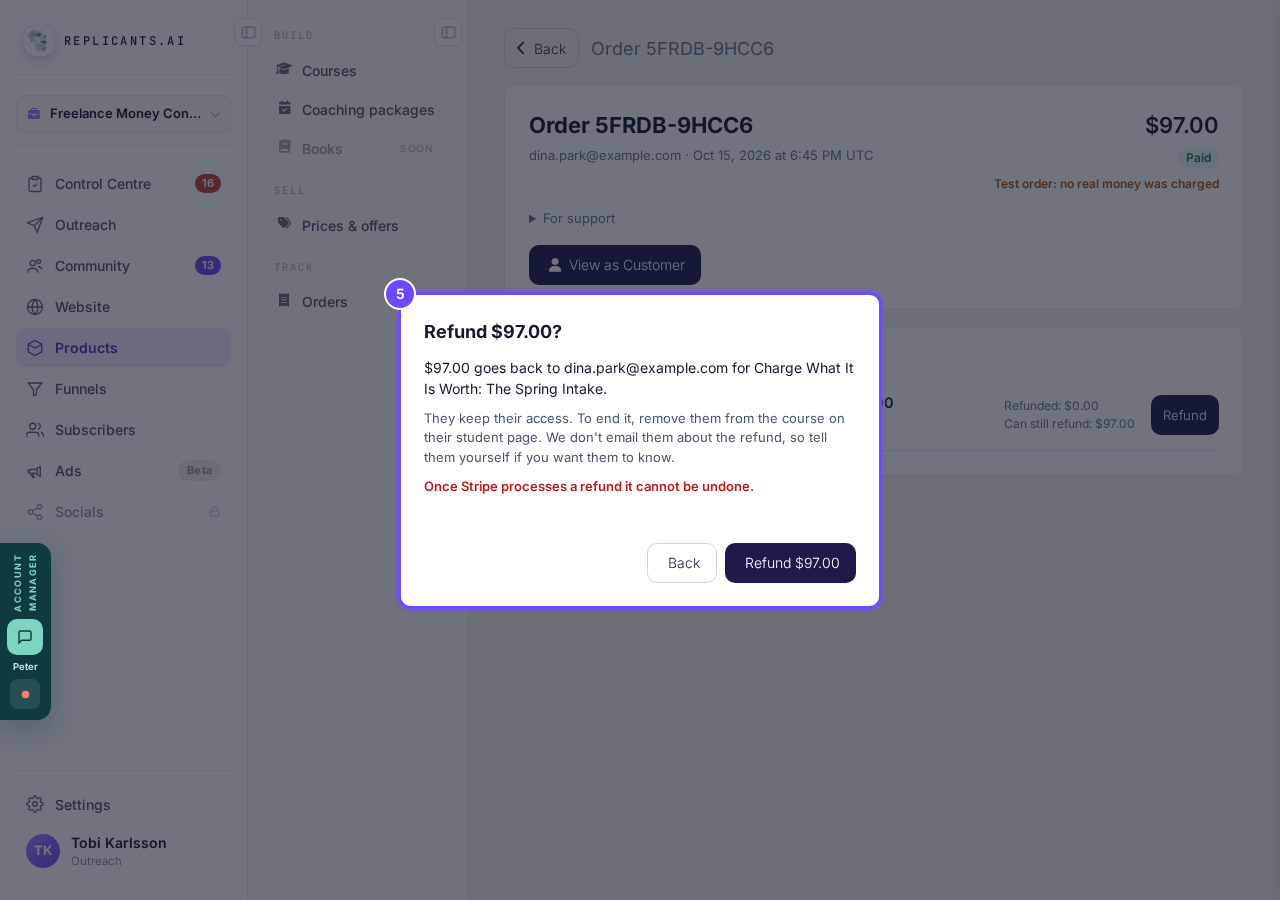
Refund $97.00?
See it in the refund history
Look at their order, which now says how much was refunded and when, with your reason.
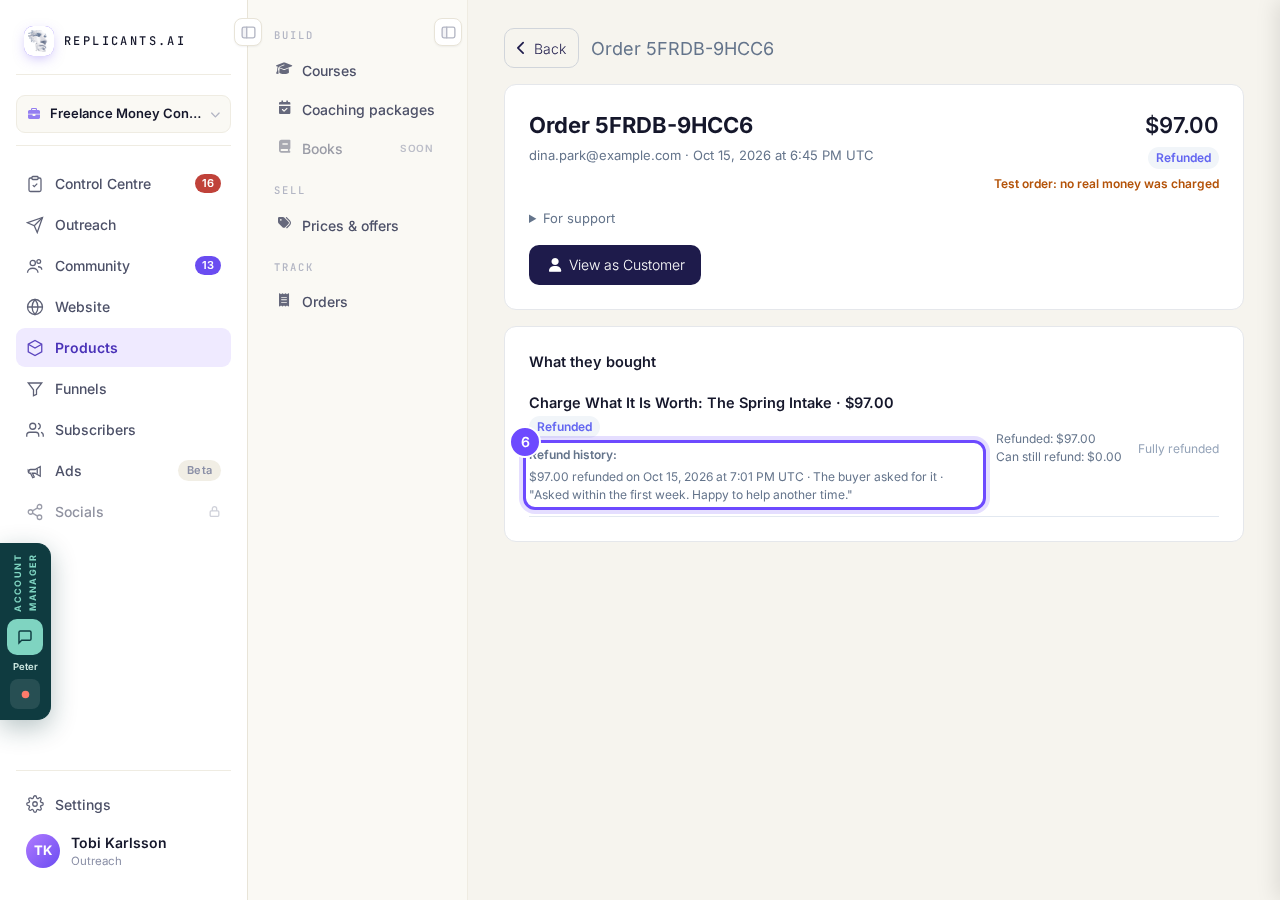
Refund history, on the order.


After a refund
Where do I find refunded students?#
On Students, press Refunded; part refunds have their own group, Part refunded.
Their student page then says Refunded; to end their place, press ⋯, then Remove from course, which keeps their progress and certificate. To make every refund in full end access, choose End their access under When you refund a payment in full in Settings, then Payments; they then leave Students. We do not email the buyer about a refund, so tell them yourself.
Related articles
Can I see a real course before I build mine?
Yes. Claire's free course, Small Steps, is a real course you can join as a student in about five minutes.
Can I turn my workbook, notes or recordings into a course?
Yes. Add your workbook, notes, slides or recordings at the start of a new course and Maya reads them; the questions arrive already answered, and your plan is built from them.
How does my course help students finish?
Your course has a tool for students who drift off, get stuck or feel alone, and you switch them all on or off in one place: Delivery, at the top of your course. Looking through them takes about five minutes.