
How do I see my course before I publish it, and then put it live?
Press **See it as a student** at the top of your course to see its page exactly as a student will, before anyone else can. When it looks right, press **Publish**, then **Publish** again in the box. Your course page goes online at its own web address straight away. About two minutes.
Updated 11 October 2026
Open Products
Products is in the main menu on the left. It opens on your courses. On a phone, press the menu button at the top right, then Products, then Courses.
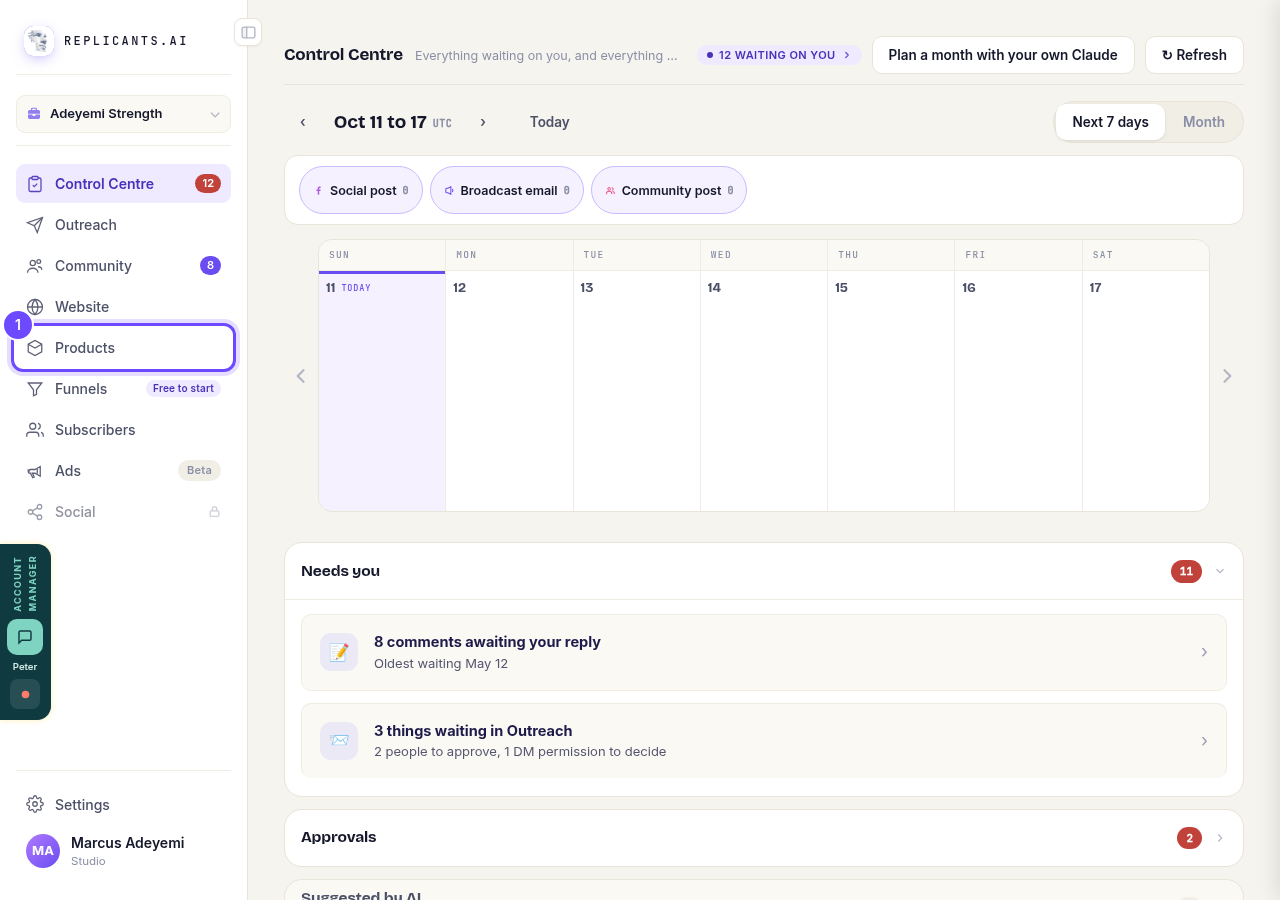
Products, in the main menu.
Press Manage on your course
A course that is ready but not live yet says Unpublished on its picture.
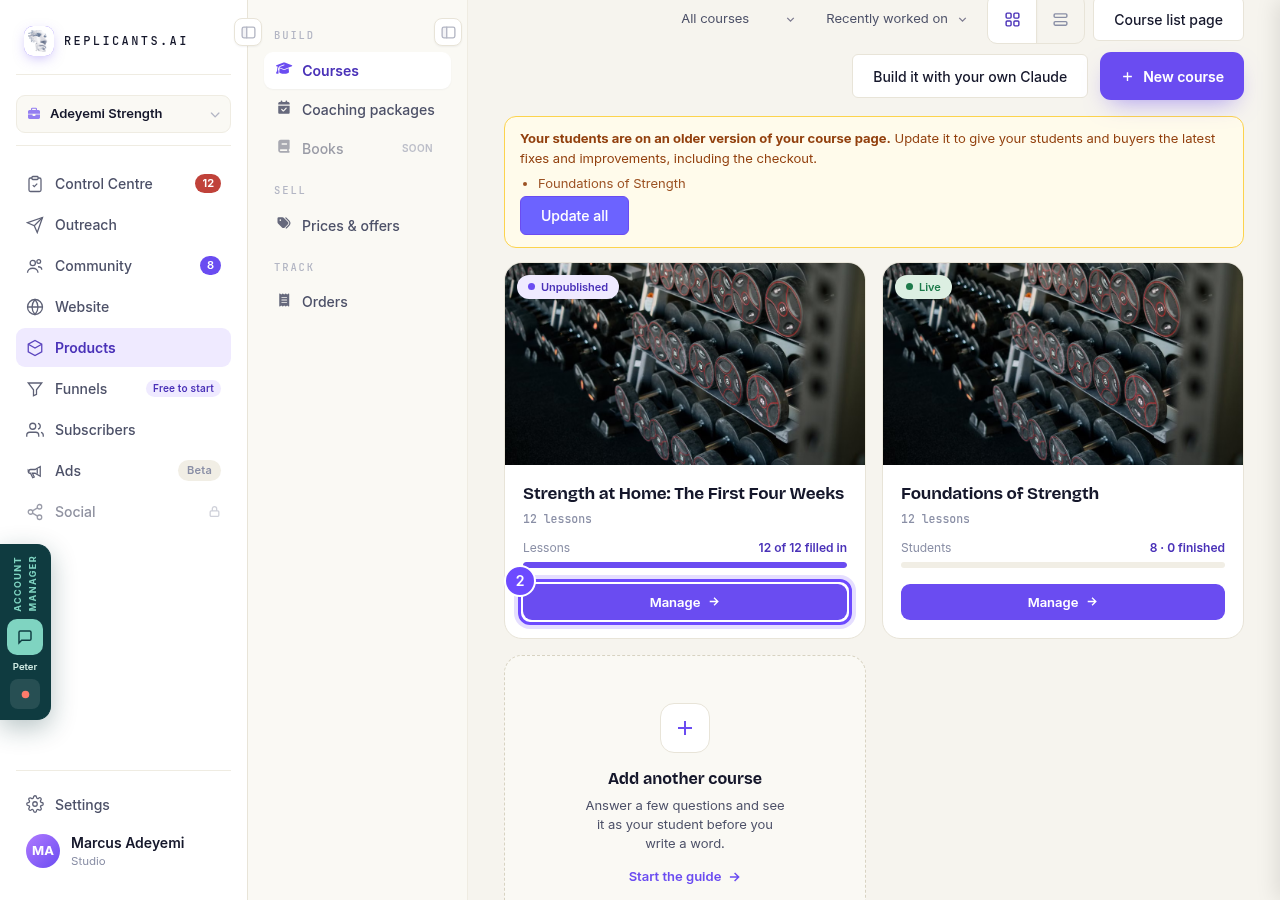
Manage, on a course that says Unpublished.
Press See it as a student
It is at the top of the course, beside Ask Maya. Under the course name it says Not published. Your course page opens in a new window, as a student will see it.
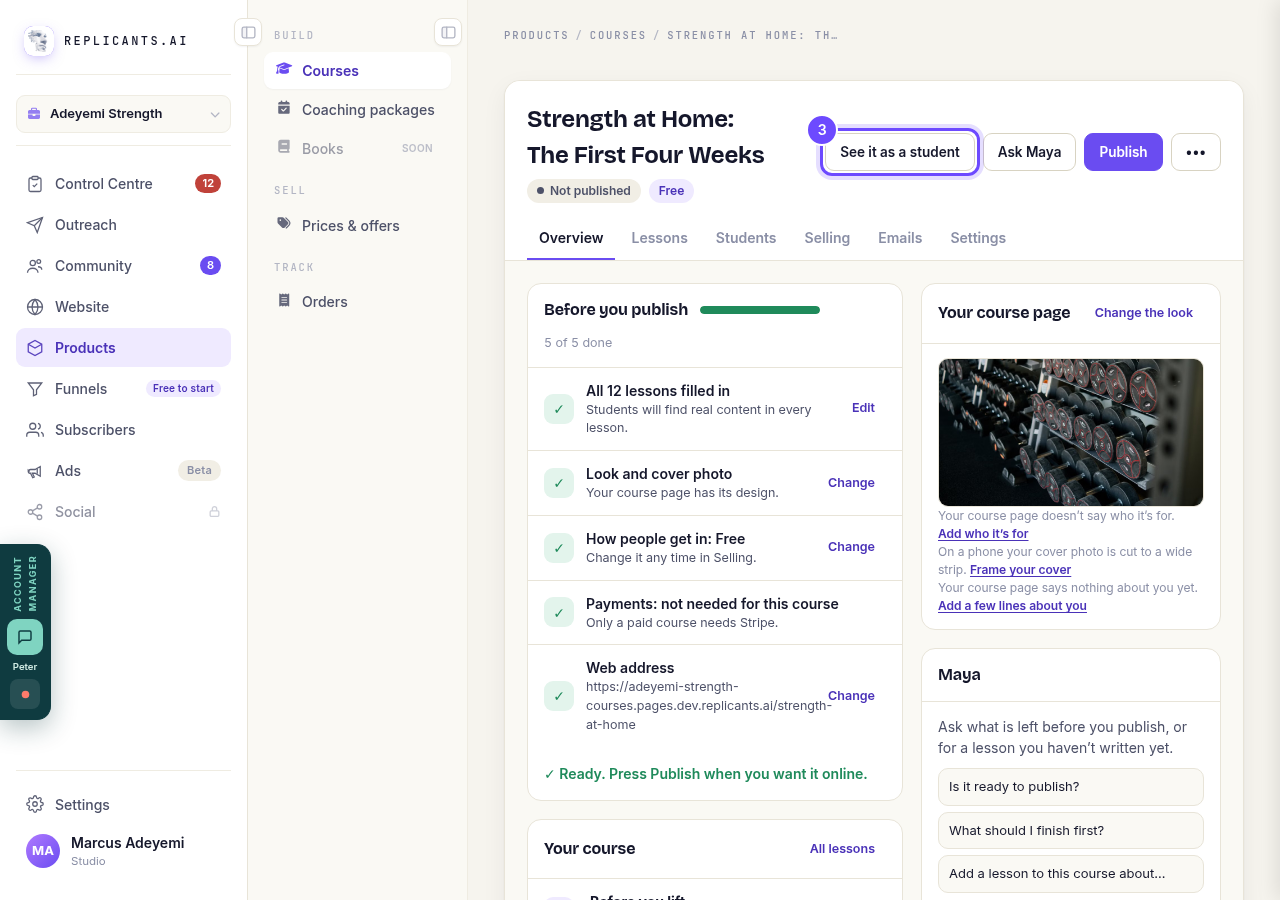
See it as a student, at the top of the course.
Look through your course page
A bar along the bottom says Preview: your course as a student sees it. It goes live when you publish. Scroll down to see what is inside. Close the window when you are done, and you are back in your course.
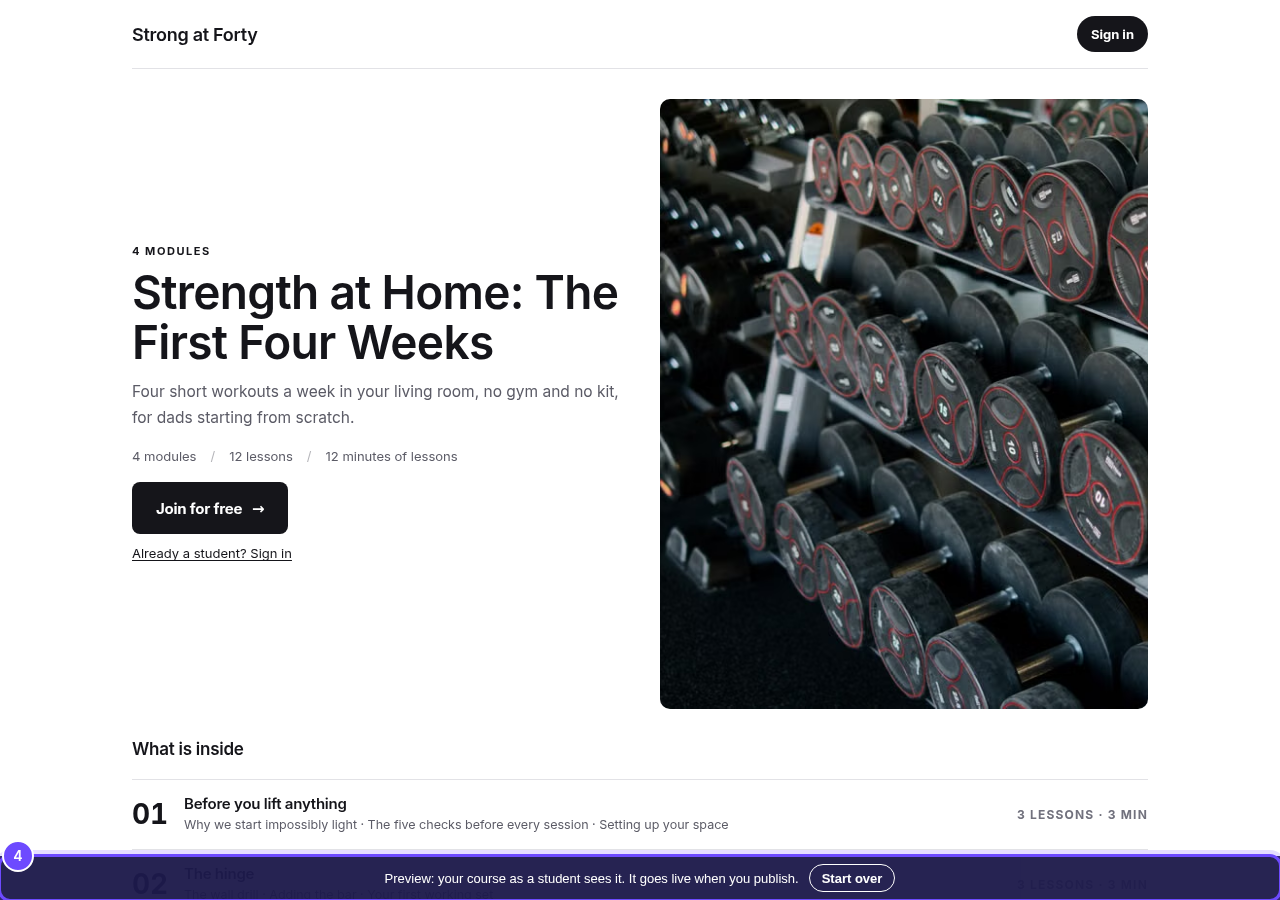
The bar that says this is a preview.
Press Publish
It is at the top of the course. Every row under Before you publish has a tick, and a line under them says Ready. Press Publish when you want it online.
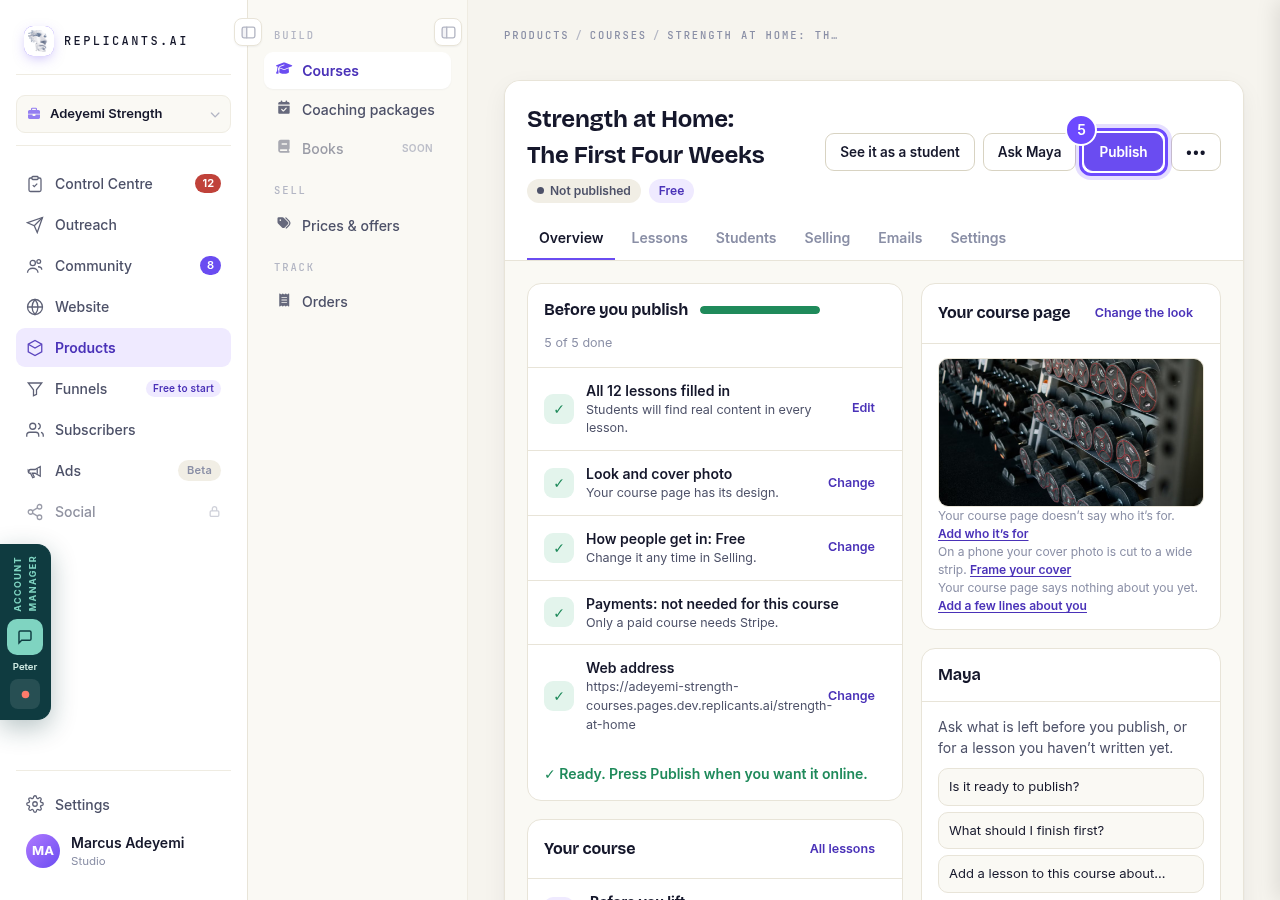
Publish, at the top of the course.
Press Publish in the box
The box says the web address your course page goes online at. On a paid course it also says payments stay in test mode until you switch real payments on in Selling. Not now closes it with nothing published.
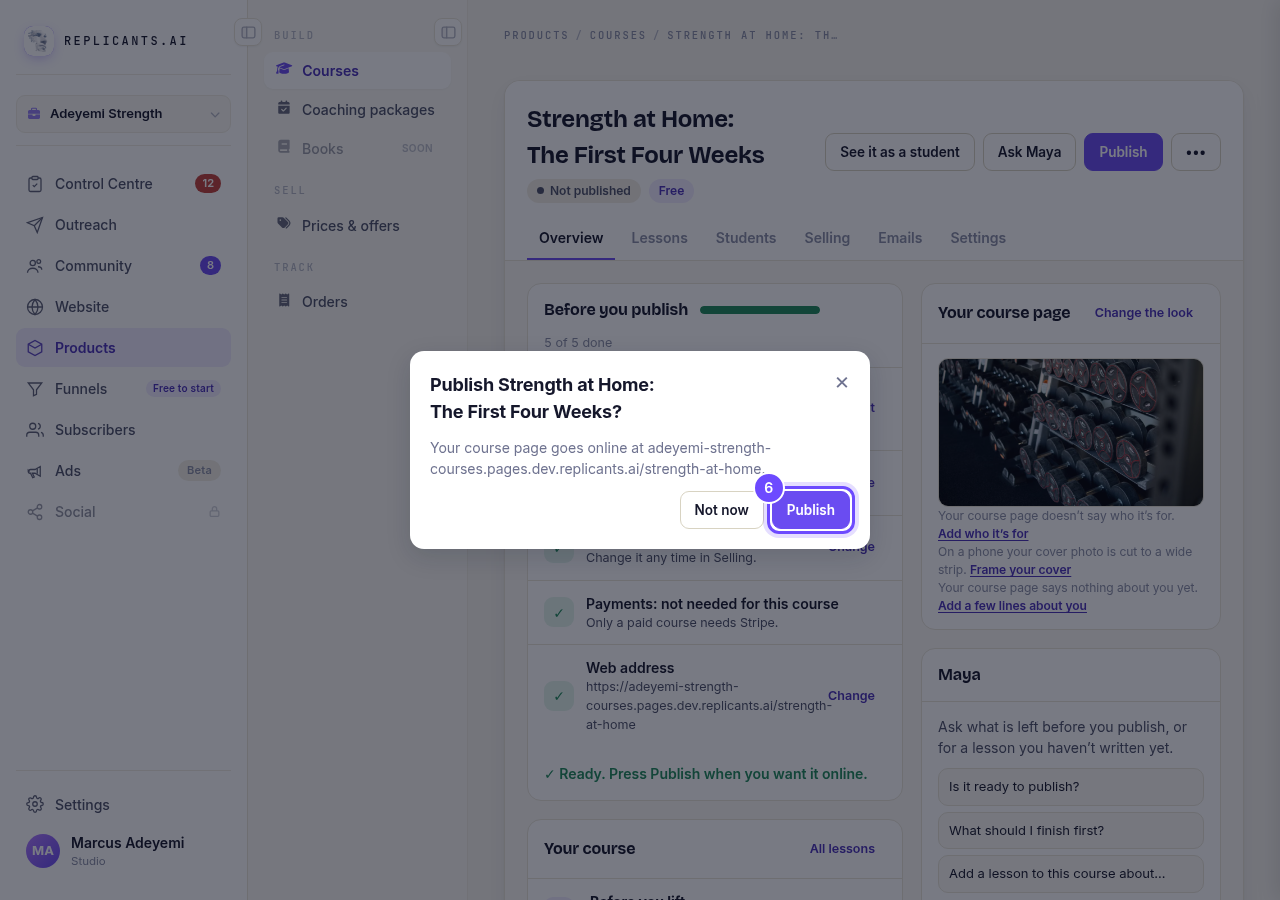
Publish, in the box.
Check it says Live
It takes a moment, then a message says Published. Your course page is live. Under the course name it now says Live, with your course page's web address and Copy beside it. Press Copy to share the address with your students.
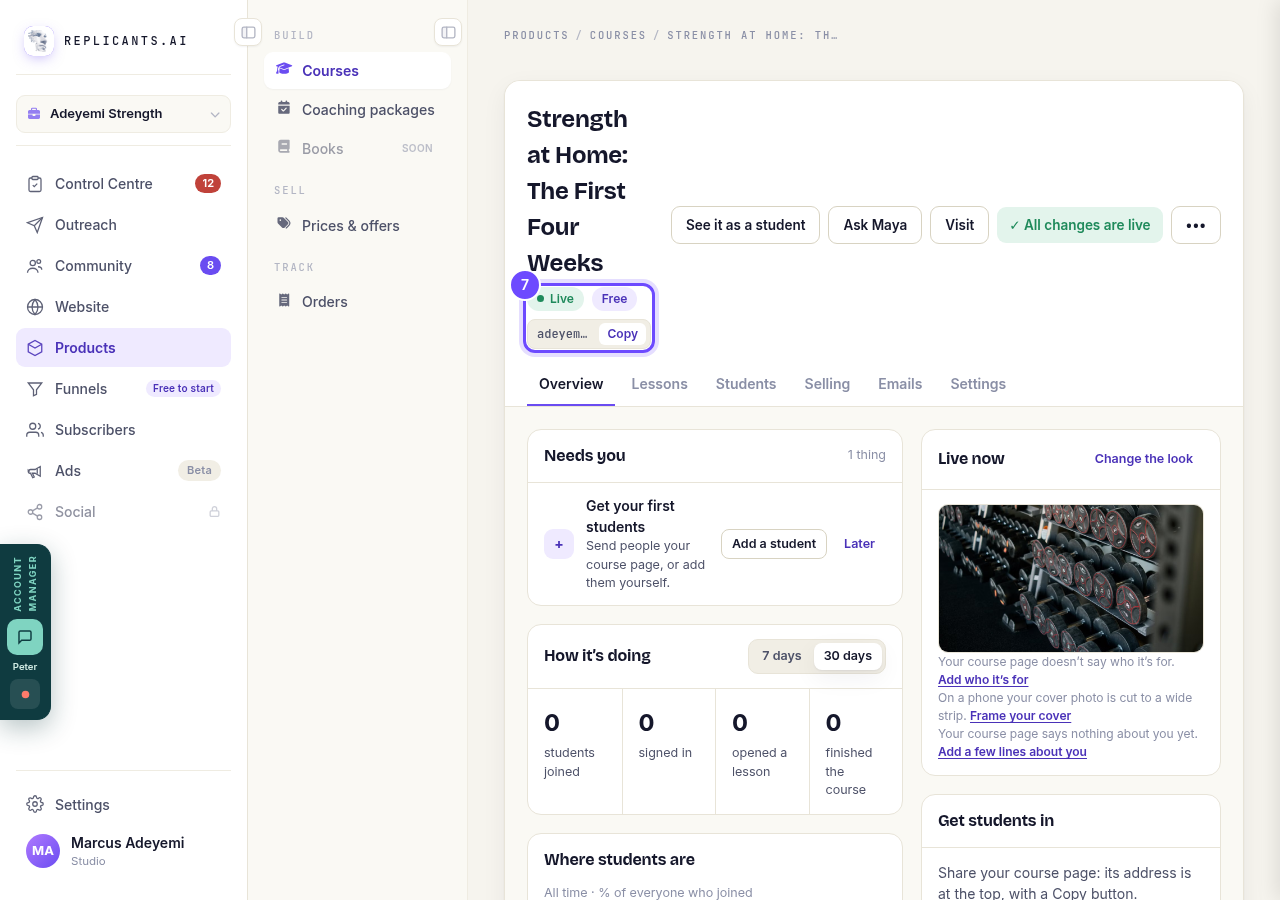
Live, with your course page's address and Copy.
Press Visit
It opens your live course page in a new window. See it as a student is still there too: on a live course it opens the course as your own test student, so you can try the lessons. Start over at the top clears your test progress.
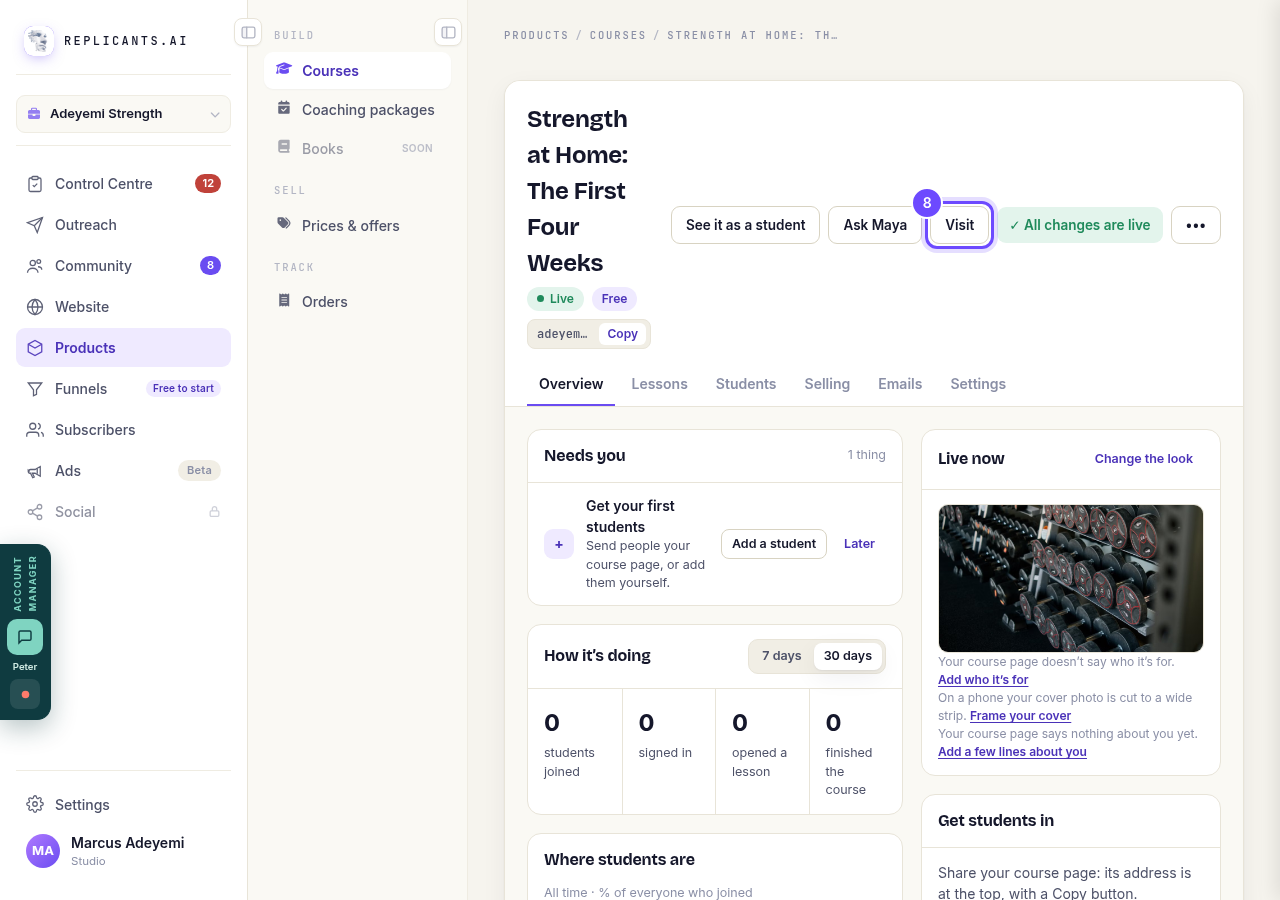
Visit, at the top of the course.
Look at your live course page
This is what anyone with the address sees. On a free course they press Join for free to start. Your course also shows on your course list page, which is your course site's main address, and in your community's Courses, unless you turned those off.
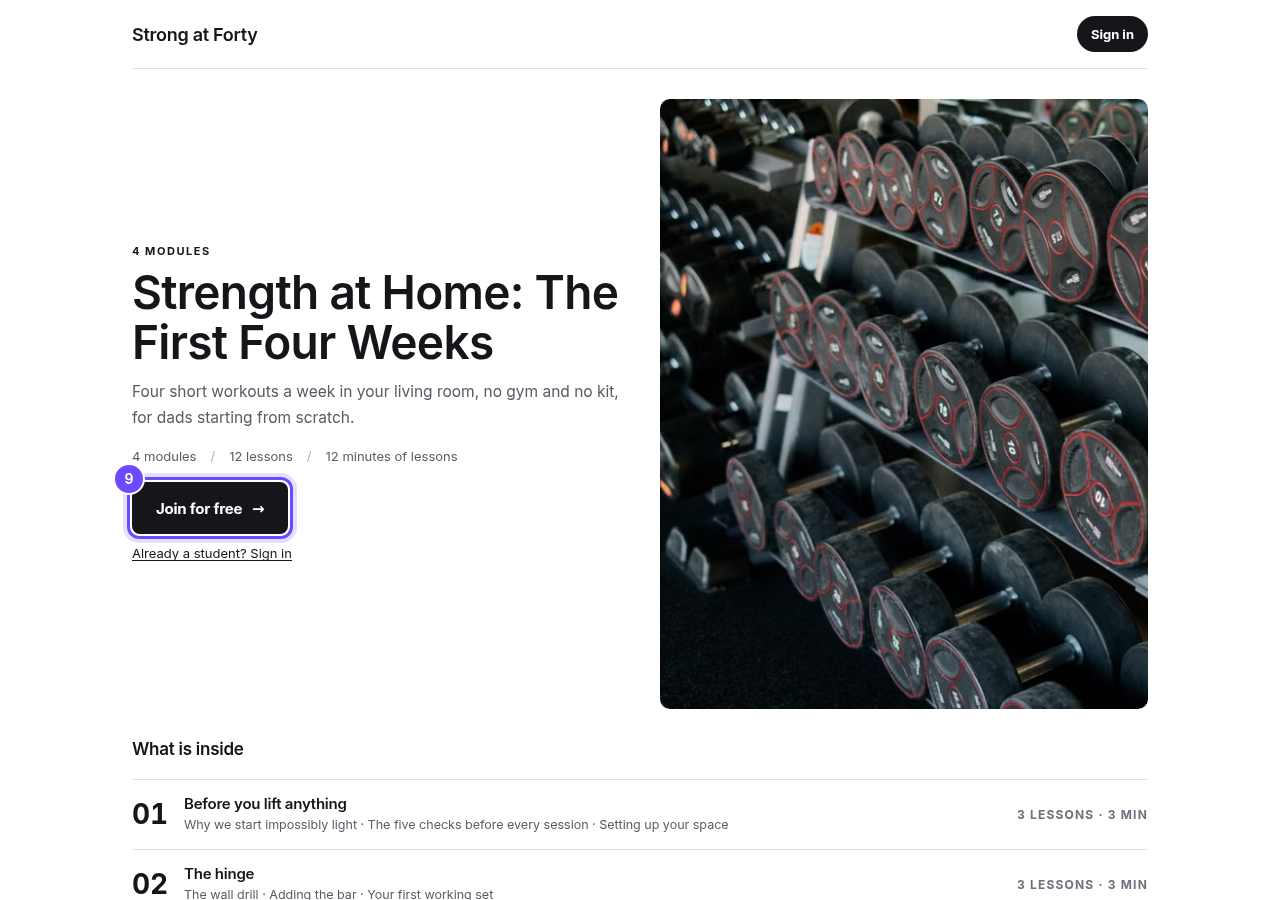
Your course page, live, with Join for free.


My course says it needs republishing. What do I do?
Related articles
How do I add, move or rename modules and lessons in my course?
Every course has a plan screen where you change its shape: add a module, move one, or rename a module or a lesson. It takes about two minutes.
How do I build a course, and what goes in it?
Maya builds it with you from six short questions. Open Products, then Courses, and press New course. She asks where you are starting from, then turns your answers into a plan of lessons that you approve before a word is written. You can speak your answers instead of typing them.
How do I choose which courses show on my course list?
Your course site's main address lists your live courses as cards, one per course. You choose which ones it shows, with one tick box per course. About a minute.