
My course says it needs republishing. What do I do?
When your course page has changes that are not live yet, the course says so and its button reads Publish changes. One press puts them live. Under a minute.
Updated 6 October 2026
Open Products
Products is in the main menu on the left. It opens on your courses. On a phone, press the menu button at the top right first.
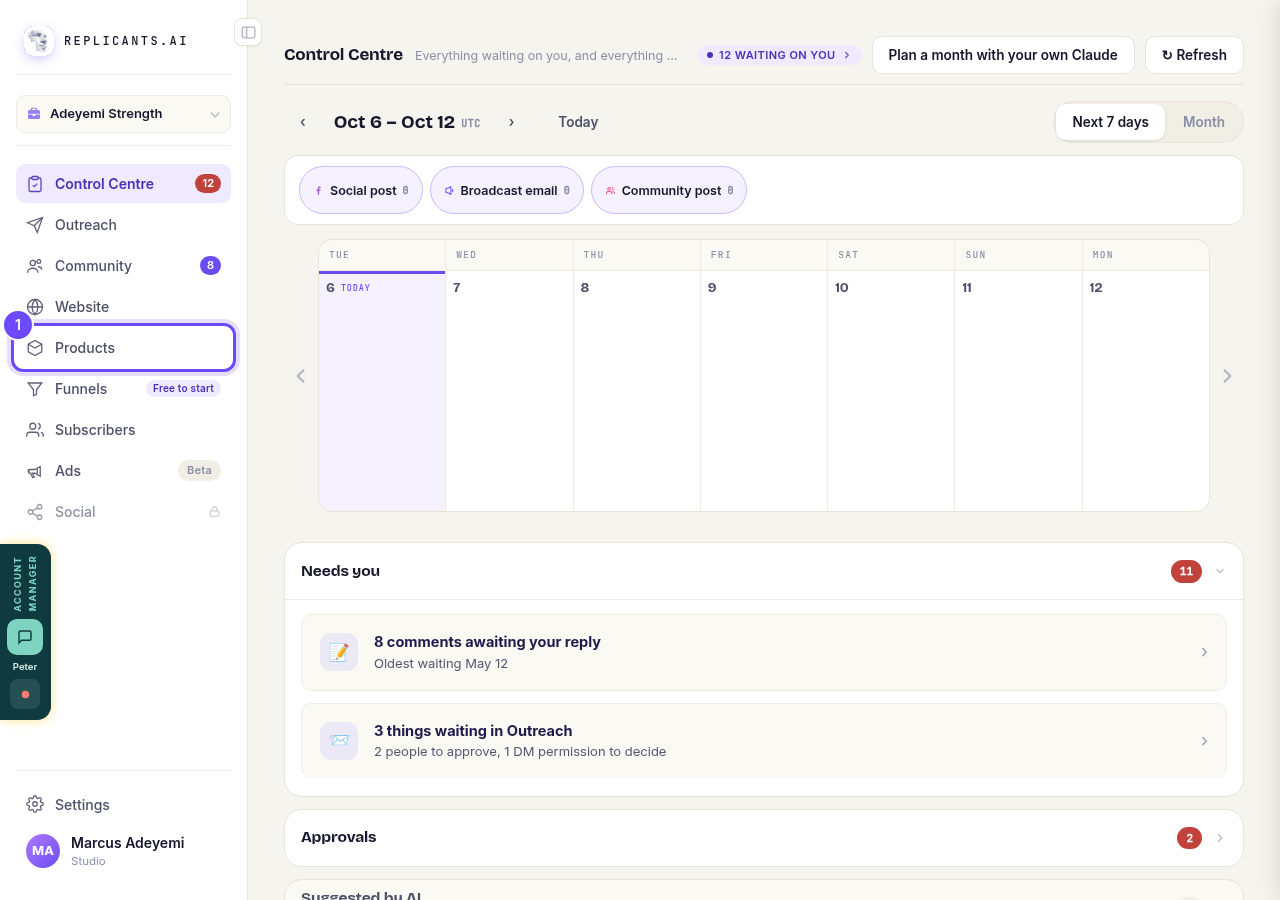
Products, in the main menu.
Press Manage on your course
A yellow box above your courses lists the ones on an older version of the course page. Update all in it publishes every one of them. To do one course at a time, press Manage on its card.
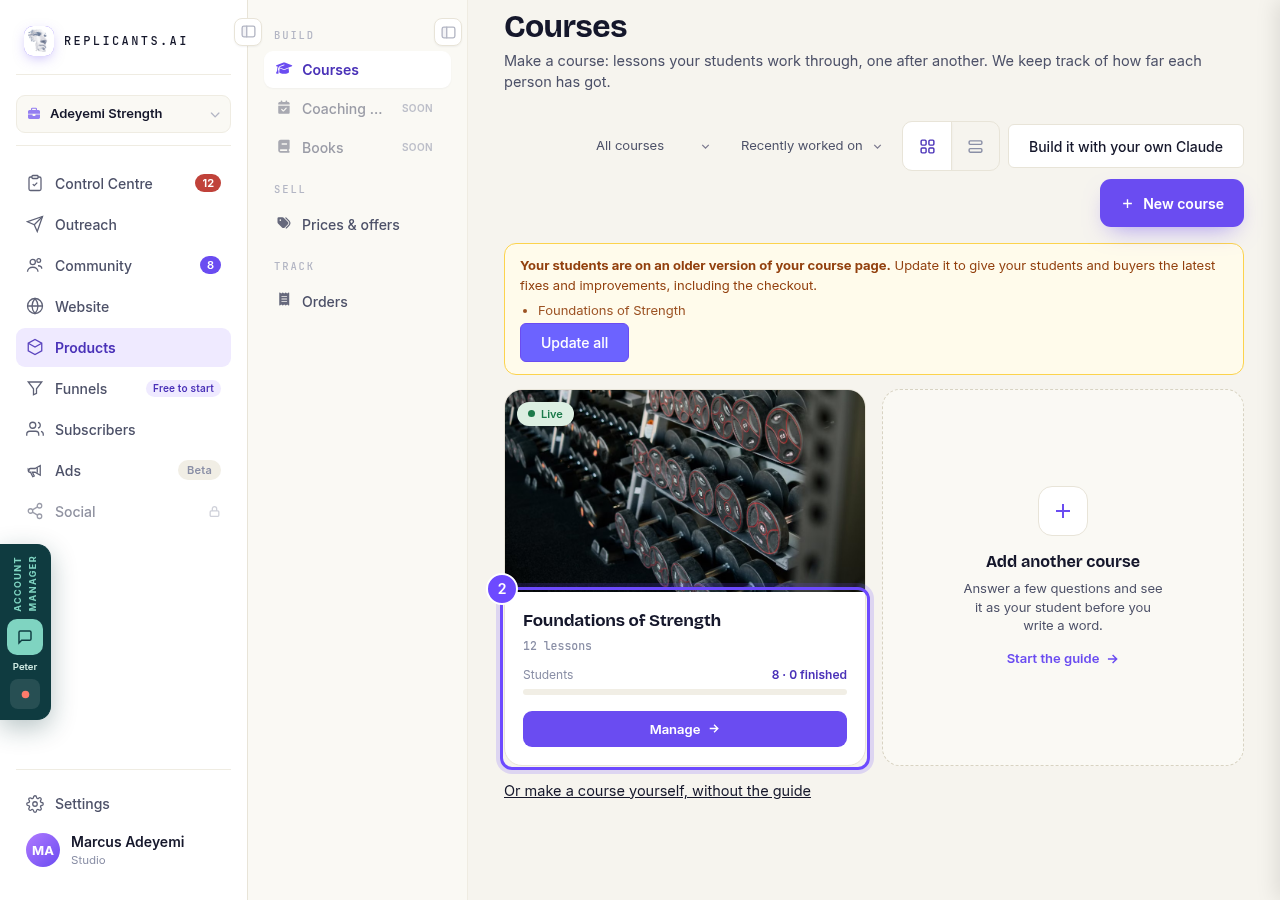
Your course, with Update all above.
Press Publish changes
It is at the top of the course, beside Visit. When nothing is waiting it says All changes are live instead.
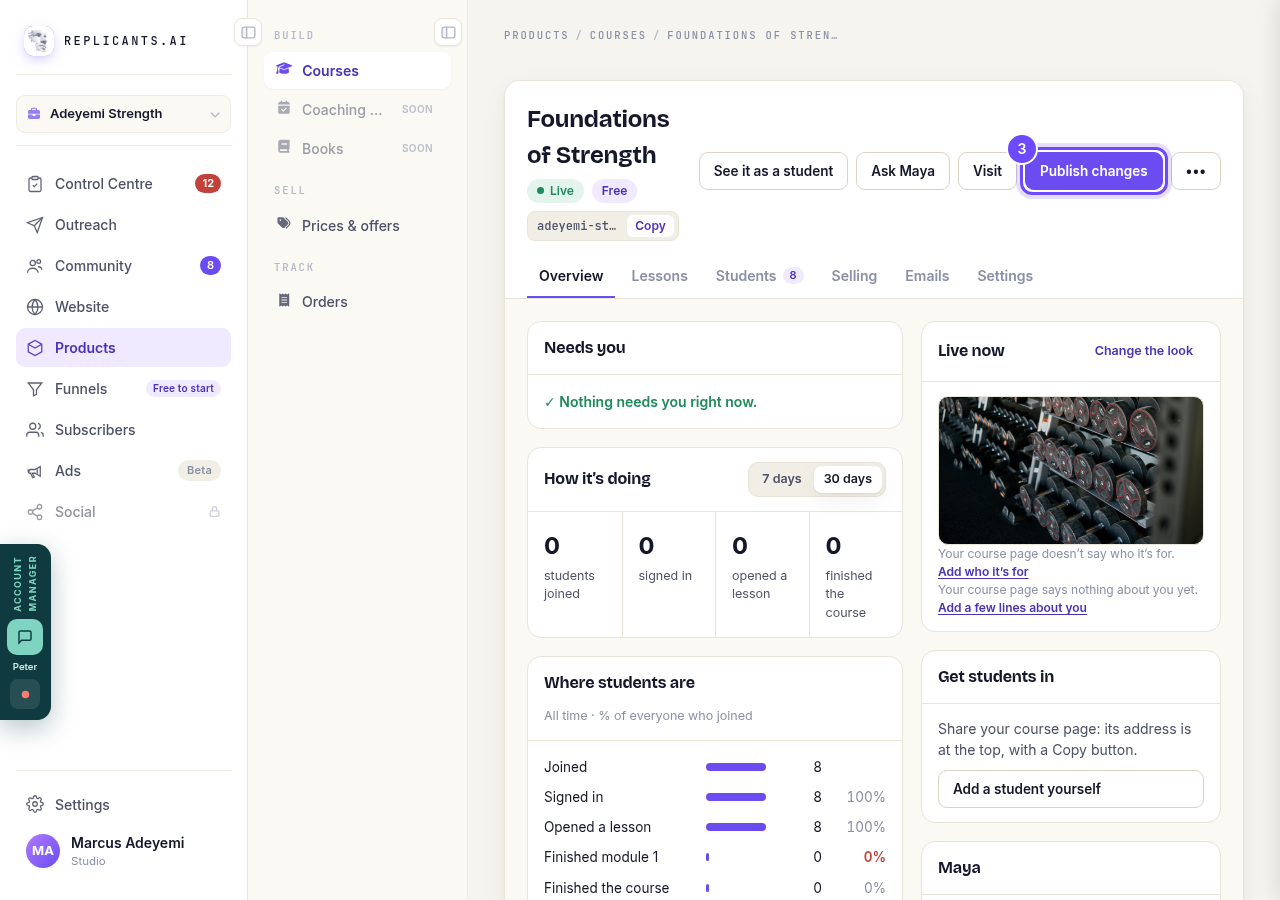
Publish changes, at the top of the course.
Read what goes live
The box lists what goes live: your own changes, an improvement from us, or both. On a paid course, your buyers also get the latest checkout. Not now closes it with nothing published.
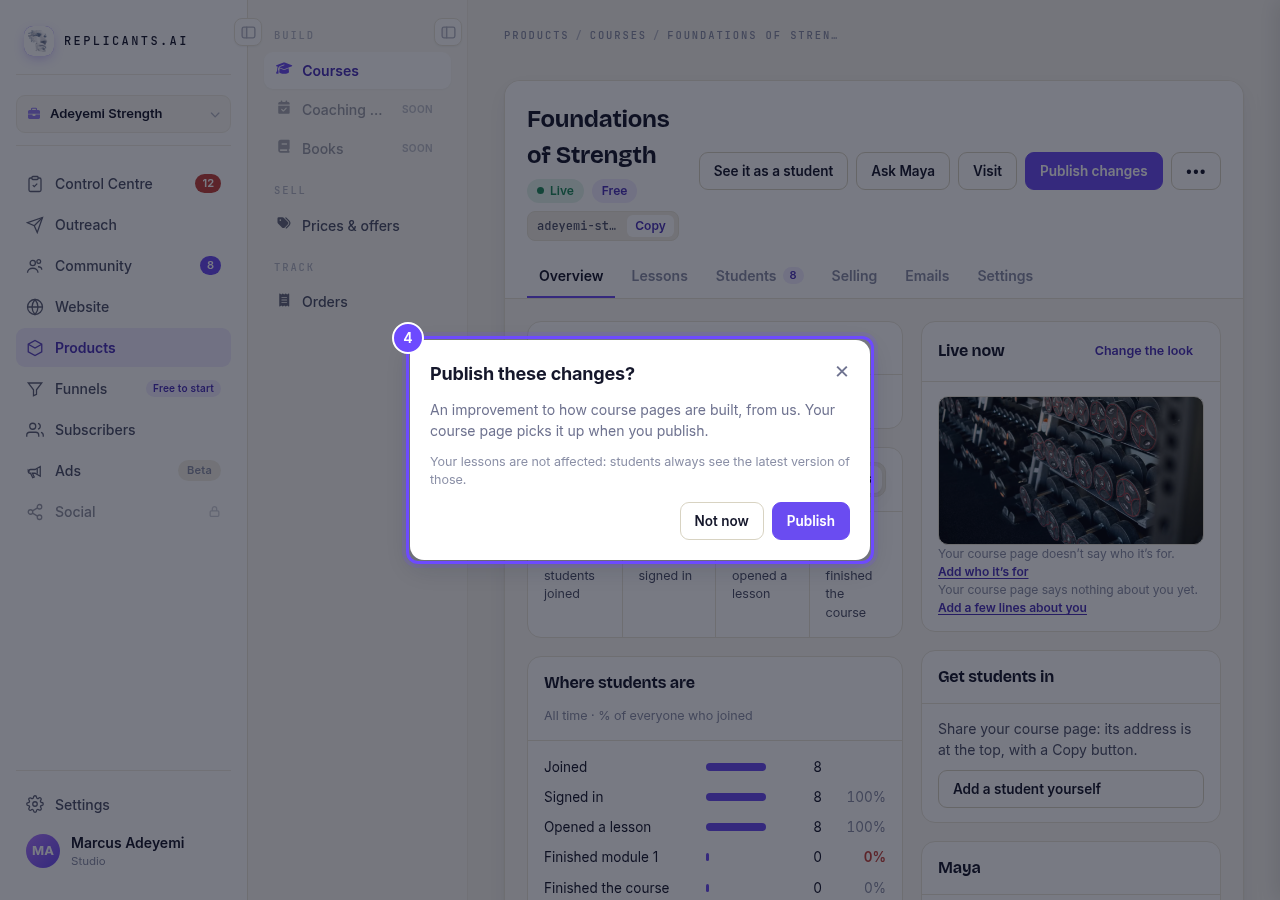
Publish these changes?
Press Publish
It takes a moment, then a message says your course page shows your latest version.
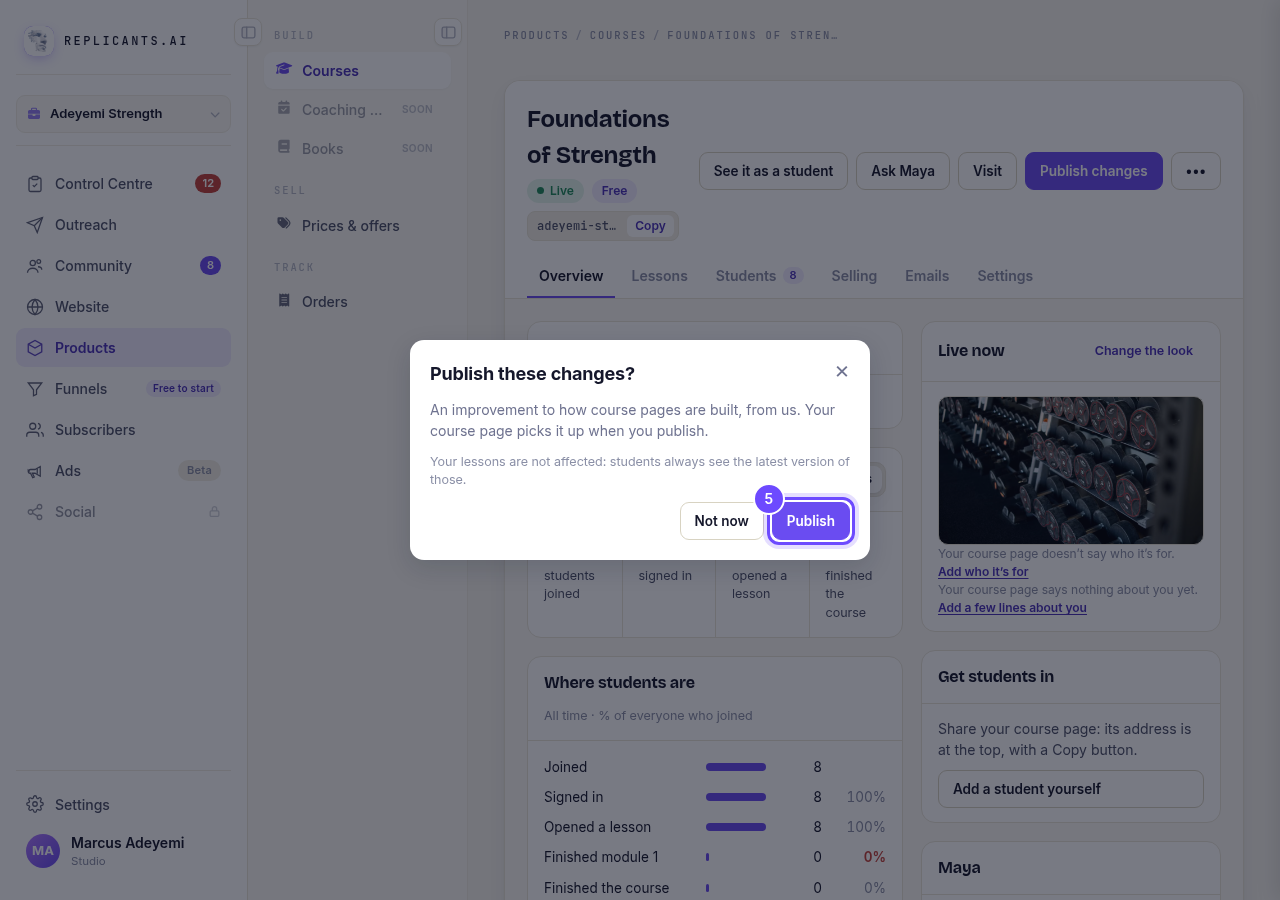
Publish, in the box.


Related articles
How do I add, move or rename modules and lessons in my course?
Every course has a plan screen where you change its shape: add a module, move one, or rename a module or a lesson. It takes about two minutes.
How do I build a course, and what goes in it?
Maya builds it with you from six short questions. Open Products, then Courses, and press New course. She asks where you are starting from, then turns your answers into a plan of lessons that you approve before a word is written. You can speak your answers instead of typing them.
How do I email the students on my course?
Open your course, go to Students and press Email your students. Each student gets your words with their own first name, and an Open the course link that signs them straight in, with no password. About three minutes.