
How do I email the students on my course?
Open your course, go to Students and press Email your students. Each student gets your words with their own first name, and an Open the course link that signs them straight in, with no password. About three minutes.
Updated 2 October 2026
Open your course, go to Students and press Email your students
Open Products, then Courses, and choose your course. Then press Students, the third heading along the top.
Email your students sits in the row of buttons above your list of students.
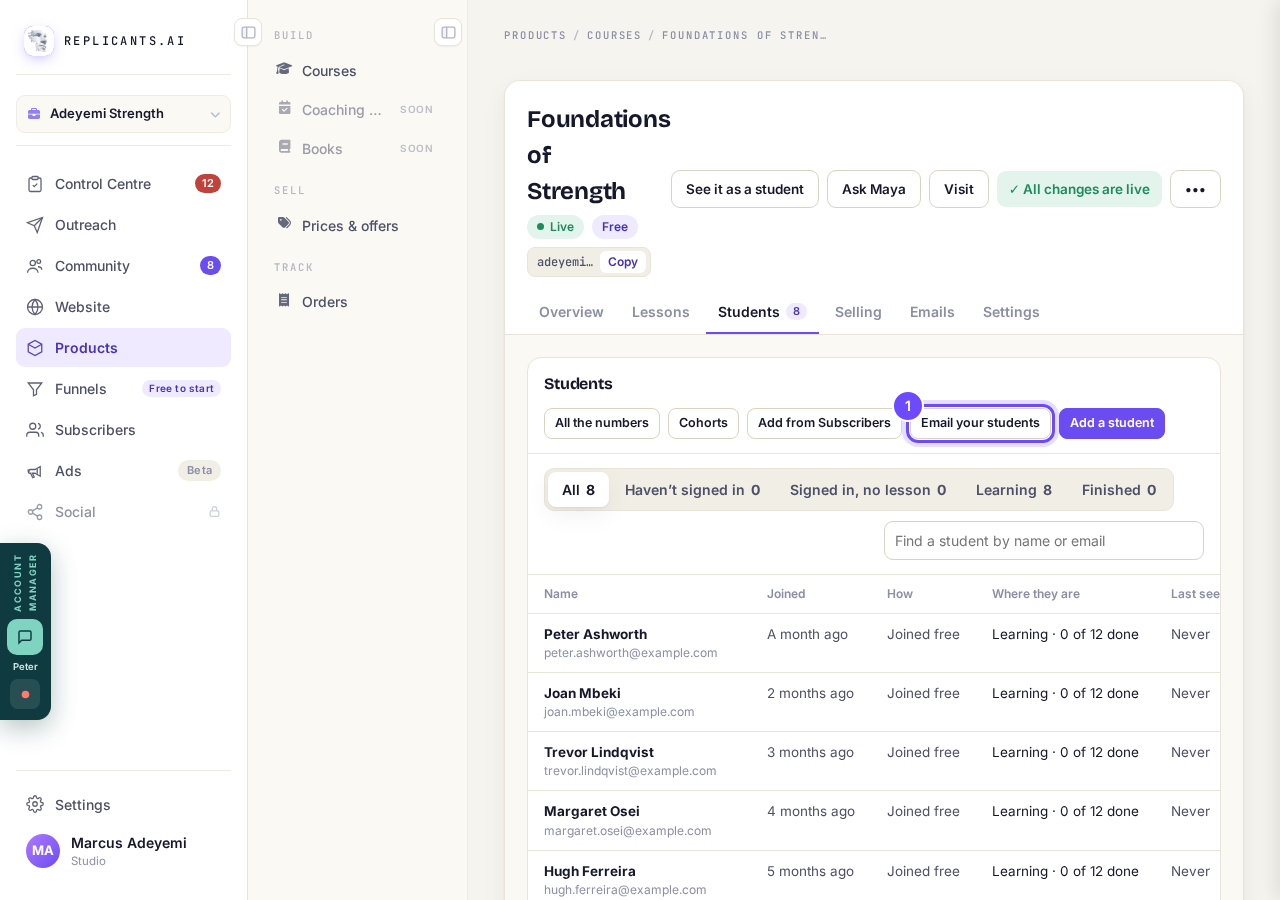
Email your students, above your list of students.
Choose who it goes to, then write a subject and your email
Who it goes to lets you pick everyone on the course, or one group, such as the students who have not signed in yet. The number beside each choice is how many it will reach.
Start your email with Hi there, and each student sees their own first name instead. If you refunded anyone in full, they are left out unless you tick the box to include them.
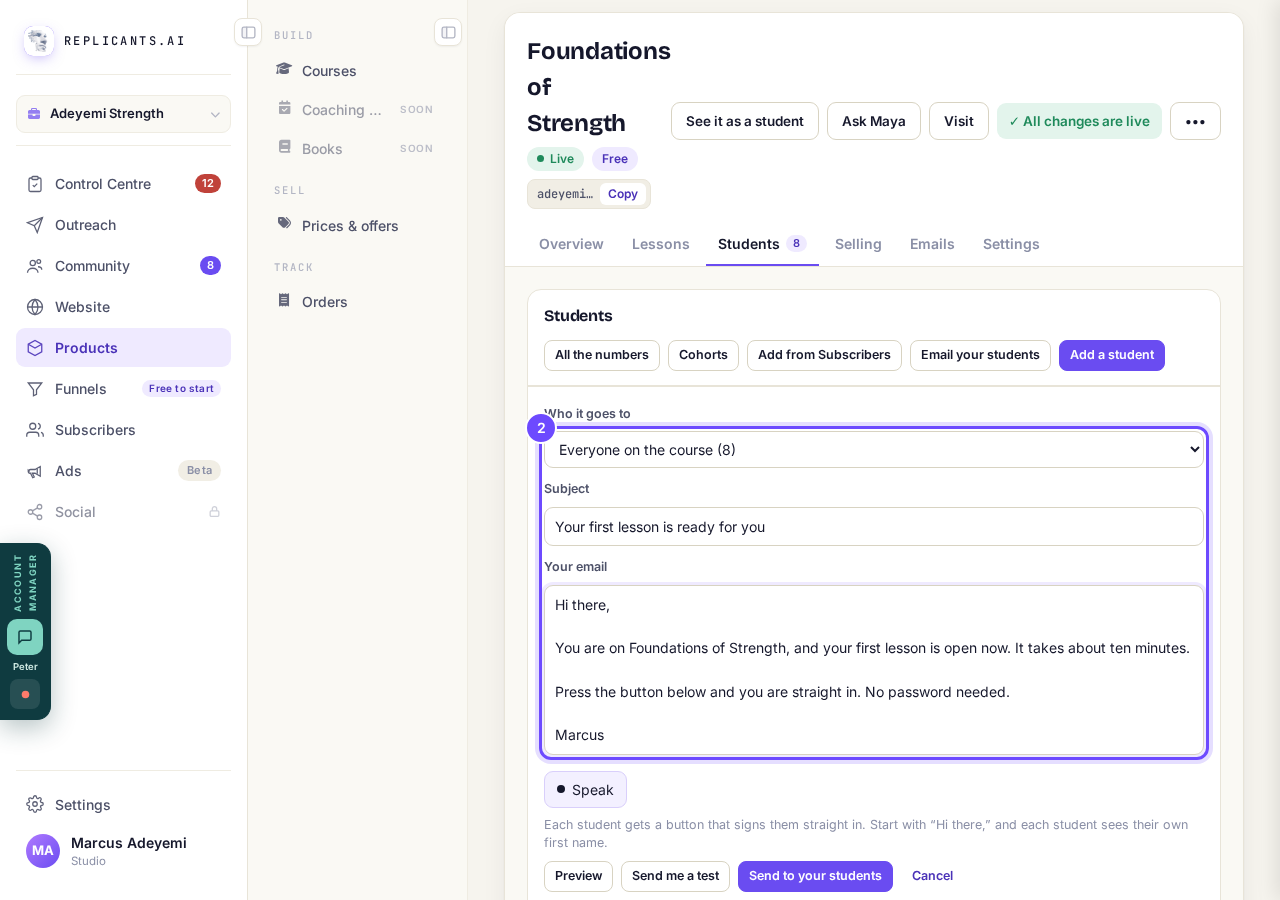
Who it goes to, your subject and your email.
Press Preview to see what a student gets
The preview is the real email, shown with a sample first name. Your words sit under your community's banner, with an Open the course link at the end. That link signs each student straight into the course.
Press Send me a test to get a copy yourself. It goes to the email you log in with, and nobody else.
It comes from the address you confirmed in Settings, then Email. Until you confirm one, it comes from our address, noreply@replicants.ai.
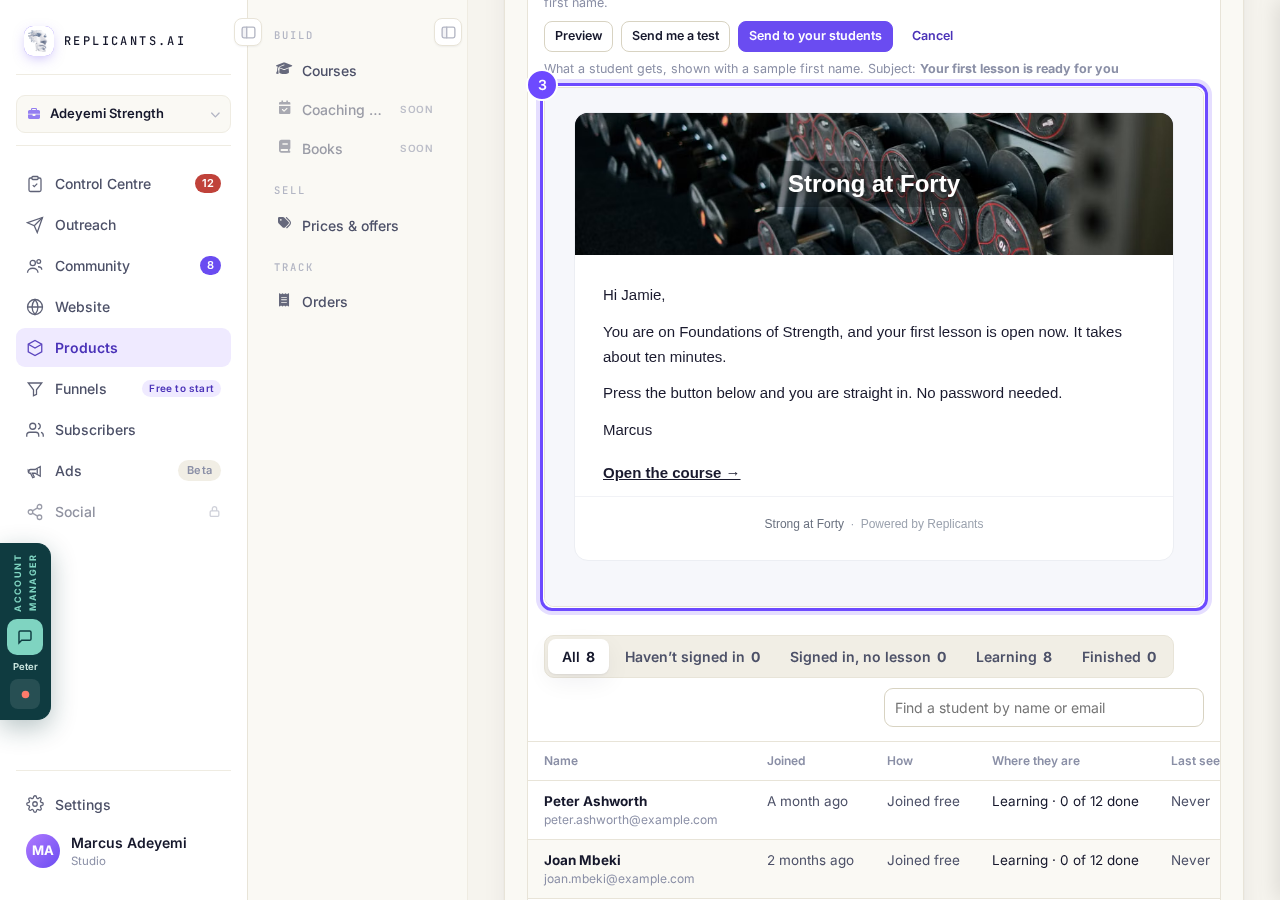
What a student gets, with their own first name in place of the sample.
Press Send to your students, then check the names
A box opens with the name of everyone it goes to. Anyone added to the course after you send is not included.
Press the Send button in the box to send it. Press Not now to go back with your words kept.
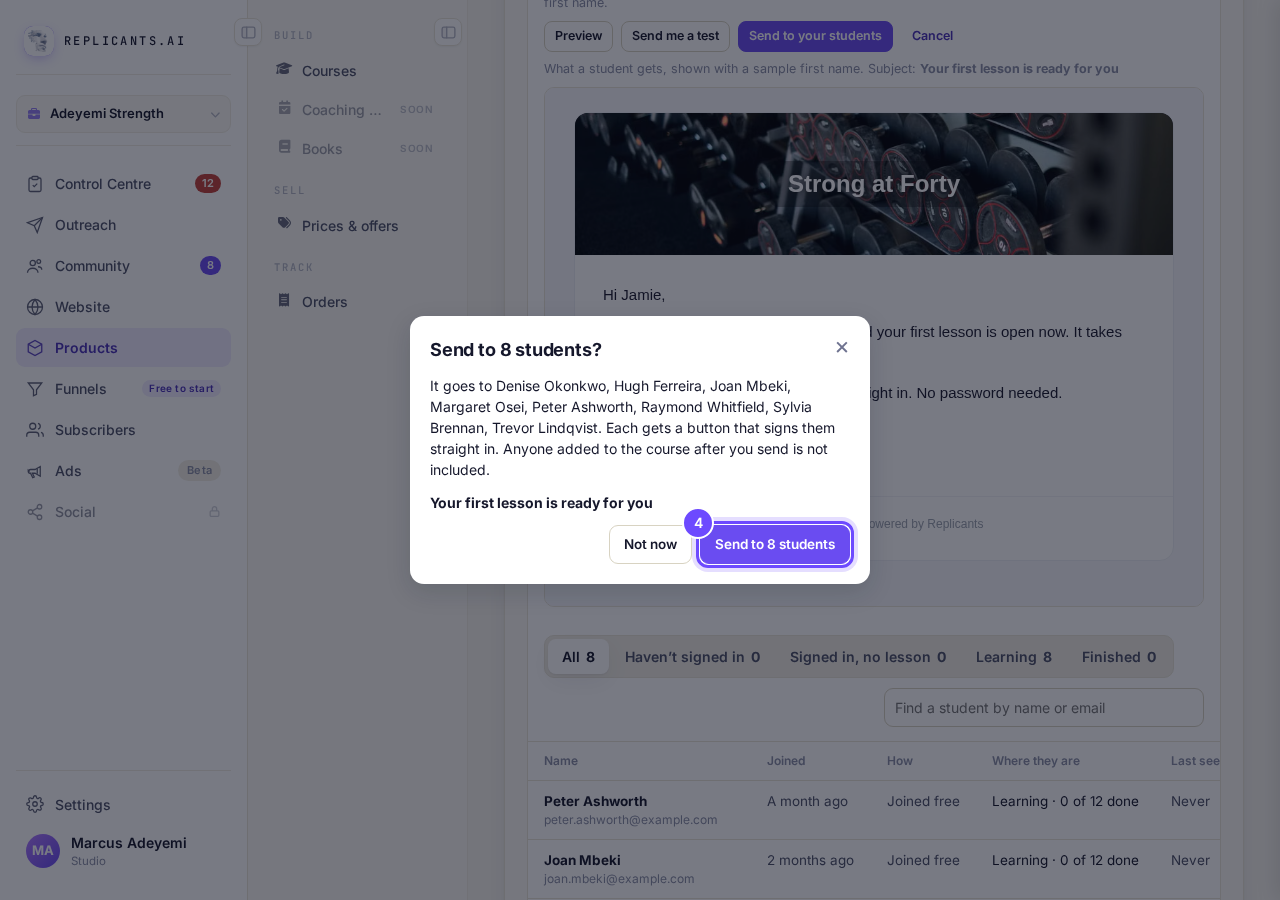
Everyone it goes to, by name, before anything is sent.
Read the message, then open Emails to see who it reached
A message says it is sending, and to how many students.
Press Emails, along the top of your course, to see how many it reached. If any were not sent, it says why, for example because a student had unsubscribed.
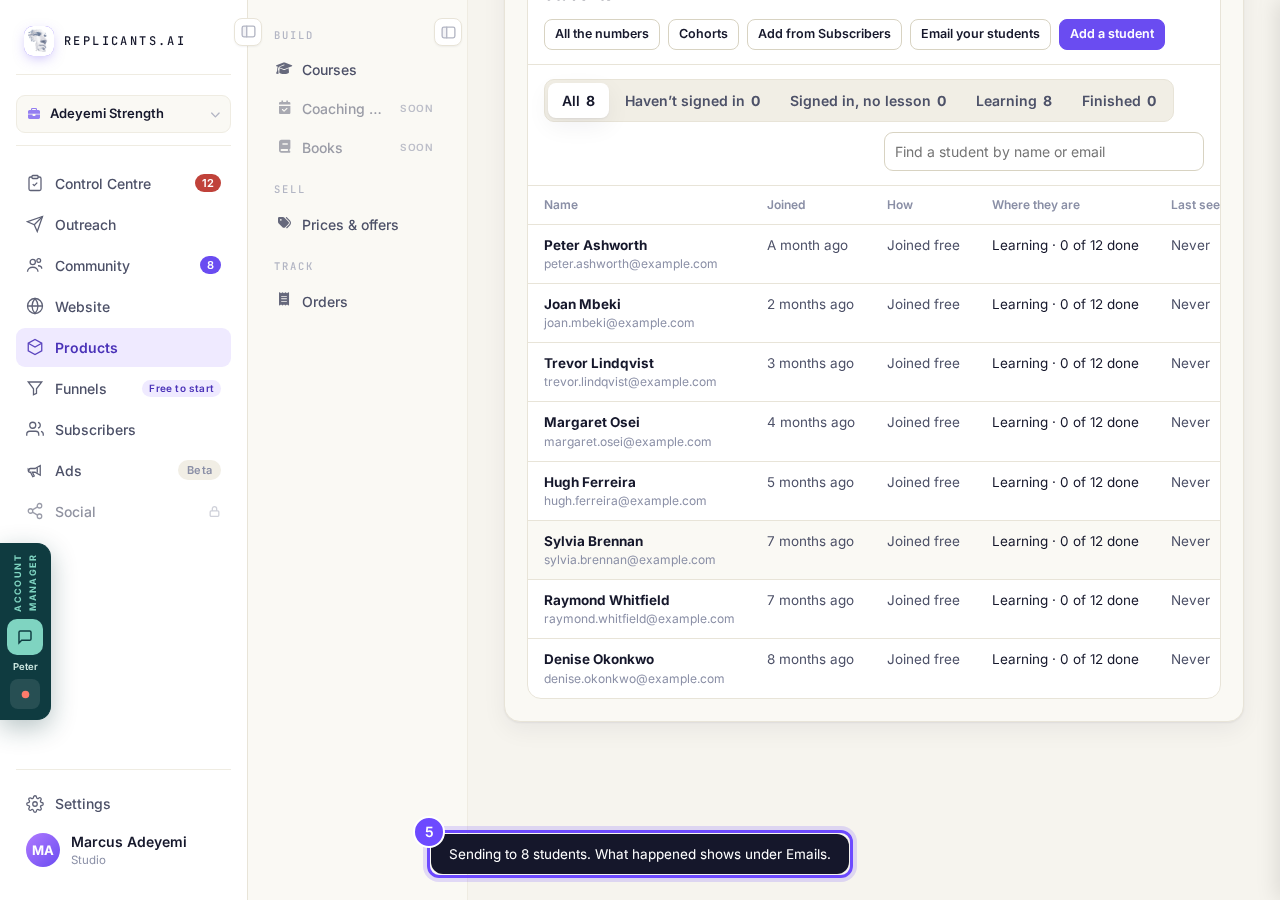
The message that appears as it sends.


How do I confirm the email address my emails come from?
Related articles
How do I add, move or rename modules and lessons in my course?
Every course has a plan screen where you change its shape: add a module, move one, or rename a module or a lesson. It takes about two minutes.
How do I build a course, and what goes in it?
Maya builds it with you from six short questions. Open Products, then Courses, and press New course. She asks where you are starting from, then turns your answers into a plan of lessons that you approve before a word is written. You can speak your answers instead of typing them.
How do I remove a picture from my course page?
A picture inside a lesson comes out with one key: click just after it and press Backspace. The cover photo at the top of your course page has its own Remove the photo button. About two minutes.