
How do I choose which courses show on my course list?
Your course site's main address lists your live courses as cards, one per course. You choose which ones it shows, with one tick box per course. About a minute.
Updated 10 October 2026
Open Products
Products is in the main menu on the left. It opens on your courses. On a phone, press the menu button at the top right first.
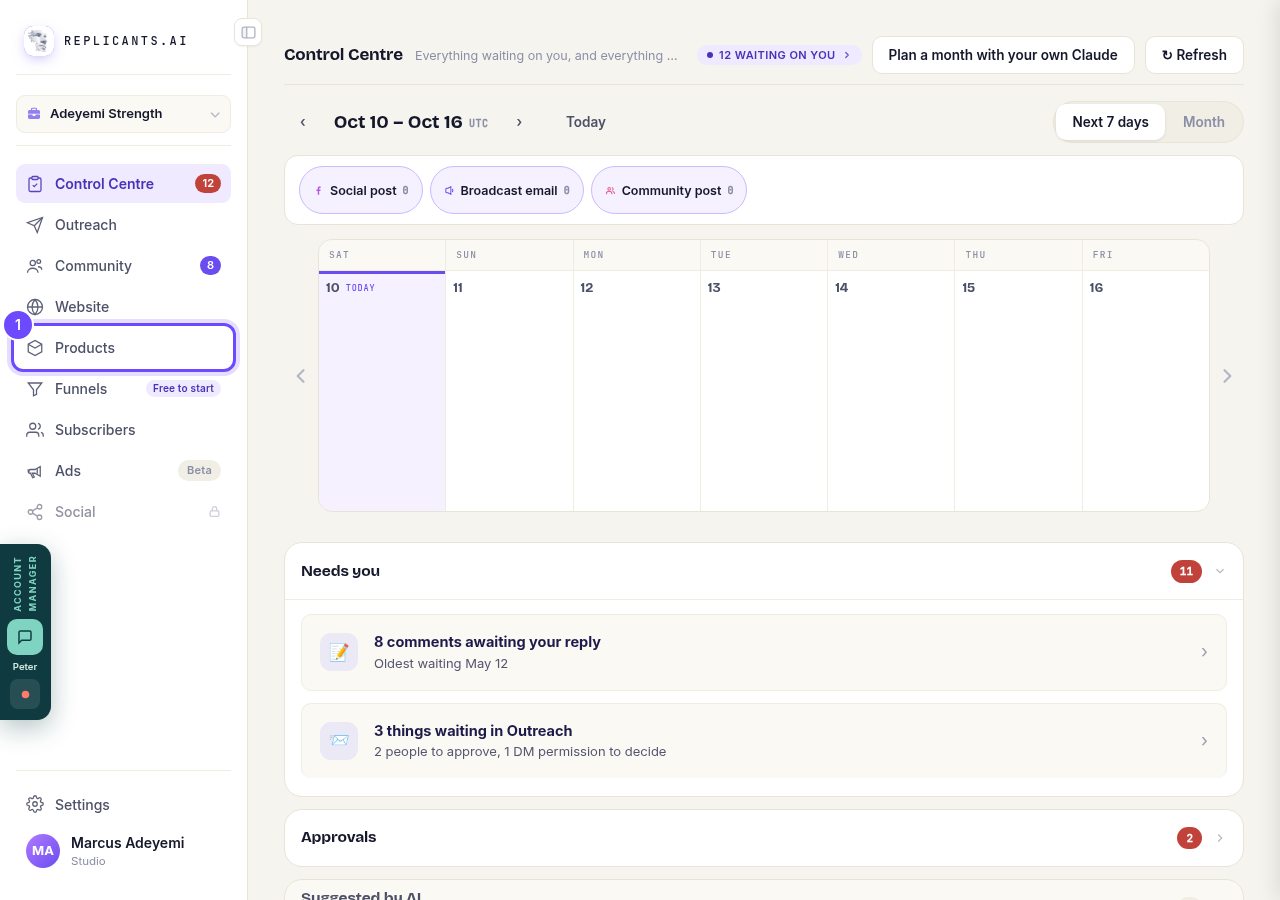
Products, in the main menu.
Press Course list page
It is along the top of your courses, beside the buttons that change how they are shown.
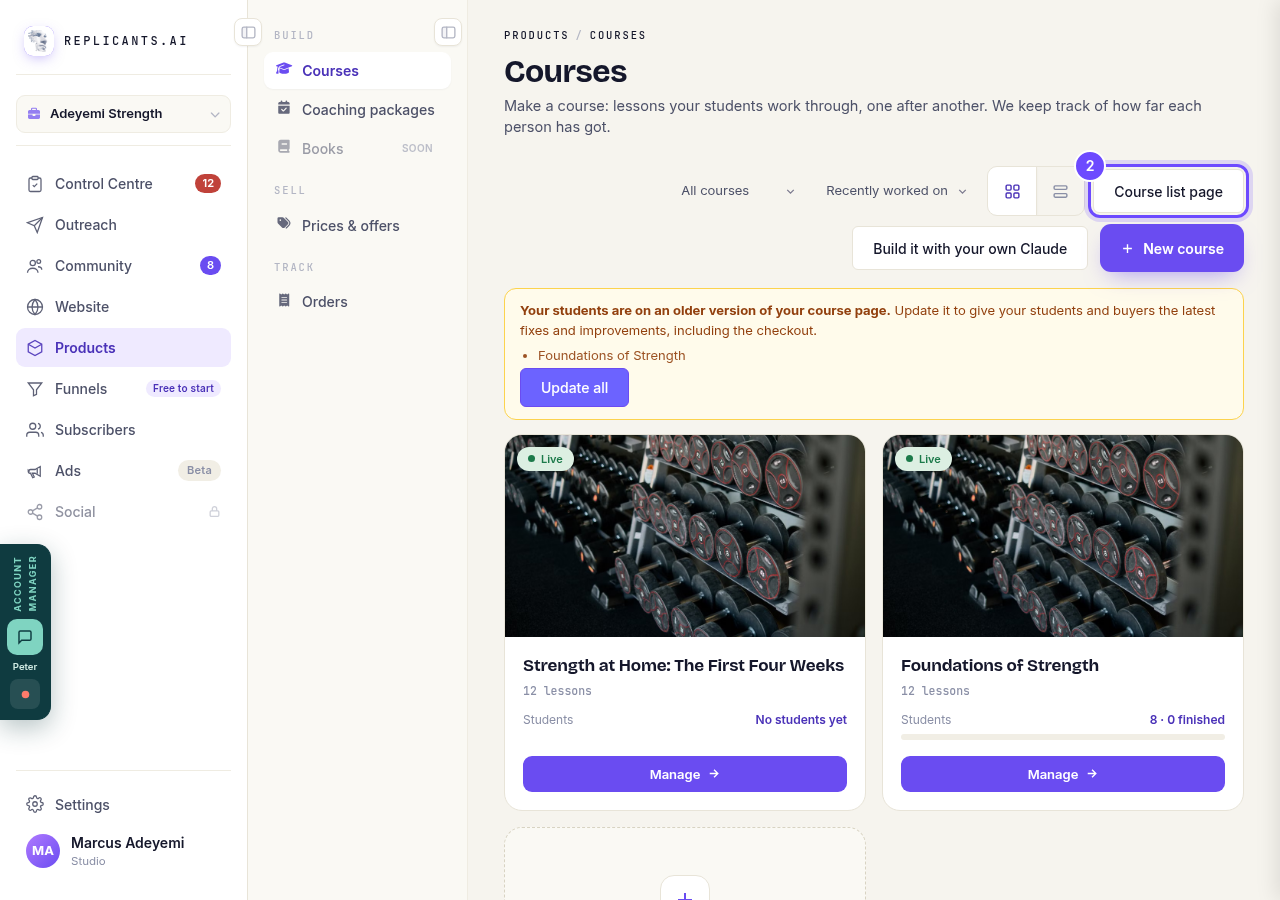
Course list page, along the top of your courses.
Press the tick box beside a course
The window, Your course list page, lists every live course with Show on my course list beside it. Untick it to hide that course from the page. Tick it again to show it.
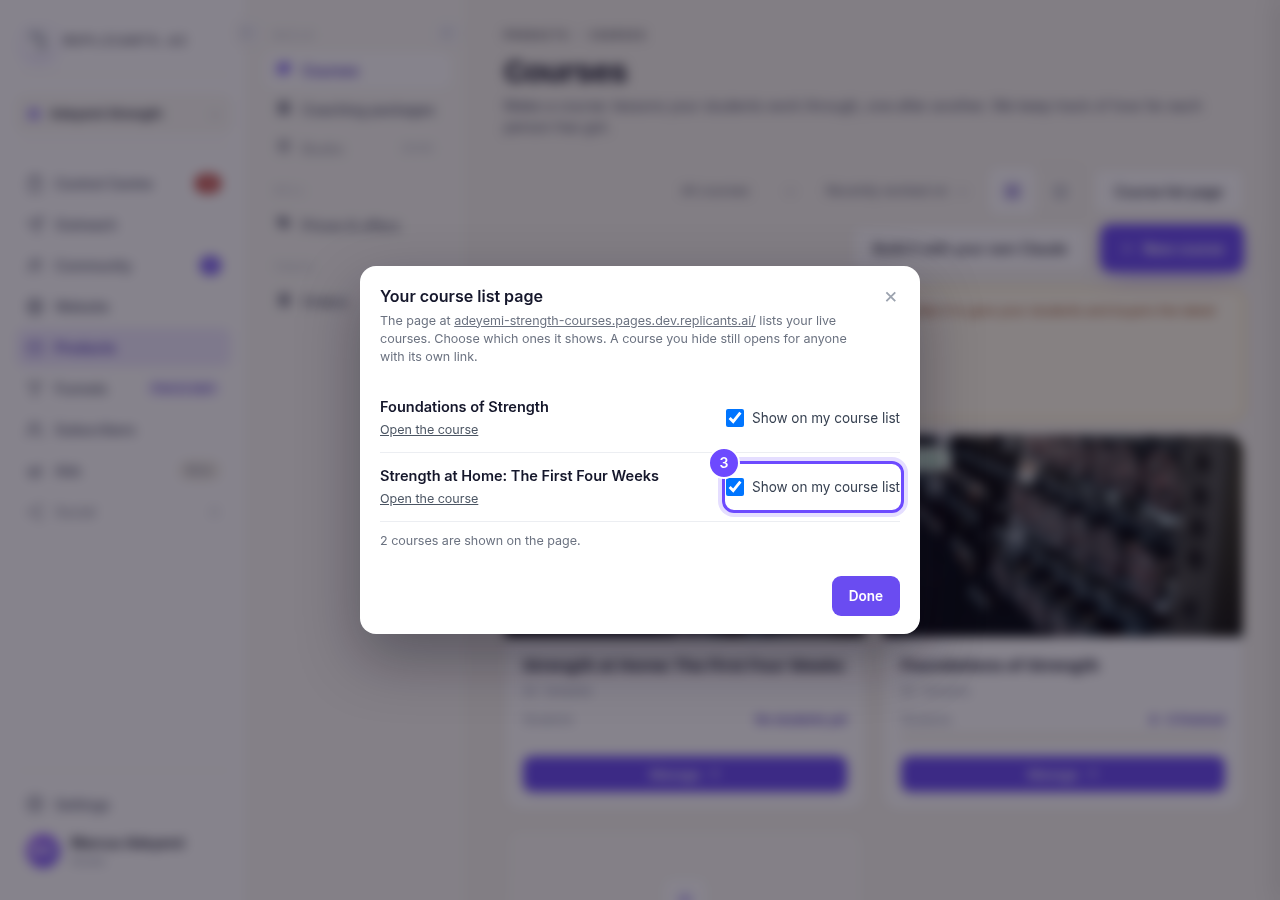
Show on my course list, beside the course.
Check what the page now does
It saves straight away and says Saved. Your course list page is updated. The line under the list says what visitors see: with two or more courses shown, the page lists them; with one, it takes visitors straight to that course; with none, it says there are no courses listed.
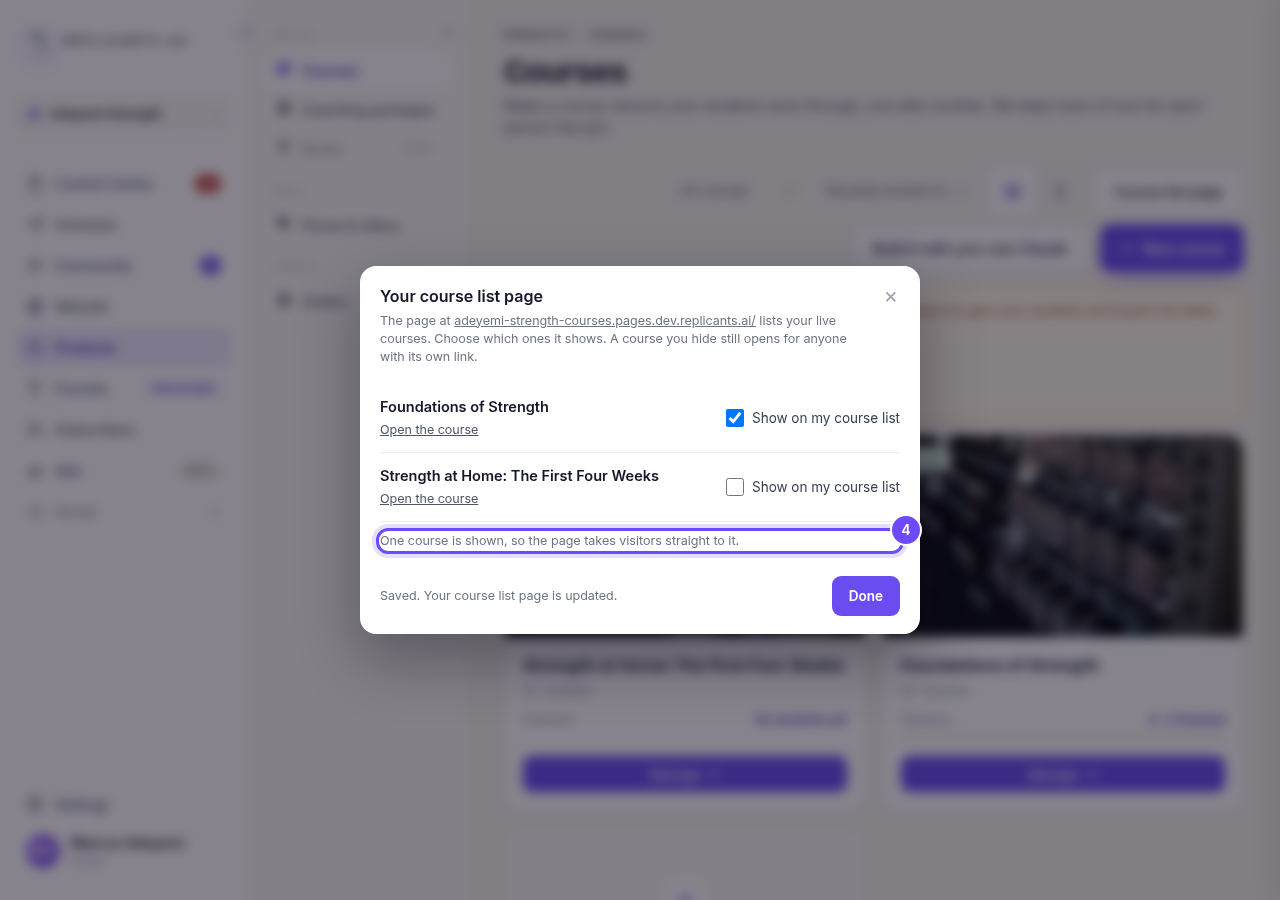
One course is shown, so the page takes visitors straight to it.
Press Done
Everything is already saved, so Done only closes the window.
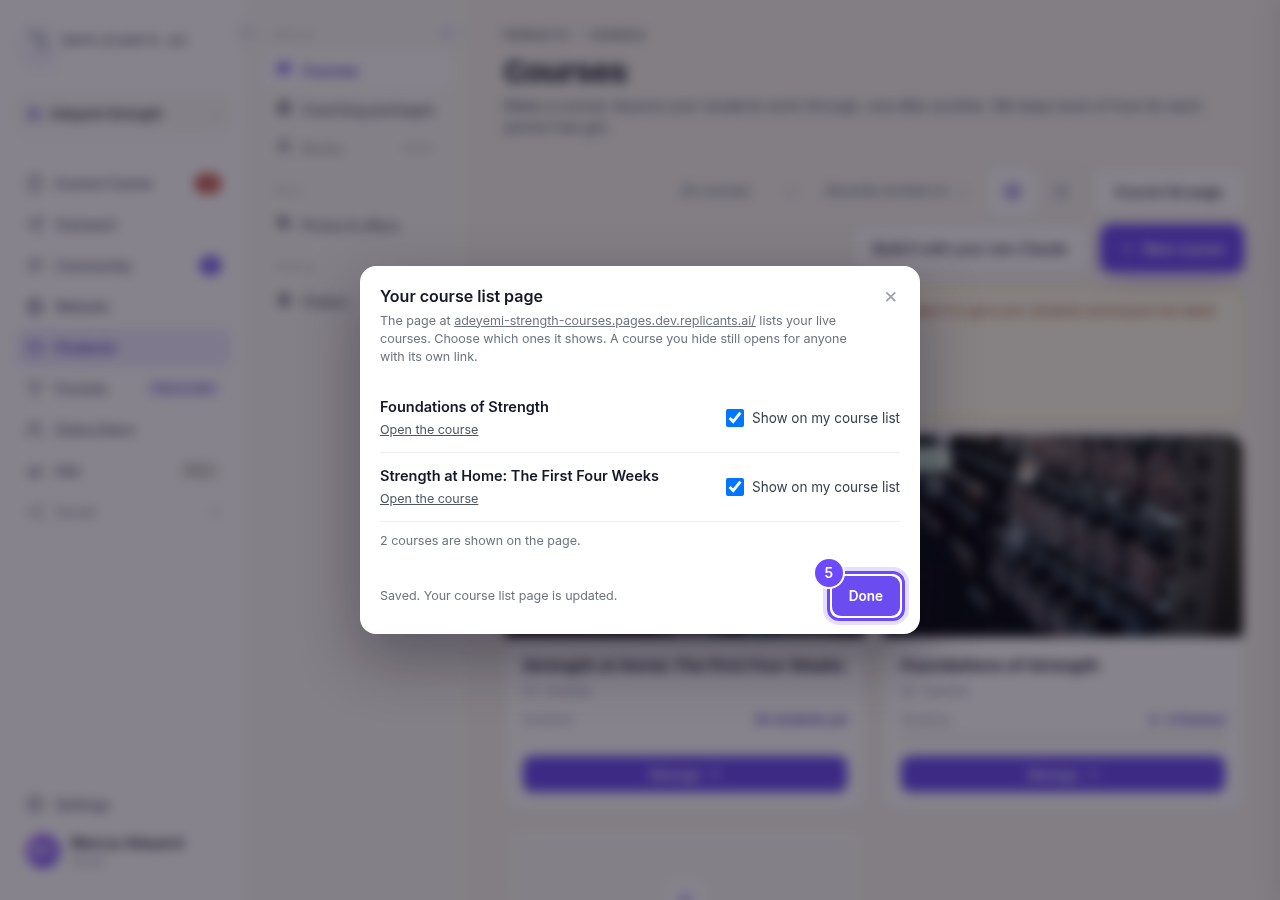
Done, at the bottom of the window.
Or press Manage on a course
The same window opens from inside any course. Each course on the Courses page has its own Manage button.
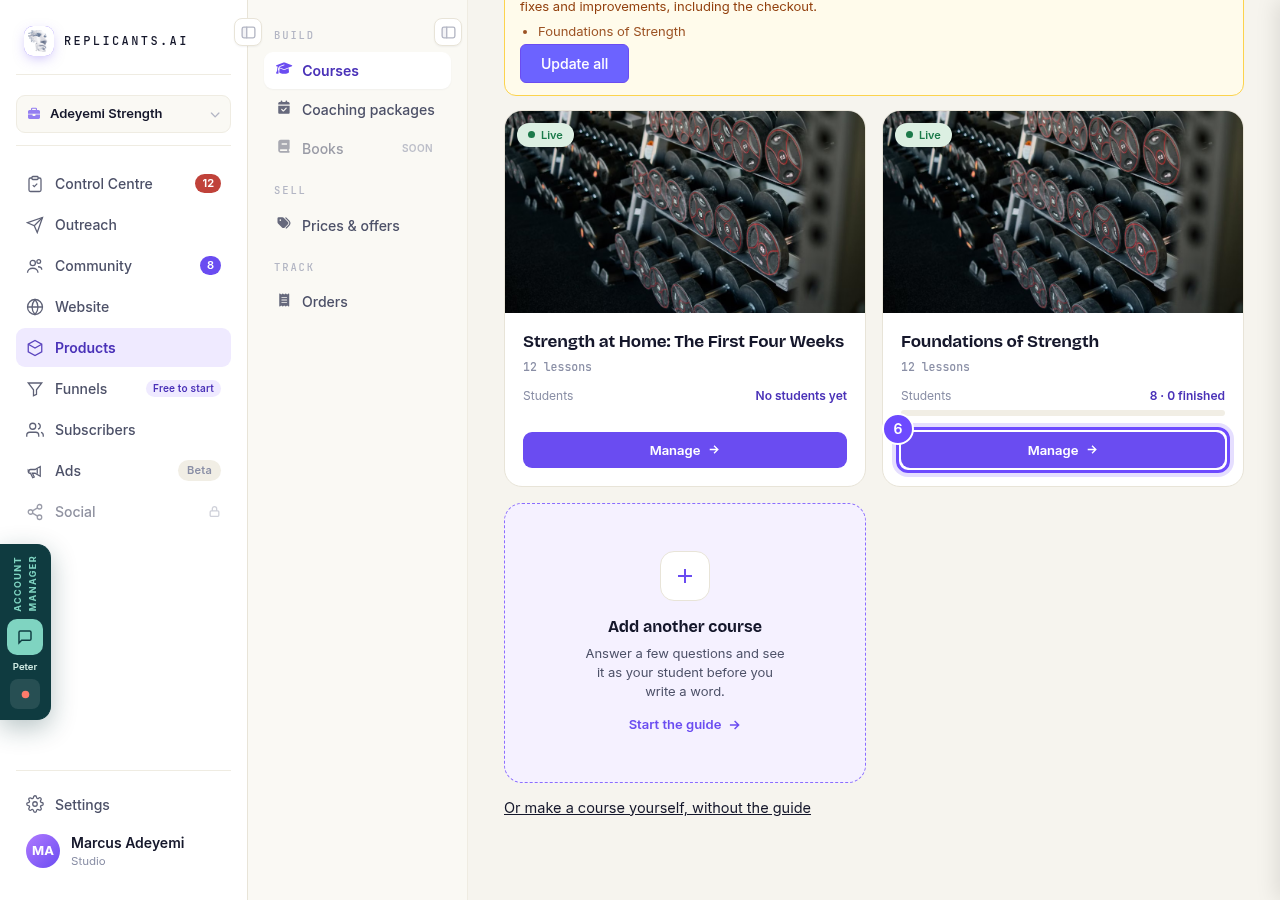
Manage, on the course's card.
Press Settings
It is along the top of the course, after Emails. On a phone, slide that row sideways to reach it.
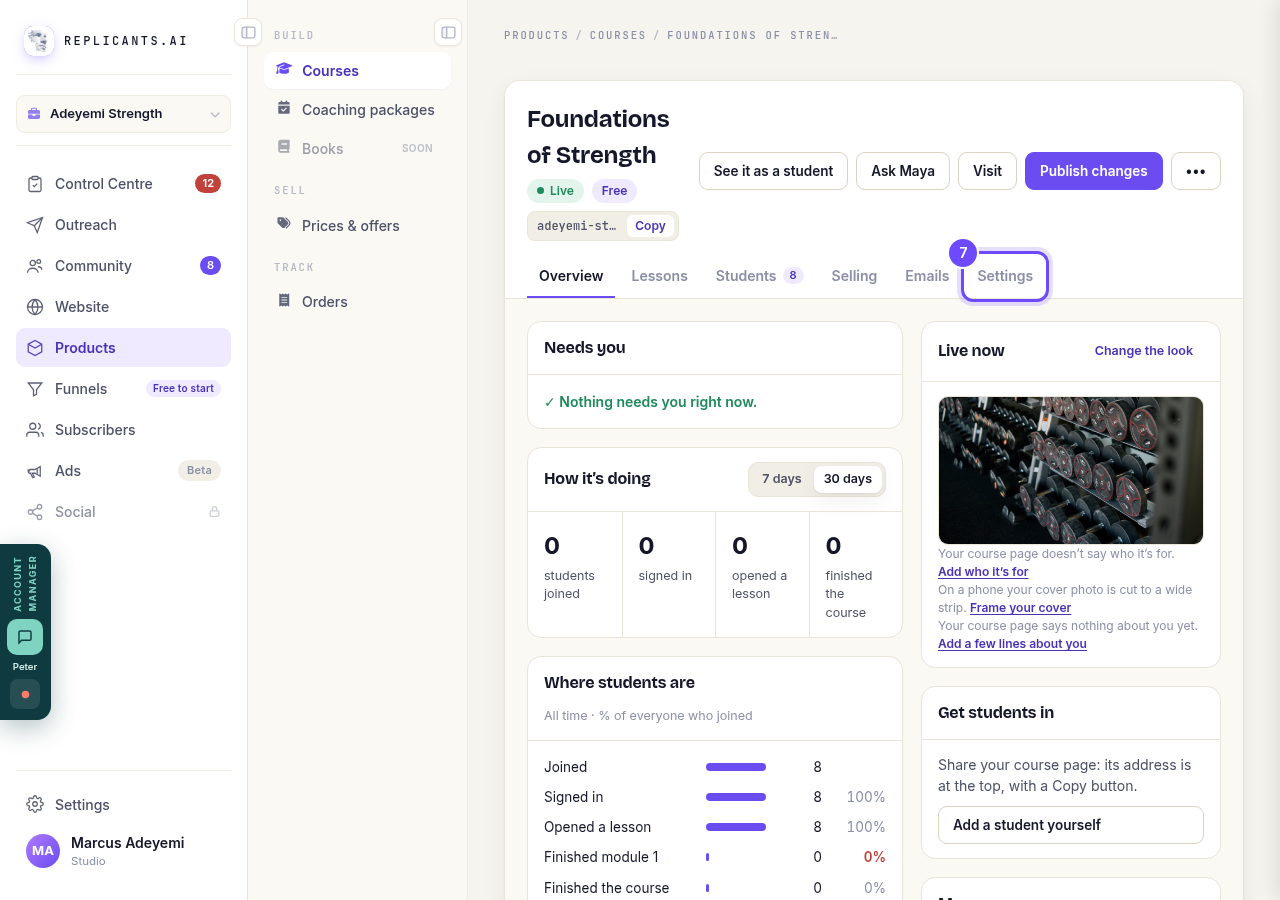
Settings, along the top of the course.
Press Choose which courses show
It is on the Your course list page box, under the web address. It opens the same window as Course list page.
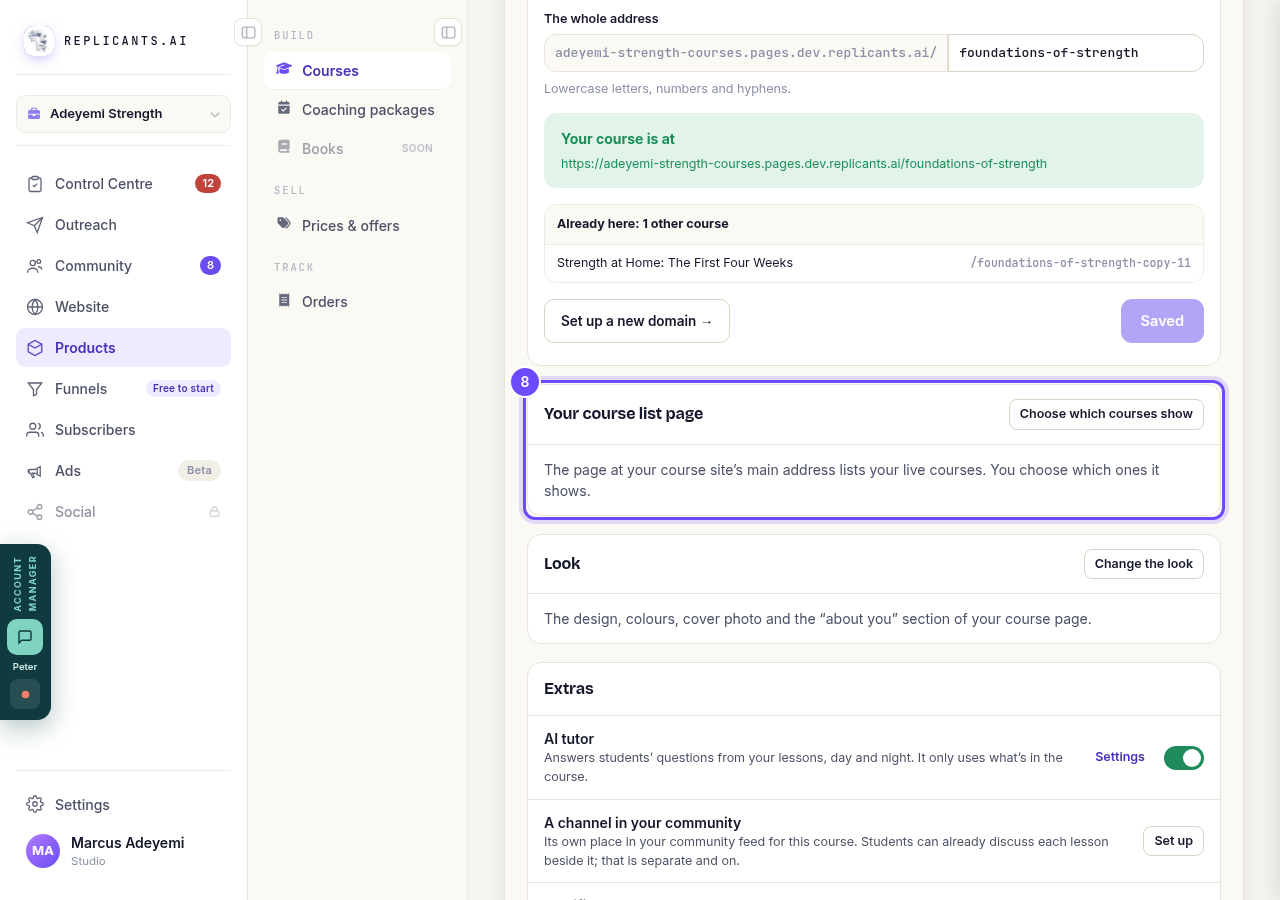
Choose which courses show, on Your course list page.
Look at your course list page
Its address is at the top of the window, after The page at. Each course shown is a card with its cover, its title, a line about it and Open the course, in the same order as in the Your course list page window.
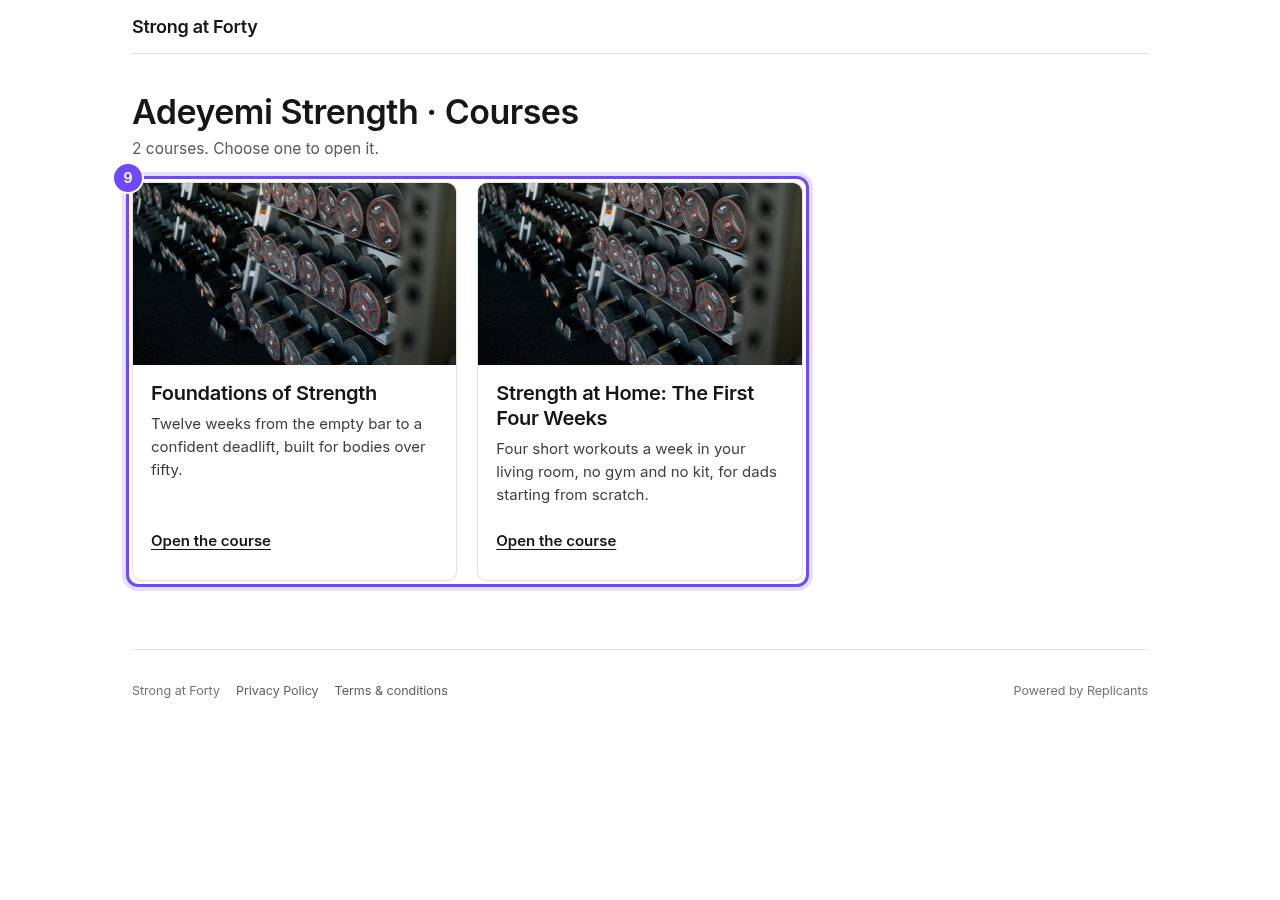
Your courses as cards, on your course site's main address.


How do I build a course, and what goes in it?
Related articles
How do I add, move or rename modules and lessons in my course?
Every course has a plan screen where you change its shape: add a module, move one, or rename a module or a lesson. It takes about two minutes.
How do I build a course, and what goes in it?
Maya builds it with you from six short questions. Open Products, then Courses, and press New course. She asks where you are starting from, then turns your answers into a plan of lessons that you approve before a word is written. You can speak your answers instead of typing them.
How do I email the students on my course?
Open your course, go to Students and press Email your students. Each student gets your words with their own first name, and an Open the course link that signs them straight in, with no password. About three minutes.