
How do I move, zoom or crop a photo on my website?
Every photo on your website can be moved and zoomed, so the important part is always in view. You frame it once for laptops and once for phones, because the page is a different shape on each.
Updated 6 October 2026
Manage your site
This opens everything you can change on your website.
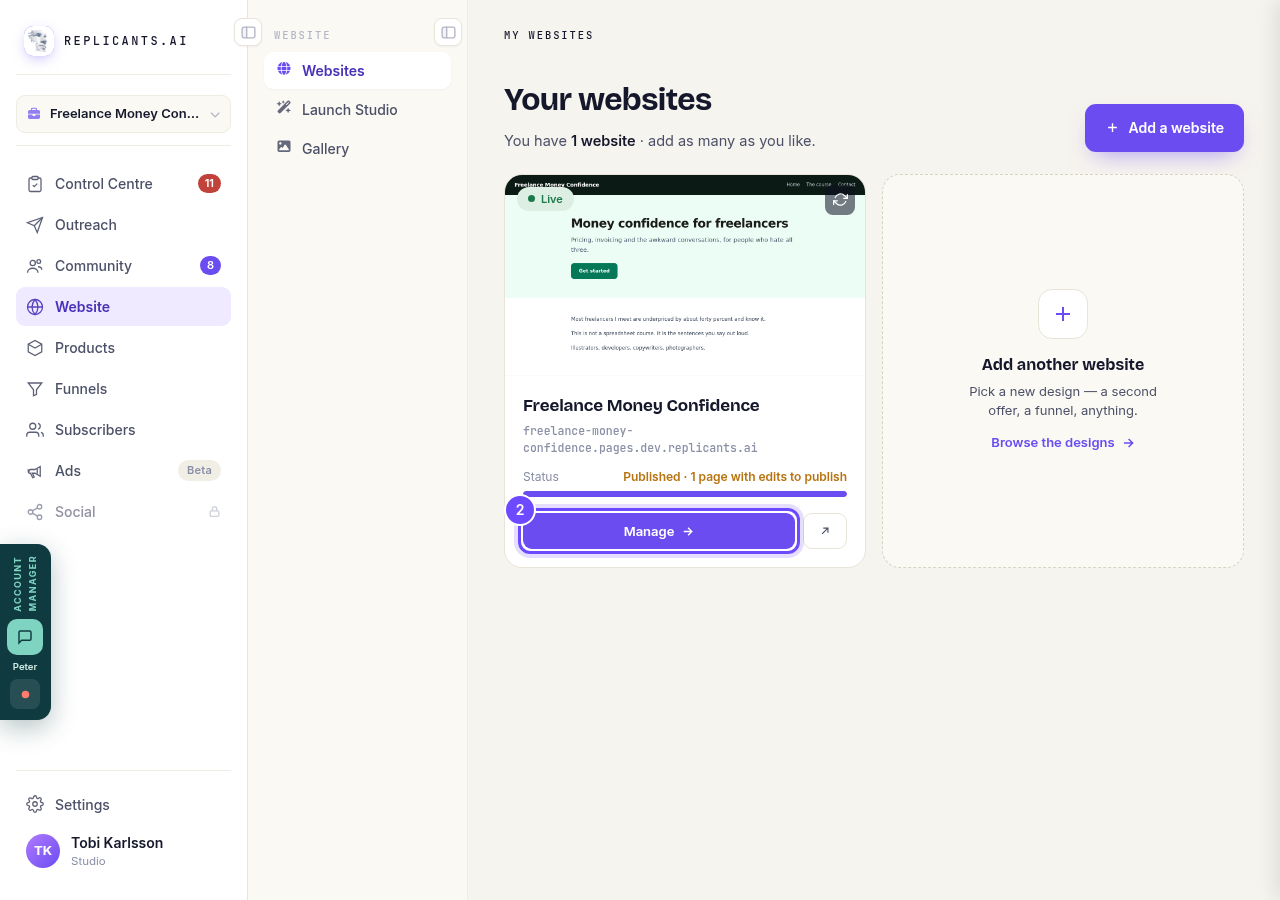
Press **Manage** on your website.
Open Photos
Every photo on your site, page by page.
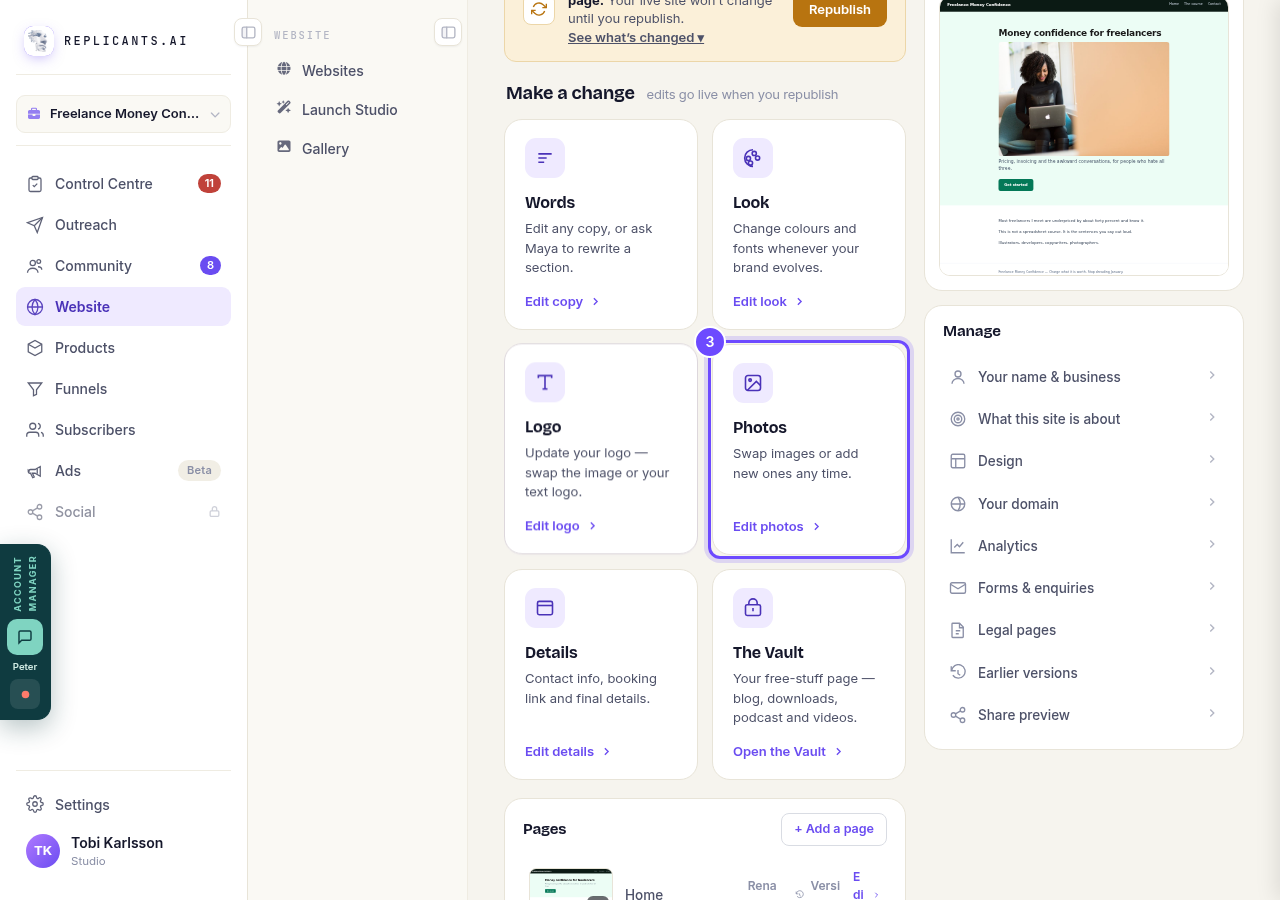
Press **Photos**.
Pick the photo
The list under Site photos shows each photo and where it sits.

Press the photo in **Site photos**.
Press it on the page
Your page shows with the chosen photo outlined. Pressing it opens Move & zoom. To frame it for phones, press Mobile under the page first.
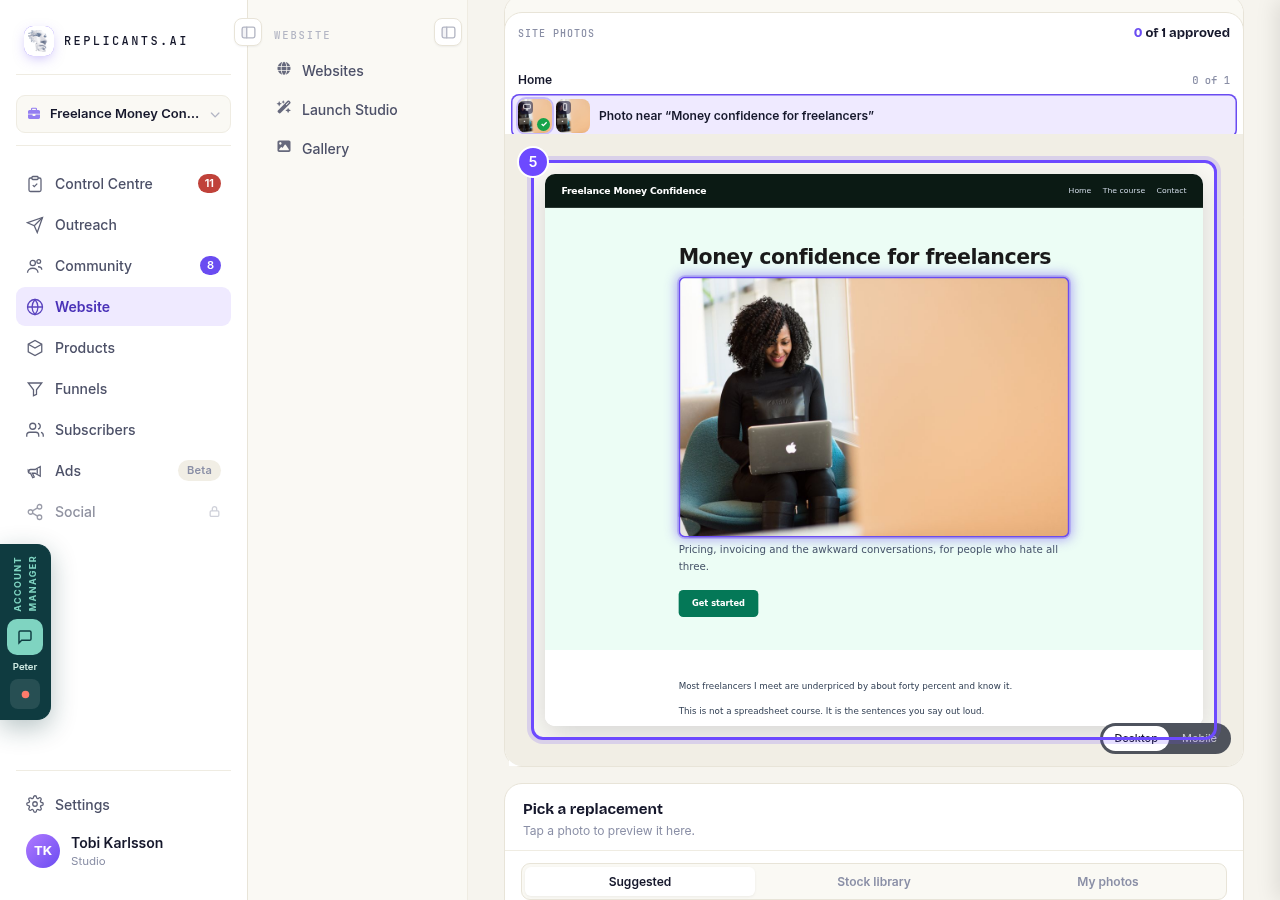
Press the outlined photo on the page.
Drag to frame it
The bright window is exactly what the page shows. Anything in the dim part is cropped off.
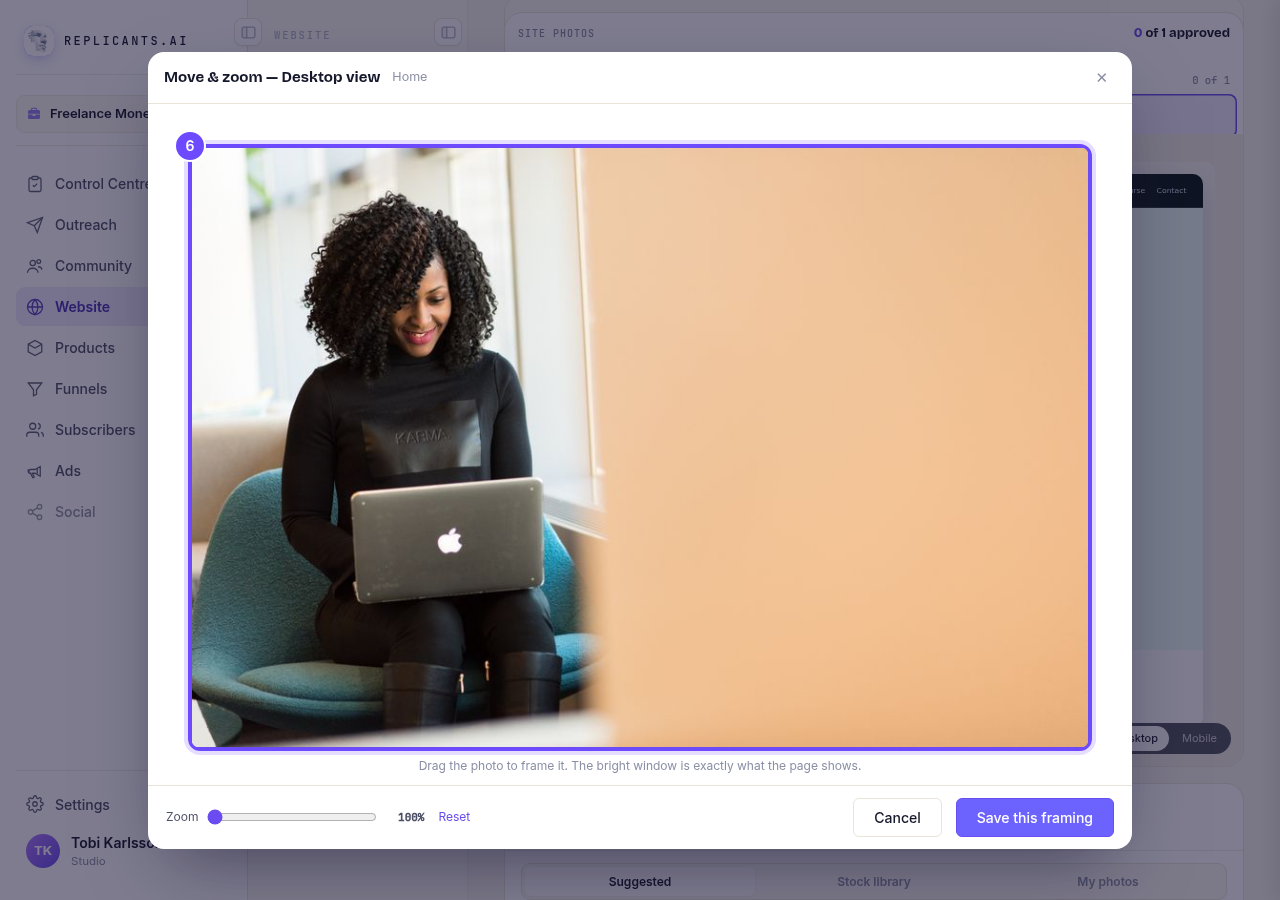
Drag the photo until the part you want is in the window.
Zoom in
Zooming crops in closer, up to 250%. The dim edges show what is cropped off. Reset takes it back to the whole photo.
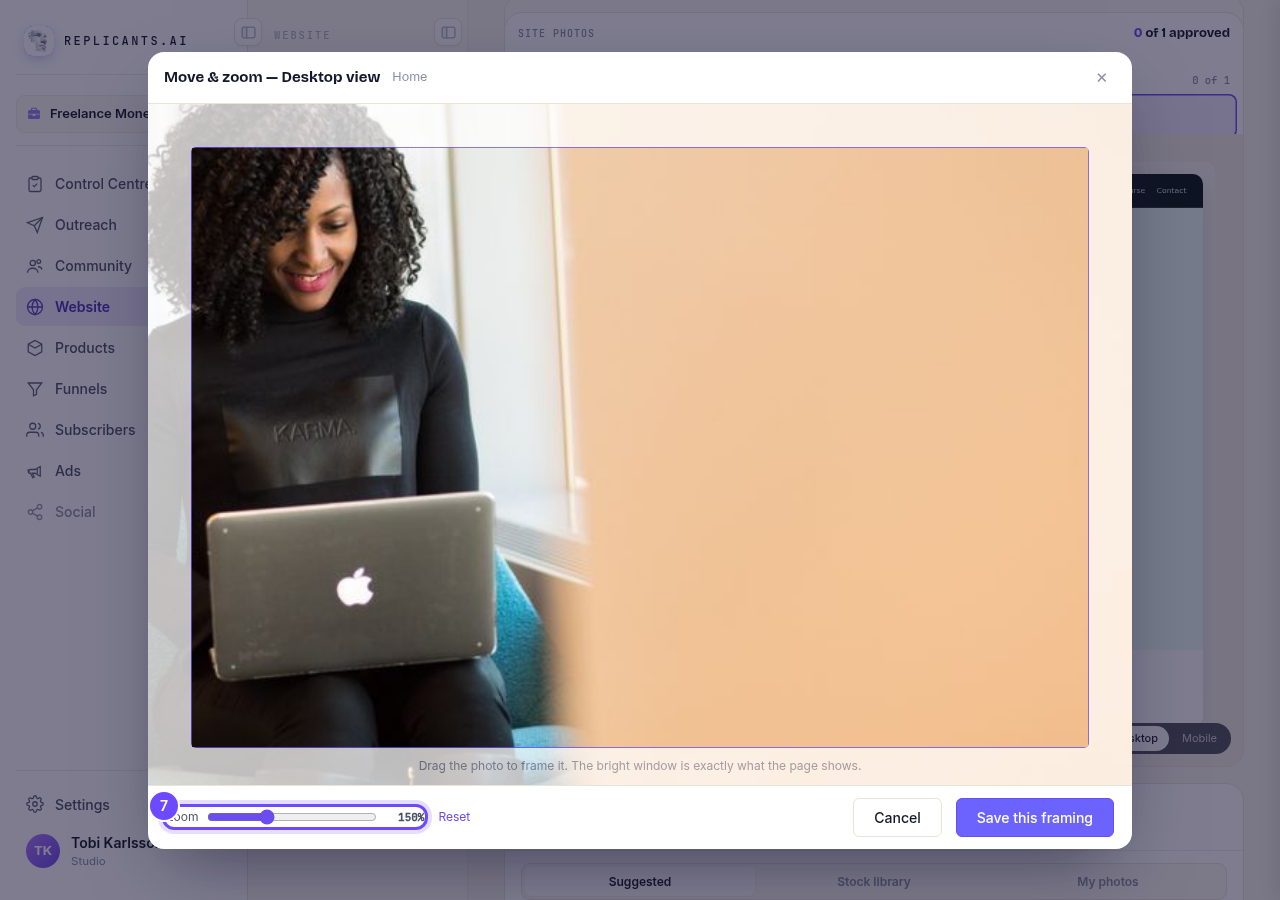
Move the **Zoom** slider.
Save it
The new framing is saved to your page's draft straight away.
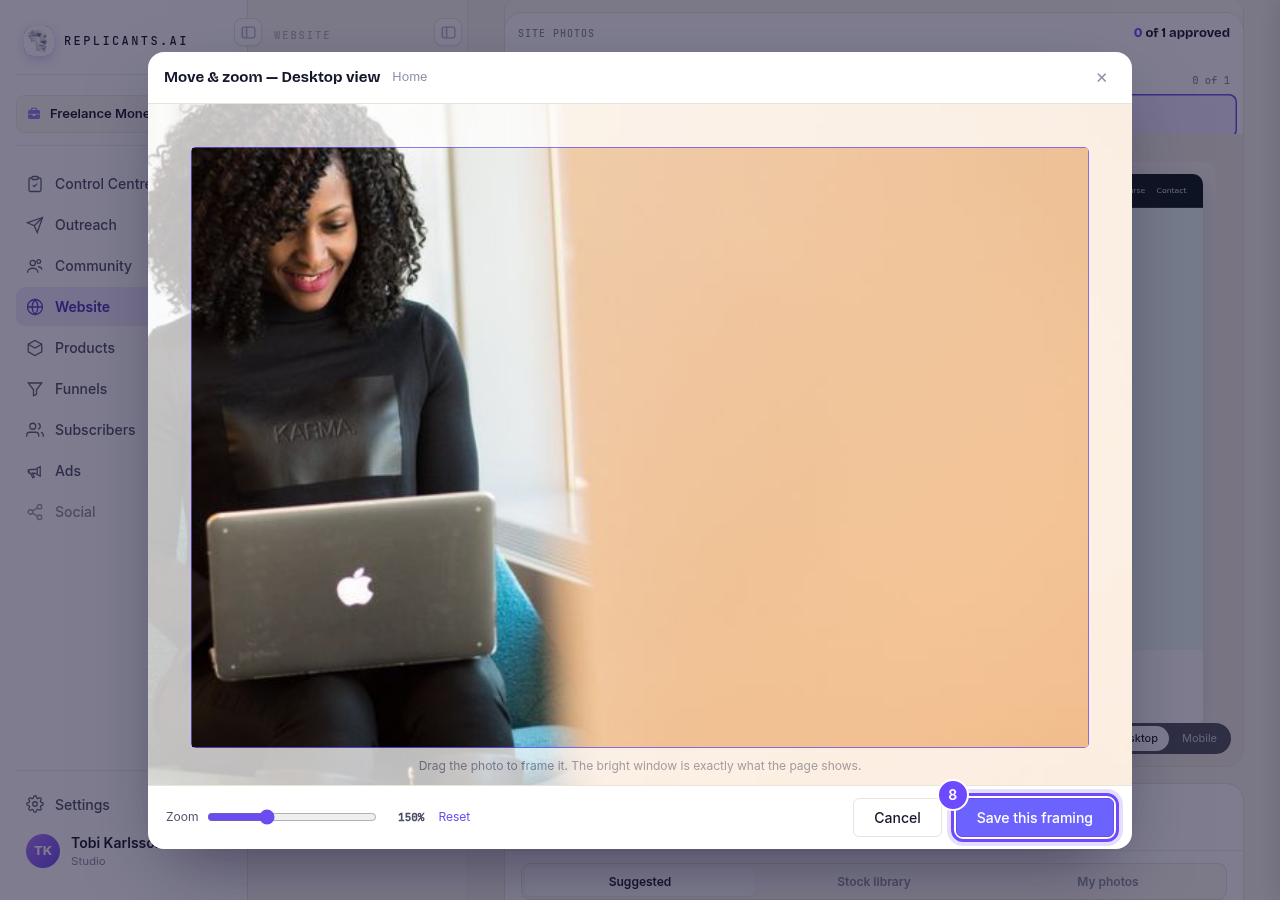
Press **Save this framing**.


Related articles
How do I add a privacy policy and terms to my website?
Every website has a Privacy Policy and Terms & Conditions, linked from the footer. We write them for you, or you upload your own. About two minutes.
How do I change how my website looks?
Everything you can change sits on one board. Open Website, press Manage, and look under Make a change for a tile per kind of change. The whole design is under Design in the Manage list.
How do I change my website's menu and footer?
Your top menu and footer are the same on every page, so you change them in one place and every page follows. About five minutes.