
How do I change my website's menu and footer?
Your top menu and footer are the same on every page, so you change them in one place and every page follows. About five minutes.
Updated 6 October 2026
Open Website
Website is in the main menu on the left. On a phone, press the menu button at the top right first.
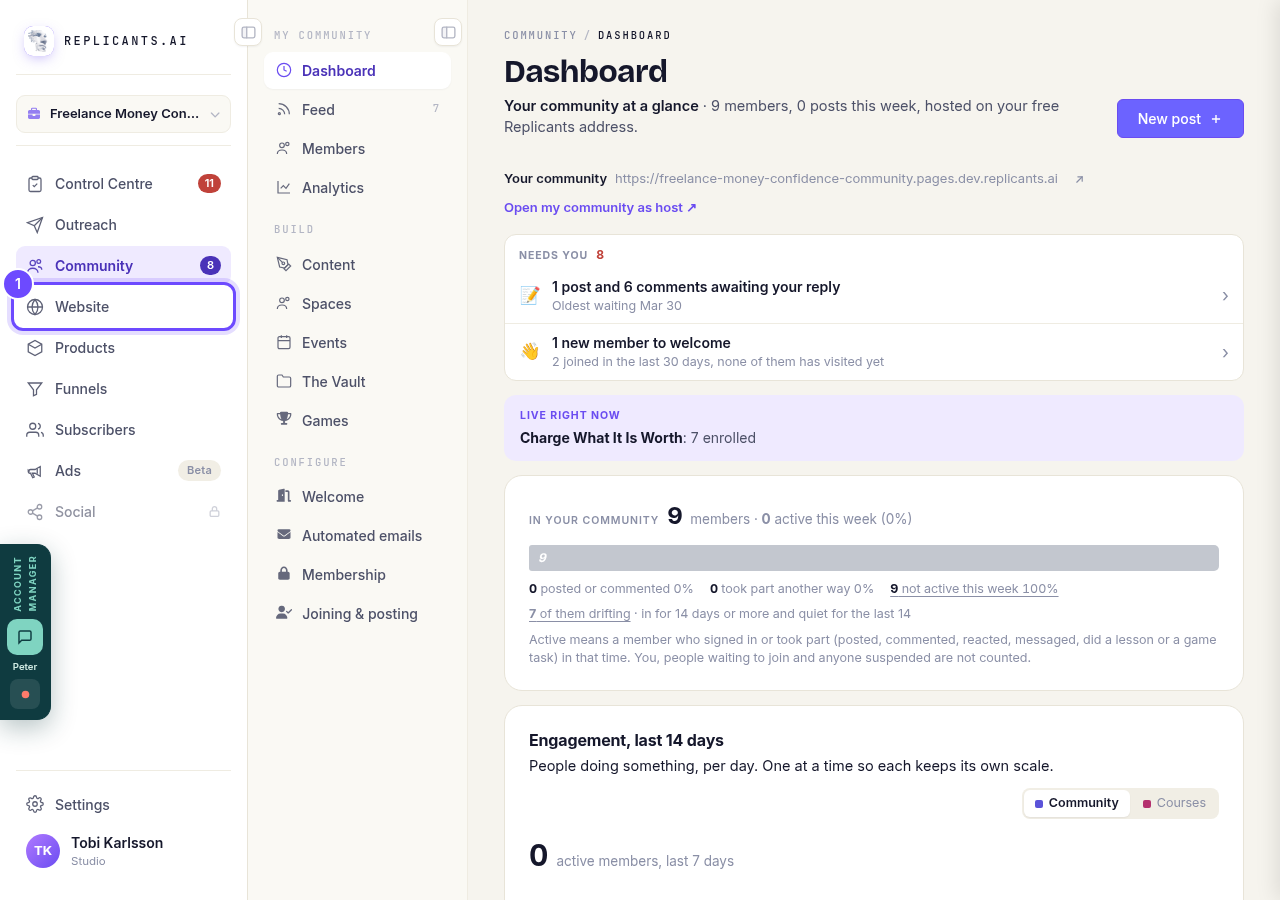
Website, in the main menu.
Open my websitesPress Manage on your site
Your websites lists every site you have. Press Manage on the one you want.
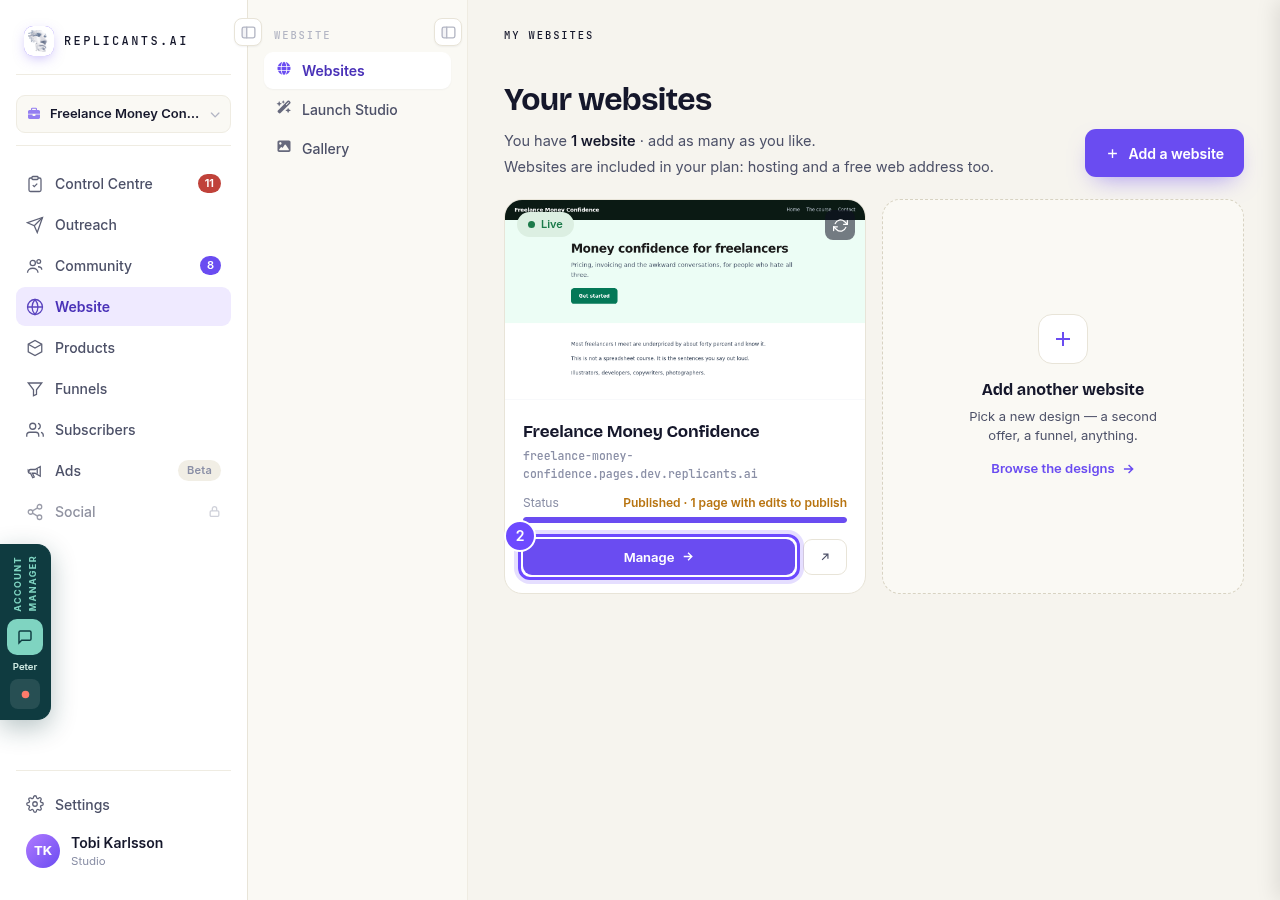
Manage, on your site's card.
Press Edit copy
It is on the Words tile, under Make a change. It opens the words of your whole site.
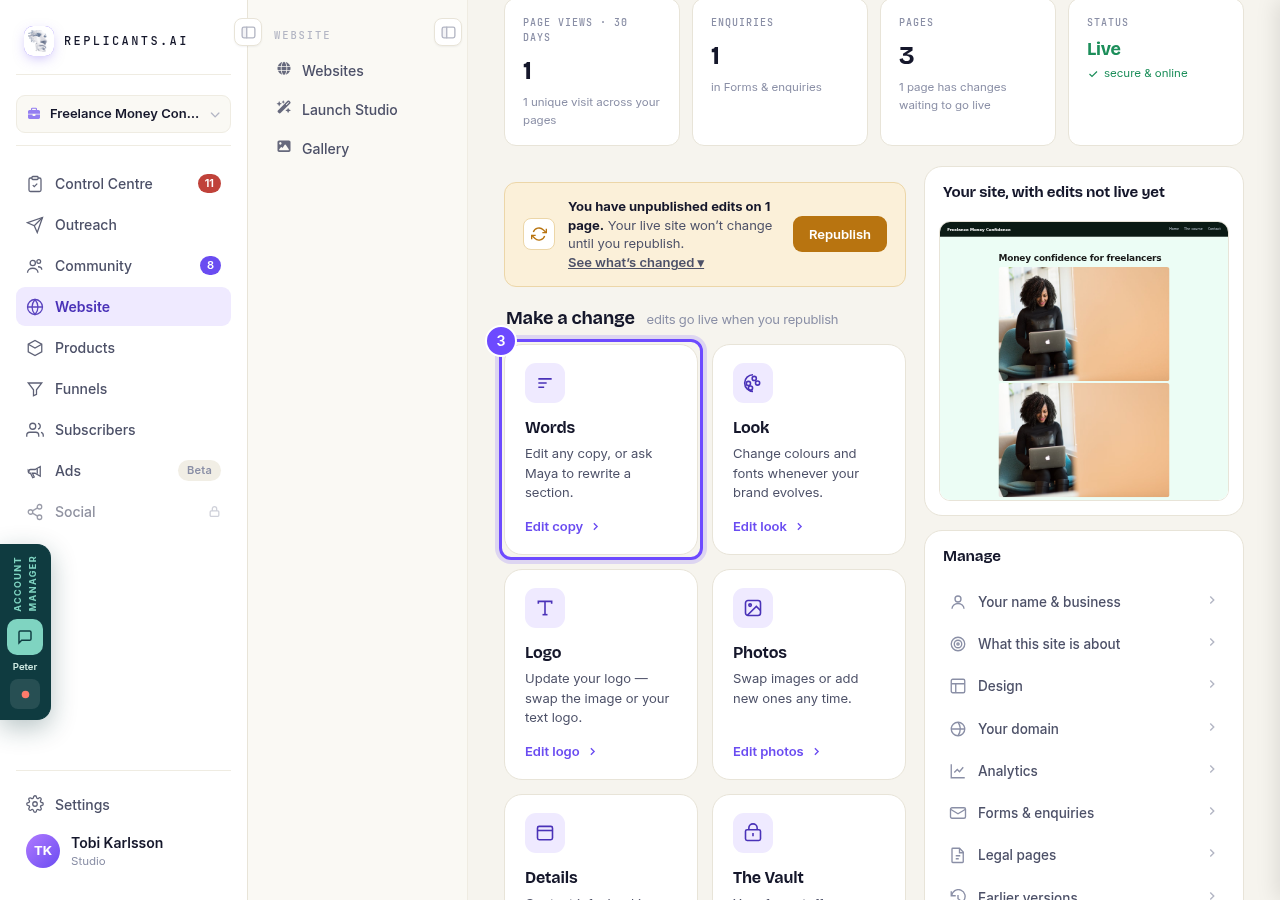
Edit copy, on the Words tile.
Press Top menu
Your pages are along the top, and after them, under WHOLE SITE, Top menu and Footer.
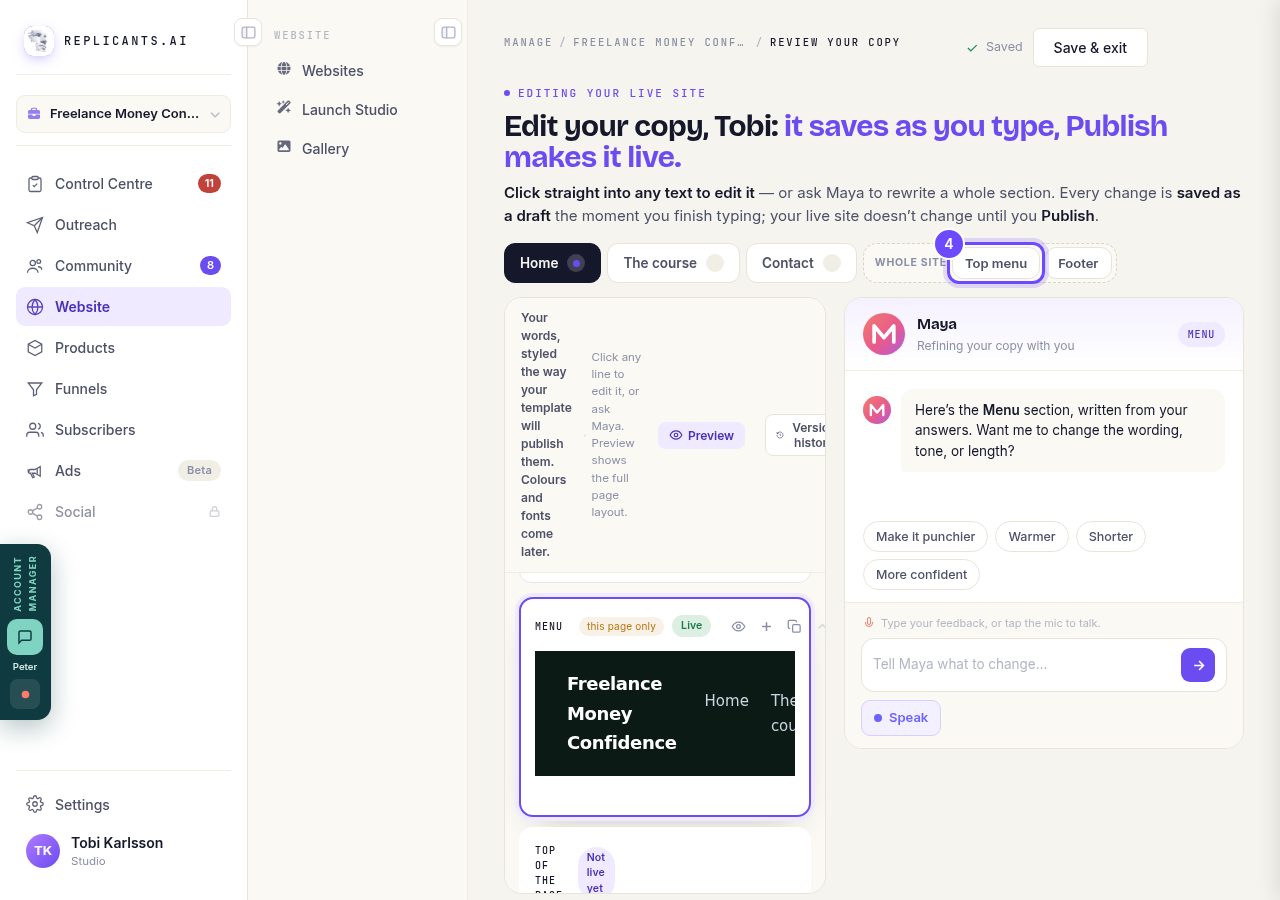
Top menu, under Whole site.
The first time: press Set this up
You see this only once, if each page still carries its own copy of the menu. It turns them into one menu and one footer for the whole site. No page changes until you publish. If you go straight to your menu links, skip this step.
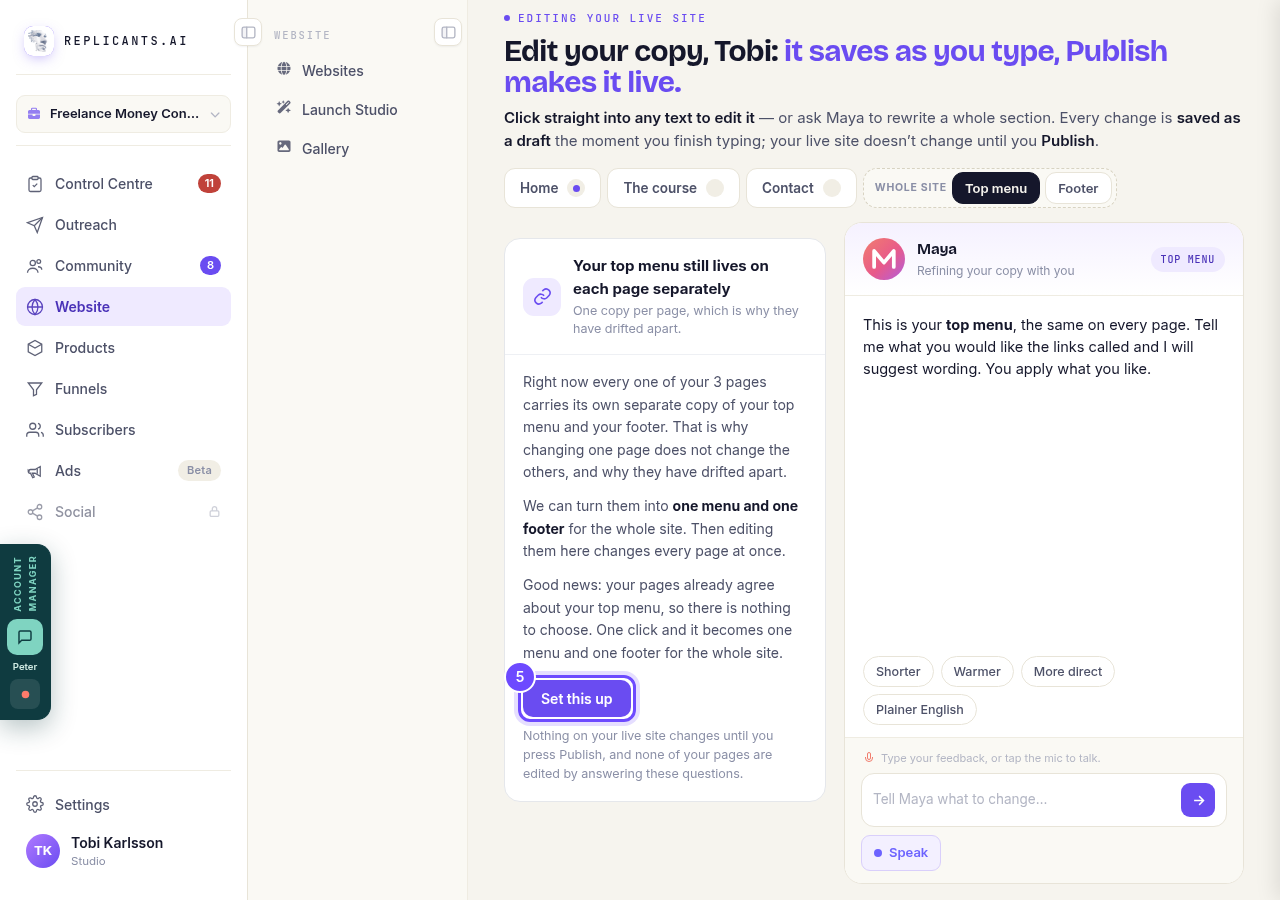
Set this up, the first time only.
Change a link
Under Menu links, type new words in a link's Label box, and pick the page it opens under Where it goes. Switch Show in the menu off to hide it; the arrows move it up or down.
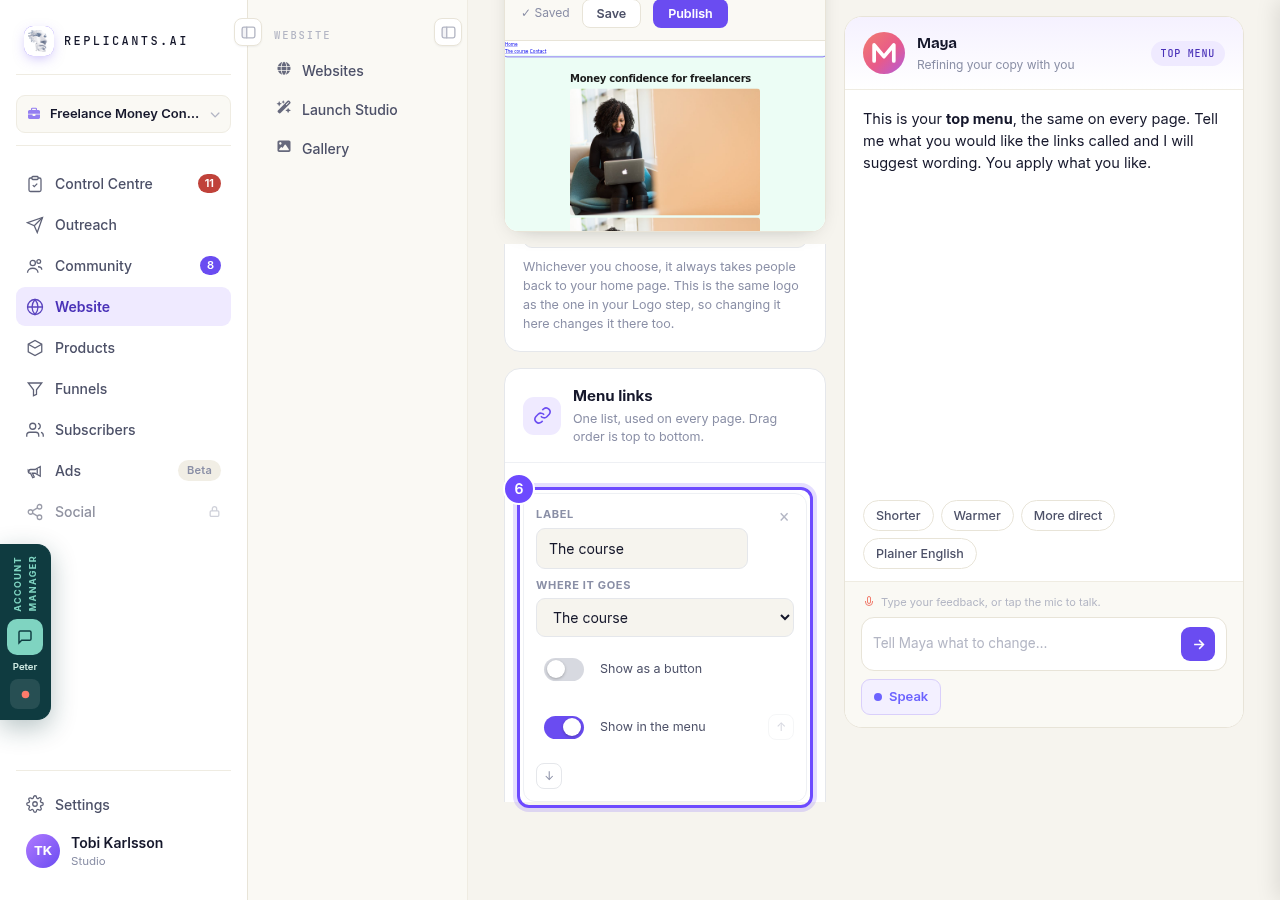
One menu link, with its label and where it goes.
Press + Add a link
It adds a new link at the end of the list. Give it a label and choose where it goes.
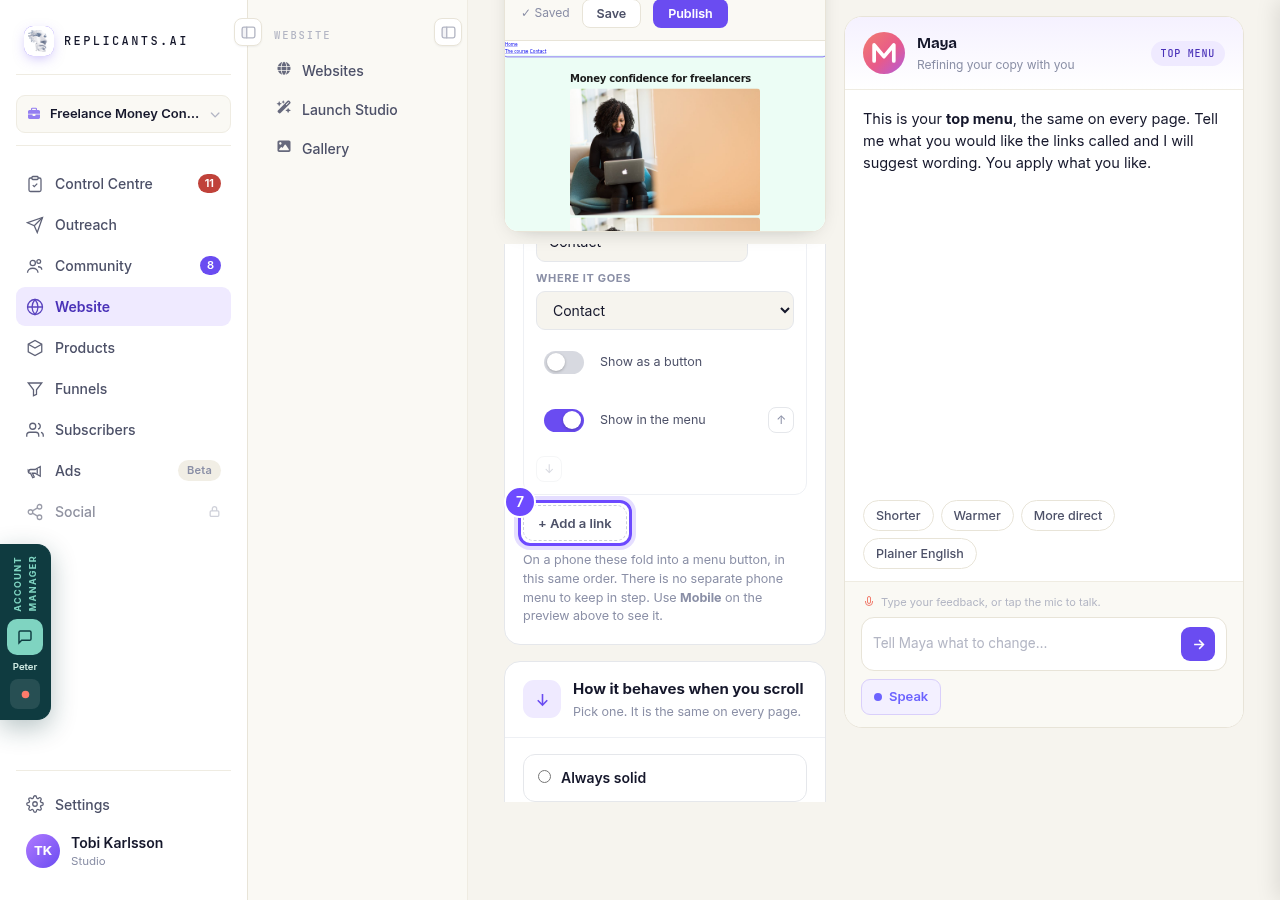
+ Add a link, under your menu links.
Press Footer
The footer works the same way: its links, your social links, a newsletter sign-up and the small print.
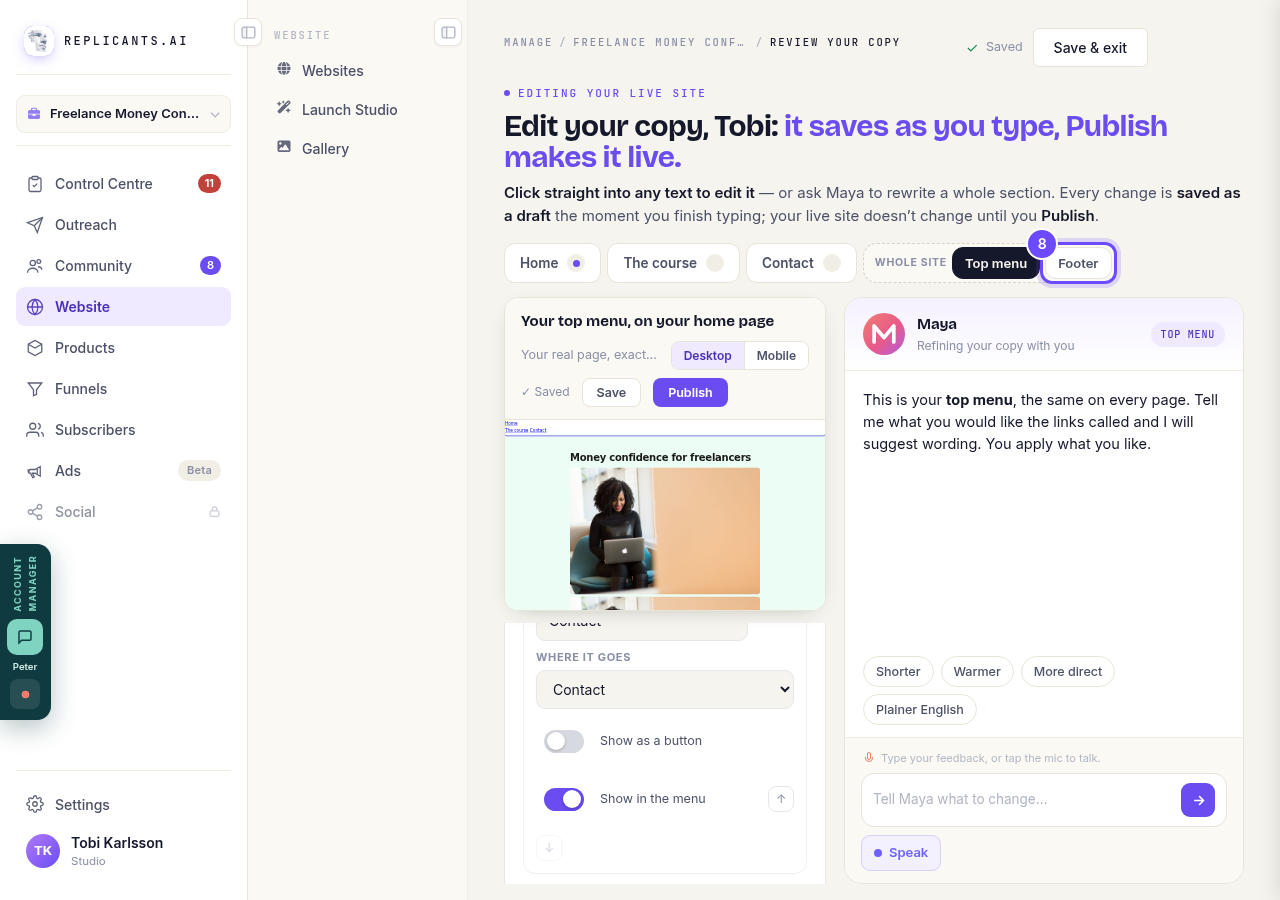
Footer, beside Top menu.
Press Publish
It is at the top of the preview. Your changes are already saved; Publish puts the new menu and footer on every page of your live site.
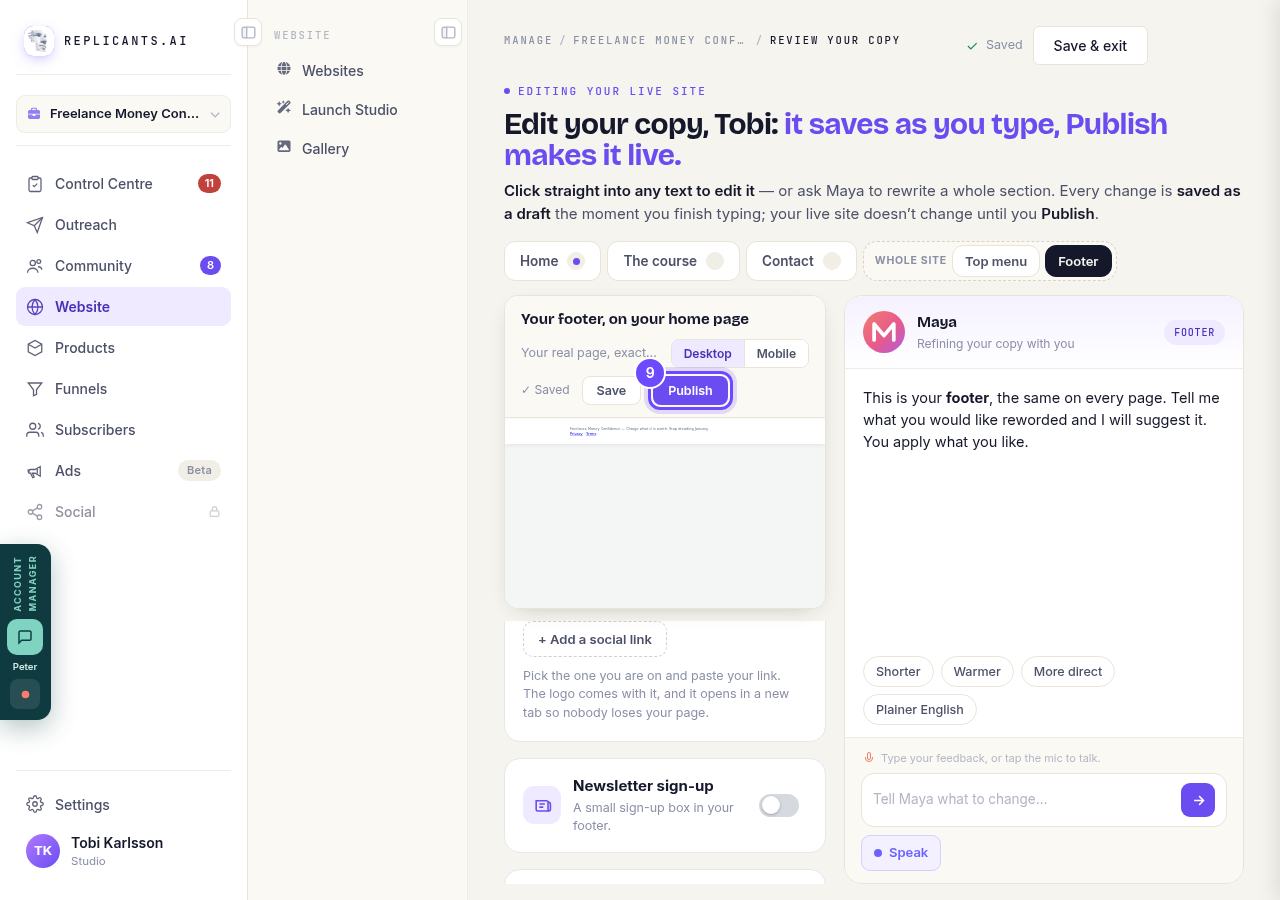
Publish, above the preview.


Related articles
How do I add a privacy policy and terms to my website?
Every website has a Privacy Policy and Terms & Conditions, linked from the footer. We write them for you, or you upload your own. About two minutes.
How do I change how my website looks?
Everything you can change sits on one board. Open Website, press Manage, and look under Make a change for a tile per kind of change. The whole design is under Design in the Manage list.
How do I change one thing on my page, like a photo or a paragraph?
Every page is a stack of sections, and each one changes on its own. Open the page, find the section, change it — then publish.