
How do I change how my website looks?
Everything you can change sits on one board. Open Websites, press Manage, and look under "Make a change" for a door per kind of change.
Updated 15 September 2026
Take me there
Open Websites
Press Manage on the site you want. That opens its Manage board.
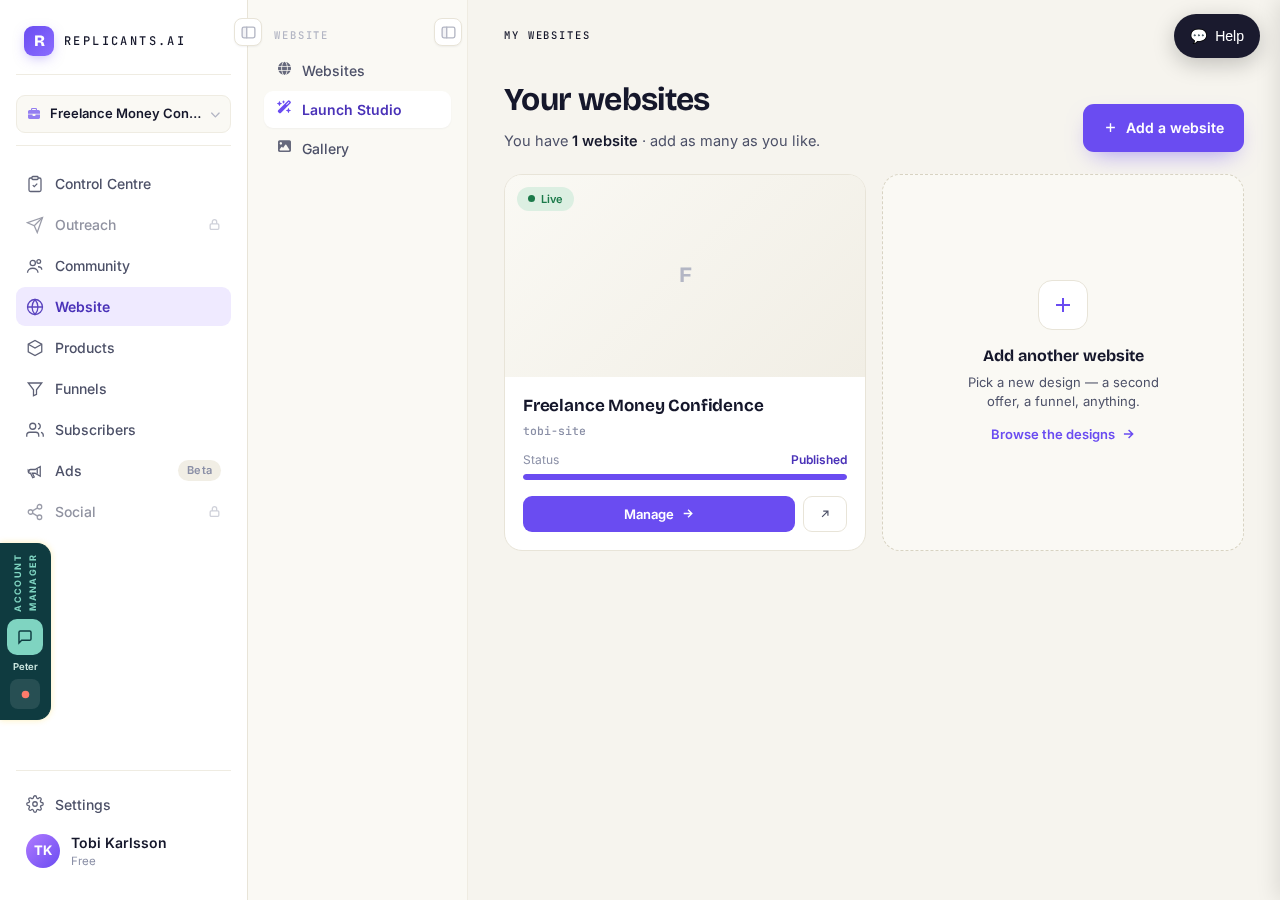
Press "Manage" on the site you want to change.
Take me thereFind "Make a change" on the Manage board
Under "Make a change" there's a tile for each kind: Words, Look, Logo, Photos, Details and The Vault. Pick the one that matches.
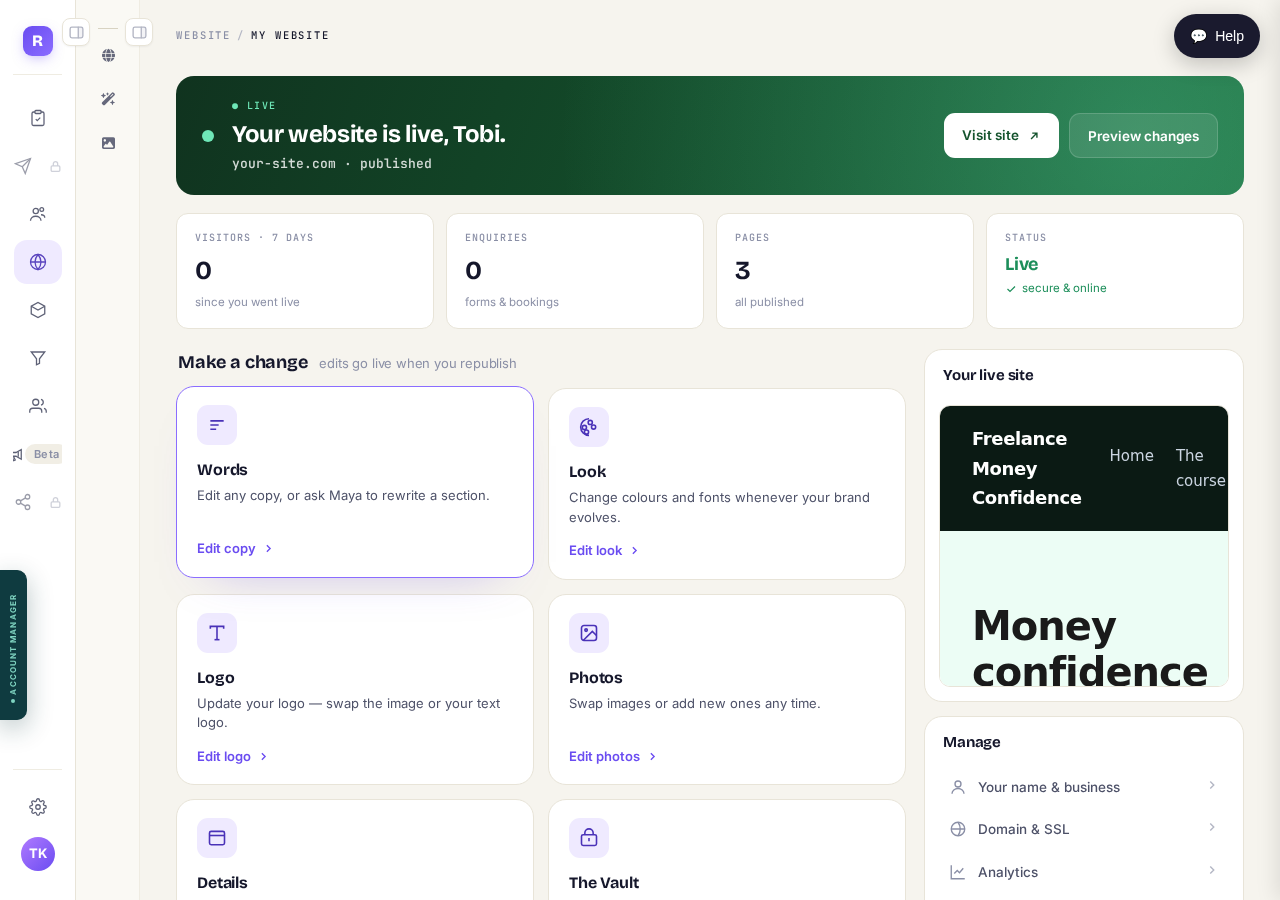
One tile for each kind of change.
Press Edit look for color and type
Press Edit look. You get palettes named Evergreen, Ember, Ink, Ocean, Rose and Sage, plus font pairings. The tile spells it colour; same door.
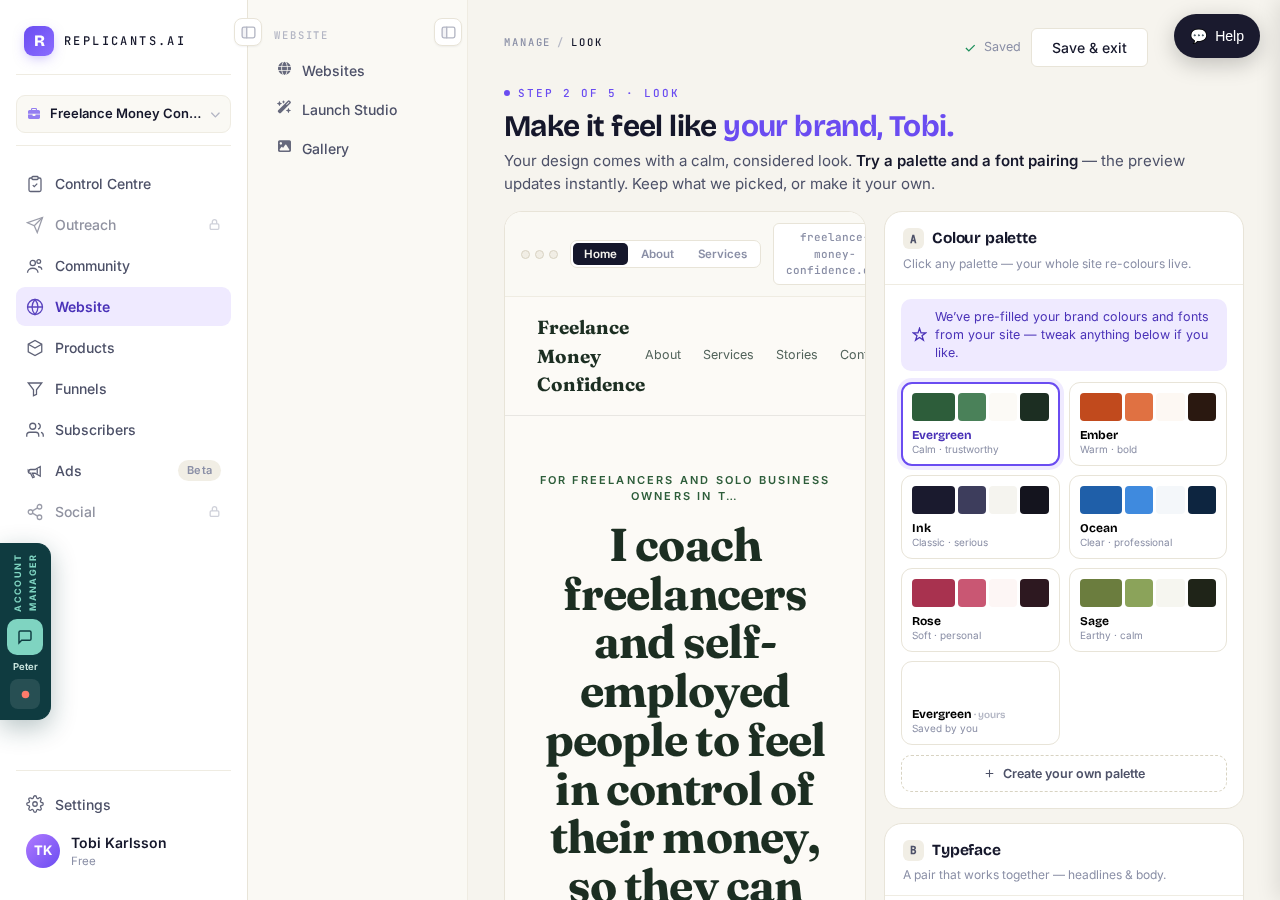
Pick a palette and watch the preview on the right change to match.
Press Edit logo for your logo
Press Edit logo. Photos works the same way — that's the tile for swapping a picture that came with your design.
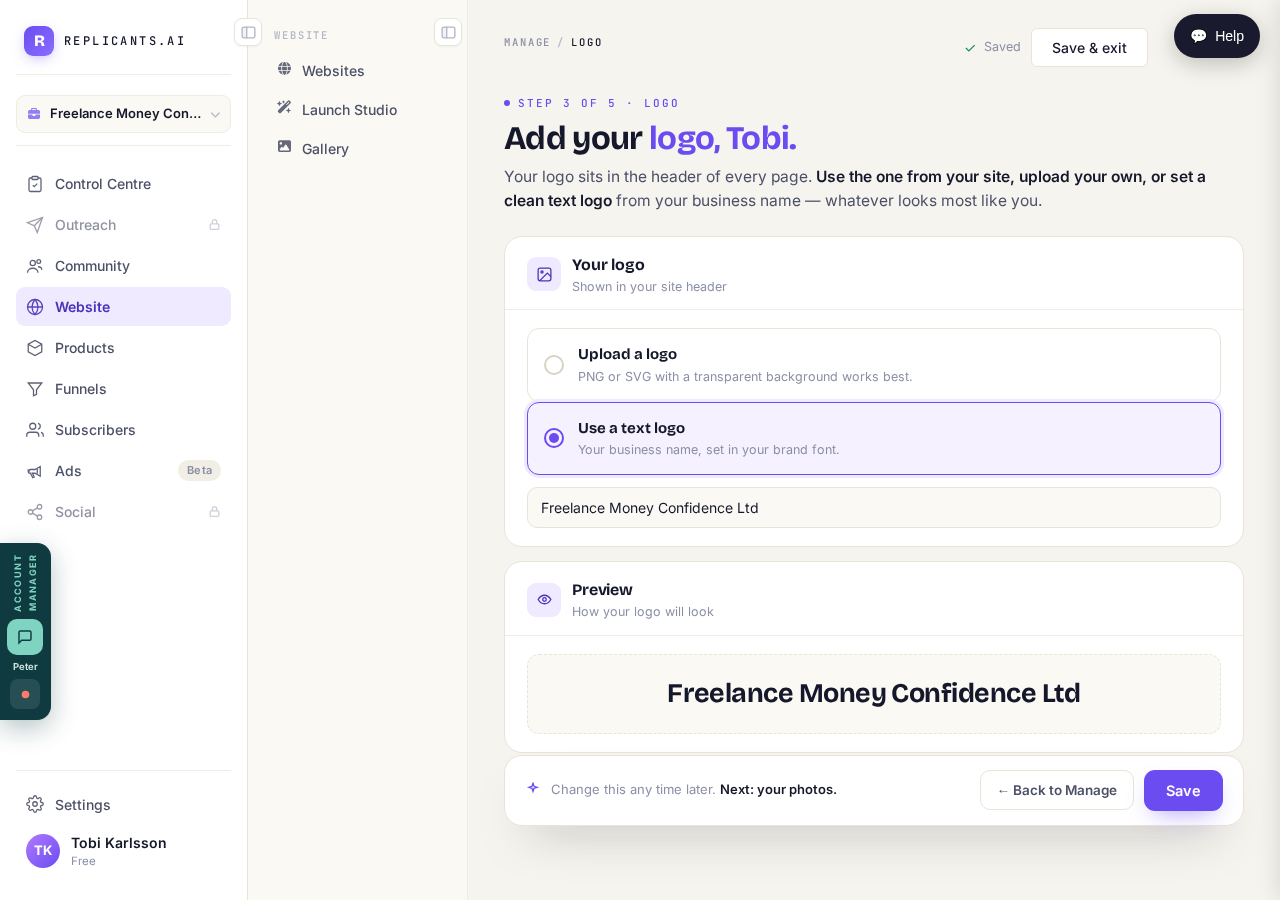
Upload a picture, or use your name as a text logo.
Open the page itself for wording
Wording isn't a tile. To change words, open the page itself — your pages are listed lower down the same board. Publishing happens in there too.
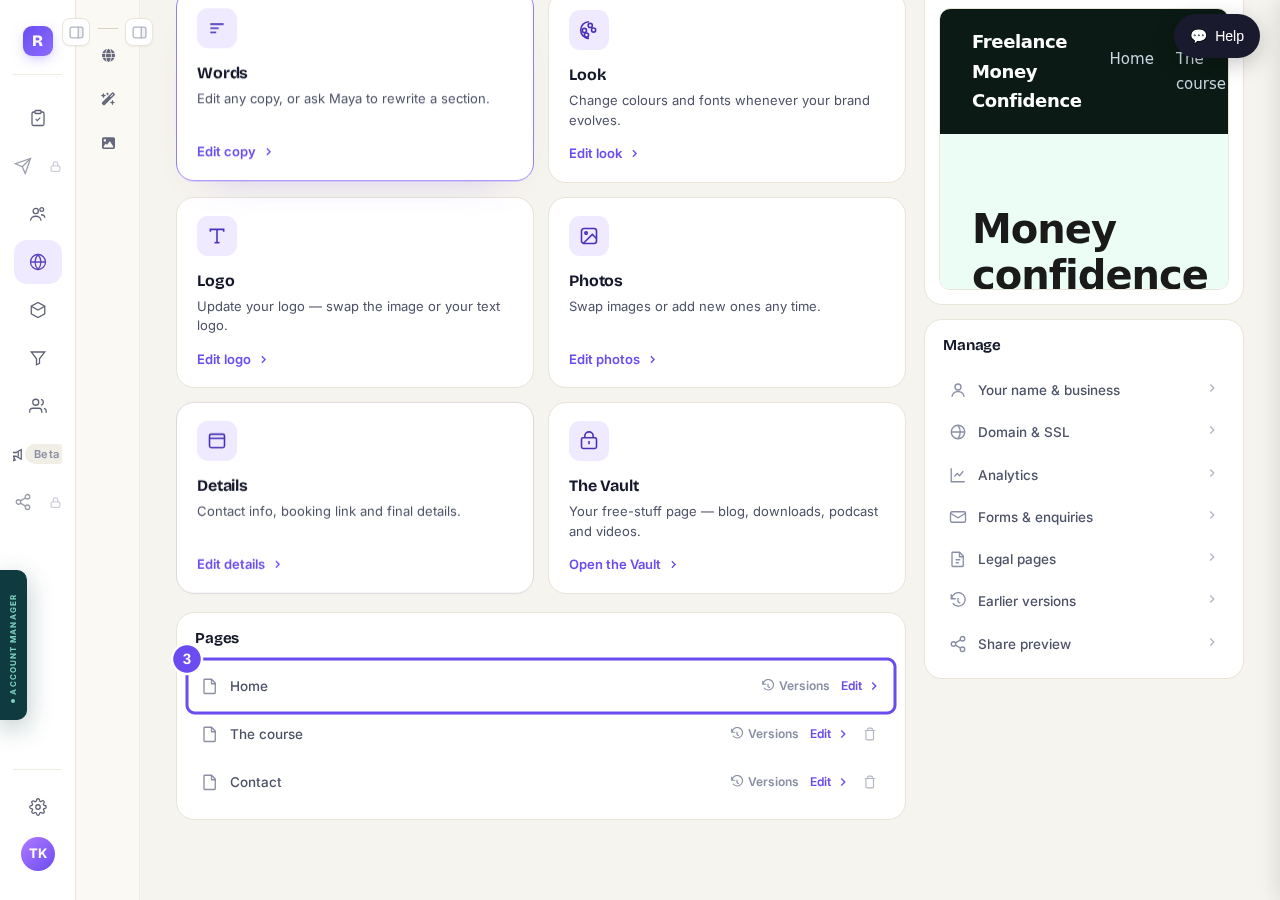
Each page has an Edit beside it. Save and Publish are inside.
Related articles
How do I change one thing on my page, like a photo or a paragraph?
Every page is a stack of sections, and each one changes on its own. Open the page, find the section, change it — then publish.
How do I publish my website?
Publishing lives inside the page you're editing, not on the Websites screen. Open the page, change it, press Save, then Publish.
How do I use my own web address?
Your site already has a working address, so nothing is broken while you decide. For your own: Websites, Manage, then Domain and SSL.