
How do I let people pay for my course in more than one way, such as installments, and see how many have bought?
Add a payment plan beside your one-off price, and buyers pick the one they want on your payment page. About three minutes, on a course that is already on sale.
Updated 8 October 2026
Open Products
Products is in the main menu on the left. It opens on your courses. On a phone, press the menu button at the top right first.
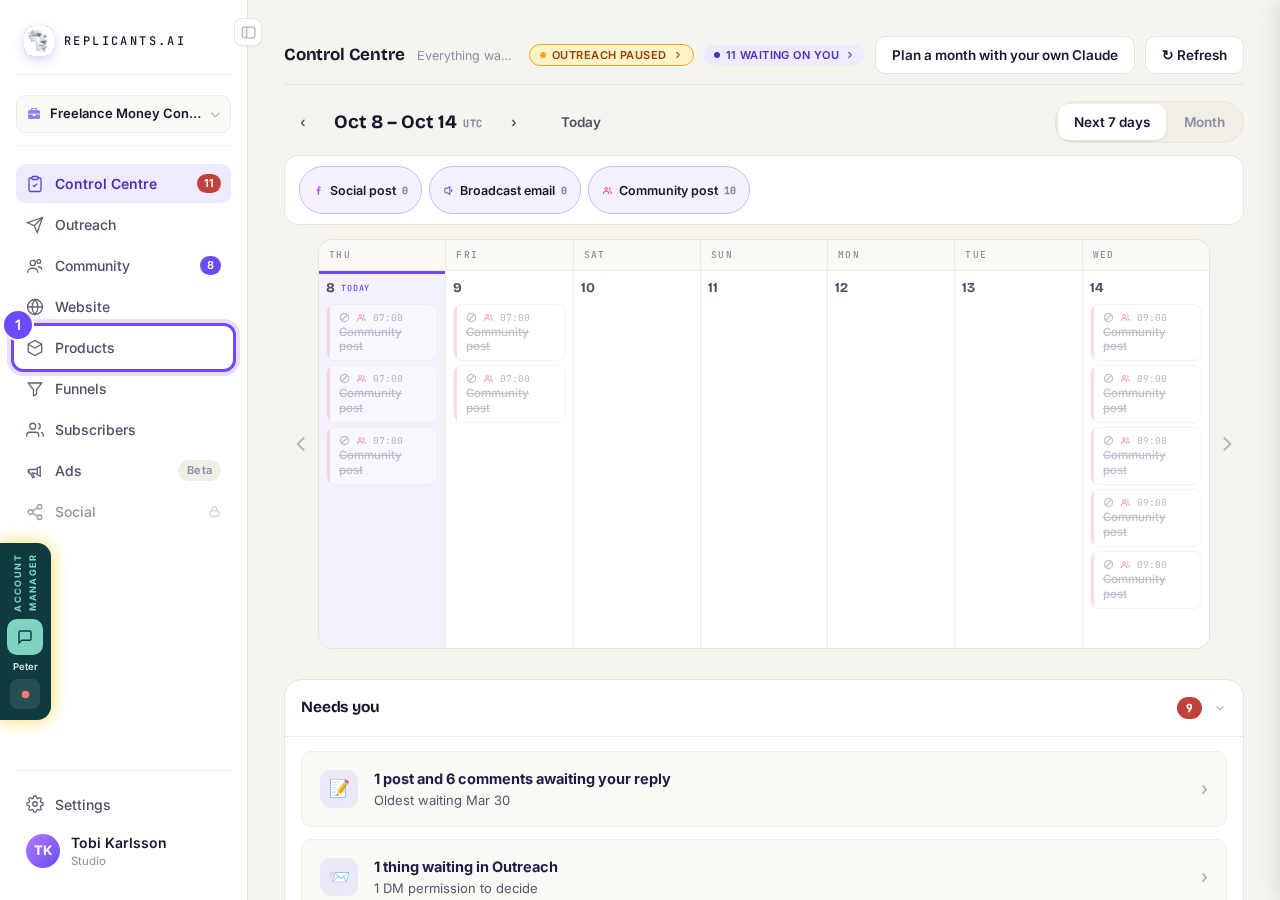
Products, in the main menu.
Press Manage on your course
Each course has its own card.
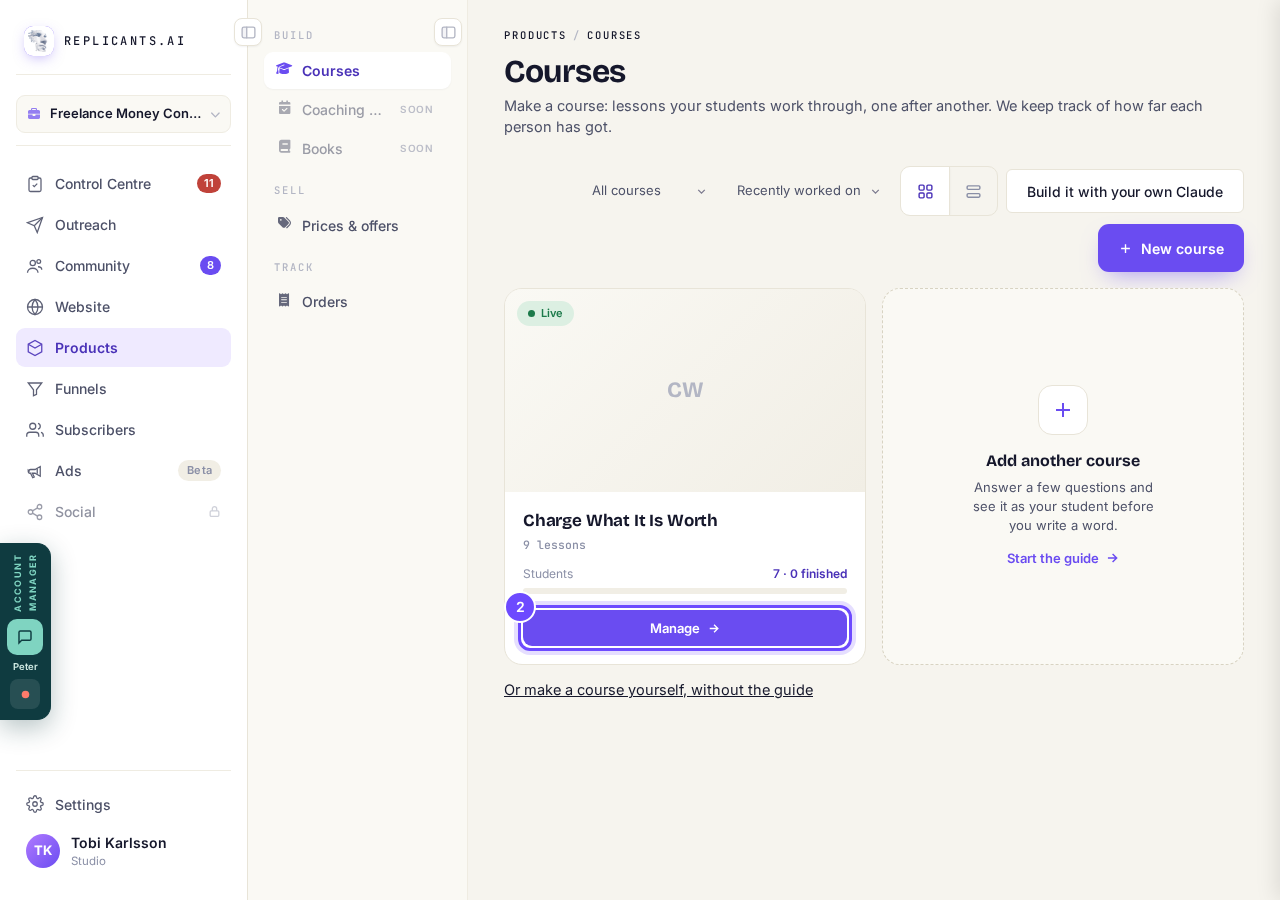
Manage, on the course's card.
Press Selling
It is along the top of the course, between Students and Emails. It opens on Payments. Our example course takes test payments only, so it shows Real payments are off. Yours won't once real payments are on.
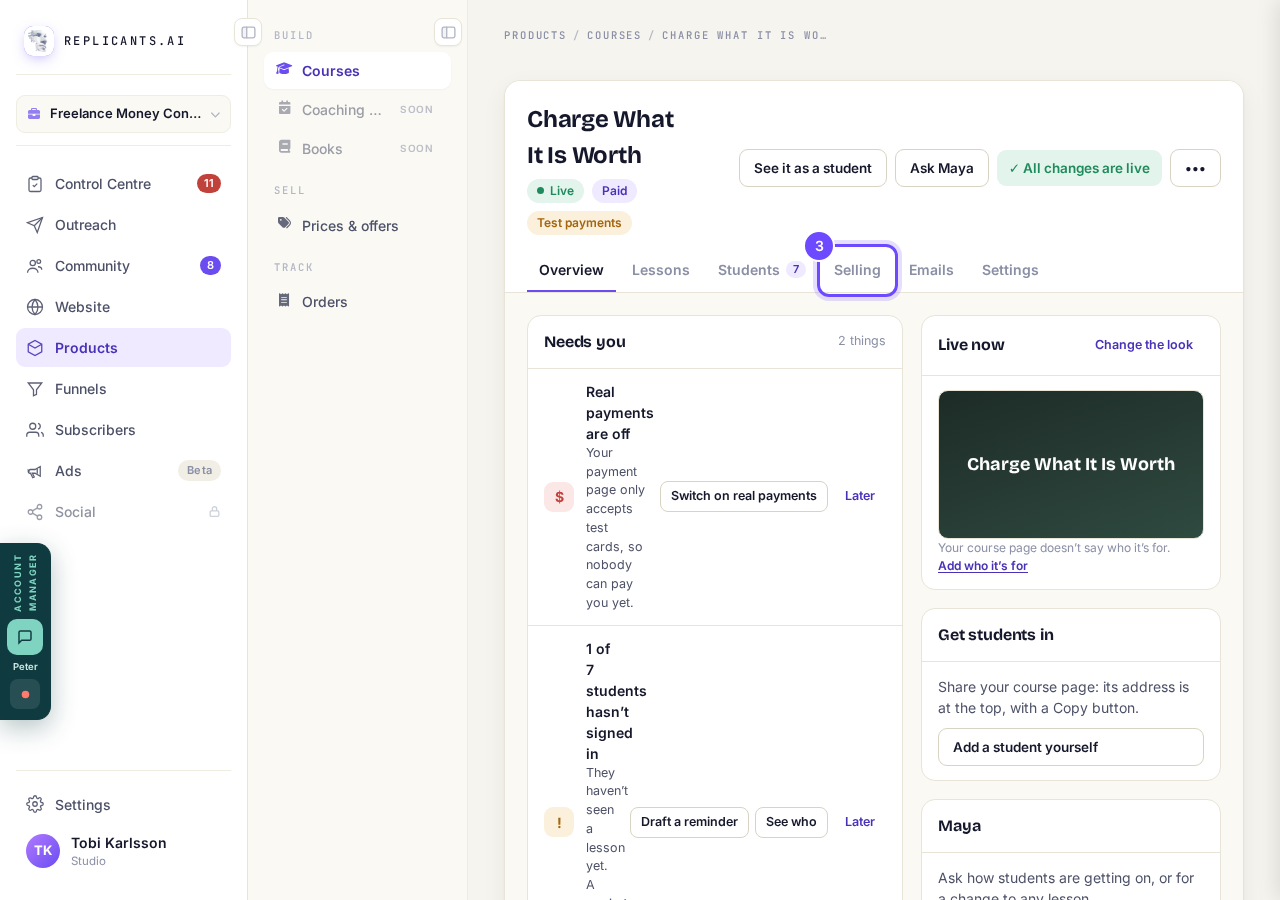
Selling, along the top.
Press Add a way to pay
It is under How can people pay?, below the way people pay now. Nothing changes until the last step.
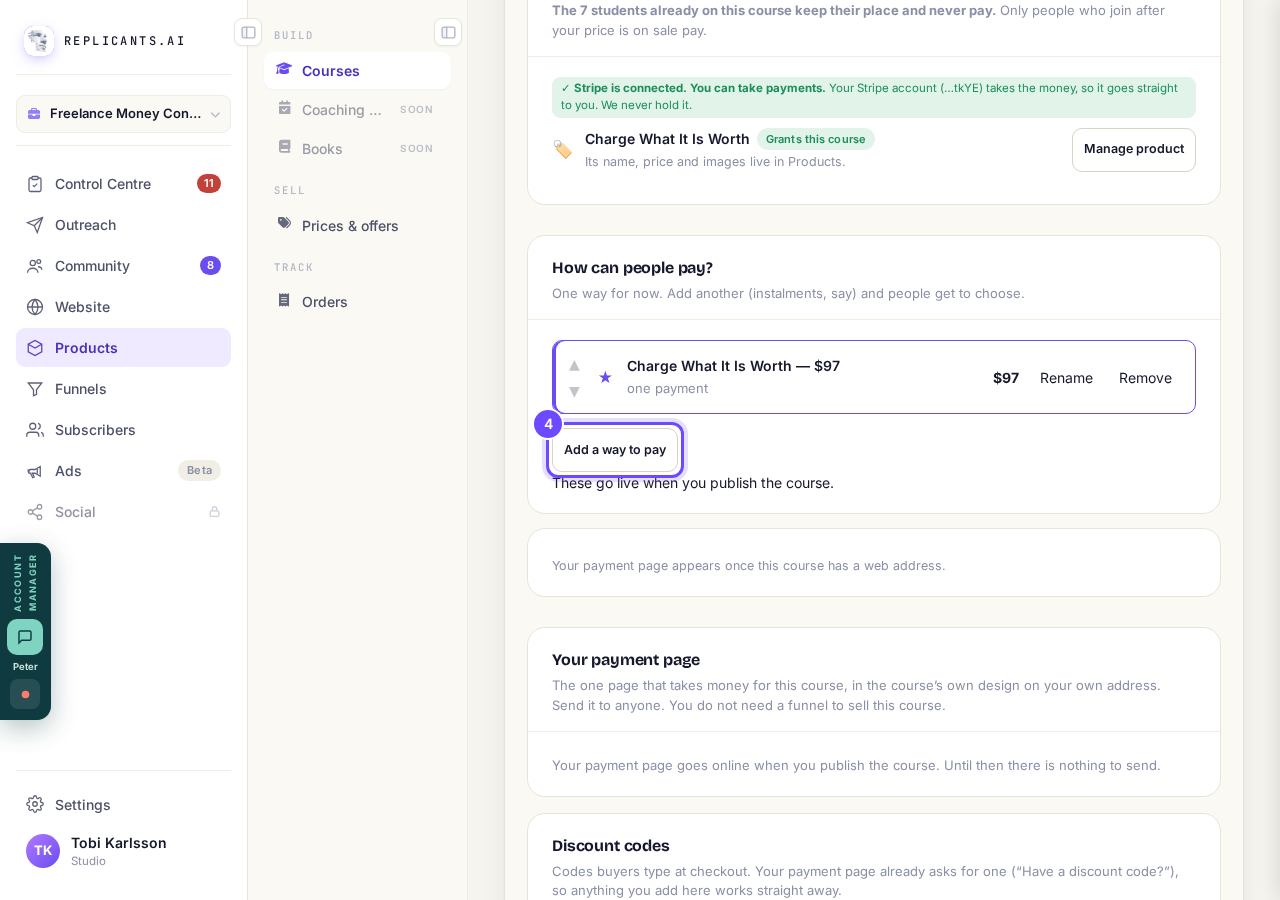
Add a way to pay, under How can people pay?
Pick Payment plan (fixed instalments)
Then press Choose. The other choices: One payment adds a second one-off price, Subscription (recurring) charges until they cancel, and Something I already sell uses a product you set up before.
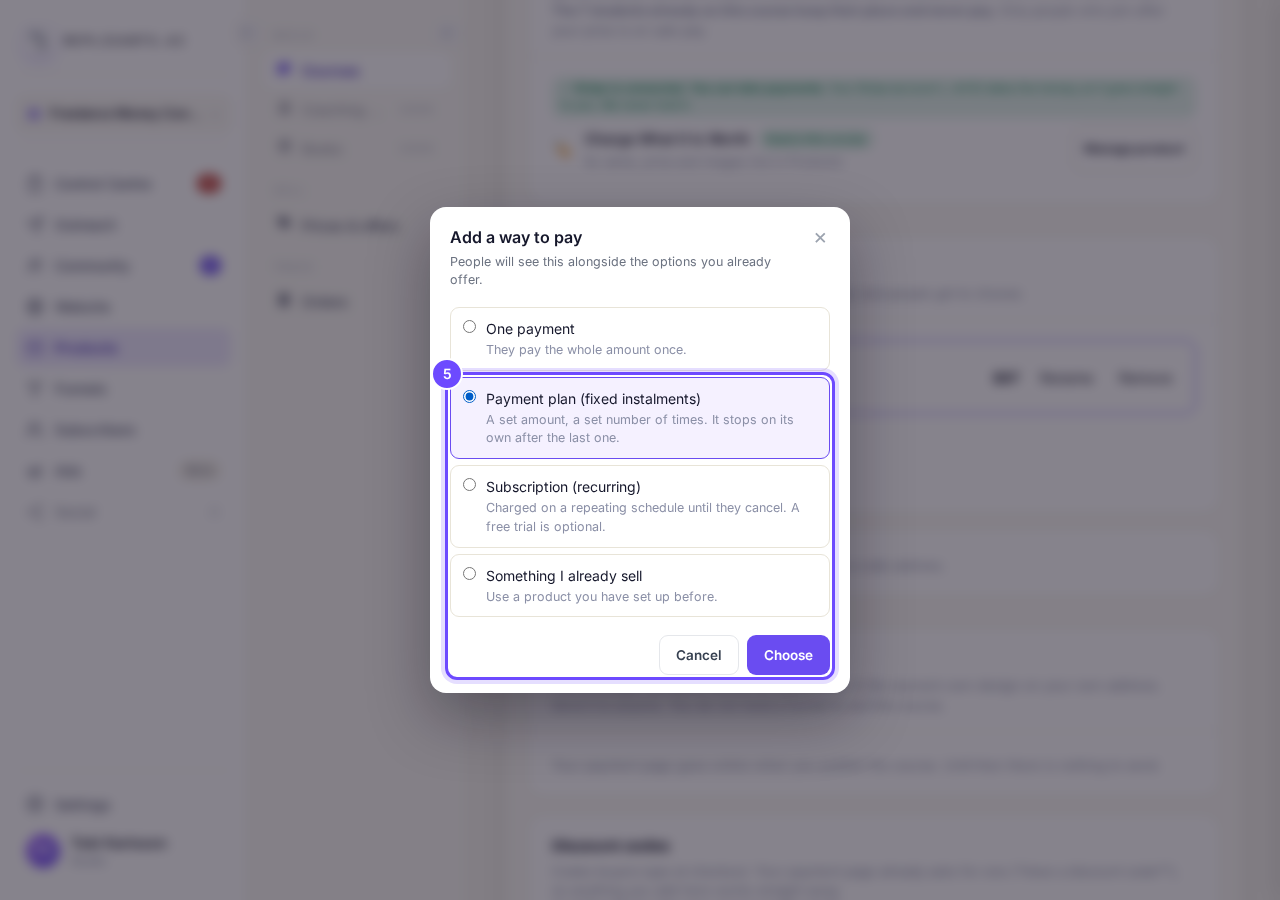
Payment plan (fixed instalments), then Choose.
Fill in the plan and press Next
Type what they pay each time, not the total. Then fill in How many payments? (2 to 60) and choose How often do they pay?, such as Monthly.
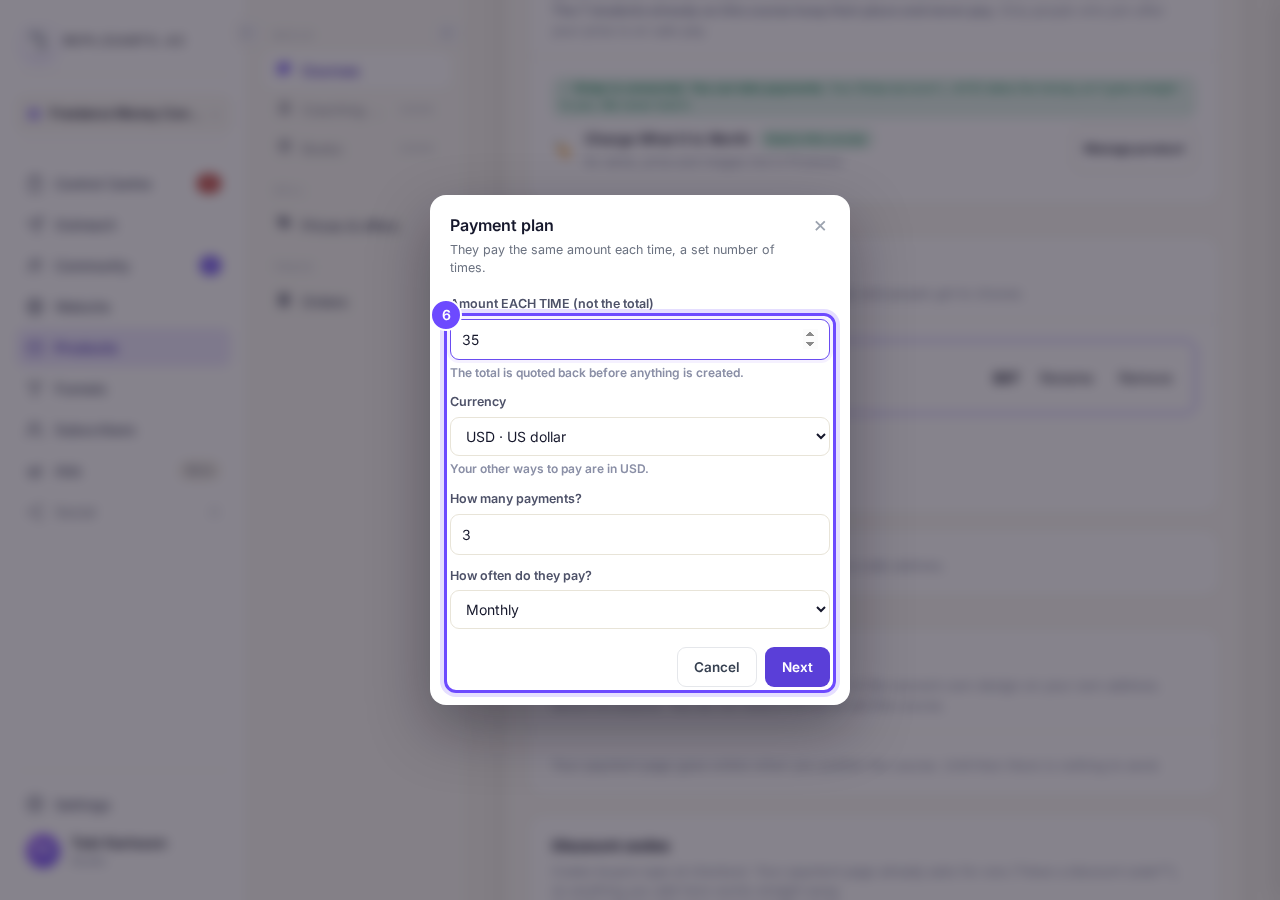
Amount each time, How many payments?, How often do they pay? and Next.
Check the total and press Add it
The box adds it up for you, such as That comes to $105 for 3 payments of $35. If it looks wrong, press Cancel and start again. Setting it up with your payment account takes a few seconds.
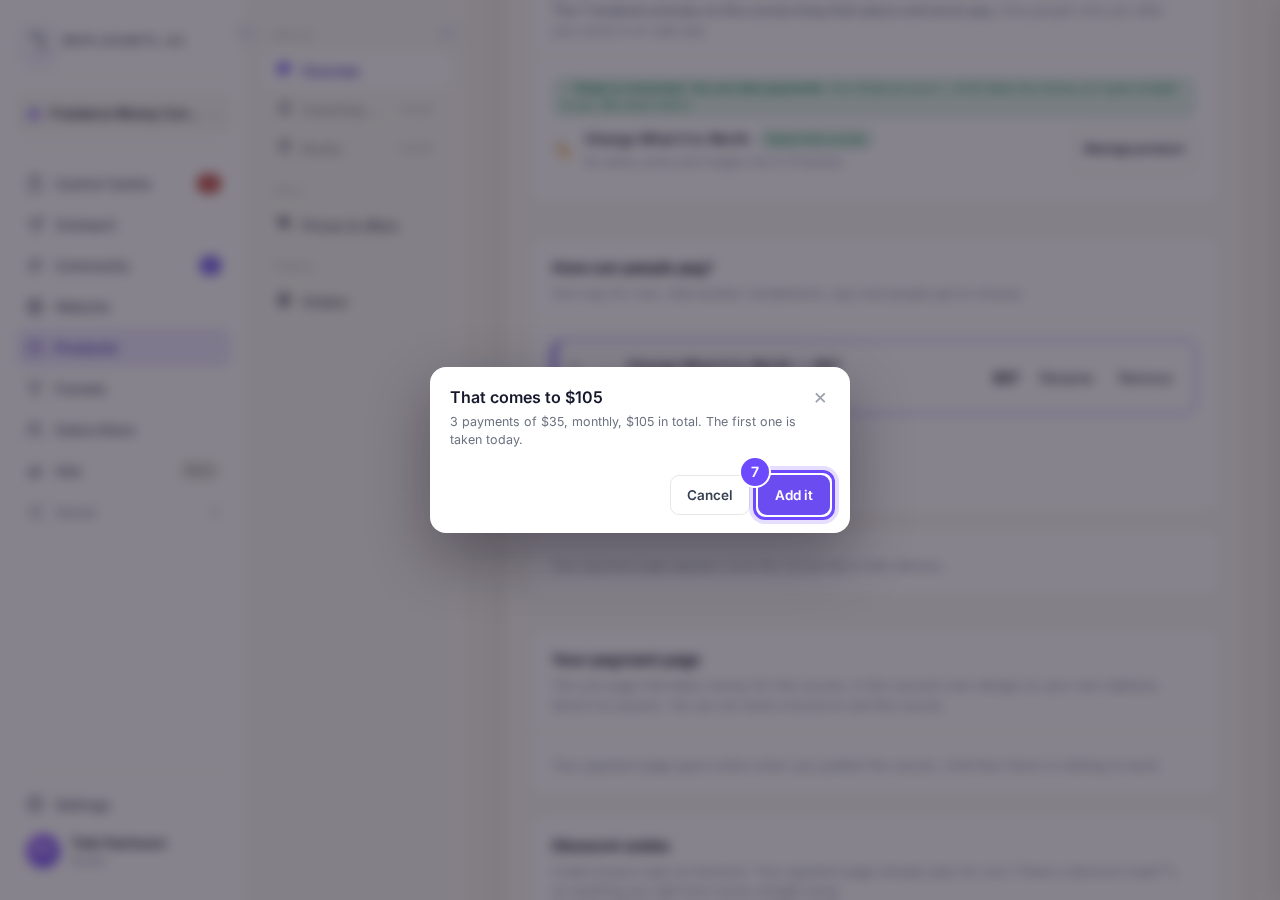
That comes to $105, with Add it.


Related articles
How do I add, move or rename modules and lessons in my course?
Every course has a plan screen where you change its shape: add a module, move one, or rename a module or a lesson. It takes about two minutes.
How do I build a course, and what goes in it?
Maya builds it with you from six short questions. Open Products, then Courses, and press New course. She asks where you are starting from, then turns your answers into a plan of lessons that you approve before a word is written. You can speak your answers instead of typing them.
How do I email the students on my course?
Open your course, go to Students and press Email your students. Each student gets your words with their own first name, and an Open the course link that signs them straight in, with no password. About three minutes.