
How does Outreach turn strangers into community members?
Outreach finds people who have recently shown an interest in the problem you solve, gets your name in front of them on LinkedIn, and brings the ones who say yes into your community. Most of it runs by itself. Your part is a few minutes a day approving comments, and then making new members feel welcome.
Updated 24 September 2026
Open Outreach
See the influencers Outreach watches for you
Outreach watches a few LinkedIn influencers your people already follow. When one of them posts about the problem you help with, we keep an eye on that post for two weeks and collect the people who reacted to it. Each post is scored against your community description, and only posts above the match strength shown here count.
Two more sources work the same way. Members of LinkedIn groups you add, and Recommended posts, which we find by searching LinkedIn every Monday for posts about what your community helps with. You choose influencers and groups in Discover.
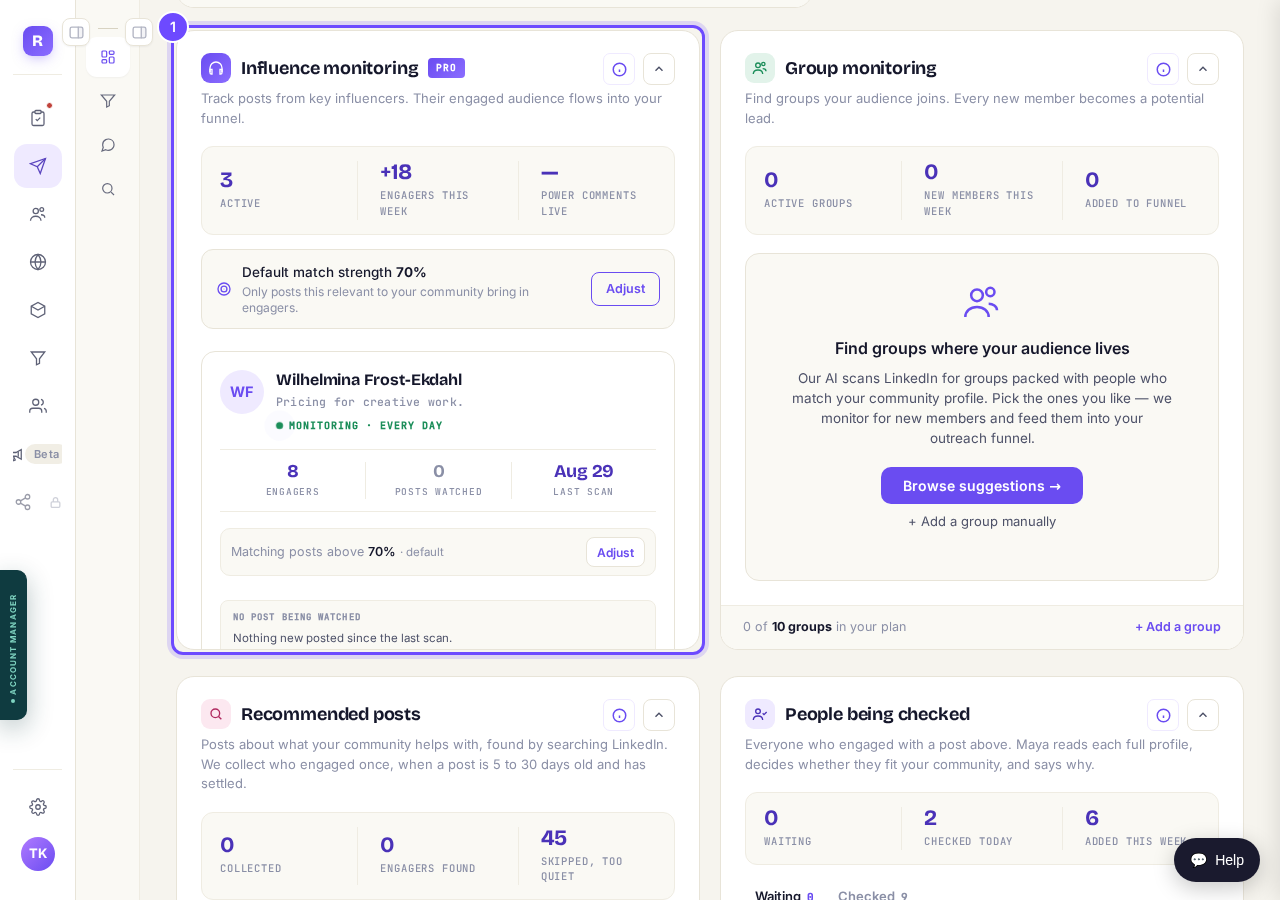
Influence monitoring, on your Outreach dashboard.
Choose who to watchSee how Maya checks each person
Everyone who reacted to one of those posts is checked by Maya, who reads their full LinkedIn profile. The reaction is what qualifies them. The profile can only rule them out, and People being checked shows her verdict on each person with the reason, under Checked.
Here, a pricing coach was turned away because she does this for a living, so she is a peer rather than a client. We add at most 150 new people every 15 days, so your pipeline fills steadily rather than all at once.
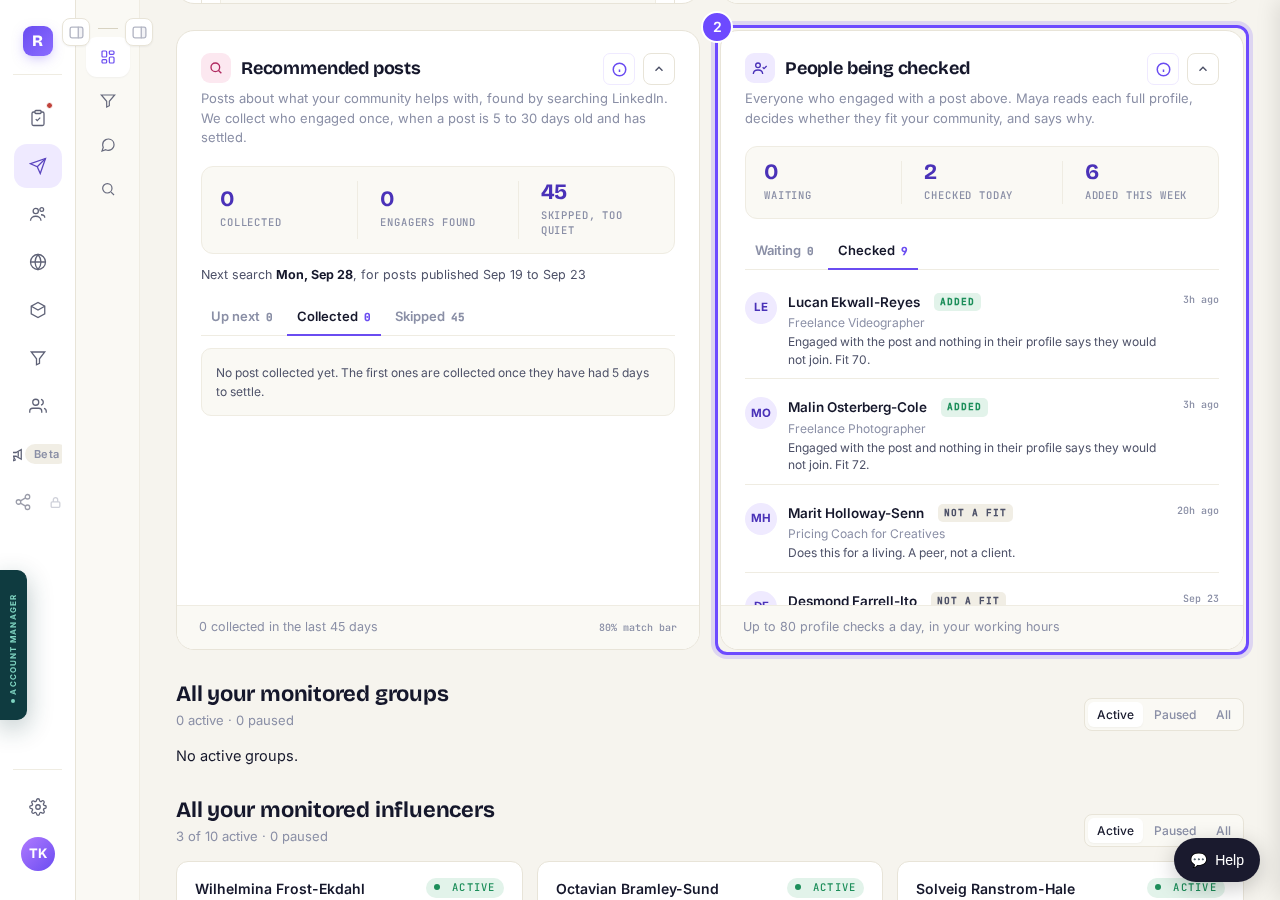
Added, or not a fit, with the reason beside each name.
New people start in Approved
Everyone who passes the check, and each new member of your groups, lands in the first column on your Pipeline, Approved. It means qualified and ready, with nothing done yet. It is not a list of approved comments, and you do not need to approve anyone here. Anyone you add yourself with Add target starts here too.
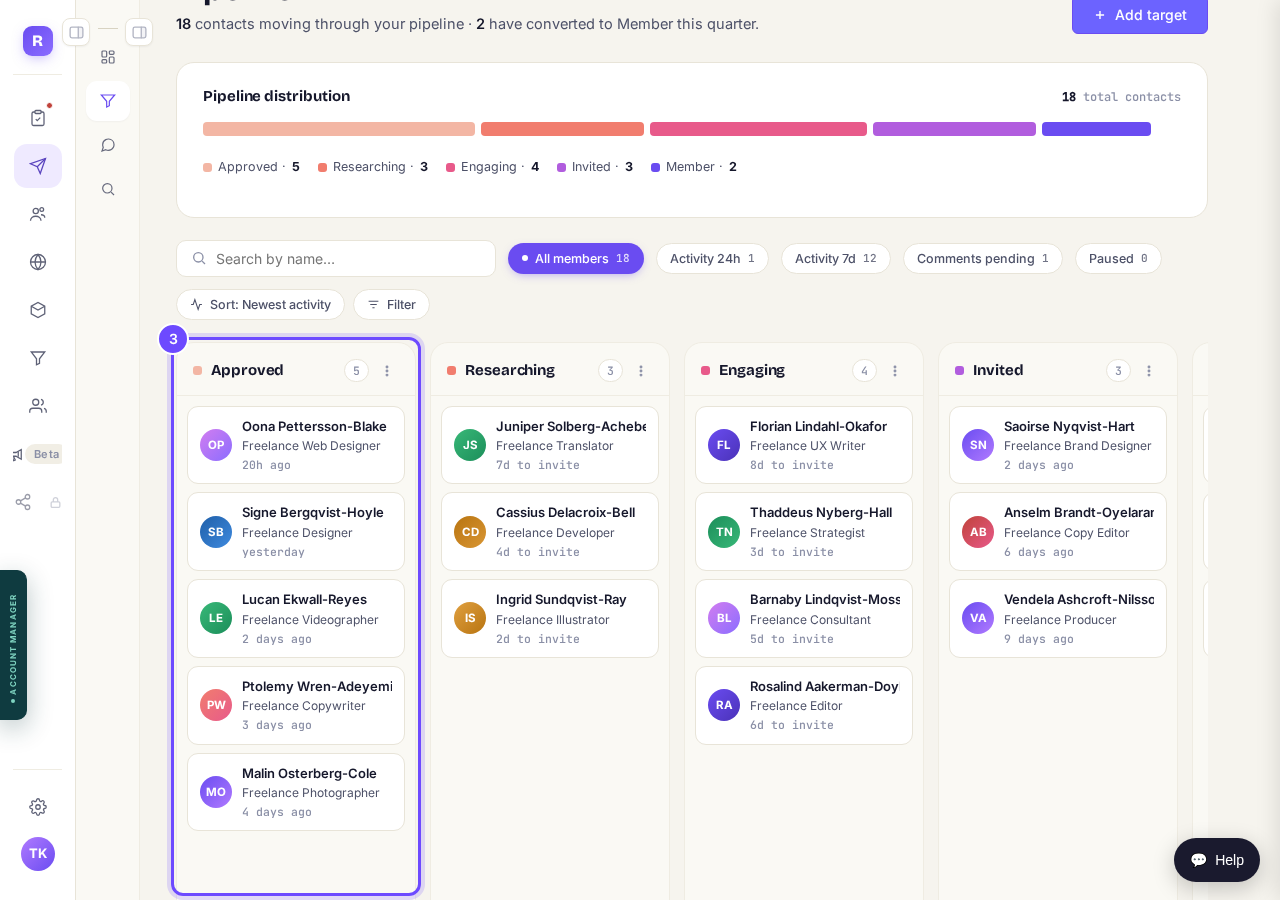
Approved: the first column on your Pipeline.
Open your PipelineSee where someone came from
Rest the pointer on anyone for a quick look: where they came from, such as the influencer whose post they reacted to, and what Maya does next. Click them to see everything that has happened so far.
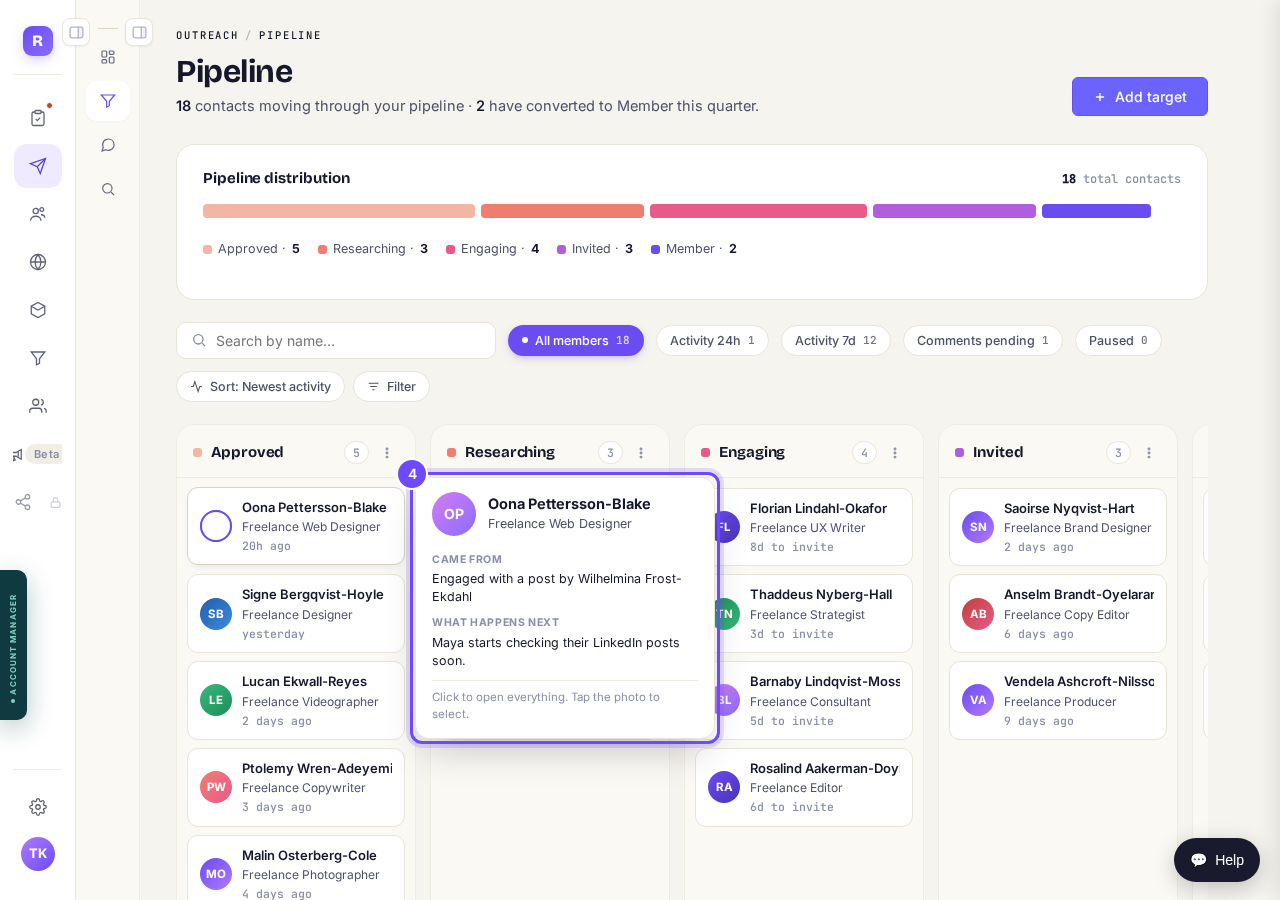
Came from: the post they reacted to.
Researching: looking for a recent post
Next, Maya reads their recent LinkedIn activity, looking for their newest post of their own with some real words in it. Reposts, bare links and picture-only posts do not count. If she finds none, they wait in Researching and she looks again after 7 days.
The number on each card counts down the days to their connection request. If two looks find no post, the request goes anyway.
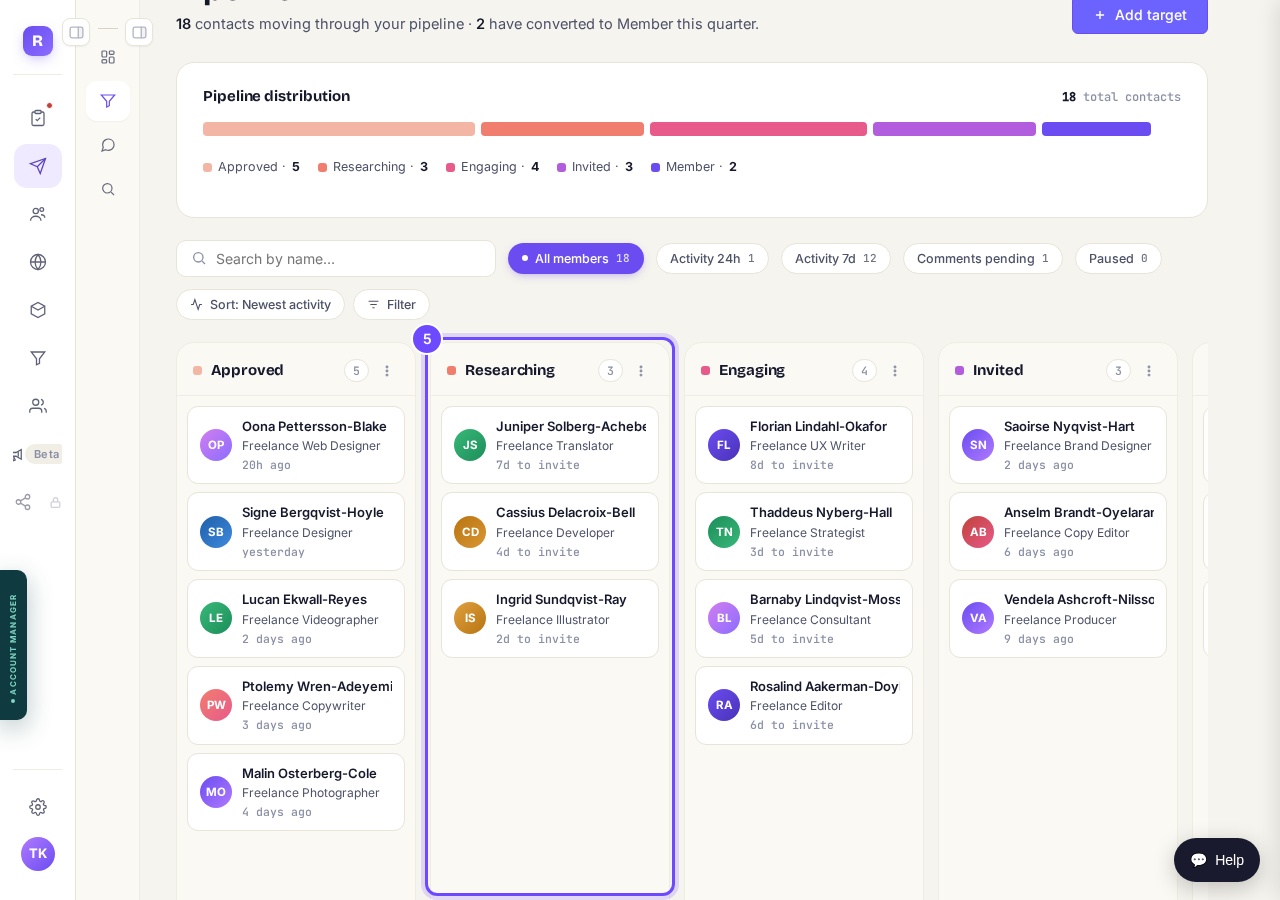
Days to invite, counting down on each card.
Engaging: a like, and a comment waiting for you
When Maya finds a post, the person moves to Engaging straight away, before any comment has gone out. A minute or so later she likes that post from your account, and she writes a comment draft for you. Their history shows each of these as it happens.
So Engaging means we found a post to engage with. It does not mean a comment has been sent.
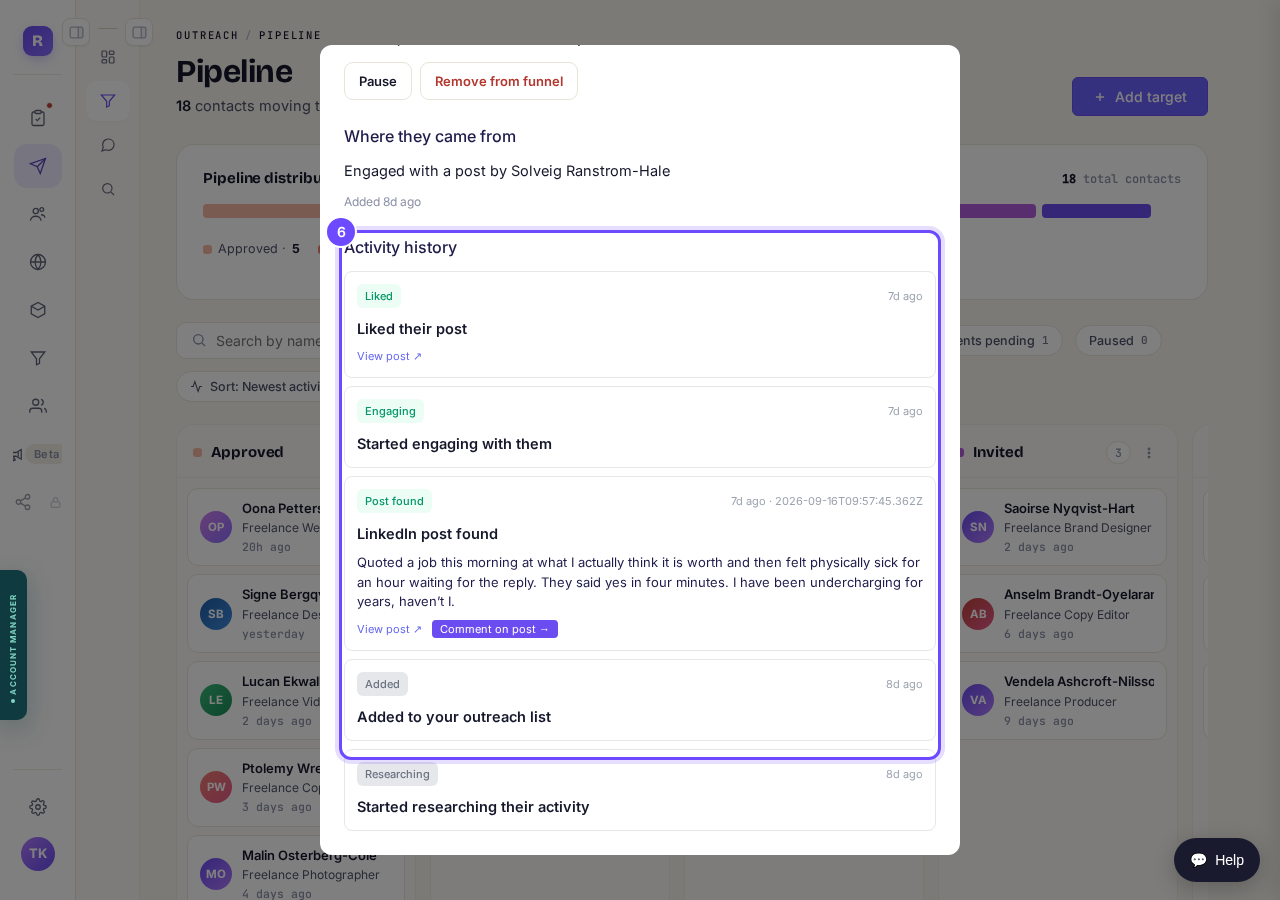
Post found, then liked from your account.
Approve the comment, or skip it
Drafts wait in Comments, under Pending review. Read their post, change the reply if you like, and press Approve & queue. Regenerate writes a different one. Approved comments move to Queued to send, and usually go out the next day around lunchtime UK time, posted as you. You can cancel one until then.
A draft you never approve is never posted. Skipping one does not send us looking for a different post: the person carries on towards their connection request as normal.
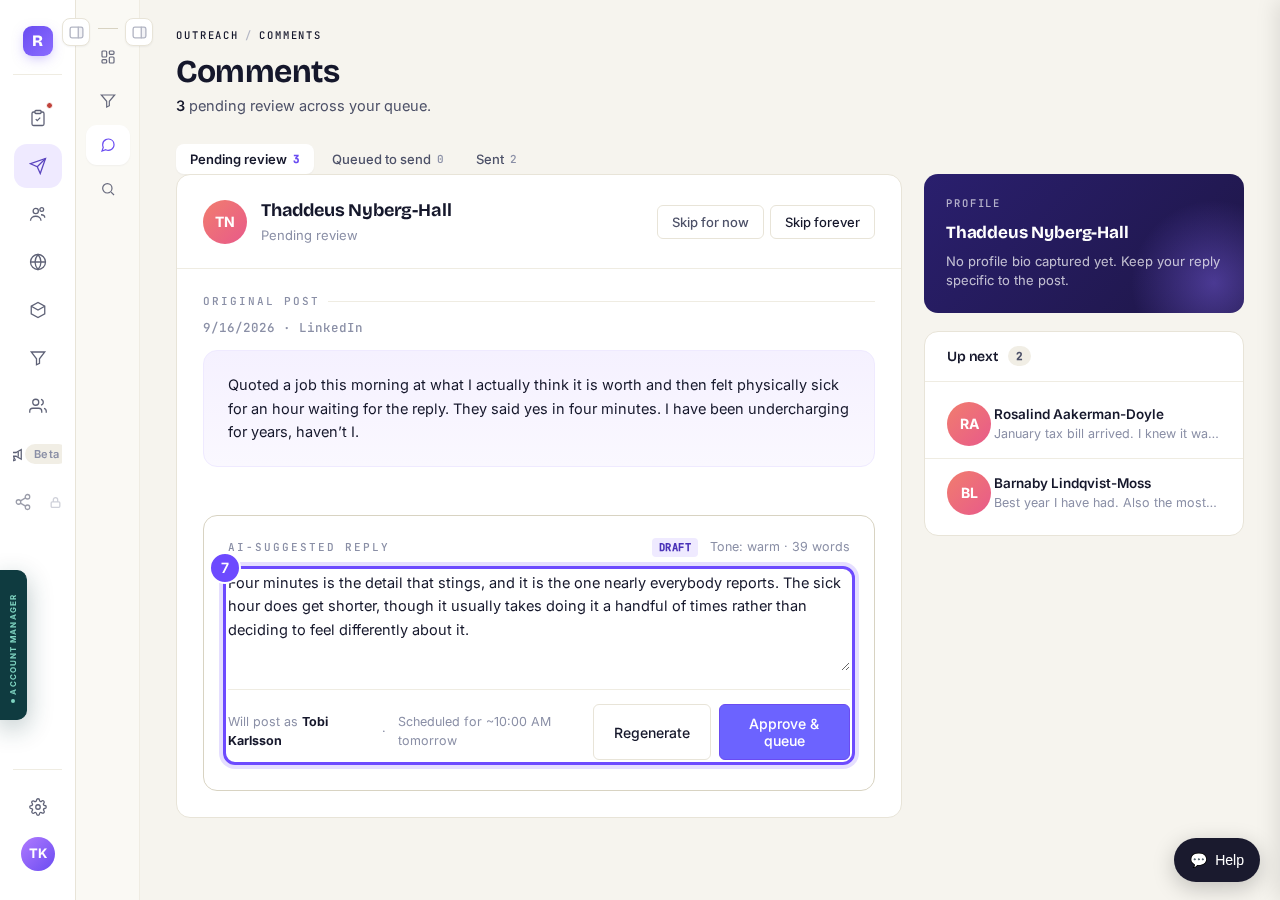
Change the reply if you like, then press "Approve & queue".
Open CommentsInvited: your connection request has gone
The connection request runs on a clock, not on the comment. It goes once someone has been in your pipeline for 10 days, Researching and Engaging together, and they move to Invited the moment it is sent. Ten days is the standard; you can change it in Settings, Outreach, under Connection requests. It carries your connection note, the short message you can read and change under Emails & DMs.
If they have not accepted after 30 days, the request is withdrawn. They stay in the Invited column.
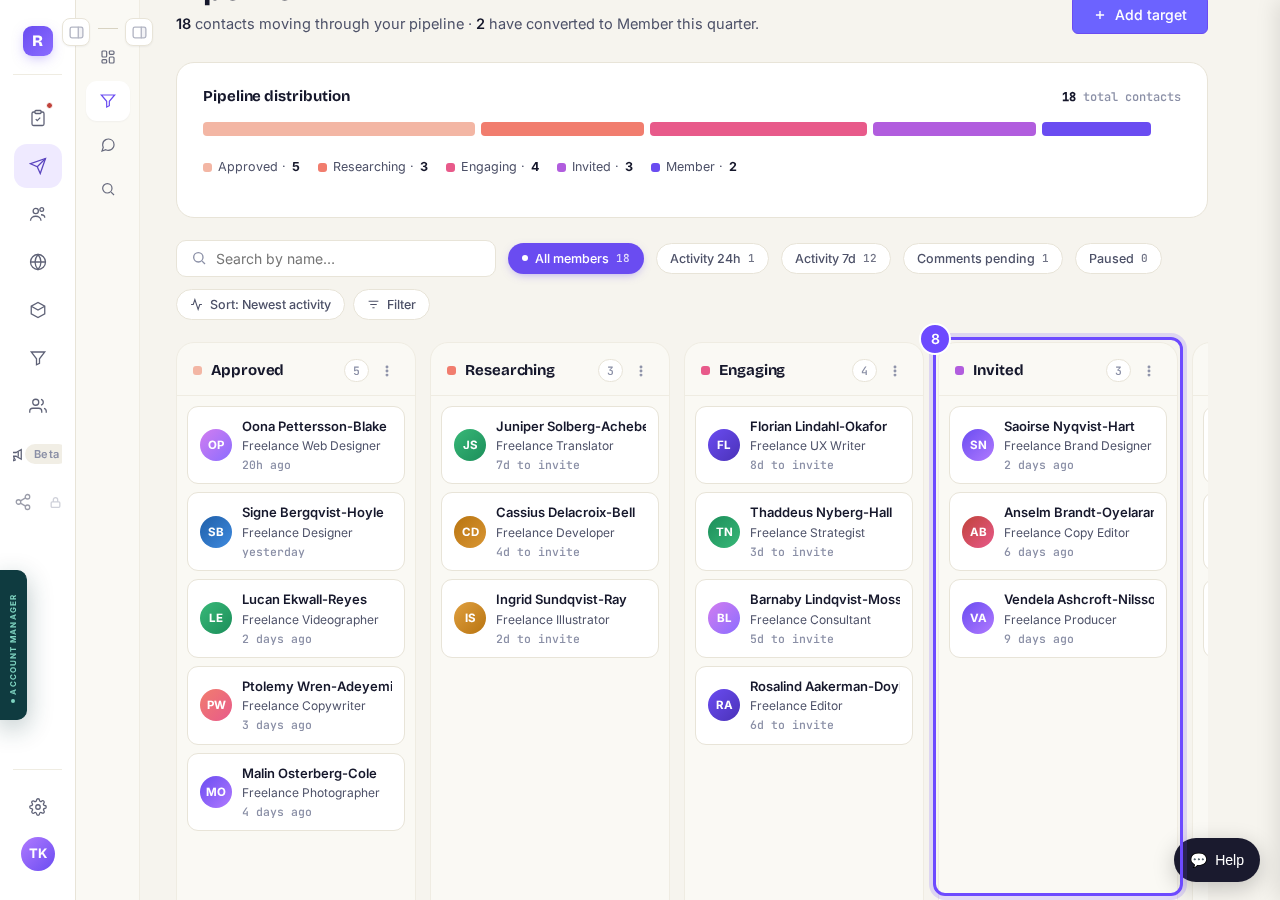
Invited: the connection request has been sent.
Member: they accepted
We check your new LinkedIn connections once a day. When someone has accepted, they move to Member. Member means they accepted your connection. Everything after that, getting them into your community, follows by itself.
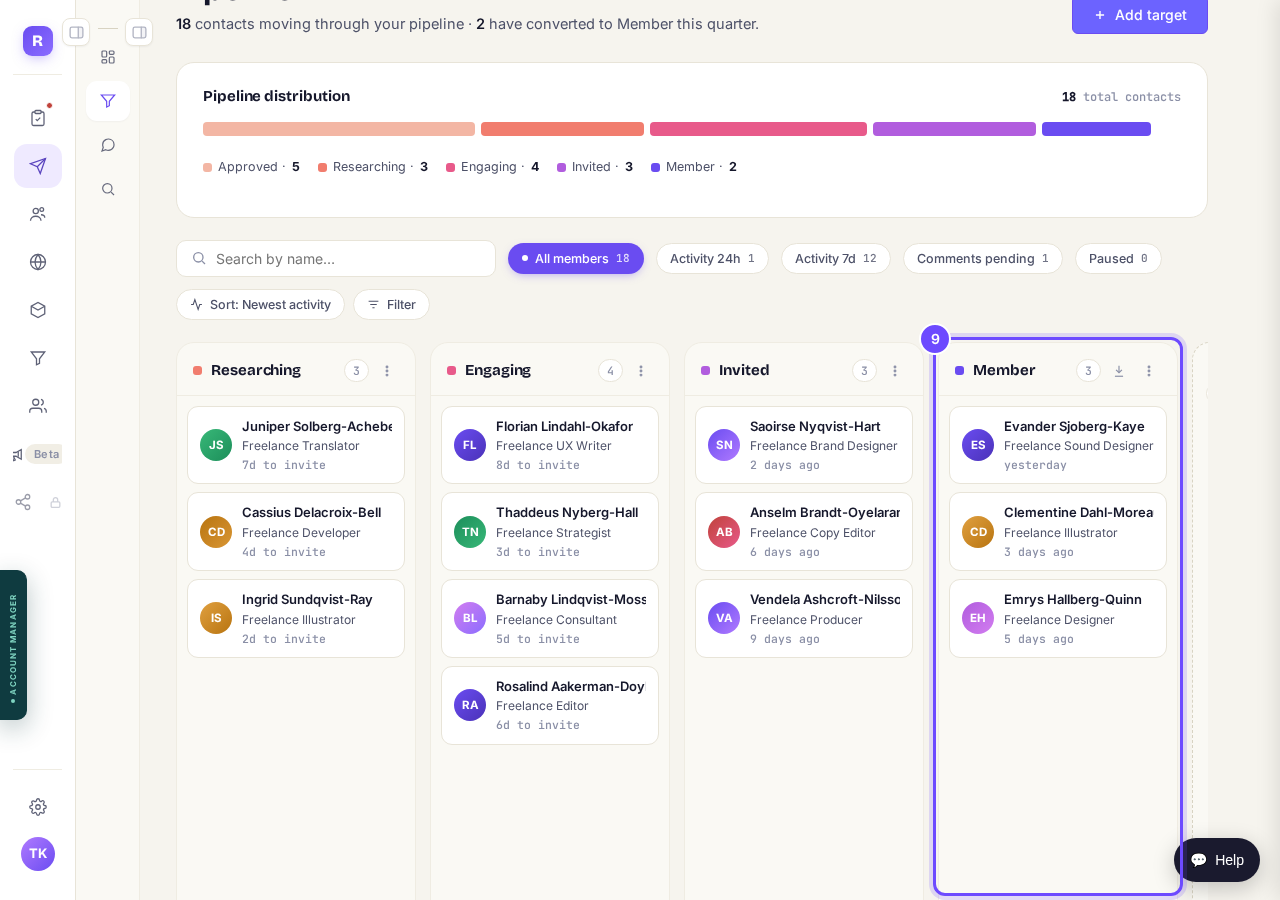
Member: they accepted your connection request.
They are added, and get a welcome email
Once someone accepts, we look up their email address on their LinkedIn profile. When we find one, we add them to your contacts, put them straight into your community, and send them a welcome email. Its button, Meet me in and your community's name, signs them in with no password and no form to fill in.
Until you write your own, they get a standard welcome we wrote for you. This screen stays empty until you do, but the standard welcome still goes. If we cannot find an email, they stay in Member and cannot be added to your community yet.
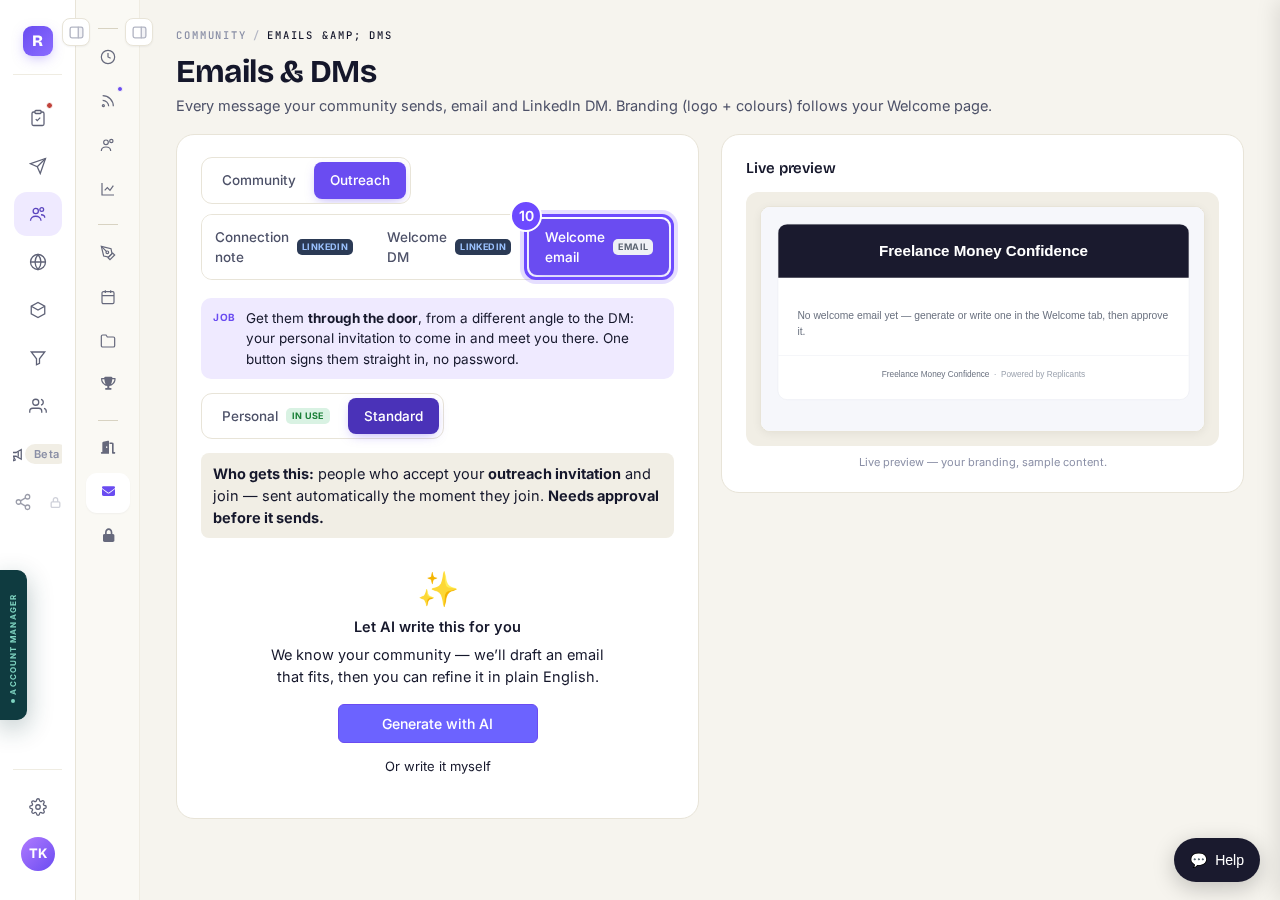
Welcome email, under Outreach in Emails & DMs.
Open Emails & DMsSee who actually came in
On your Outreach dashboard, the coloured strip at the top counts Joined and Active separately. Joined means they accepted. Active means they clicked into your community. The gap between the two is where your welcome matters most, and the next page shows how to close it.
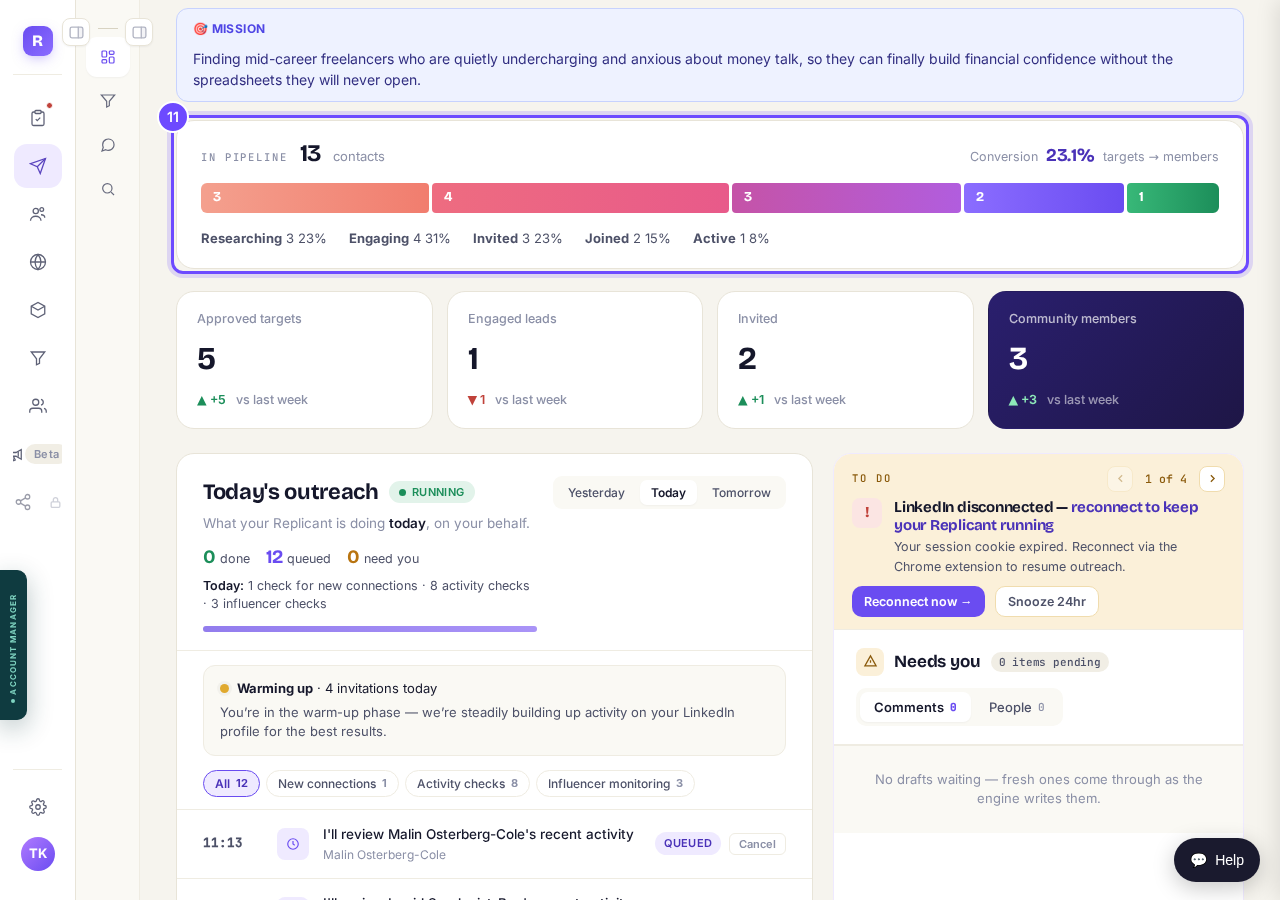
Joined, then Active: the last two stages.
Open your Outreach dashboard
Each part, in more detail
Getting set up: How do I use Outreach?
Choosing influencers and groups: How do I find the right people to reach?
What is happening today: How do I see what Maya is doing for me?
The comments: How do I check a comment before it goes out?
The connection note: What does the invitation say, and can I change it?
The board itself: What is the Pipeline screen showing me?
Every question about the columns: Outreach pipeline: your questions answered
If it stops: Why has my outreach stopped, and how do I start it again?
What happens when someone from Outreach joins my community, and how do I get them active?
Related articles
Can I use Outreach on Instagram or X?
Not yet. Today Outreach works on LinkedIn only, through your own account. Instagram and X are coming soon, and nothing you set up now is wasted.
How do I check a comment before it goes out?
Comments are written for you, then wait. Nothing is posted in your name until you read it and press Approve. About five minutes a day.
How do I find the right people to reach?
Outreach only finds people through sources you pick: influencers your audience follows, and groups they post in. Ten minutes, once.