
What happens when someone from Outreach joins my community, and how do I get them active?
Someone accepted your connection request. From here the joining happens by itself, and getting them to take part is where you come in. This page covers both, in order, ending with three things you can do in a new member's first week.
Updated 24 September 2026
See who accepted, and when
Open anyone in the Member column of your Pipeline to see their whole story: where they came from, when Maya started engaging, when your request went, and when they accepted. We check for new acceptances once a day.
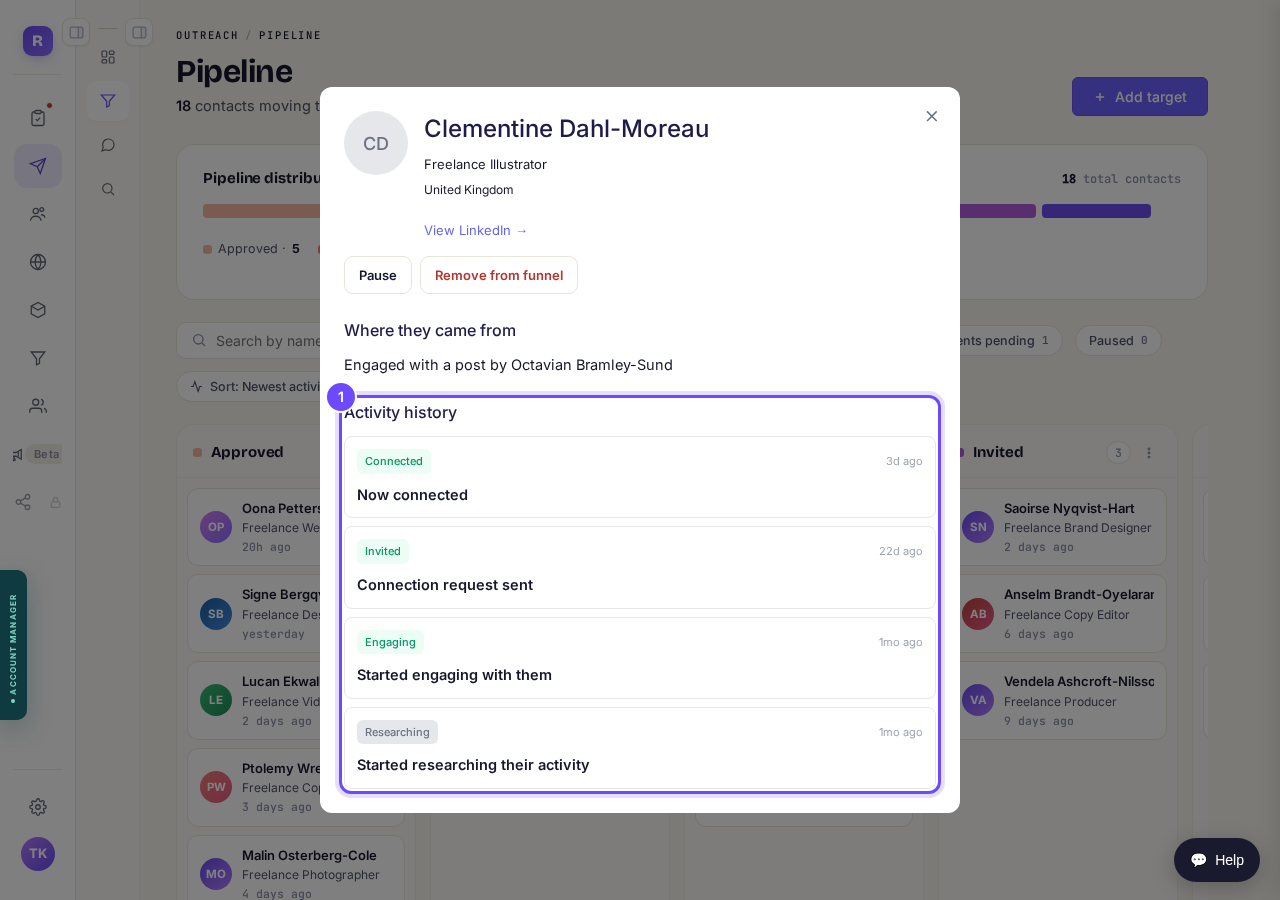
Now connected: they accepted your request.
Open your PipelineChoose whether they come straight in
In your community settings, People who arrive from your outreach decides what happens next. Straight in is the standard: they are added and welcomed at once. You approve each one adds them as waiting instead, holds their welcome email back, and shows them Request sent when they open your community. They reach your Requests list on the Members page at that point, and a You're in email goes when you let them in. Turning someone away sends nothing.
Our advice for now is Straight in. They already said yes to your invitation, and the welcome email is the main way they find your community, so holding it back means most people never reach your Requests list.
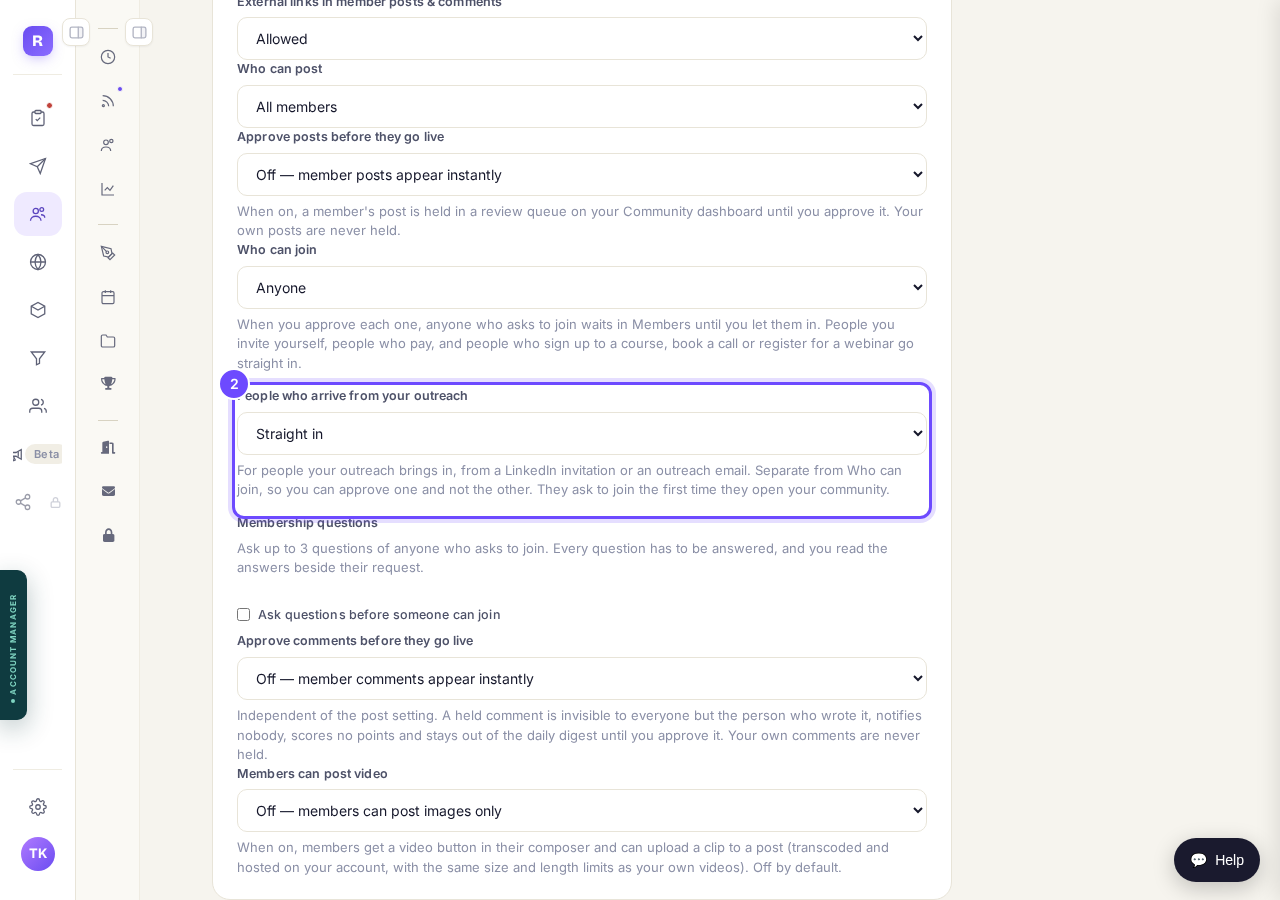
People who arrive from your outreach: Straight in, or You approve each one.
Open community settingsMake the welcome email yours
Everyone who is added gets a welcome email. Until you write your own, it is a standard one we wrote for you: it thanks them for connecting, reminds them what your community is for, and asks them to come in and post one line about what they are working on. Its button, Meet me in and your community's name, signs them straight in.
Under Outreach, Welcome email, press Standard. The space stays empty until you write your own, but the standard welcome still goes. Press Generate with AI or write it yourself, approve it, and yours goes instead.
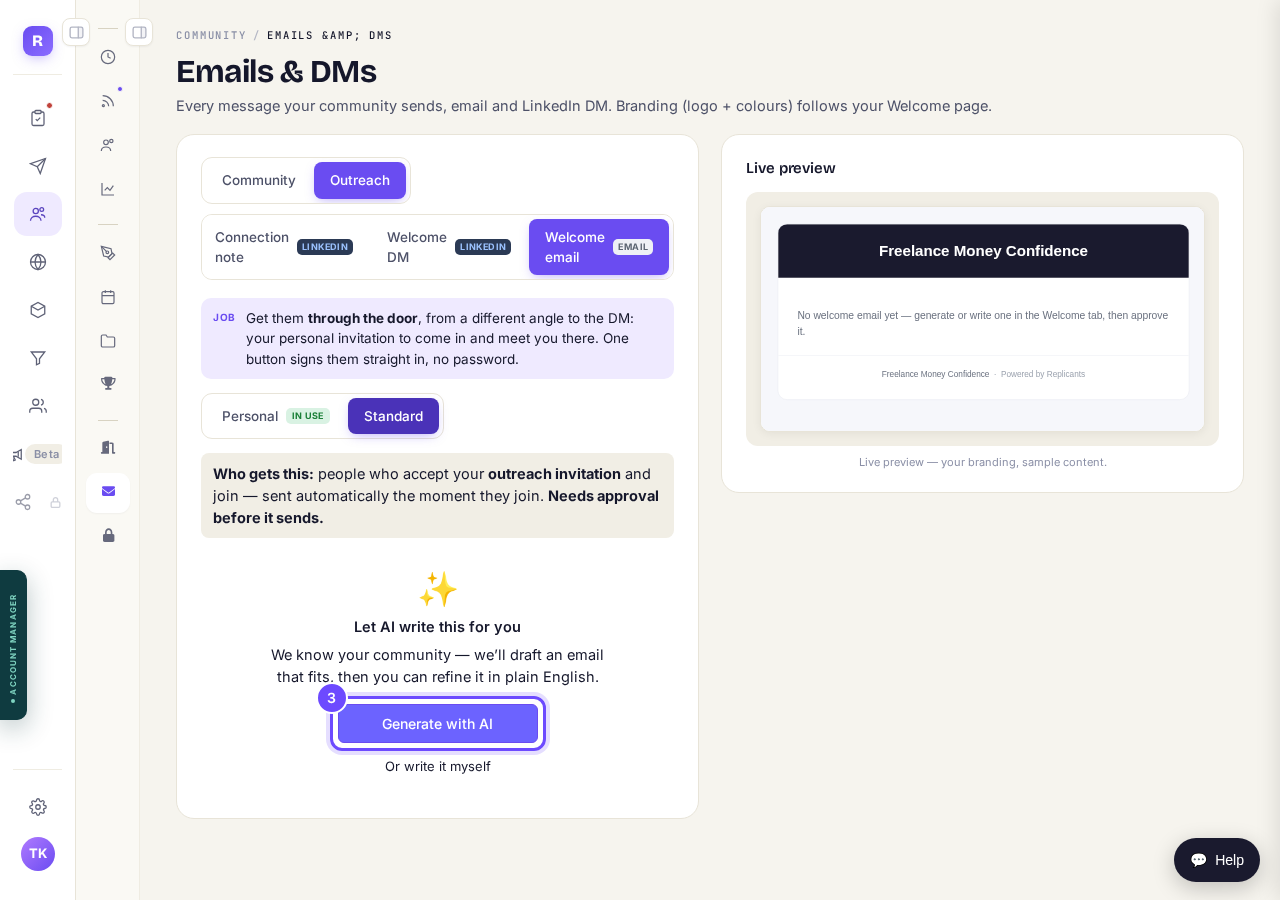
Press "Generate with AI", or write it yourself.
Open Emails & DMsWatch who has come in
On your Outreach dashboard, Joined counts people who accepted, and Active counts people who have clicked into your community. Someone who is Joined but not Active has not come in yet: they may not have opened your welcome email, or we may not have found an email for them. Nothing more is sent to them automatically for now.
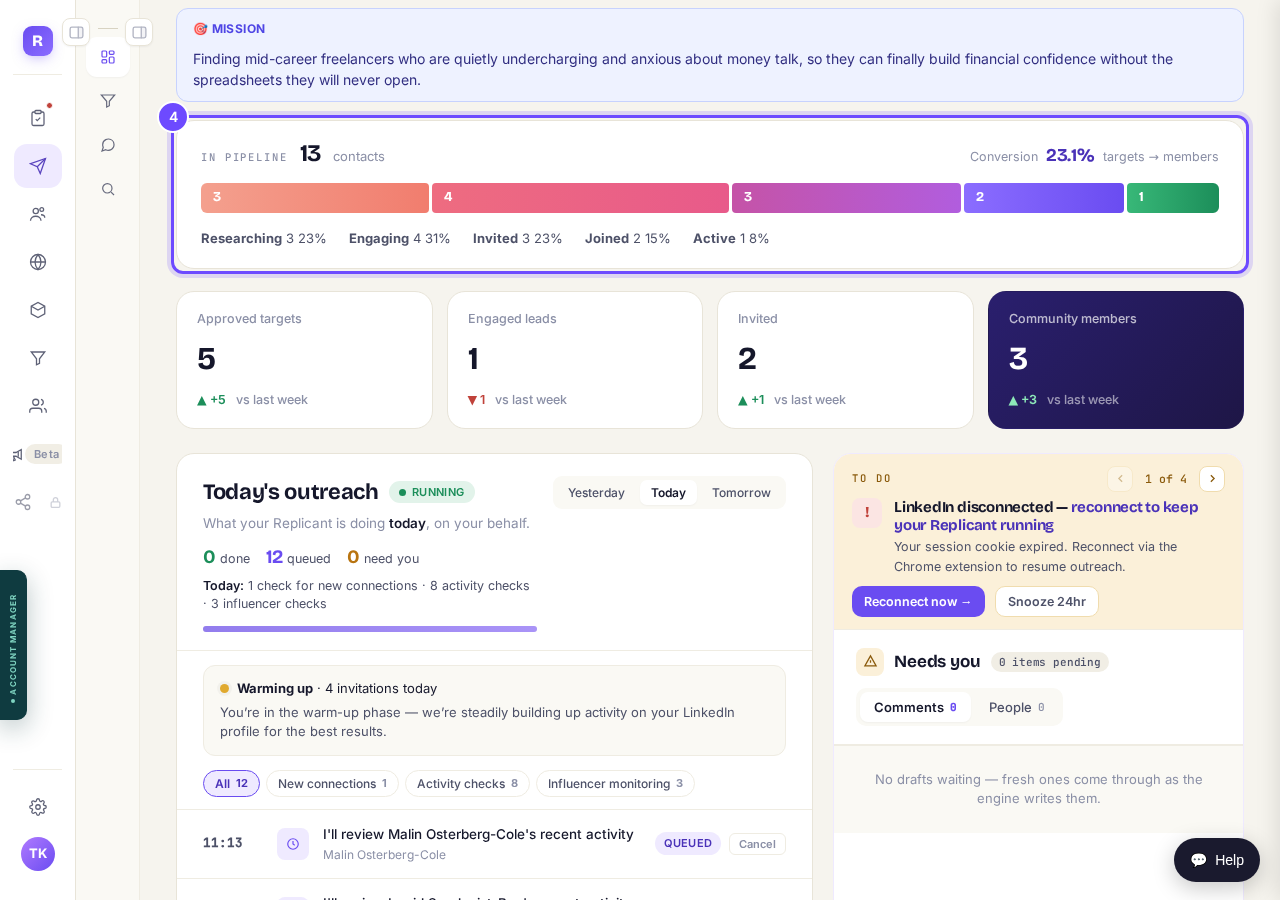
Joined, then Active.
Open your Outreach dashboardSay hello to each new member
Once someone has come in, they appear on your Community dashboard under Welcome new members. Press Suggest welcome DM and Maya drafts a short hello for you. Read it, change anything, and press Approve & send DM. It arrives as a message inside your community, from you, and it is one of the simplest ways to get a new member talking.
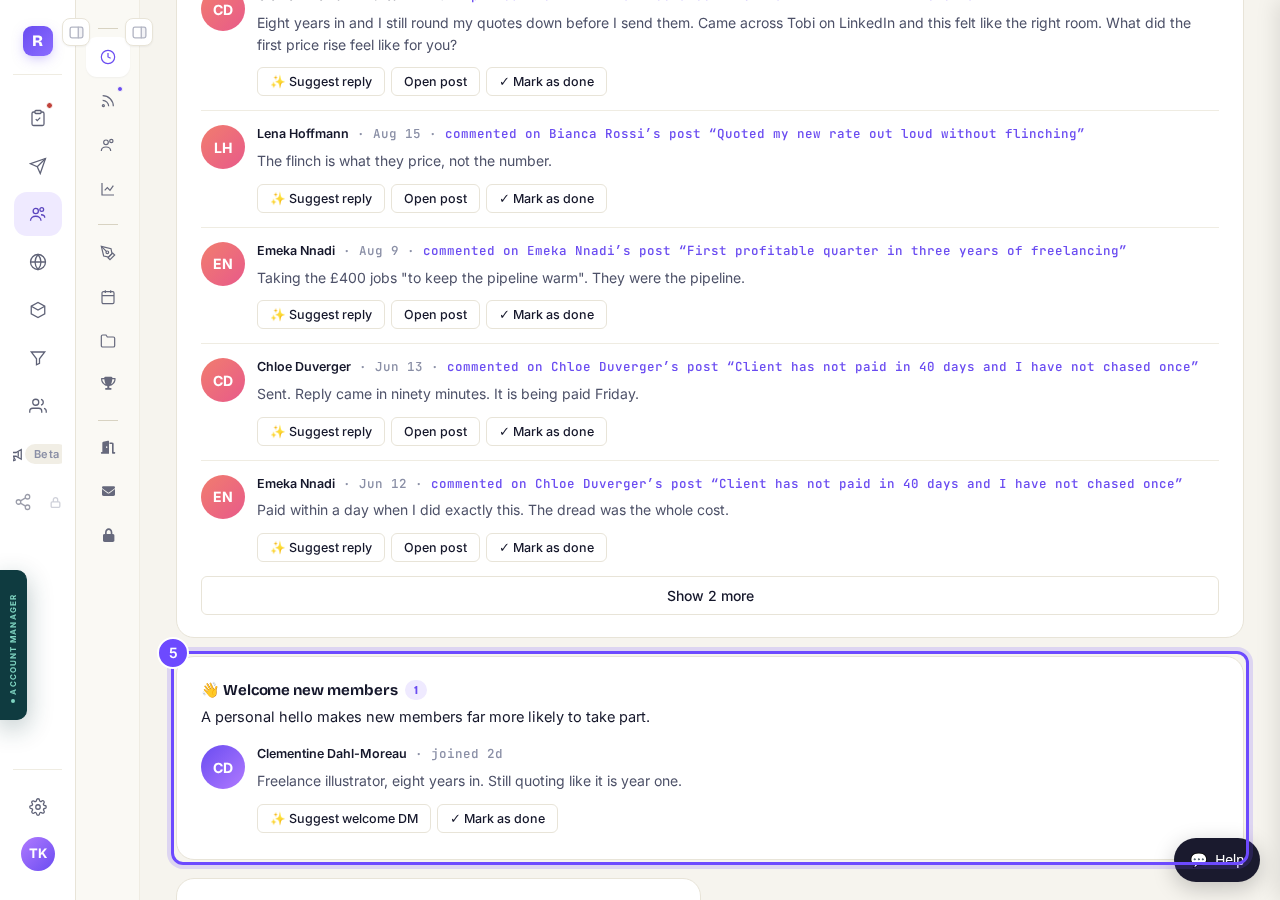
Welcome new members, on your Community dashboard.
Open your Community dashboardPin a start-here post
Your welcome email asks them to post one line about what they are working on. Give them the place to do it: write a short post that asks exactly that, and press Pin so it sits at the top of your feed. Someone arriving for the first time then knows where to start.
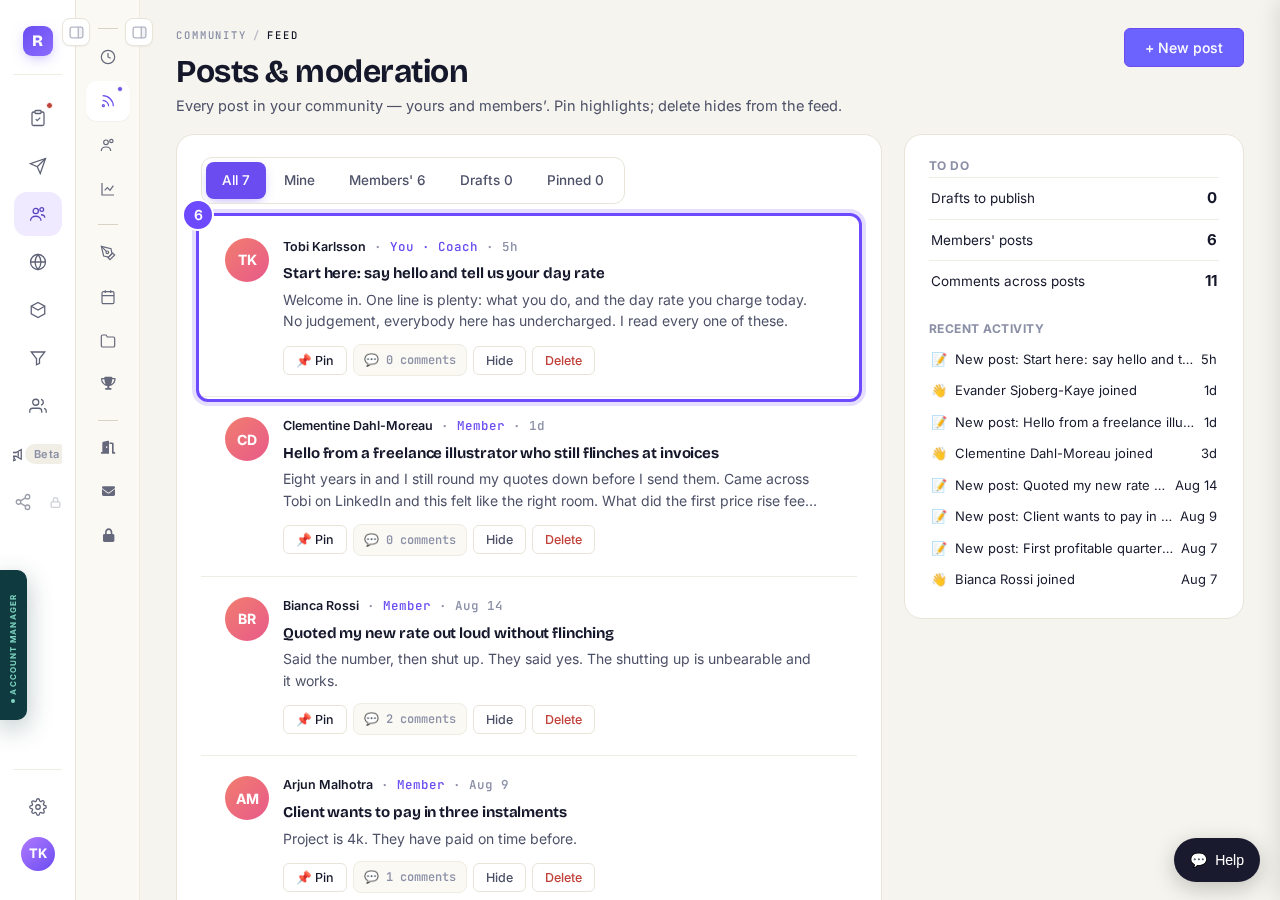
Press "Pin" on your start-here post.
Reply to their first post
When a new member posts or comments, it appears under Needs your reply on your Community dashboard. Answer it the same day if you can. Suggest reply drafts one for you to read and change first. A reply from you gives them a reason to come back.
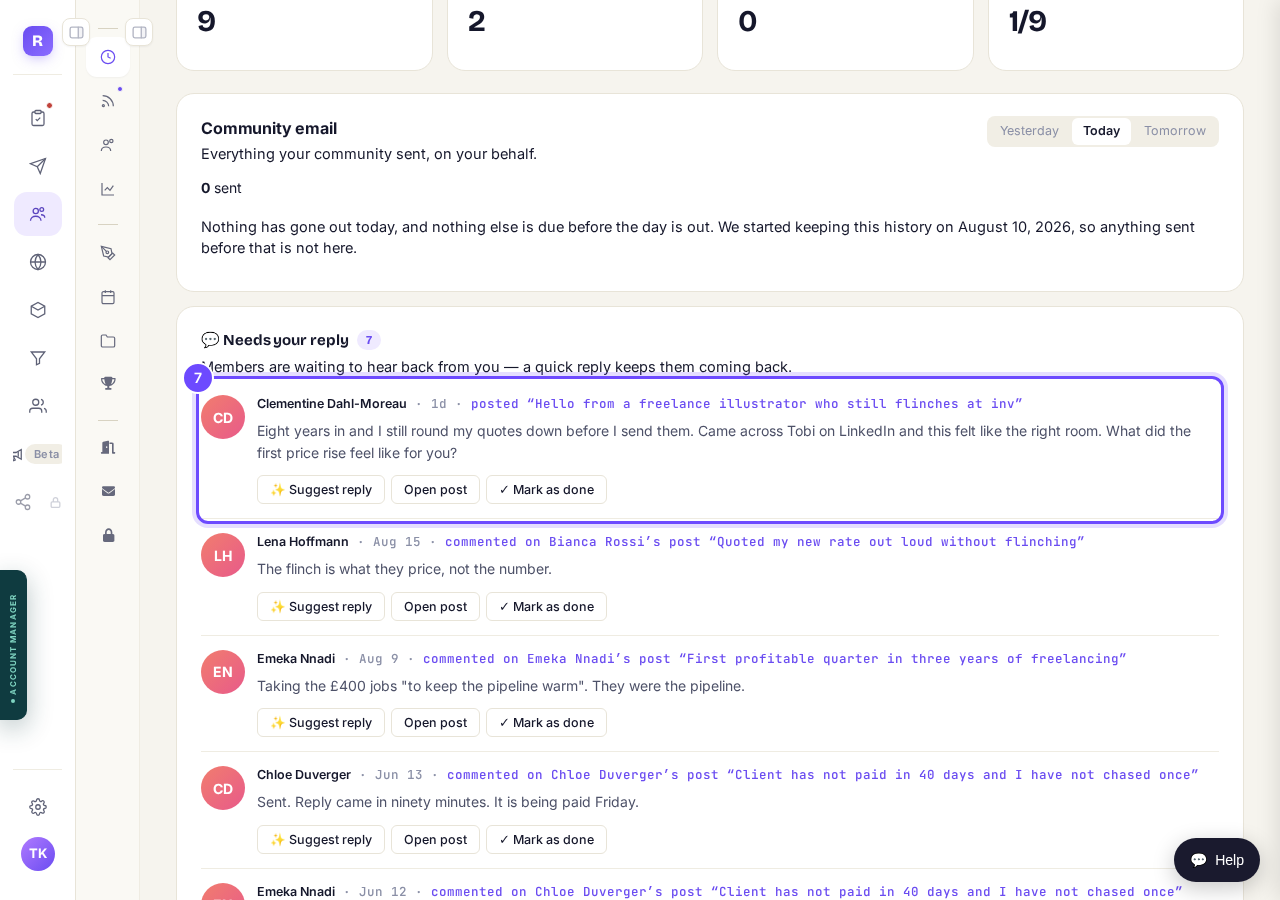
Their first post, waiting for your reply.
Related
The whole journey, from the first reaction to Member: How does Outreach turn strangers into community members?
Every question about the columns: Outreach pipeline: your questions answered
What is happening today: How do I see what Maya is doing for me?
The note that goes with your connection request: What does the invitation say, and can I change it?
Outreach pipeline: your questions answered
Related articles
Can I use Outreach on Instagram or X?
Not yet. Today Outreach works on LinkedIn only, through your own account. Instagram and X are coming soon, and nothing you set up now is wasted.
How does Outreach turn strangers into community members?
Outreach finds people who have recently shown an interest in the problem you solve, gets your name in front of them on LinkedIn, and brings the ones who say yes into your community. Most of it runs by itself. Your part is a few minutes a day approving comments, and then making new members feel welcome.
How do I check a comment before it goes out?
Comments are written for you, then wait. Nothing is posted in your name until you read it and press Approve. About five minutes a day.