
How do I connect my social accounts and post to all of them at once?
Connect your social accounts once, then write one post and send it to every network you choose. Each network gets its own preview, so you see how it will look there before it goes out.
Updated 6 October 2026
Open Social
Everything for your social accounts lives here: the calendar, your posts, comments and accounts.
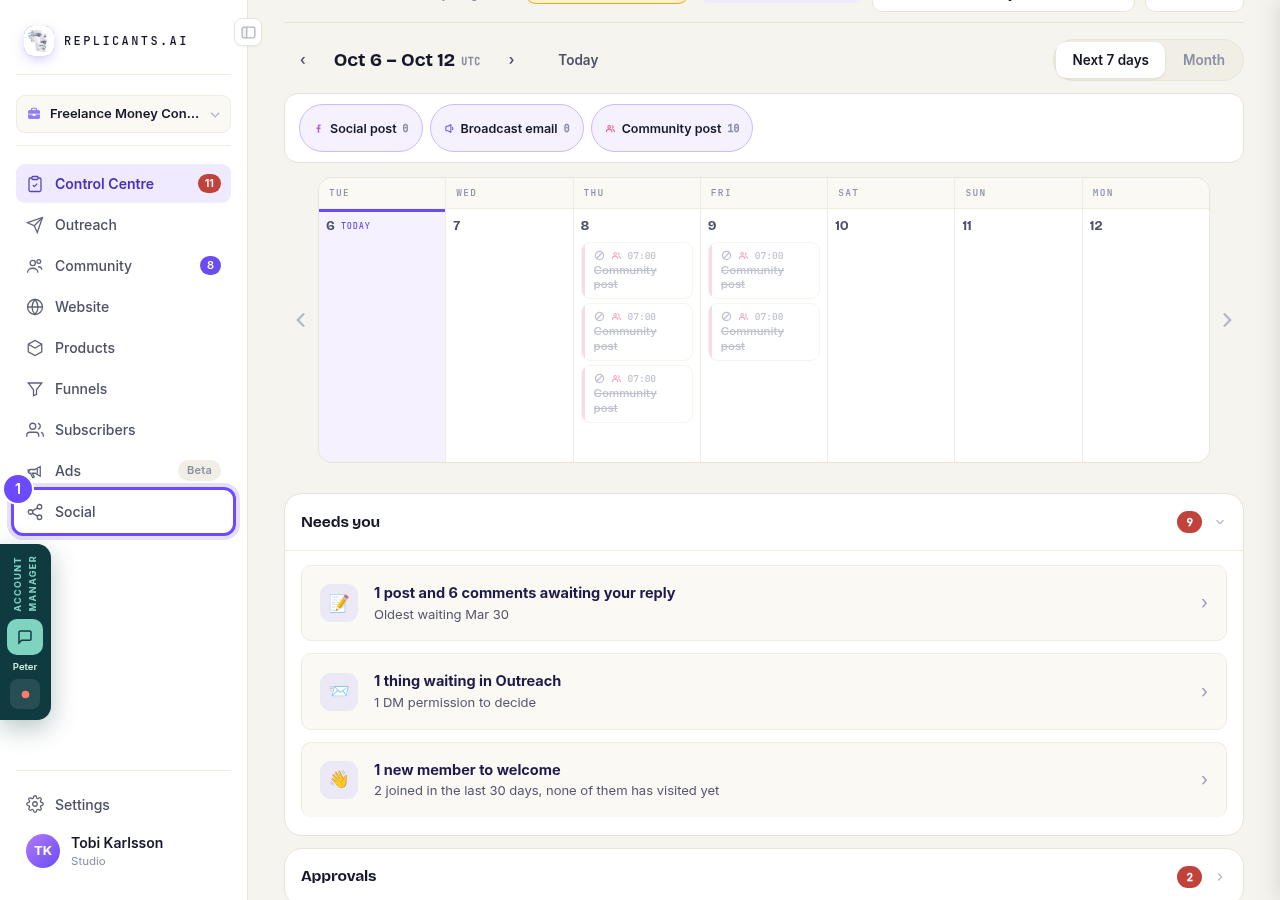
Press **Social** in the menu on the left.
Open Accounts
This lists the accounts you have connected and the ones you can add.
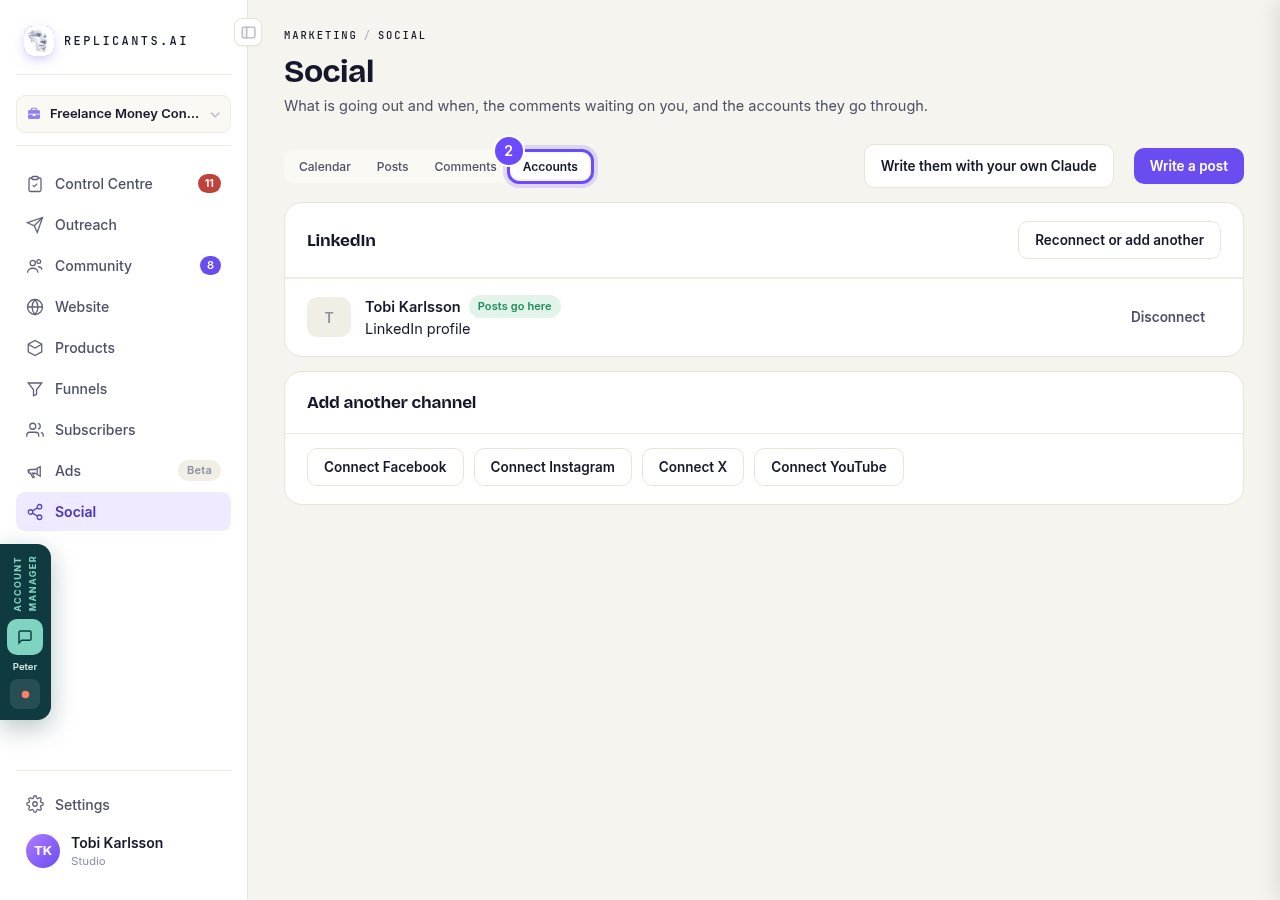
Press **Accounts**.
Connect a network
Your browser goes to the network's own sign-in page. Sign in there and allow posting, and you come back here with the account connected. Do this once for each network.
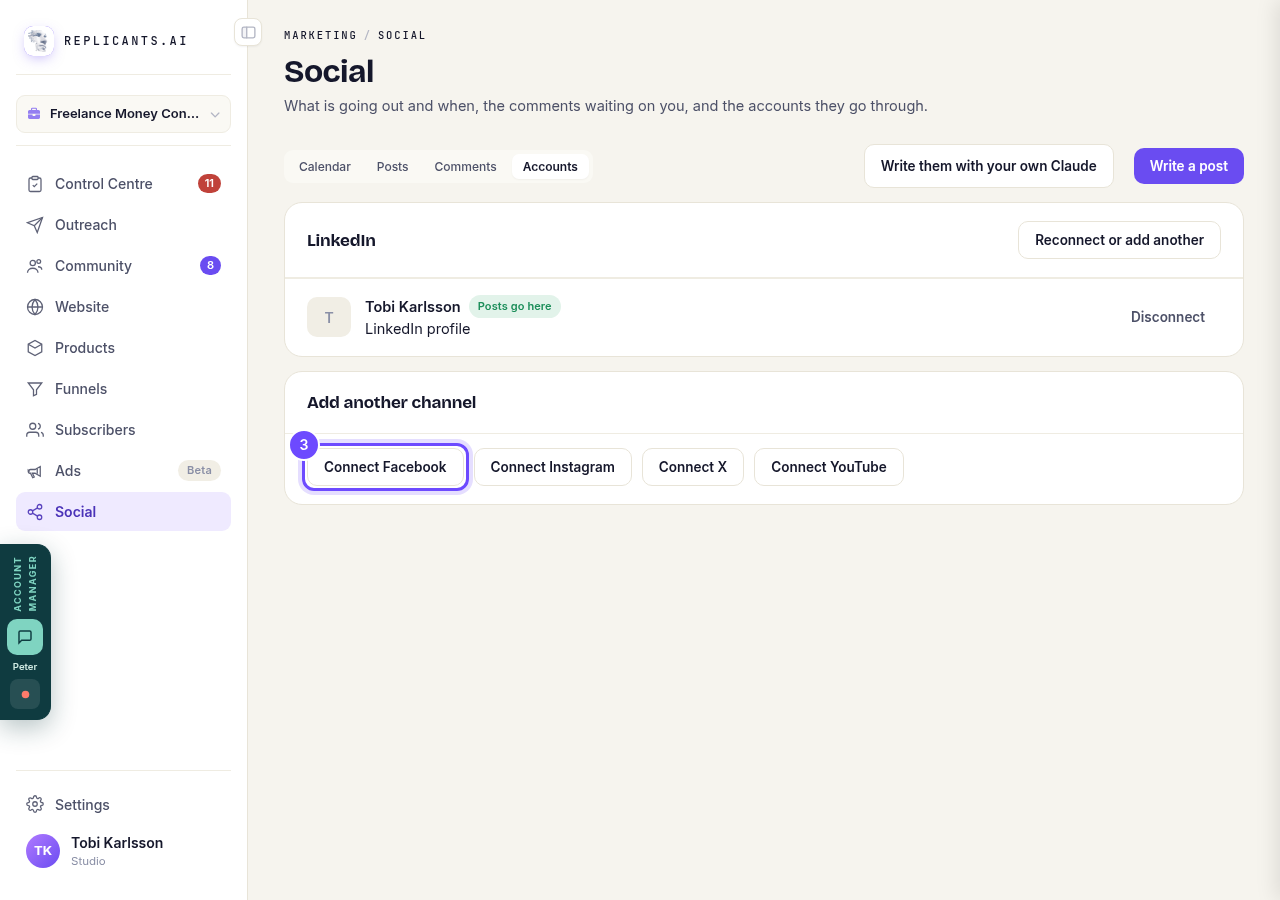
Press **Connect** for the network, such as **Connect Facebook**.
Check it is connected
Each connected account is listed with Posts go here. If something needs fixing, the account says so in plain words, with Reconnect or add another above it.
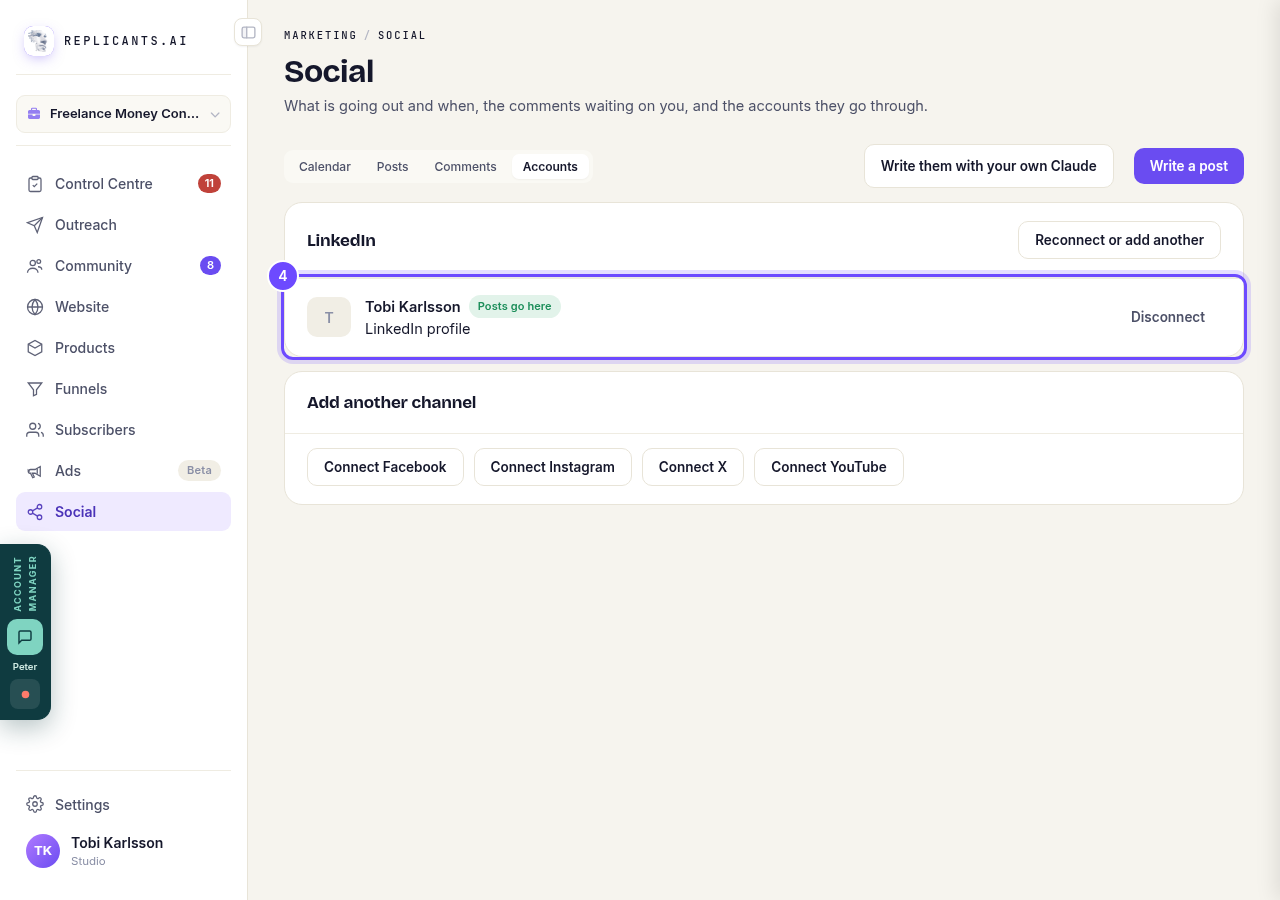
Look for your account under its network.
Write a post
One post can go to your community and every connected network at once.
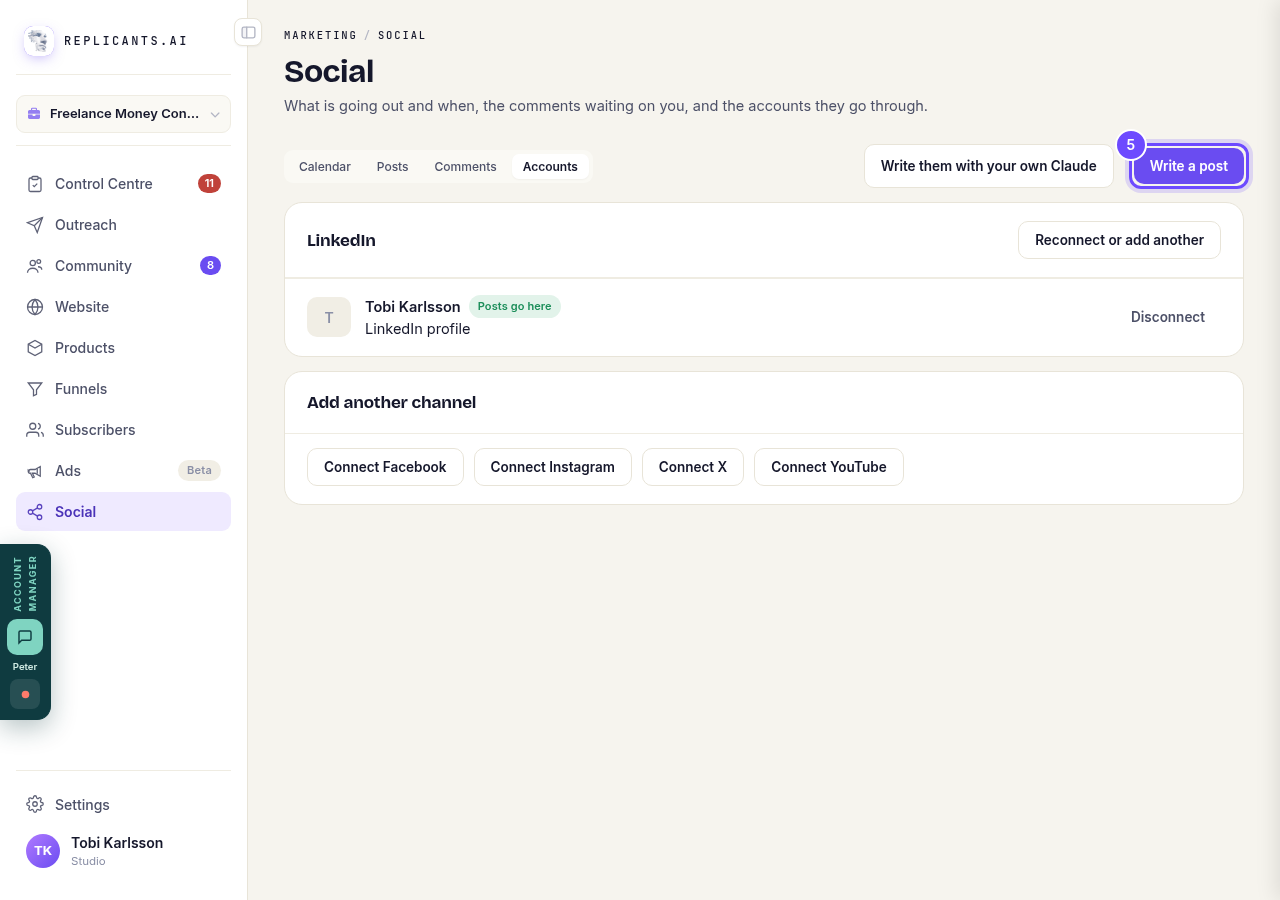
Press **Write a post**.
Choose where it goes
Each network along the top is a place the post can go. Pressing one switches it on and shows its own words and preview, with a tick once you have looked at it. The × switches it off again.
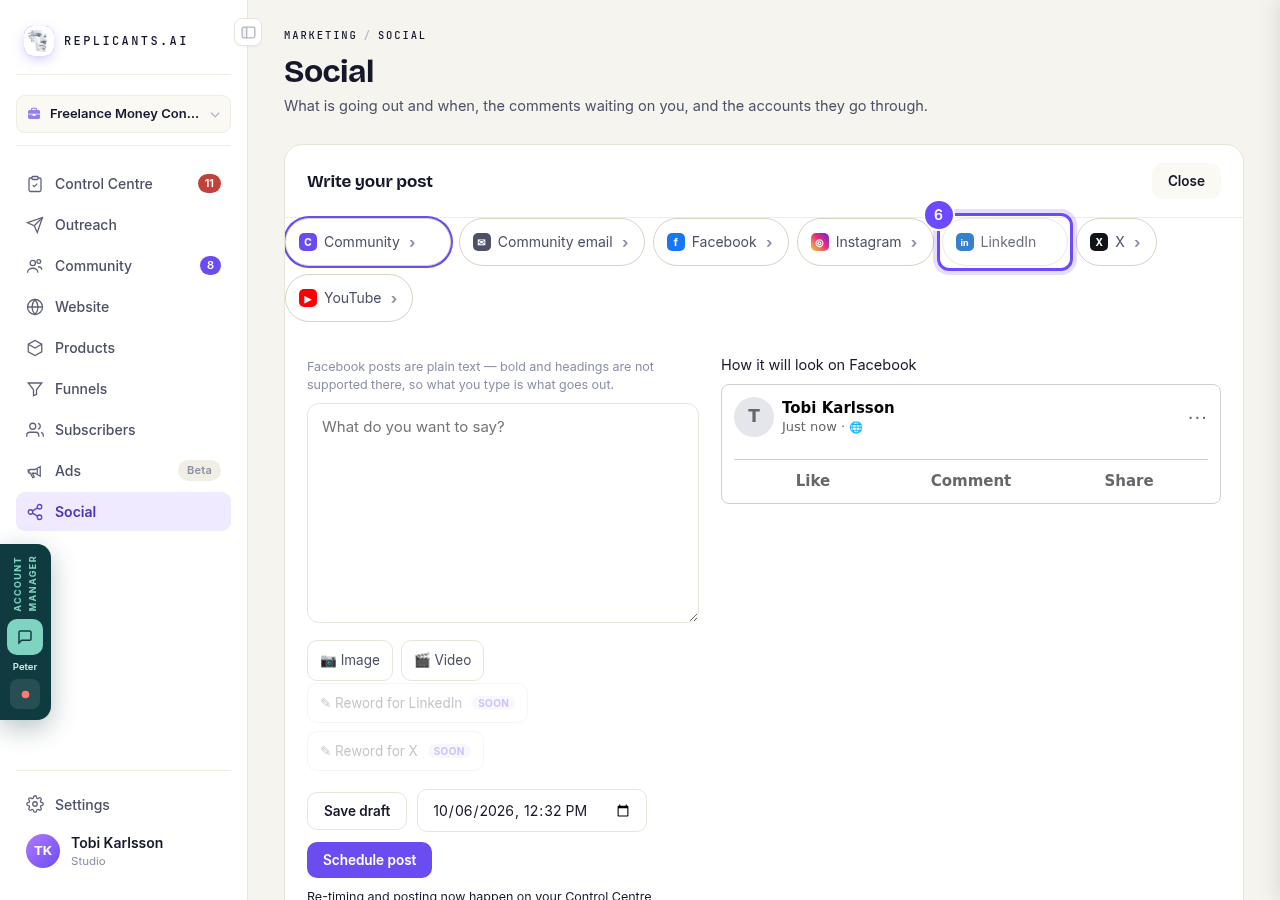
Press each network you want, such as **LinkedIn**.
Write it and check the preview
Type your post, add a picture or video if you like, and the preview beside it shows exactly how it will look on that network.
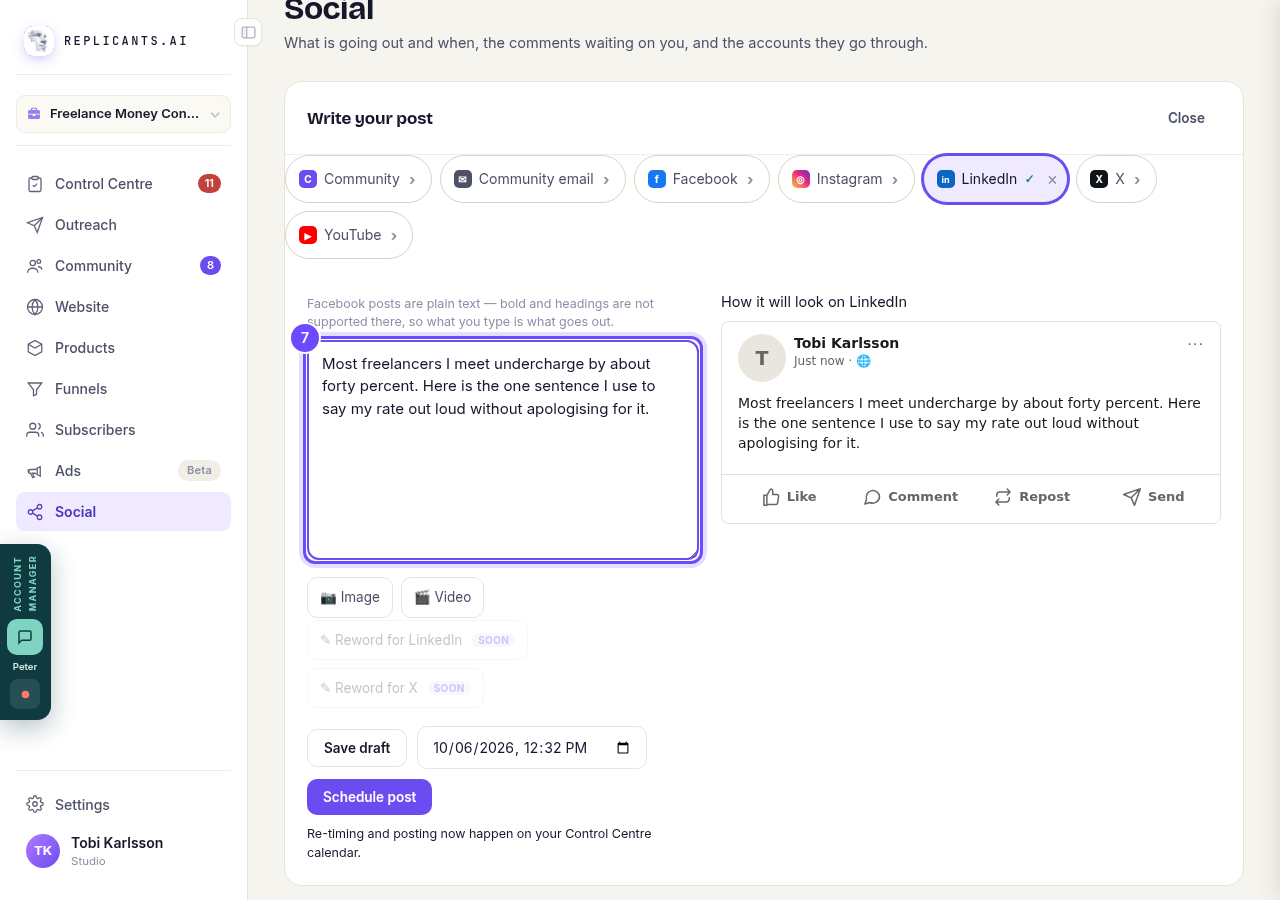
Type your post, then read the preview.
Schedule it
Set the day and time in the box above first. Your post goes out then to every network you switched on. To change the time or post it now, use your Control Centre calendar.
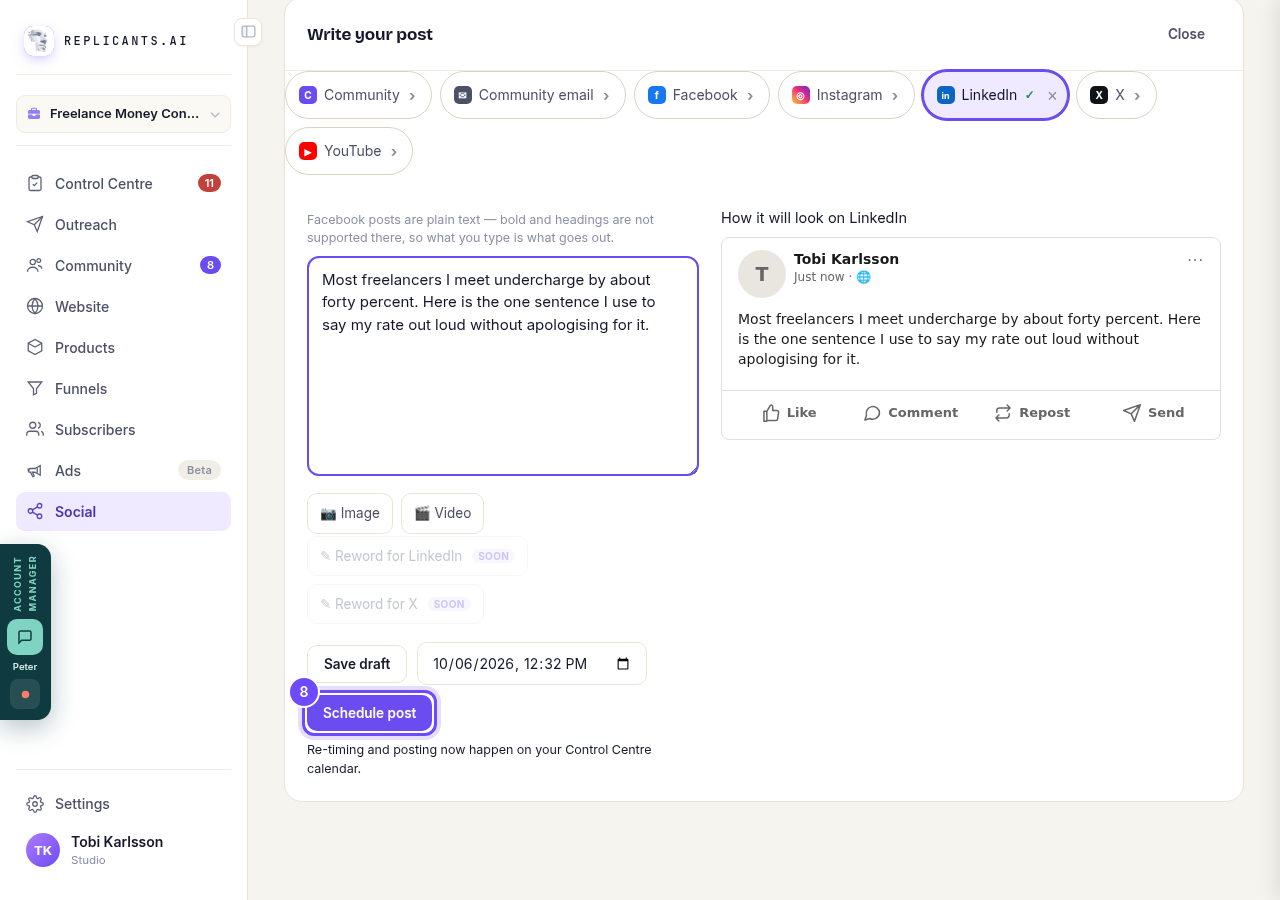
Press **Schedule post**.


Related articles
Can I talk instead of typing?
Under the boxes you type into there is a **Speak** button. Press it, talk, press **Stop**, and your words are typed into the box for you. It works on a laptop and on a phone.
Do I have to decide on the leads offer right now?
No. Your community is free and works without it. The price for leads is Outreach, a separate paid tool that finds people for your community, and you can say no and carry on building.
How do I ask for help, and where do I see the reply?
Your account manager is one press away on every screen. You write, add a screenshot or leave a voice note, and the reply comes back to the same place. About a minute to send.