
How do I choose the picture people see when my website is shared?
When your website is posted on WhatsApp, LinkedIn, Facebook or in a message, people see a card with a picture, a title and a line of text. You choose what goes on it. About two minutes.
Updated 6 October 2026
Open my websites
Open Website
Website is in the main menu on the left. On a phone, press the menu button at the top right first.
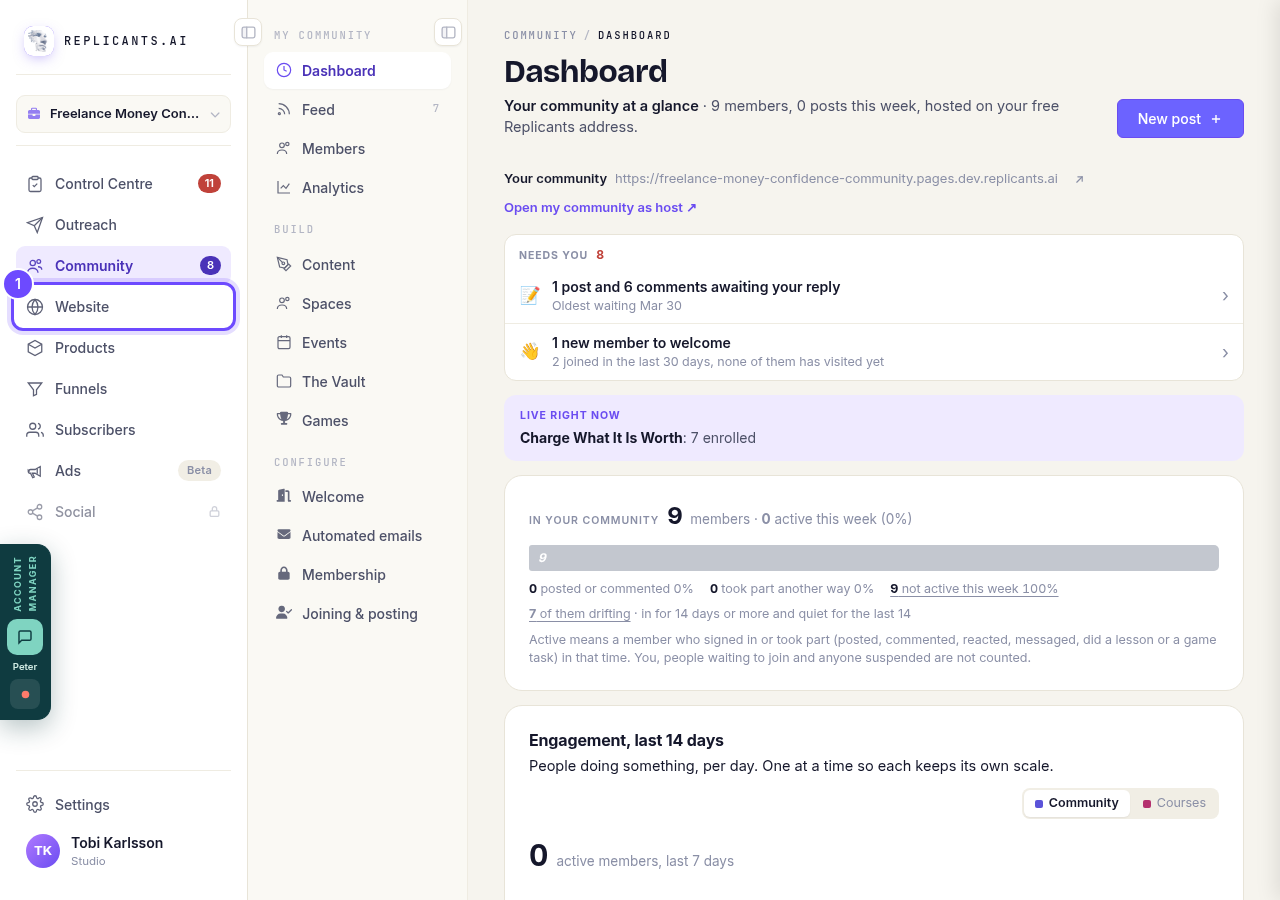
Website, in the main menu.
Open my websitesPress Manage on your site
Your websites lists every site you have. Press Manage on the one you want.
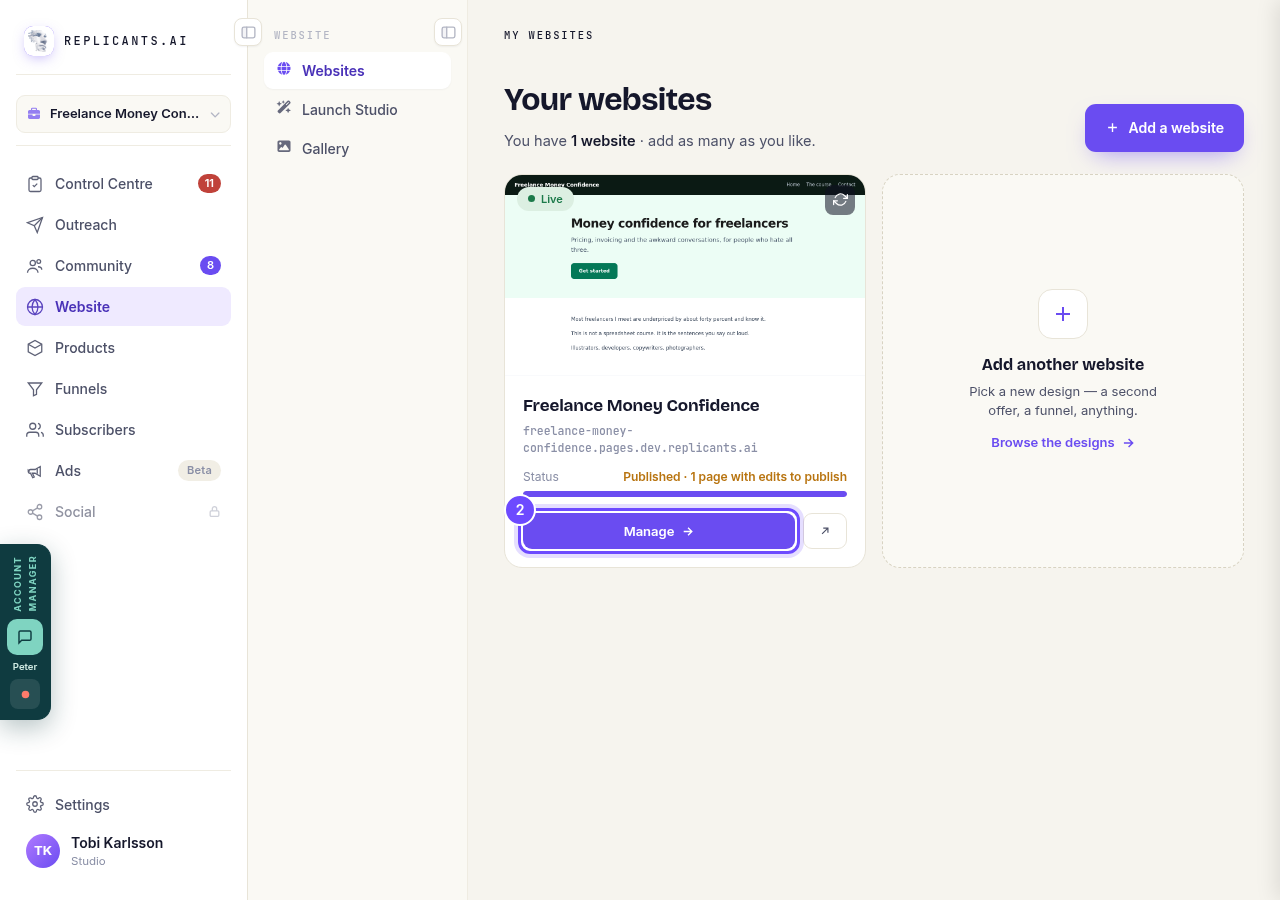
Manage, on your site's card.
Press Share preview
It is the last row of the Manage list, on the right of the board. On a phone the list is further down.
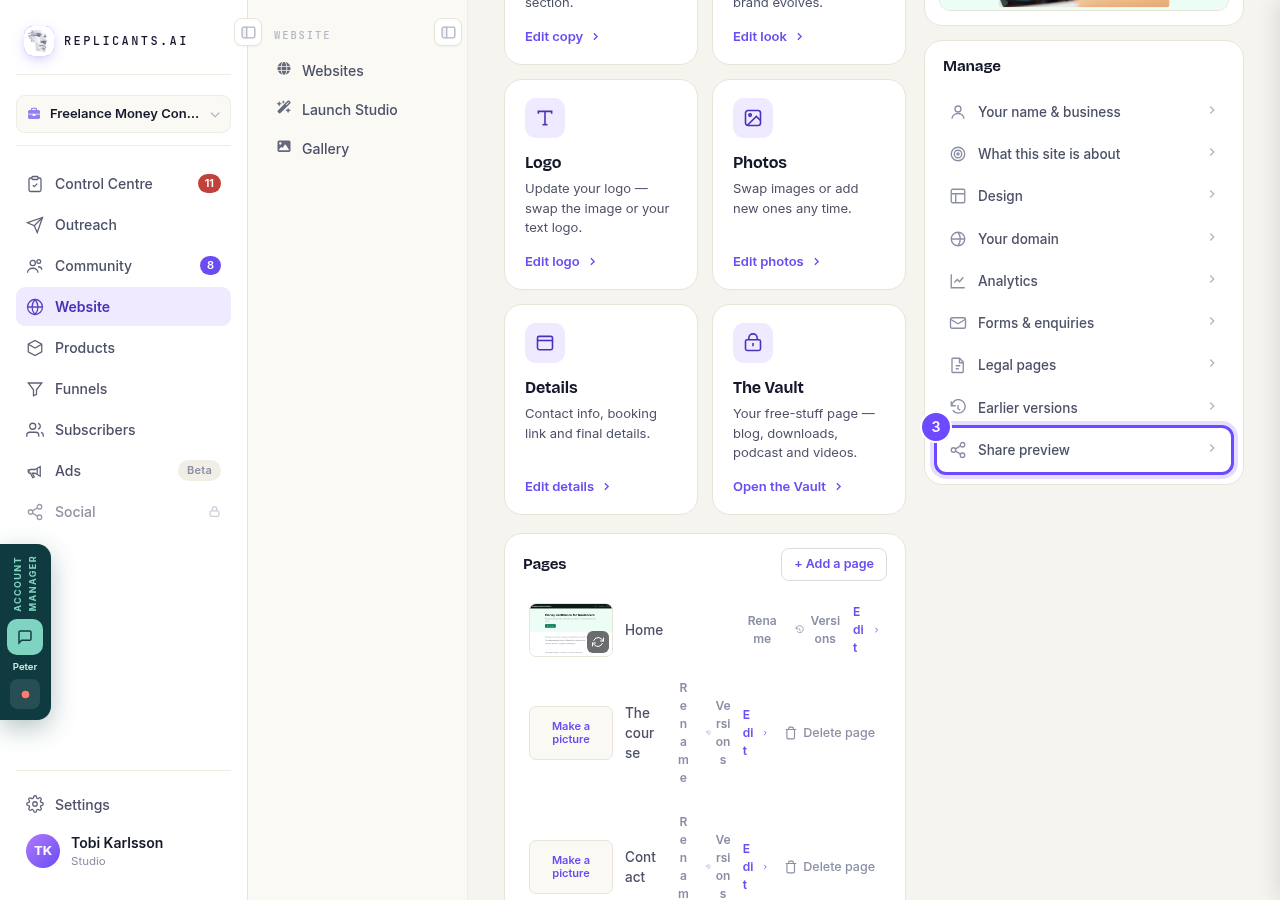
Share preview, in the Manage list.
Pick the picture
Under Image: Use my logo or Use my hero image takes a picture already on your site, and Choose image opens your pictures, where you can also upload a new one. A button is grey when your site has no picture of that kind. The card at the top shows how it will look.
The title and description above it are yours to change too.
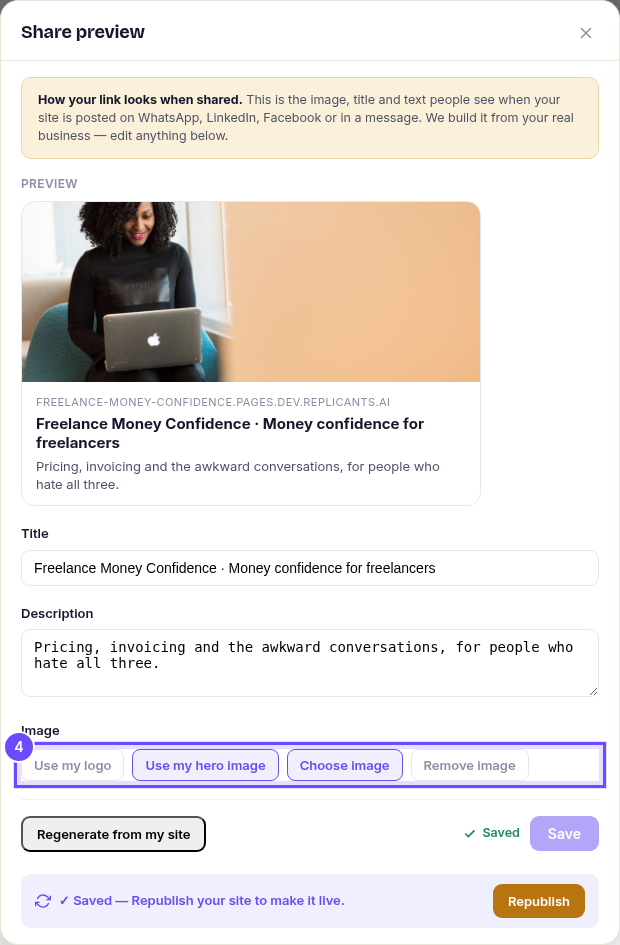
The picture choices, under Image, with the card above.
Press Save
Save lights up once you have changed something. Beside it, it says Saved when your change is kept.
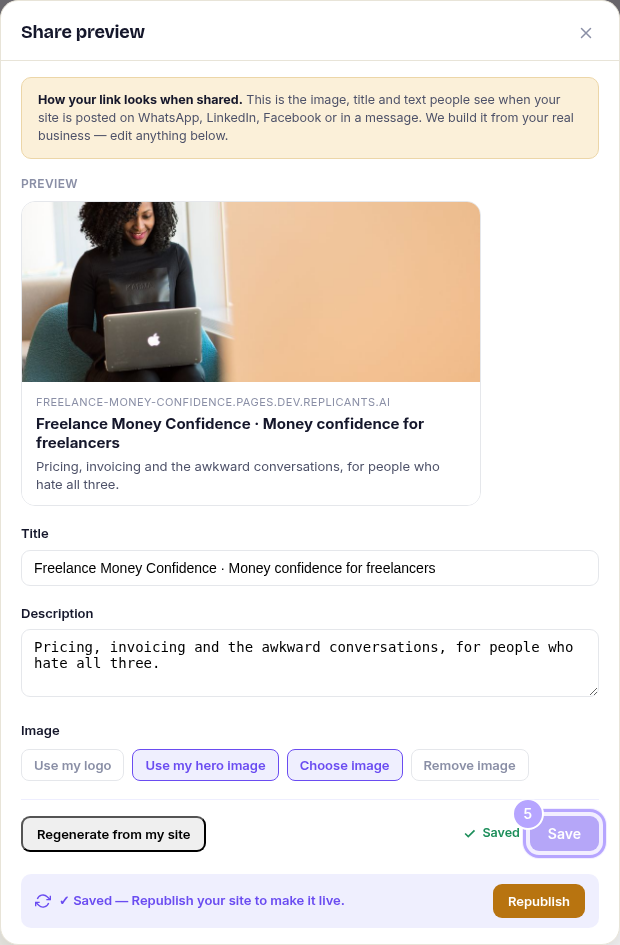
Save, beside Regenerate from my site.
Press Republish
It is the orange Republish button at the bottom of the box. Your live site uses the new card once it is republished.
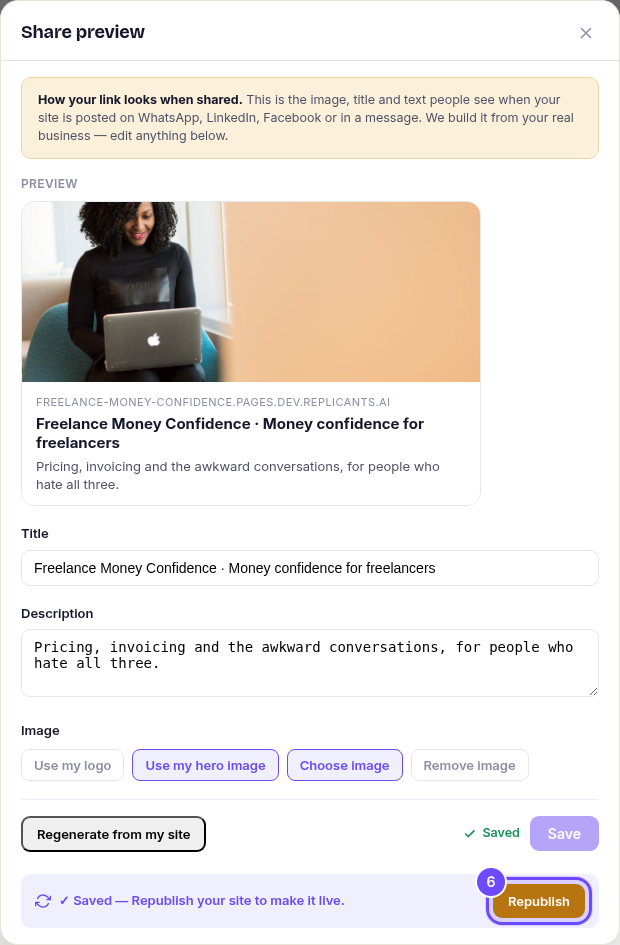
The orange Republish button.


Related articles
How do I add a privacy policy and terms to my website?
Every website has a Privacy Policy and Terms & Conditions, linked from the footer. We write them for you, or you upload your own. About two minutes.
How do I change how my website looks?
Everything you can change sits on one board. Open Website, press Manage, and look under Make a change for a tile per kind of change. The whole design is under Design in the Manage list.
How do I change my website's menu and footer?
Your top menu and footer are the same on every page, so you change them in one place and every page follows. About five minutes.