
How do I check and edit the words on my website?
You can read and change every word on your website, page by page. Changes save as a draft as you type, and your live site only changes when you press **Publish changes**.
Updated 6 October 2026
Manage your site
This opens everything you can change on your website.
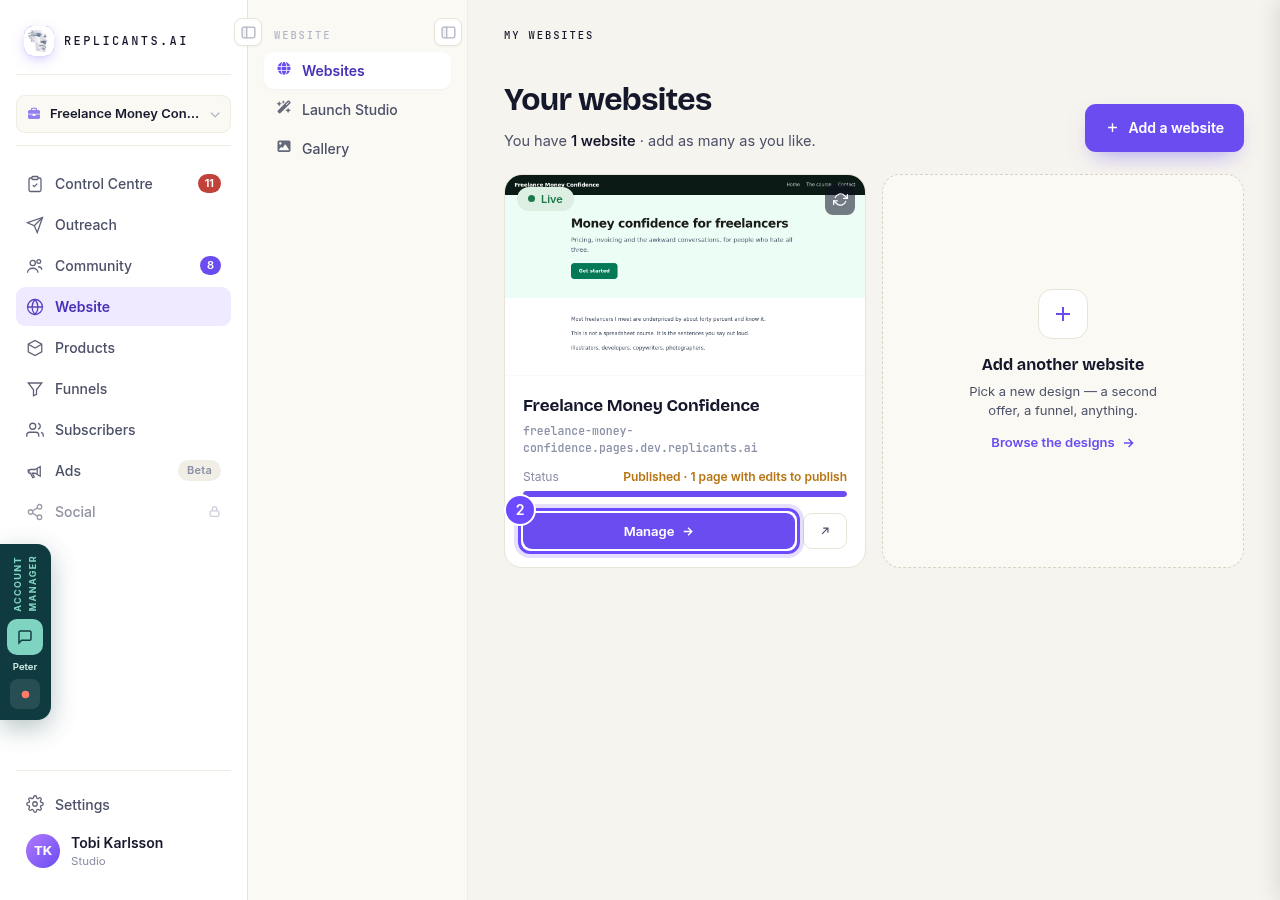
Press **Manage** on your website.
Open a page
Every page of your site is listed under Pages.
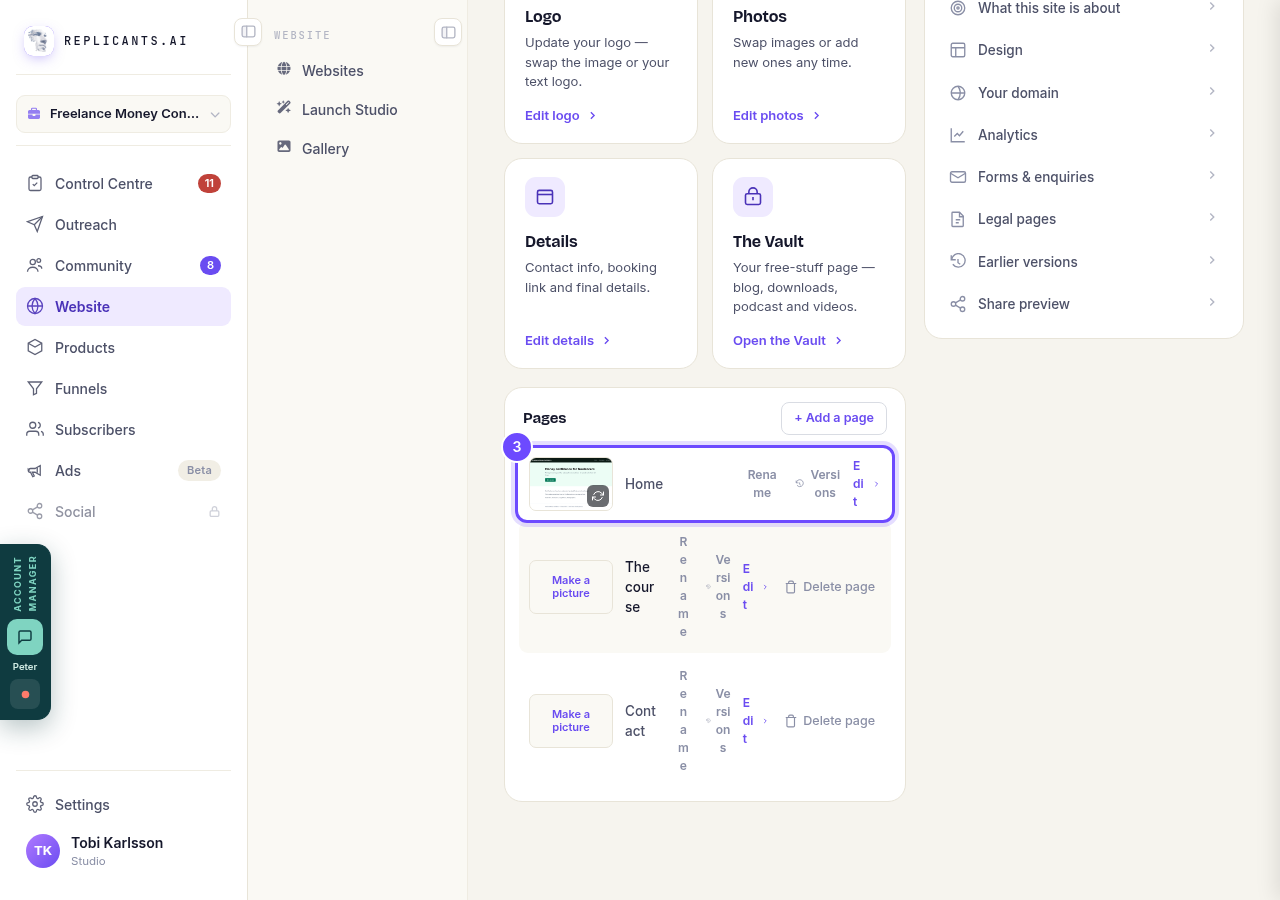
Press **Edit** on the page you want to check.
Check the menu and footer too
The page you opened comes first. Top menu and Footer are shared by every page of your site.
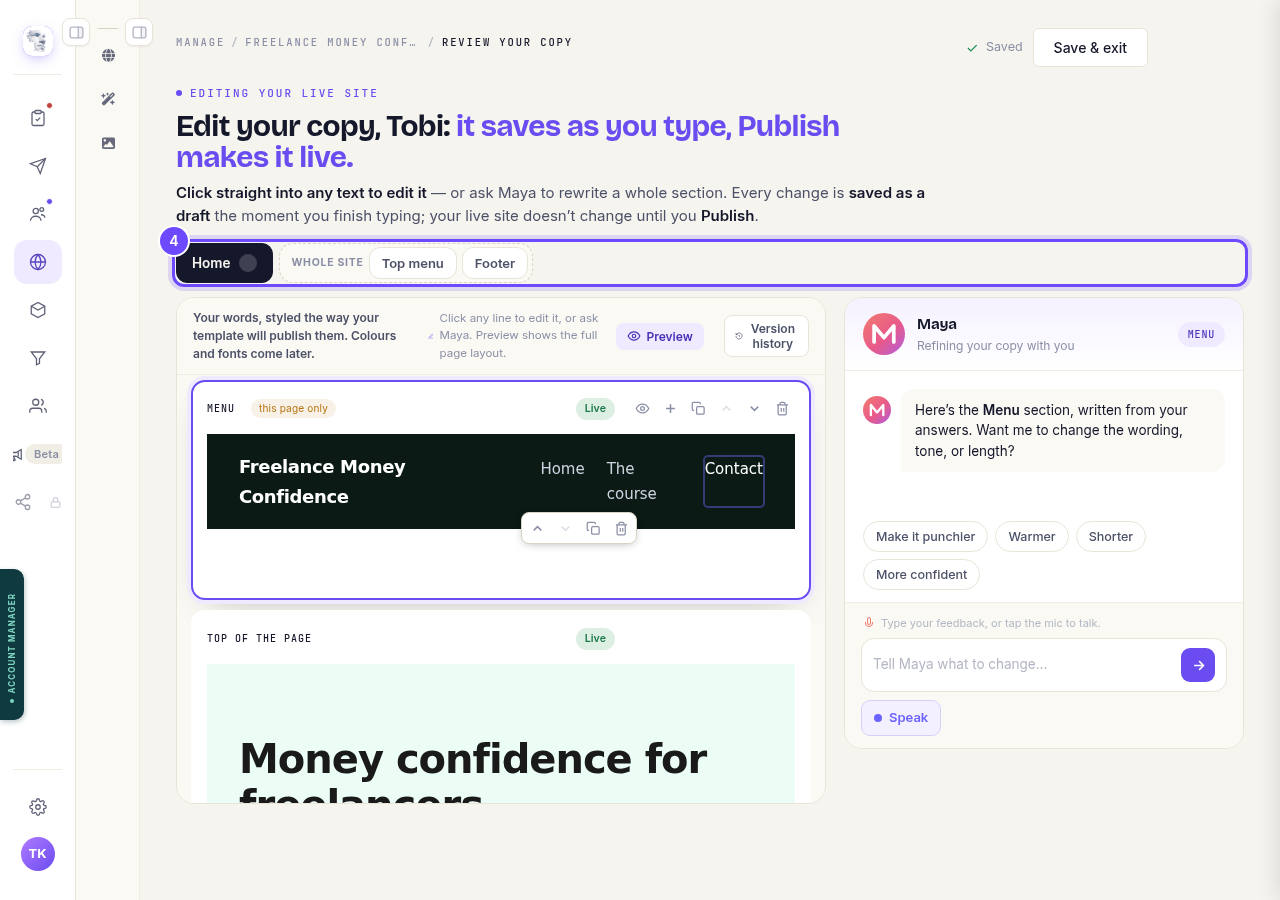
Press **Top menu** or **Footer**.
Change a line
Your words show in your site's own style. Type to change them; each change saves as a draft when you finish typing. To have Maya rewrite a whole section, tell her on the right, or press Make it punchier, Warmer, Shorter or More confident.
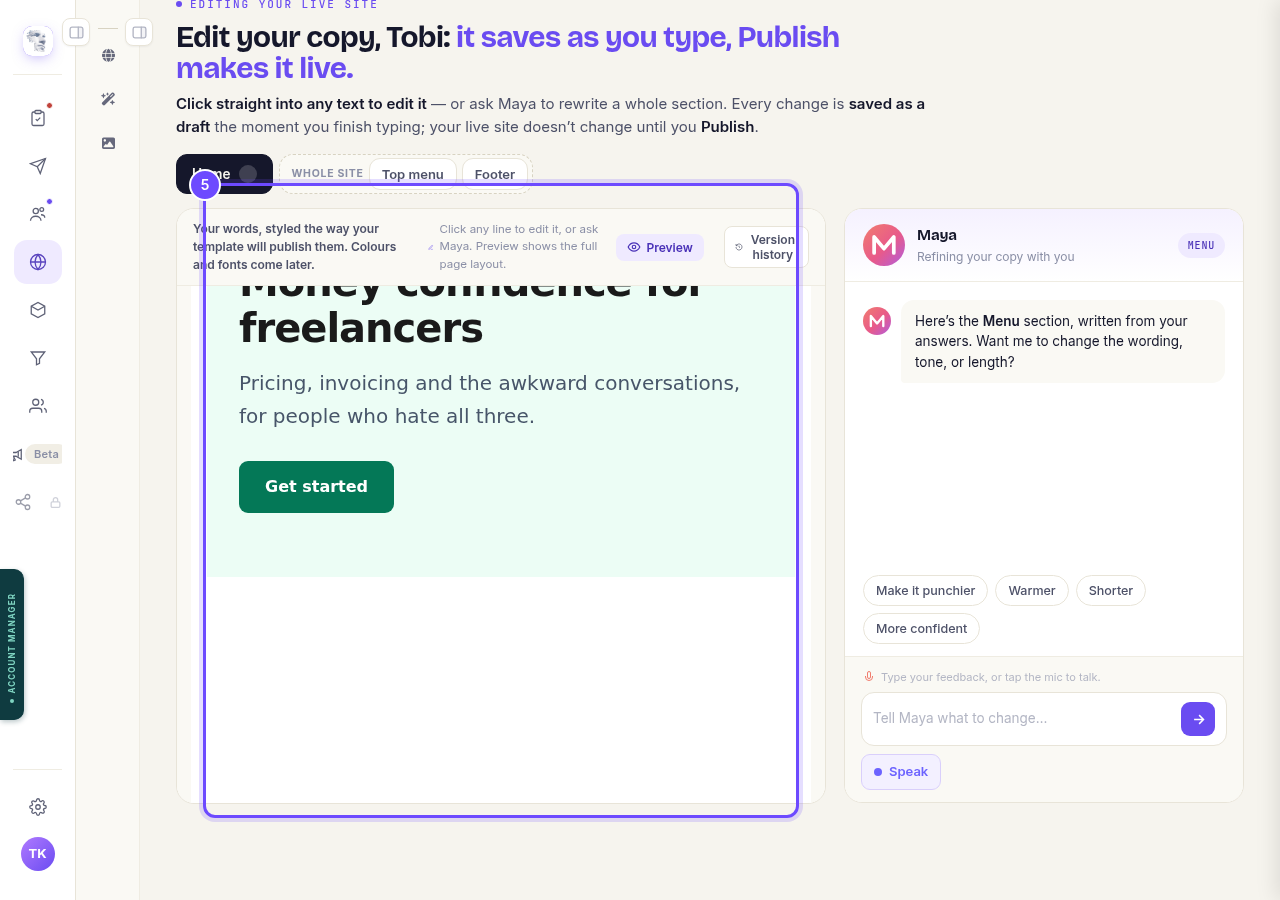
Press straight into any line and type.
Organise the sections
Above each section: the eye previews it, + adds something after it, the next icon duplicates it, the arrows move it up or down, and the bin deletes it.
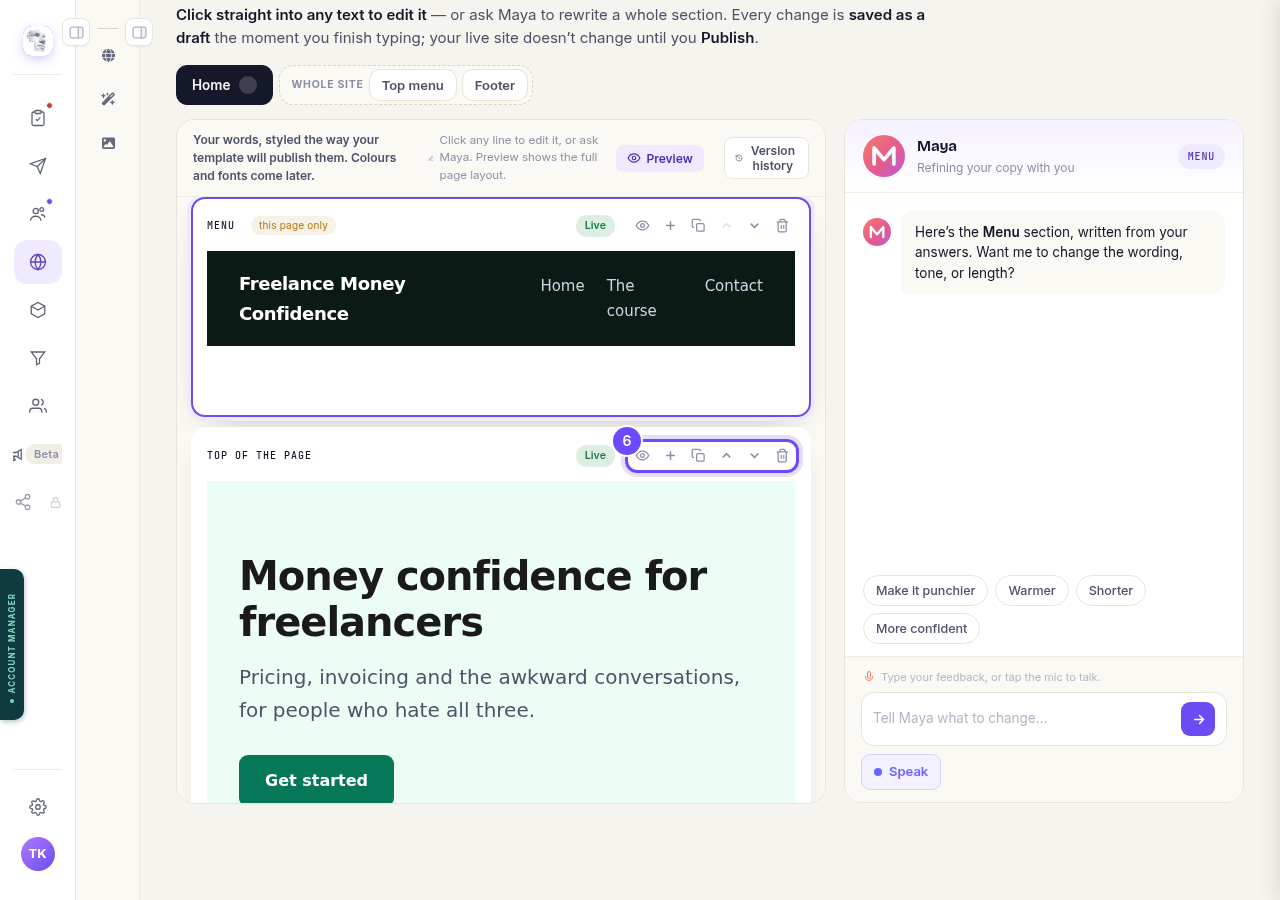
Press a tool above the section.
Preview it
Shows the whole page exactly as it will publish.
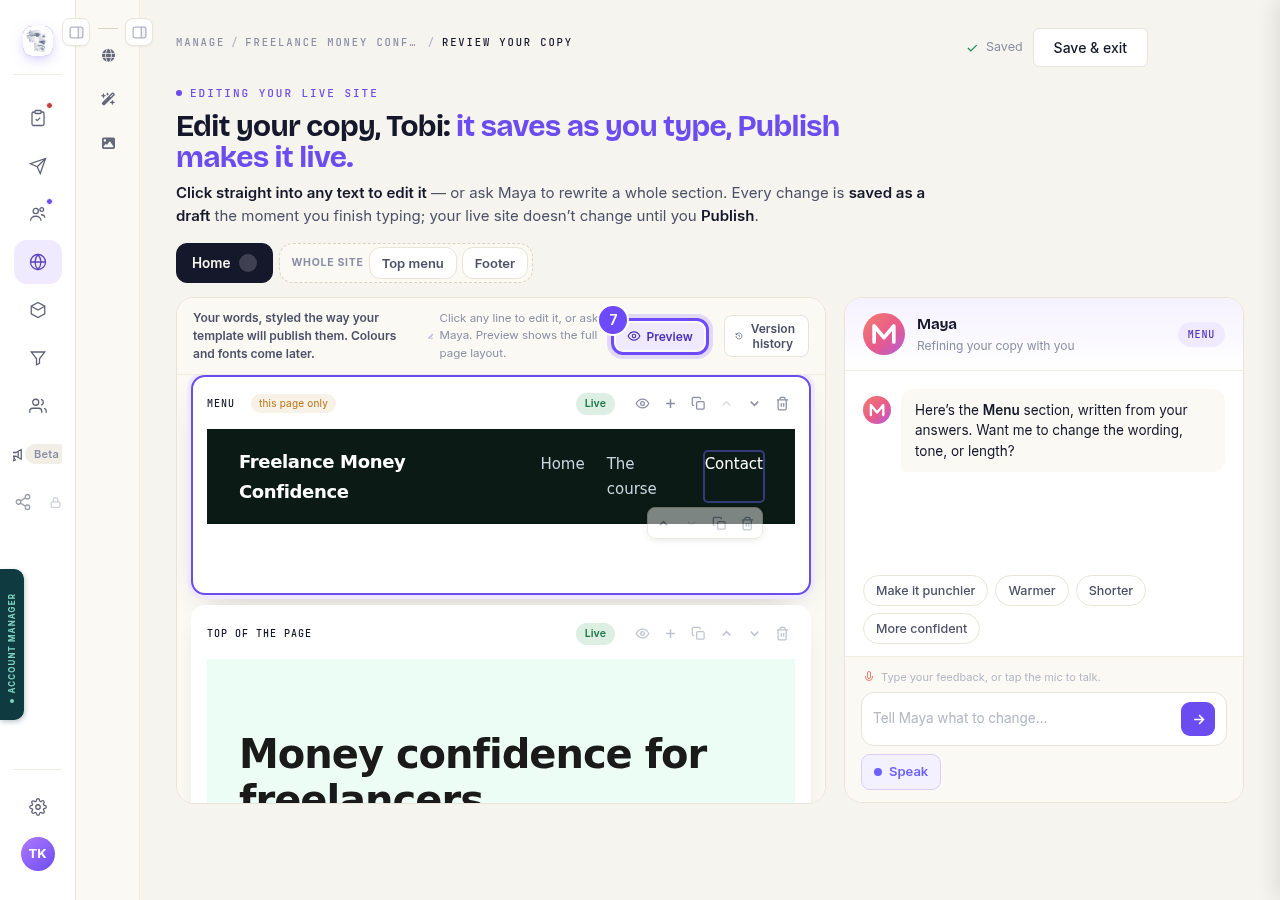
Press **Preview**.
Go back to an earlier version
Every saved version of the page is kept. You can look at one and bring it back.
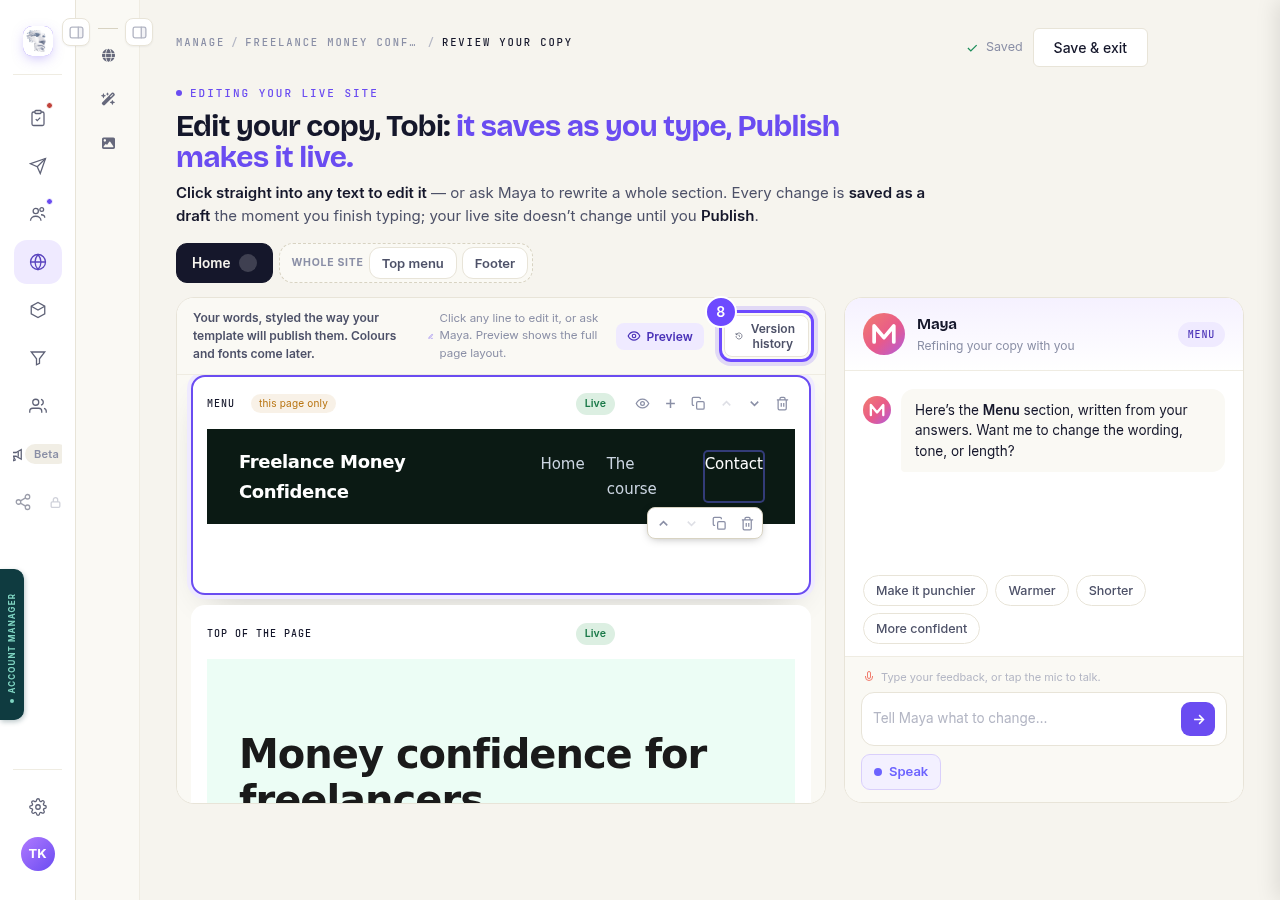
Press **Version history**.


Related articles
How do I add a privacy policy and terms to my website?
Every website has a Privacy Policy and Terms & Conditions, linked from the footer. We write them for you, or you upload your own. About two minutes.
How do I change how my website looks?
Everything you can change sits on one board. Open Website, press Manage, and look under Make a change for a tile per kind of change. The whole design is under Design in the Manage list.
How do I change my website's menu and footer?
Your top menu and footer are the same on every page, so you change them in one place and every page follows. About five minutes.