
How do I add students to my course myself?
Press Students on your course, then Add a student, and choose who: one person, a group, your community, or email addresses. You choose whether they get a welcome email.
Updated 18 October 2026
Press Manage on your course
It is under Products in the main menu; on a phone, press the menu button, Products, then Courses.
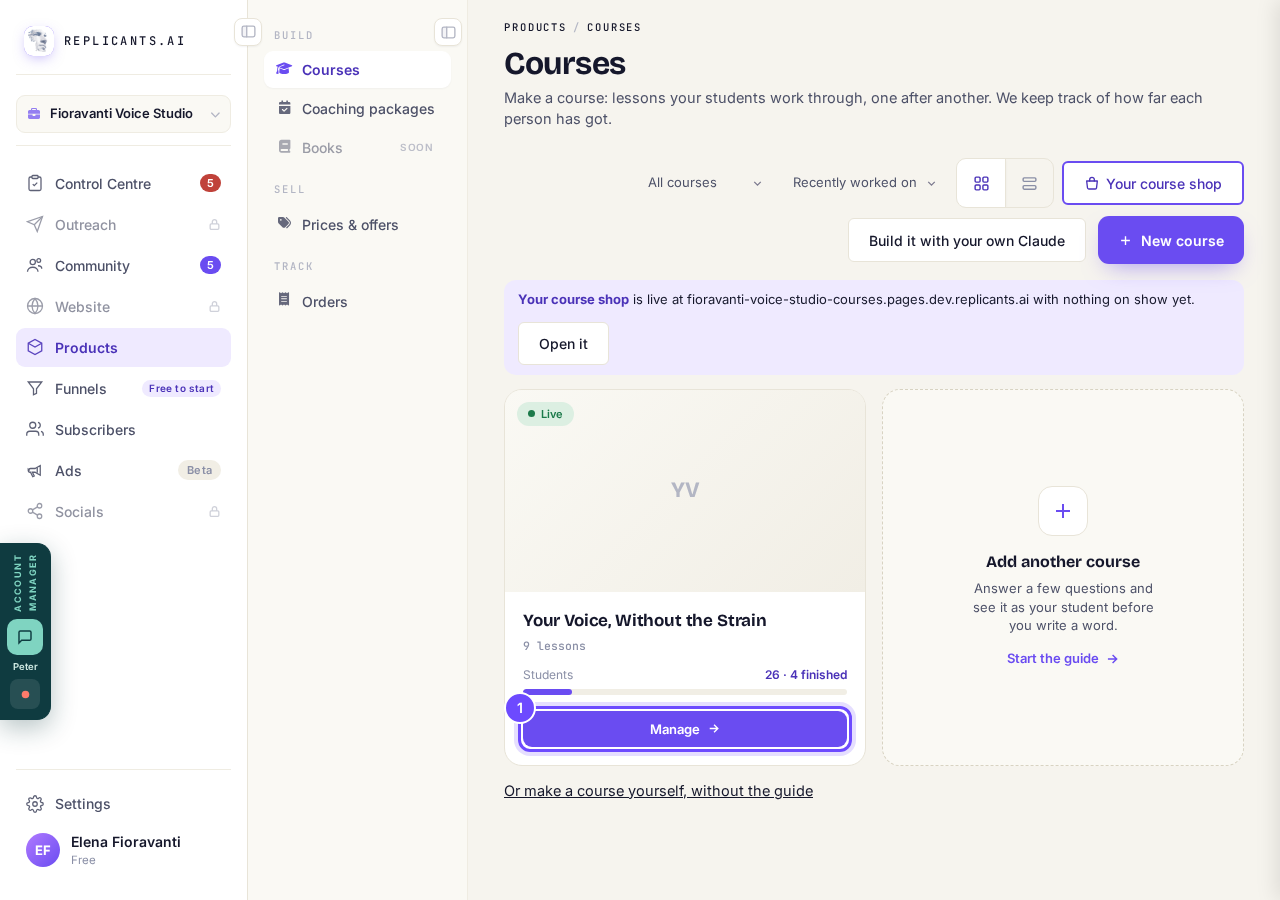
Manage, on the course's card.
Press Students at the top, then Add a student
On a phone, slide the row of names along the top sideways until you see Students.
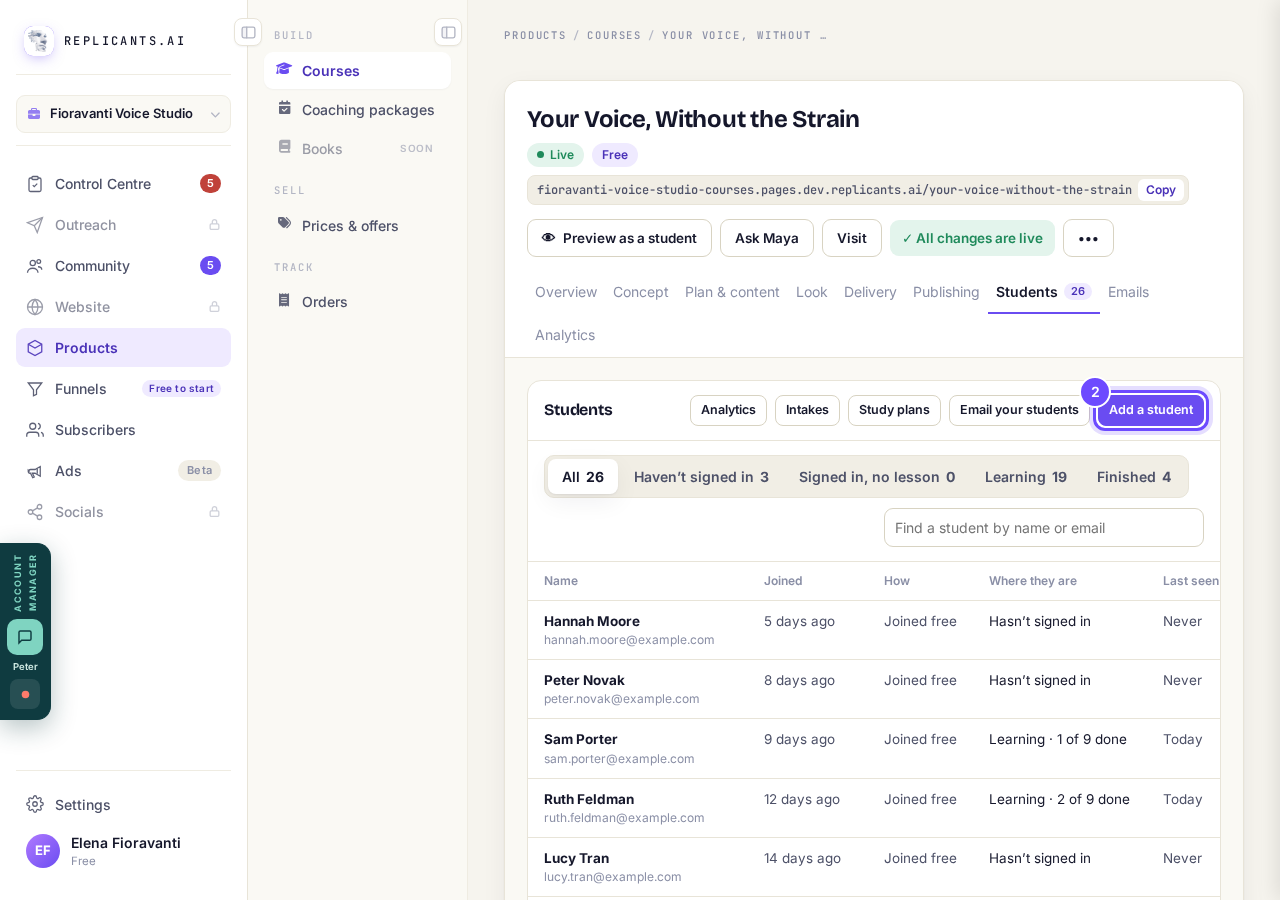
Add a student, above the list.
Choose one of the four ways in
One person at a time, A group (a tag or saved list), From your community, or Add by email; Email them a welcome above them is ticked, so untick it to tell them yourself.
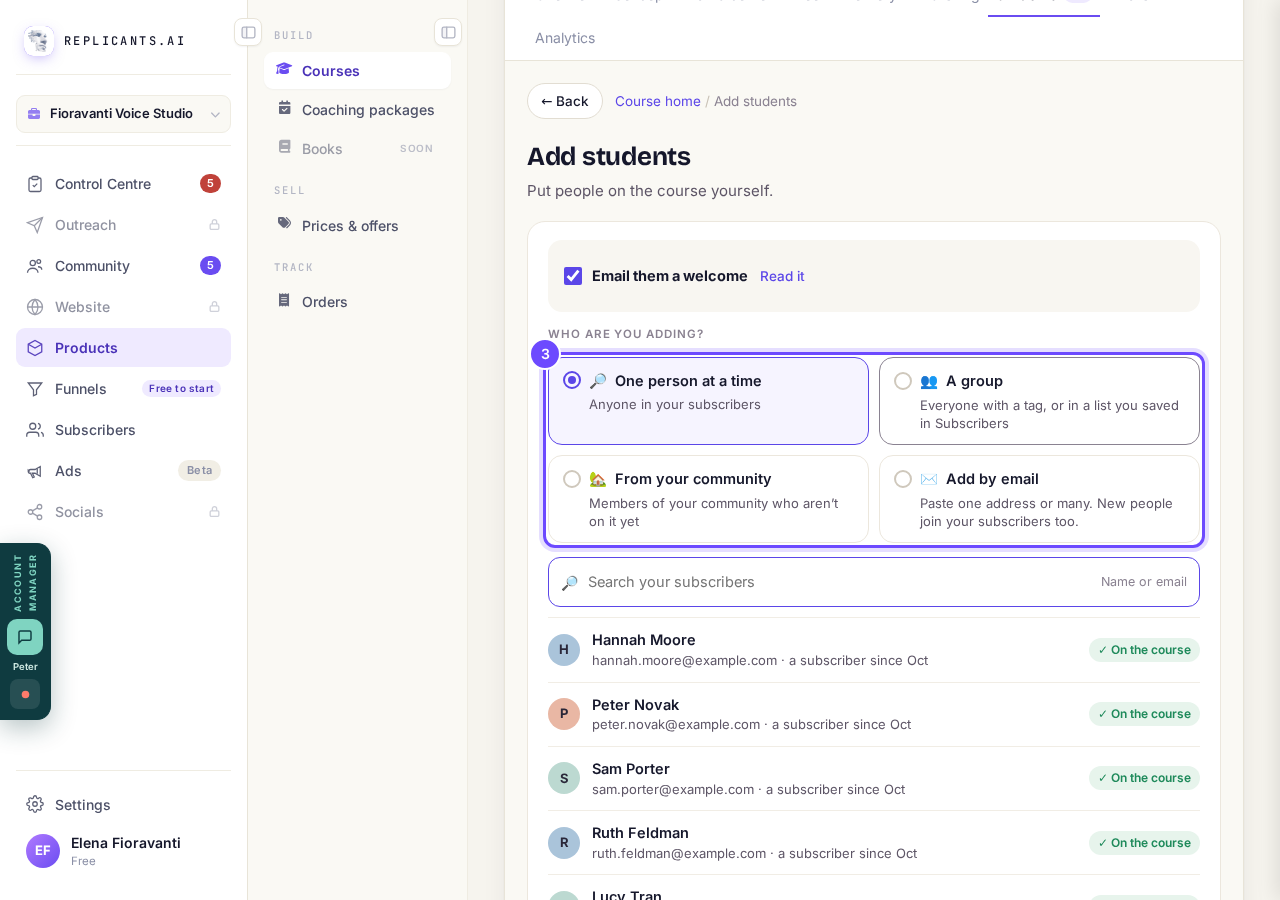
The four ways in.
Paste the addresses and press Put them on the course
One on each line, up to 50 at a time; new people join your subscribers first.
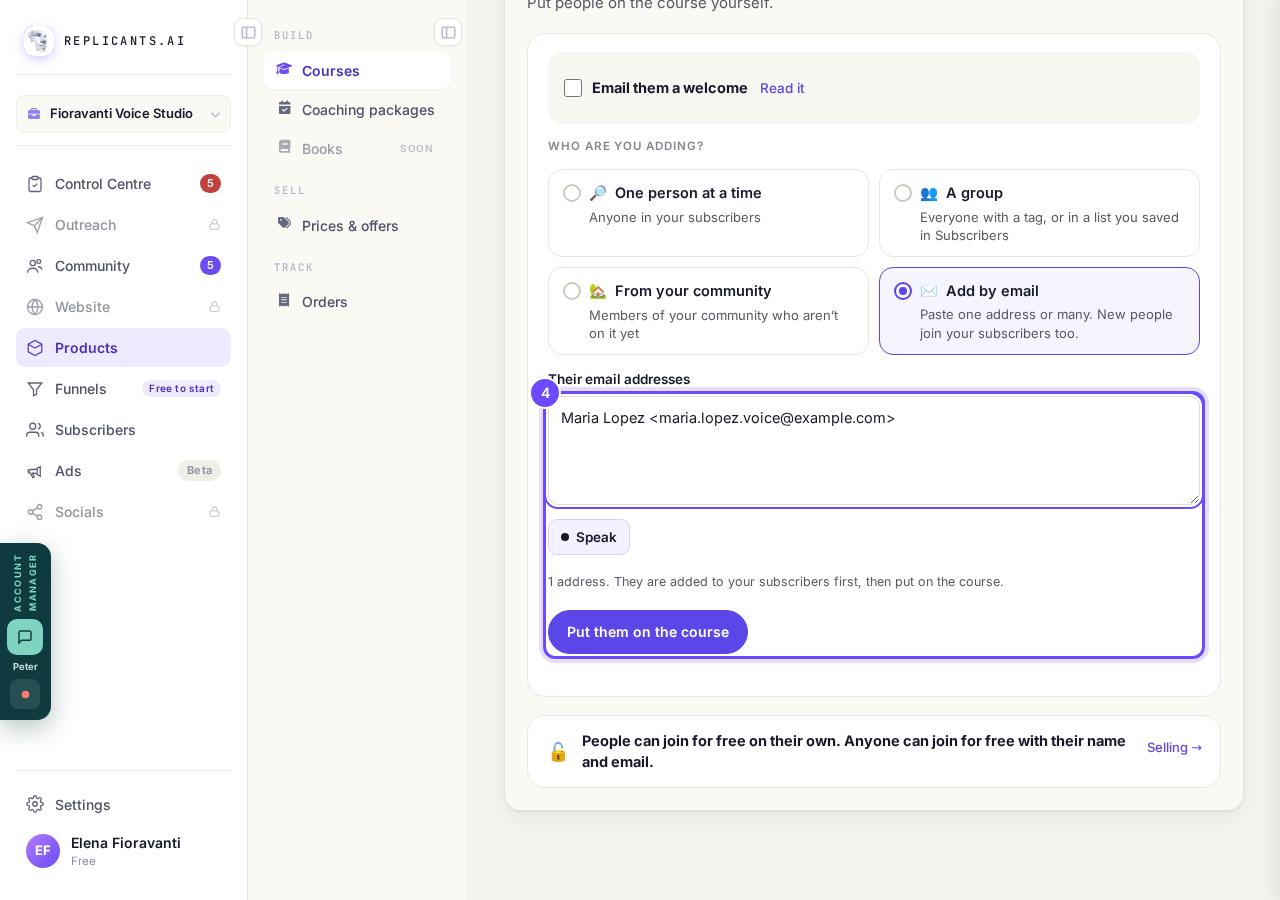
An address pasted in, and Put them on the course.
Press Copy a sign-in link to send it yourself
This shows when you have added one person; send the link only to them, because it opens the course as them.
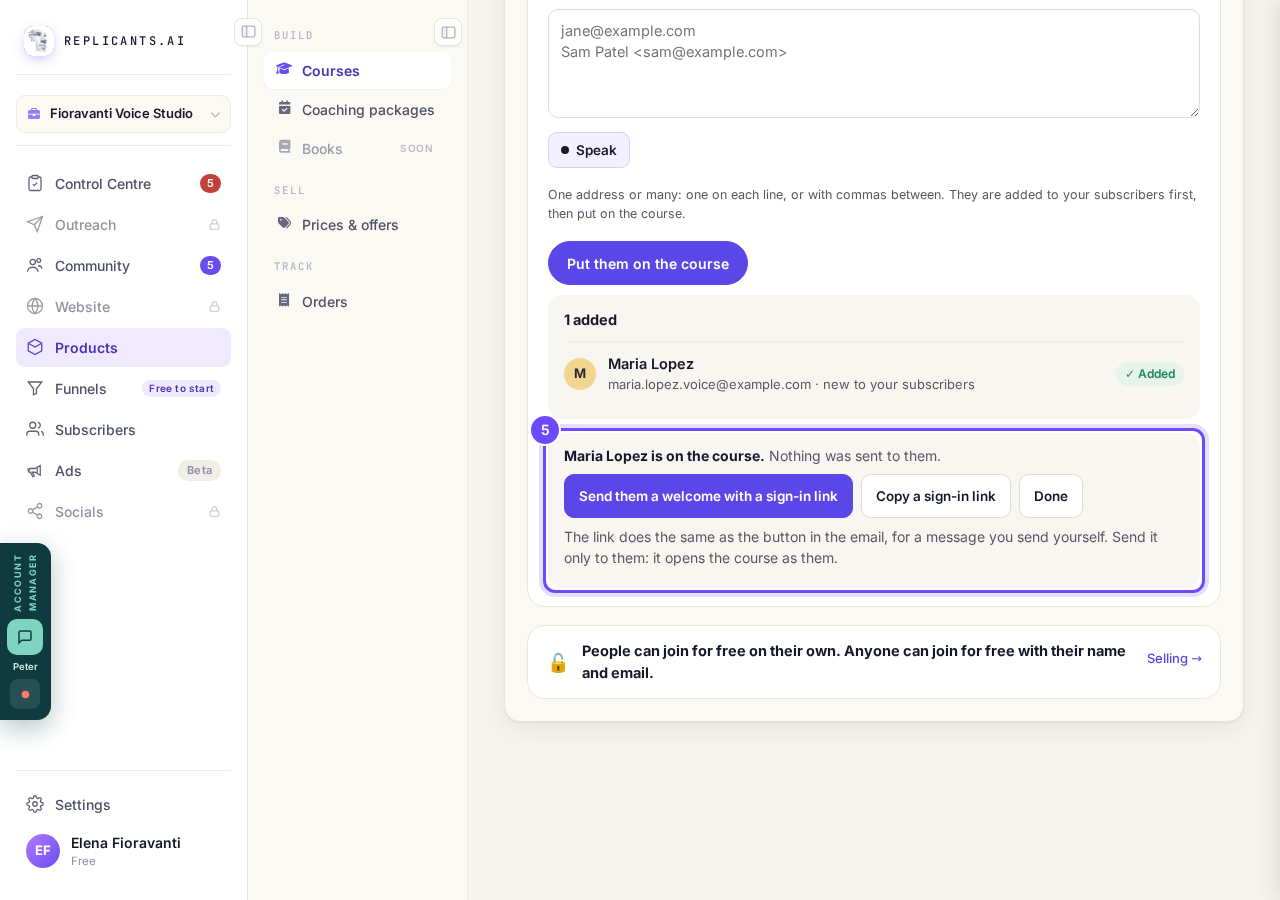
Copy a sign-in link, for one person you added.


If the intake you chose is full, closed or not open yet, the page says so and stops. Someone who unsubscribed is added but gets no welcome, and before your course is published nobody is emailed.
How do I email the students on my course?
Related articles
Can I see a real course before I build mine?
Yes. Claire's free course, Small Steps, is a real course you can join as a student in about five minutes.
Can I turn my workbook, notes or recordings into a course?
Yes. Add your workbook, notes, slides or recordings at the start of a new course and Maya reads them; the questions arrive already answered, and your plan is built from them.
How does my course help students finish?
Your course has a tool for students who drift off, get stuck or feel alone, and you switch them all on or off in one place: Delivery, at the top of your course. Looking through them takes about five minutes.