
How do I set the hours people can book a 1:1 call with me?
Your hours are the times each week when a student can book a 1:1 call with you. You set them day by day, in your own time zone. About three minutes.
Updated 6 October 2026
Open Products
It opens on your courses. On a phone, press the menu button at the top right, then Products, then Courses.
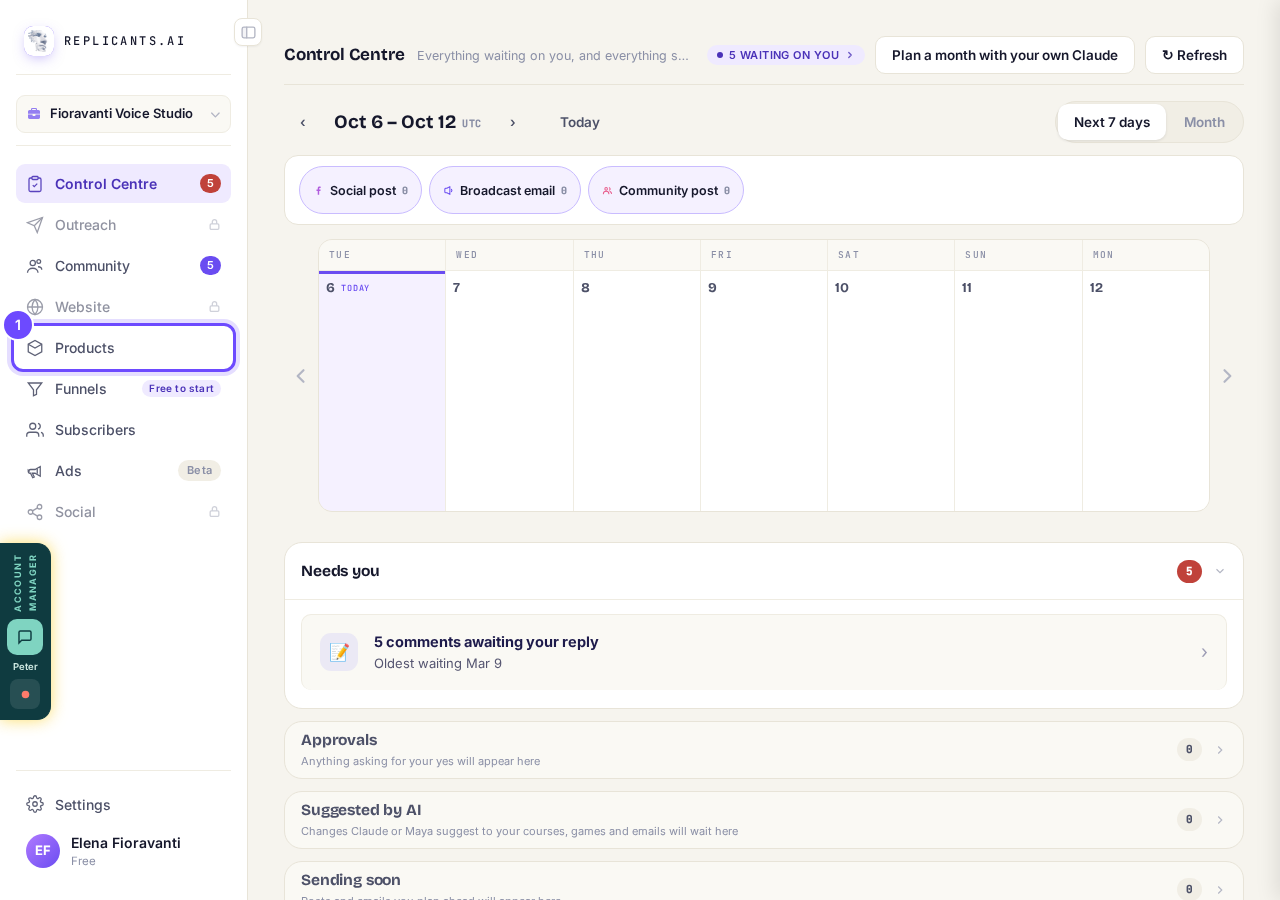
Press **Products** in the menu on the left.
Press Manage on your course
Each course has its own 1:1 calls and its own hours.
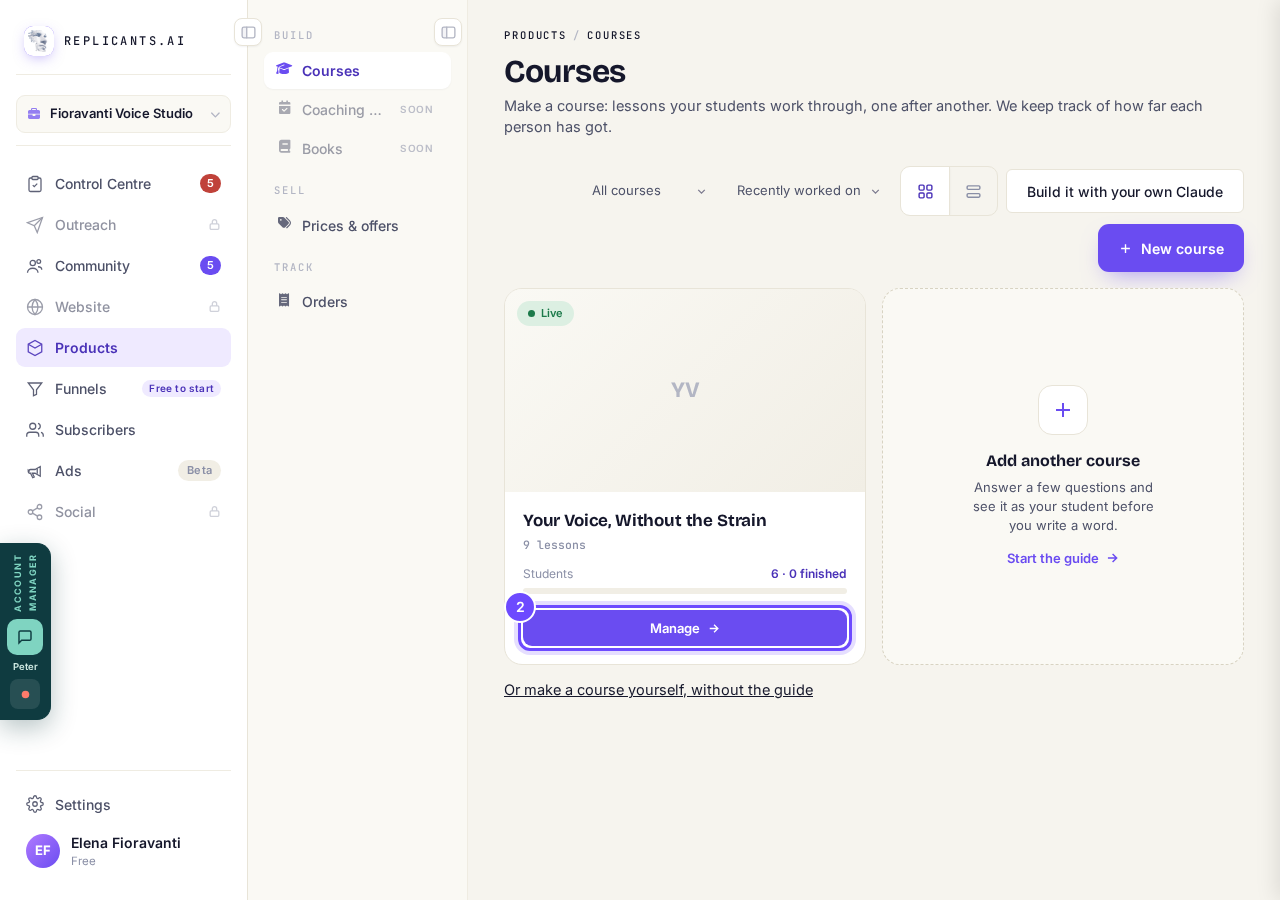
Press **Manage** on the course.
Open Settings
It is the last word in the row under your course's name.
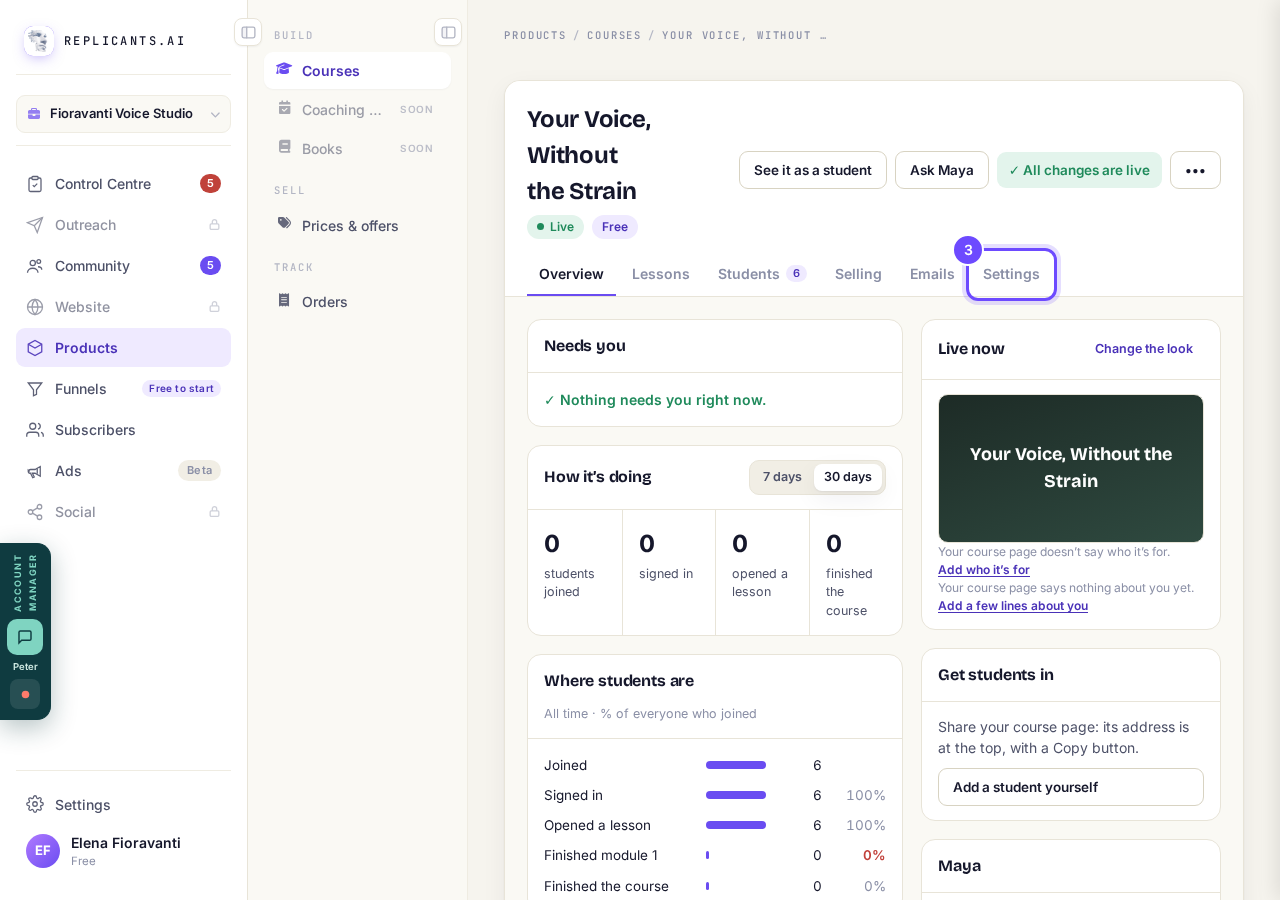
Press **Settings**.
Press Set up beside Live sessions
If the button says Change, your call is already set up. Go to step 12 to change your hours.
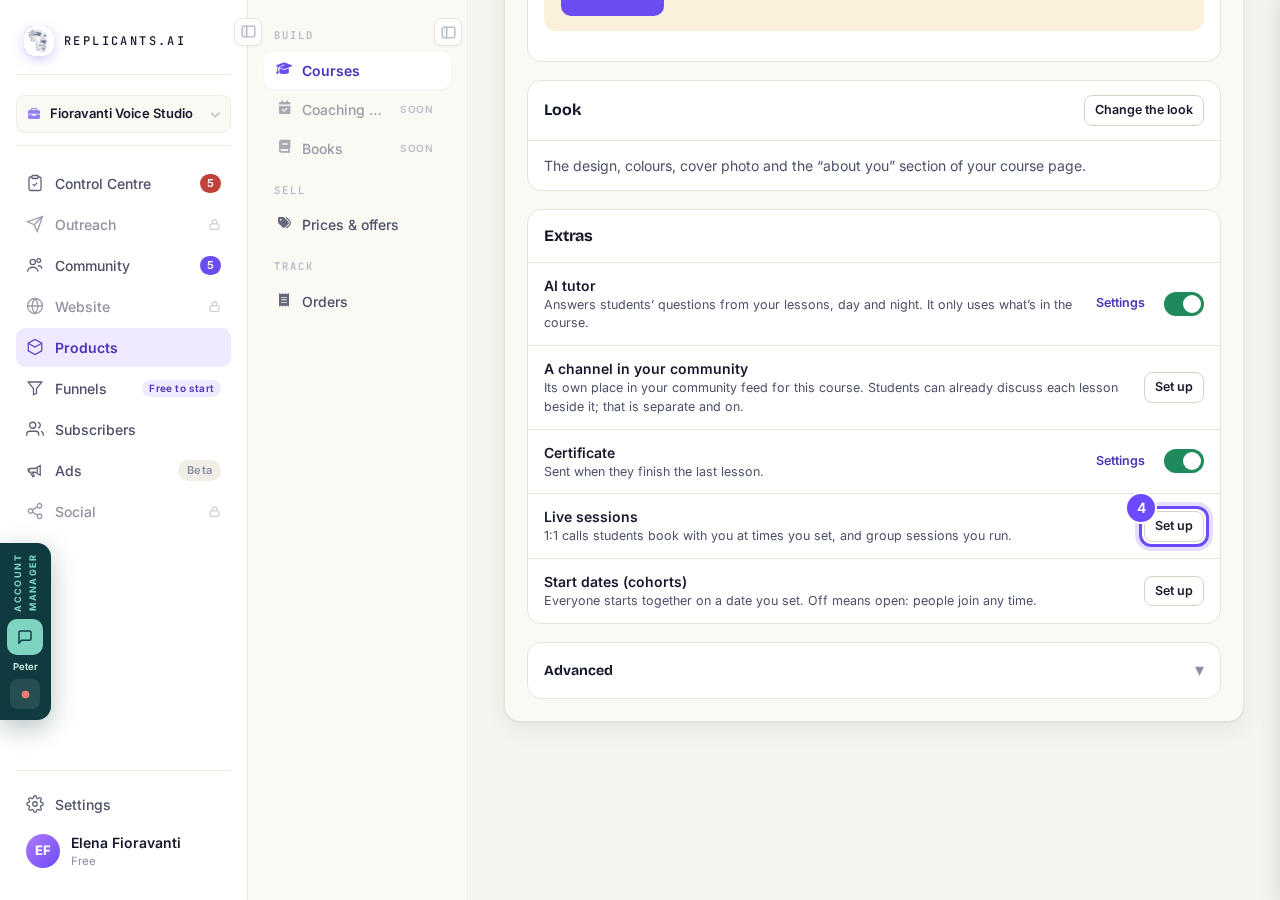
Under **Extras**, press **Set up** beside **Live sessions**.
Press Yes, set this up
This keeps the suggestions above it, like how long a call is, and saves them as a draft. Nobody can book yet. Your hours come next. To go through each suggestion yourself, press Take me through it instead.
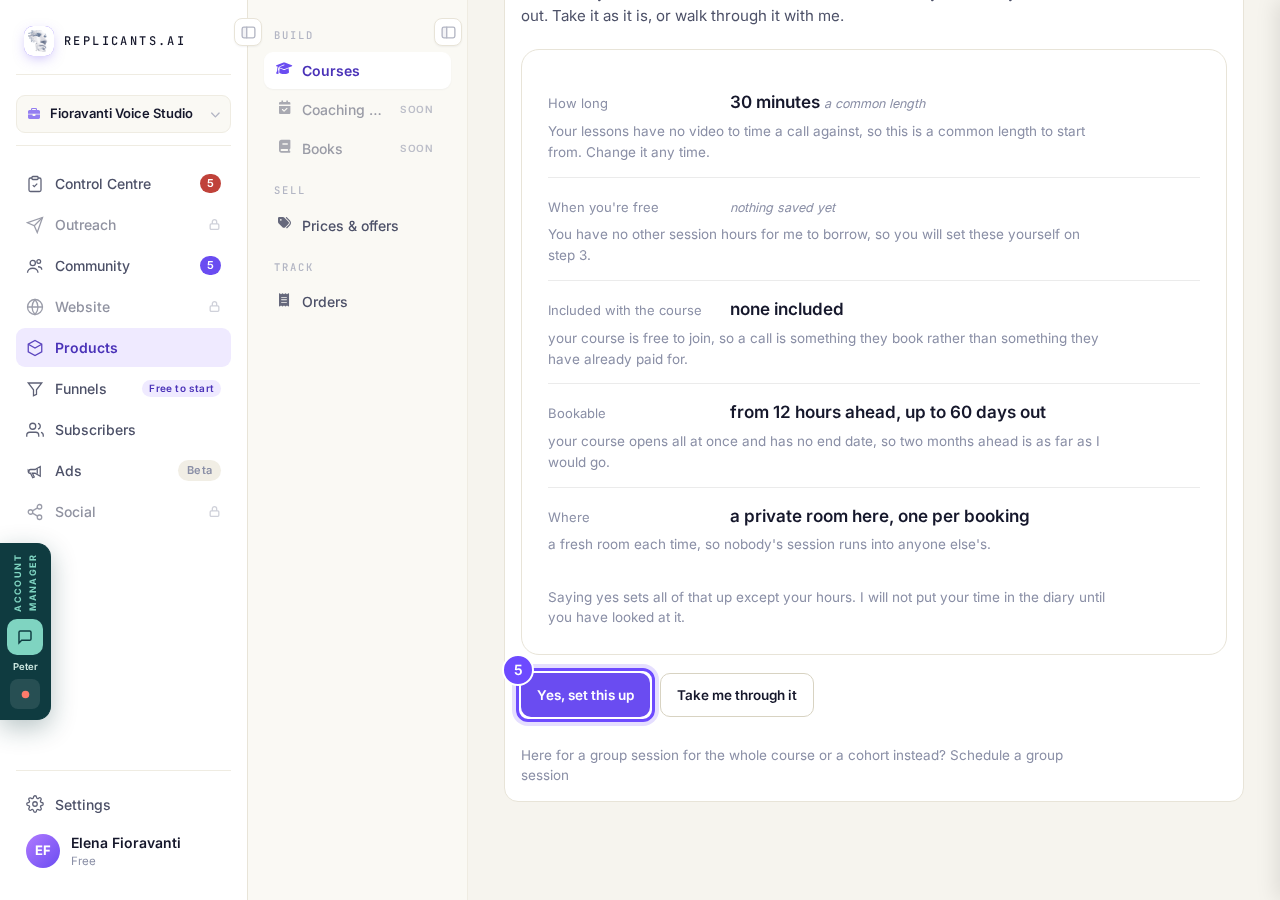
Press **Yes, set this up**.
Press Add hours
A row appears for Monday, 10:00 to 13:00, ready for you to change.
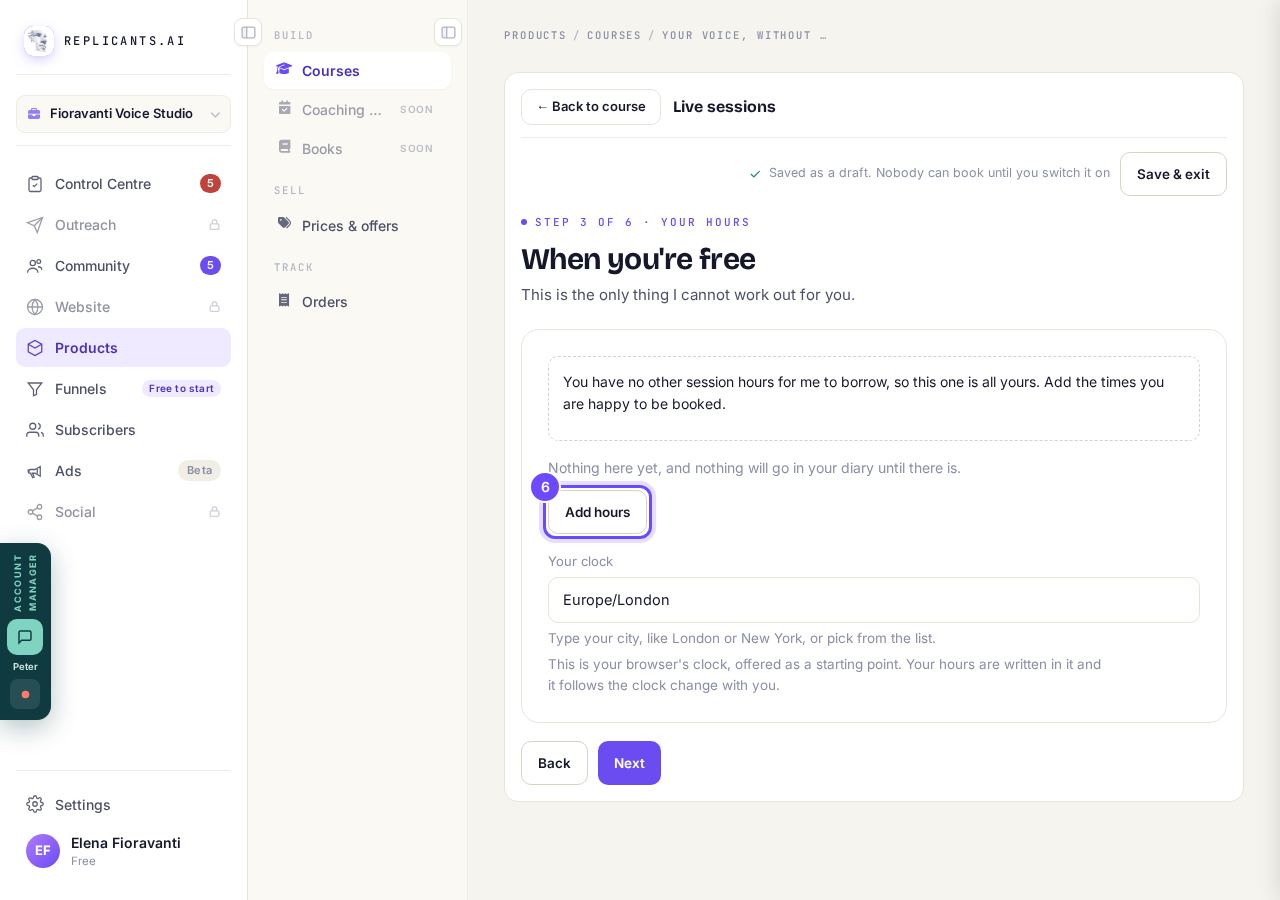
Press **Add hours**.
Set the day and the times
Type times like 9:00 or 14:30. Each stretch needs room for at least one call. Here it is Monday, 09:00 to 12:00.
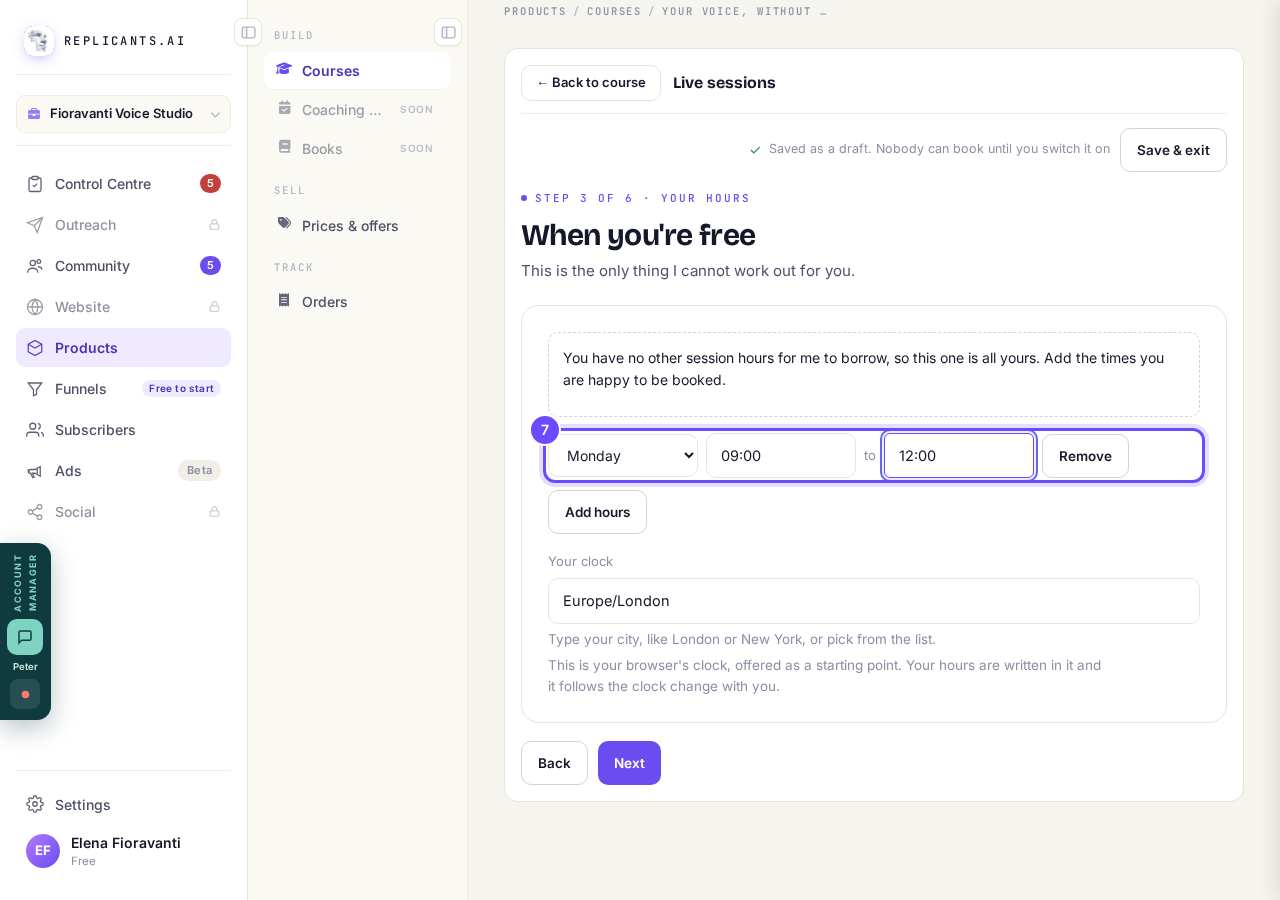
Pick the day, then type when you start and when you finish.
Press Add hours for each extra day
It offers the next day you have not used yet, Tuesday here, so you never get the same day twice by accident. Change it if you like. Remove takes a row away.
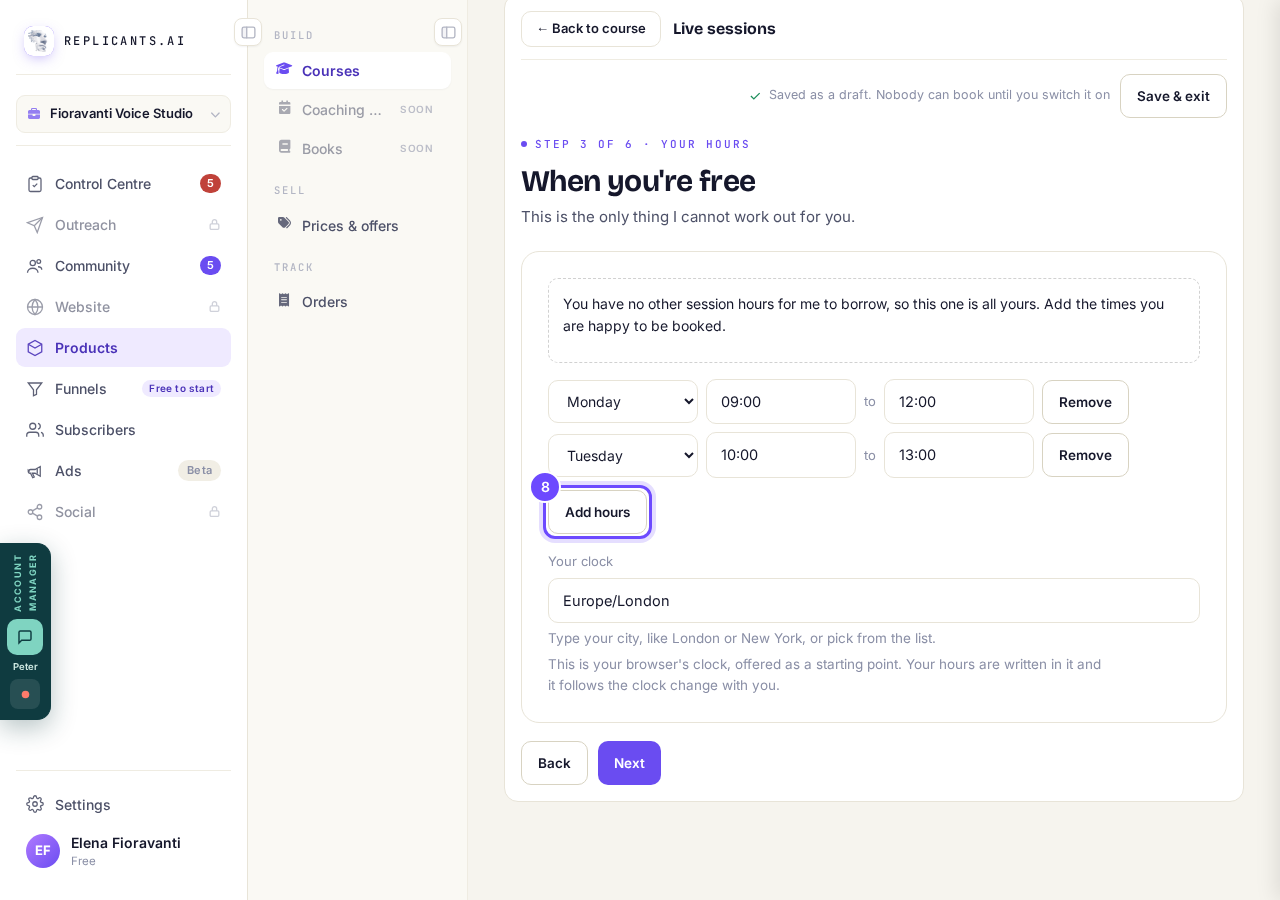
Press **Add hours** again for another day.
Check Your clock
Your hours are kept in this time zone. To change it, type your city, like London or New York, or pick from the list.
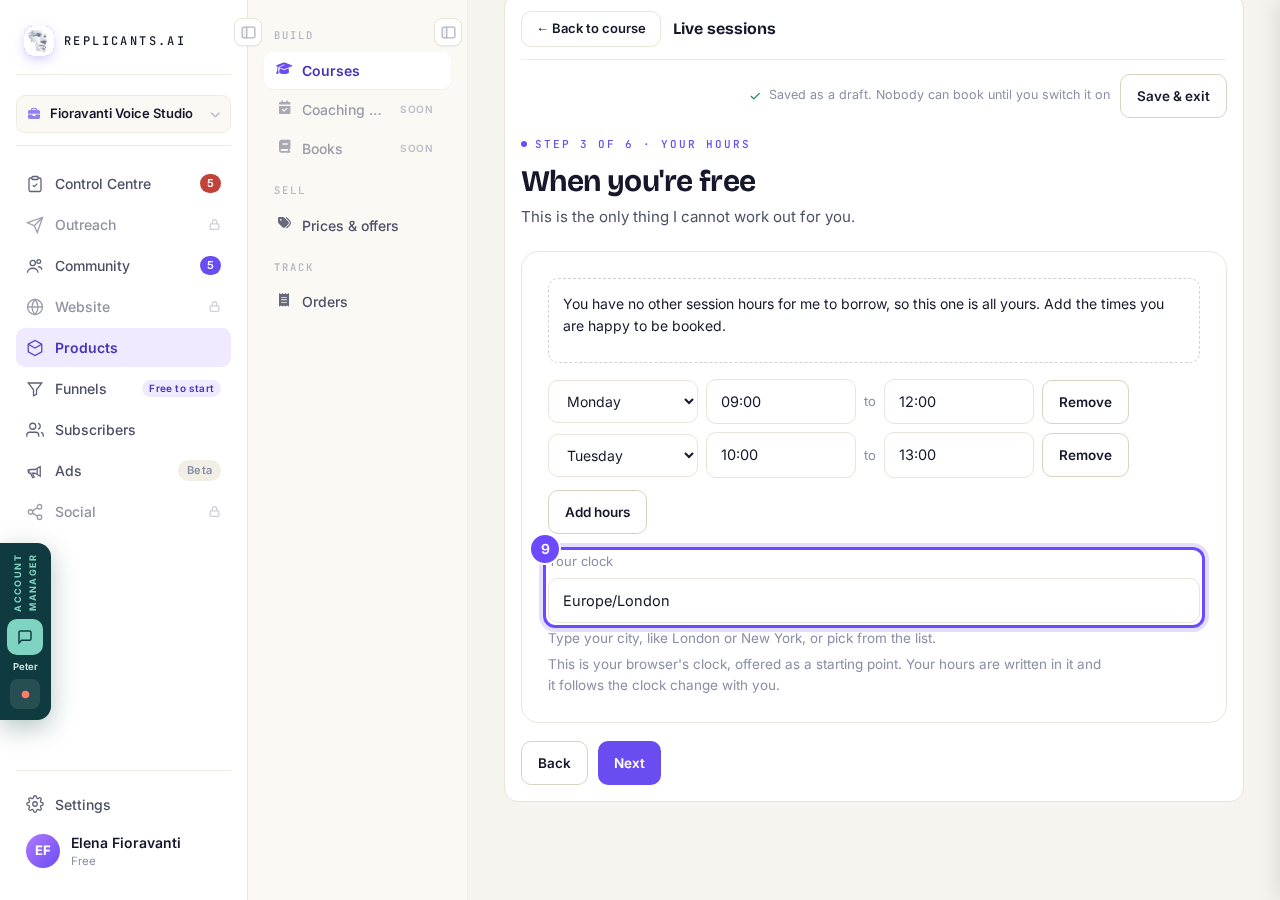
Check **Your clock** is where you live.
Press Next
This saves your hours. The top of the screen then says Step 4 of 6.
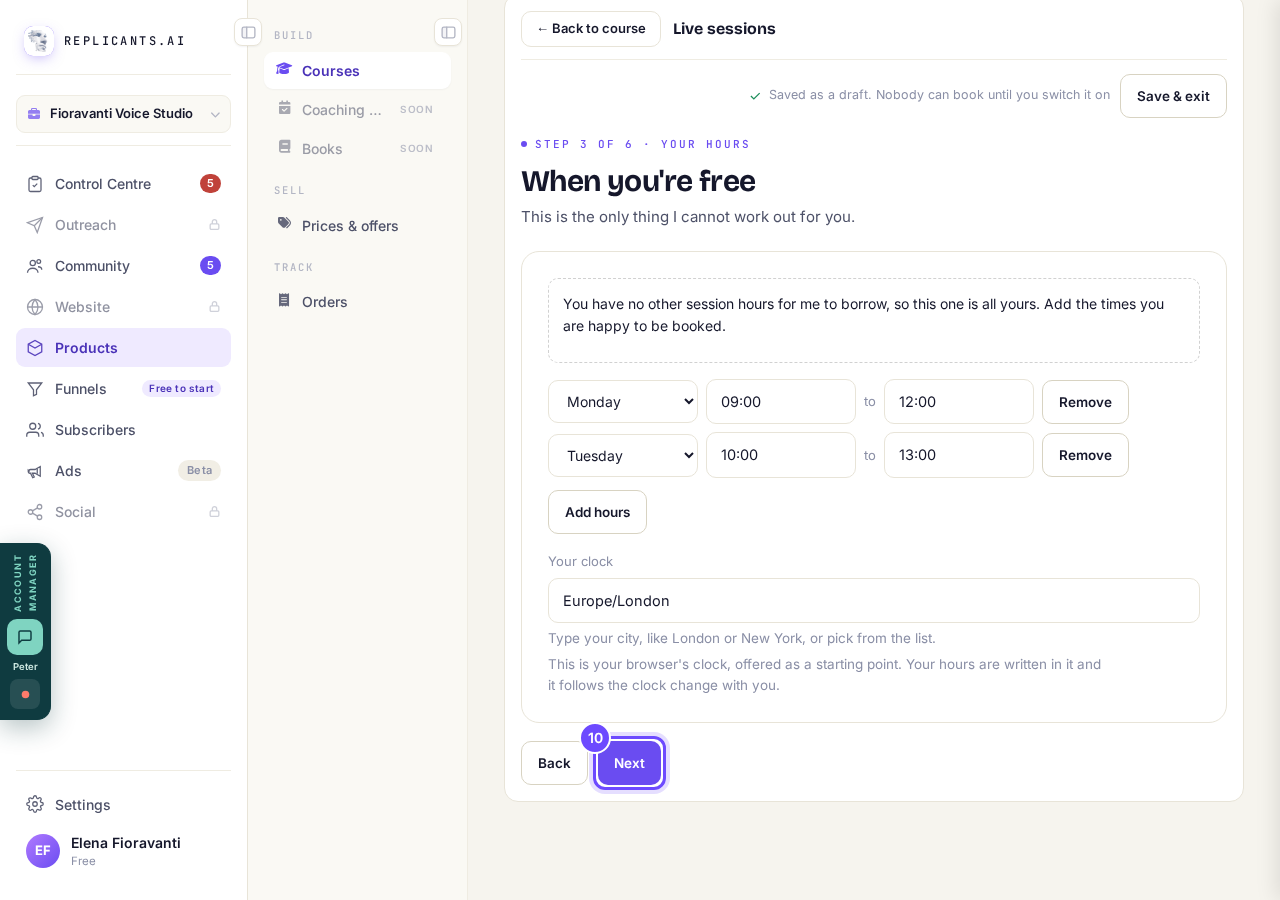
Press **Next**.
If a short line appears, change the time it names
You stay on this step until the hours can be saved, and the rows to look at are outlined in orange. Here two Monday times overlap. Other lines you might see: The end time needs to be after the start time. or Each time needs room for one 30 minute call.
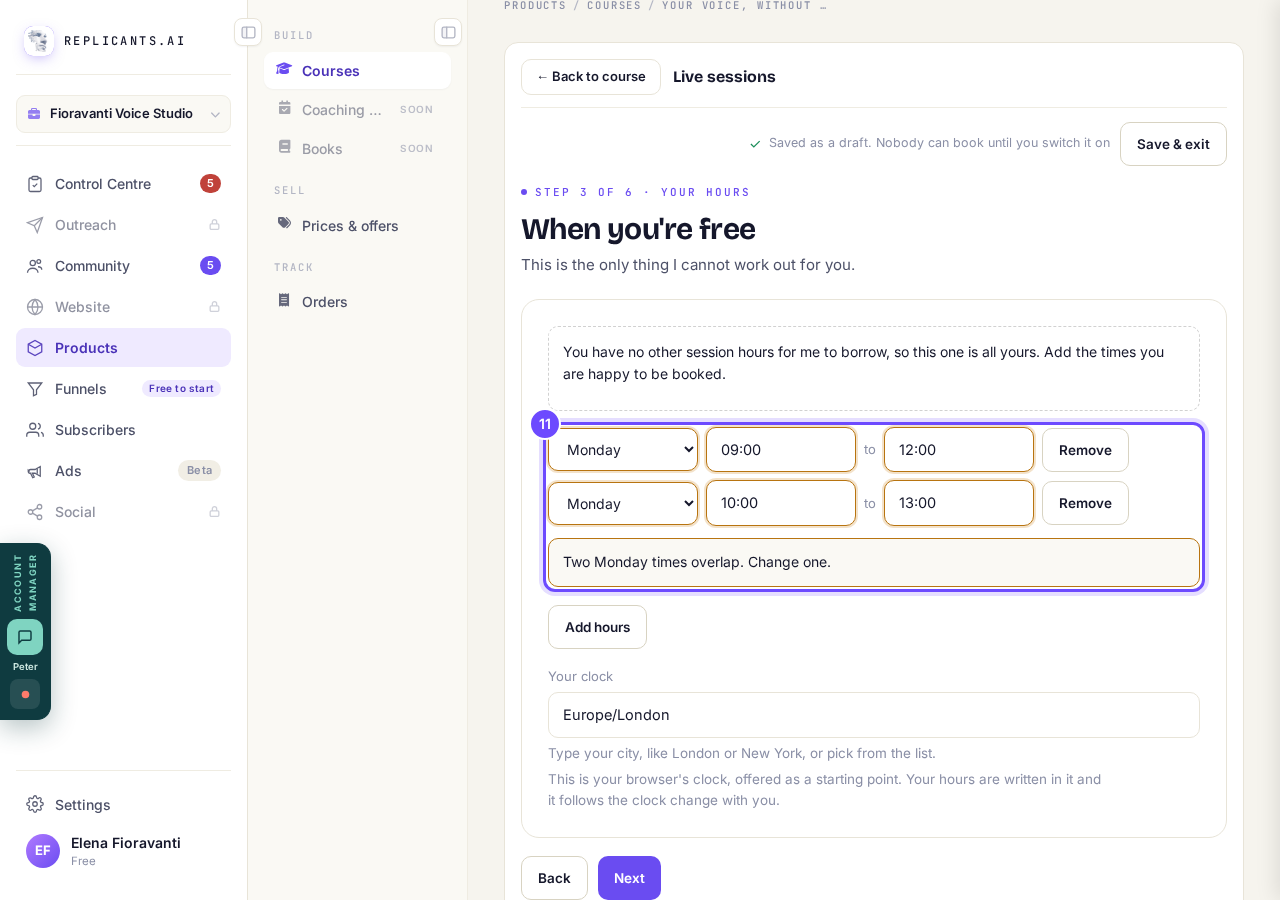
Change the time the line names, then press **Next** again.
Later, to change your hours, press Change beside Live sessions
Get there with steps 1 to 3. On a phone, Change can sit past the right edge of the screen, and the screen does not slide to it. If you cannot see it, open this on a laptop, or, if your course is live, use the button in the 1:1 calls box on its Overview.
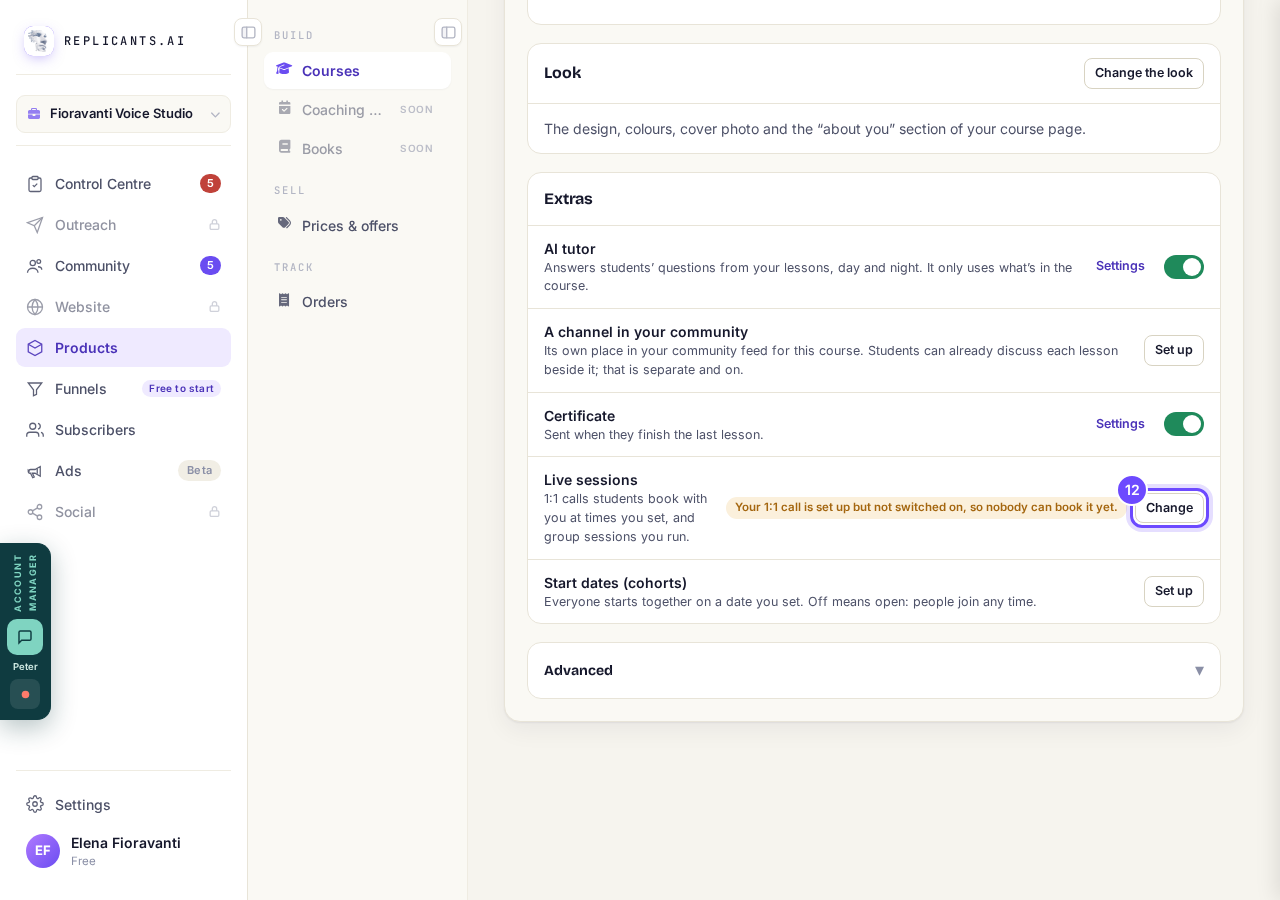
Press **Change** beside **Live sessions**.
Open When you’re free
It lists every day of the week with your hours beside it.
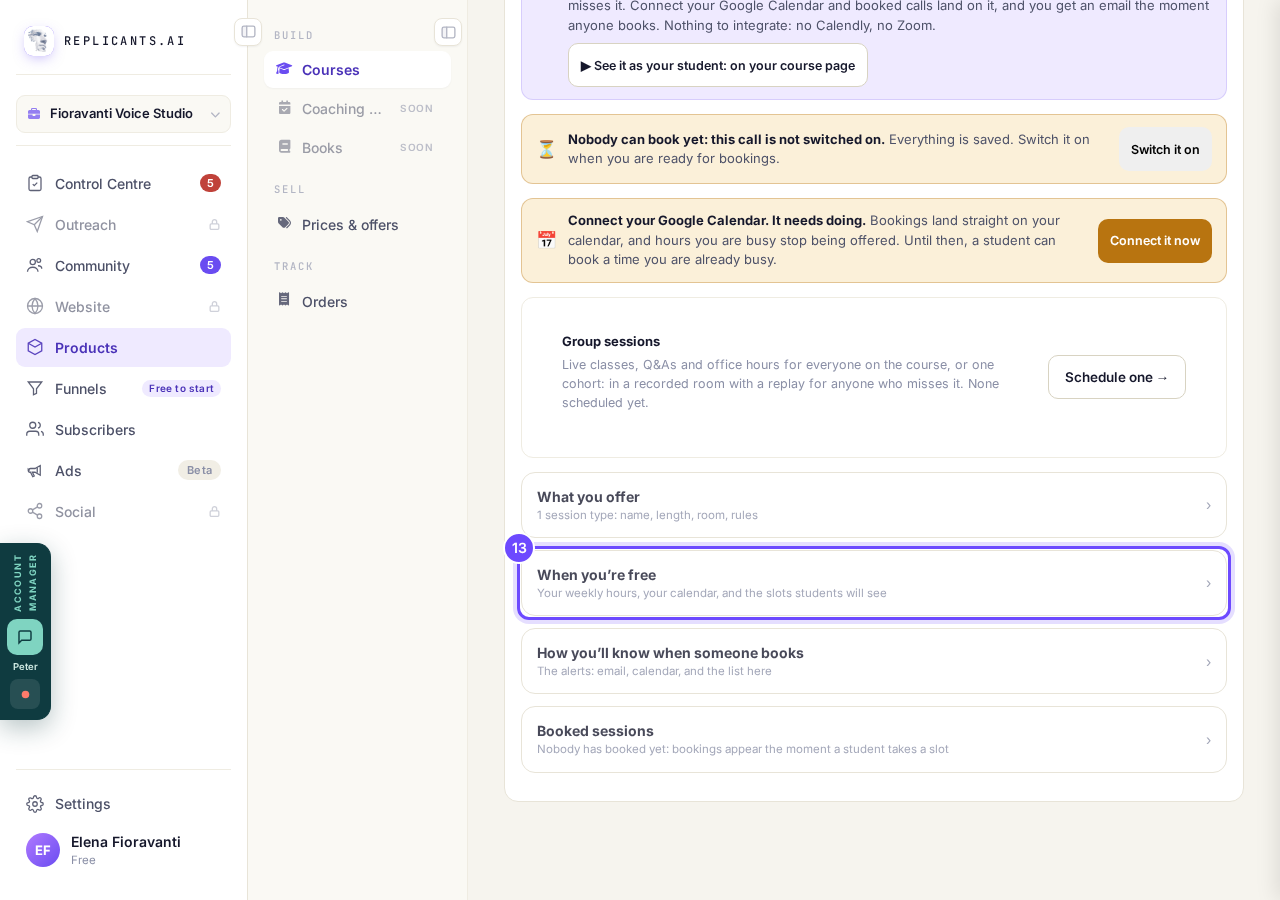
Press **When you’re free**.
Press + Add beside the day
To change a time, type over it. To take one away, press the × beside it.
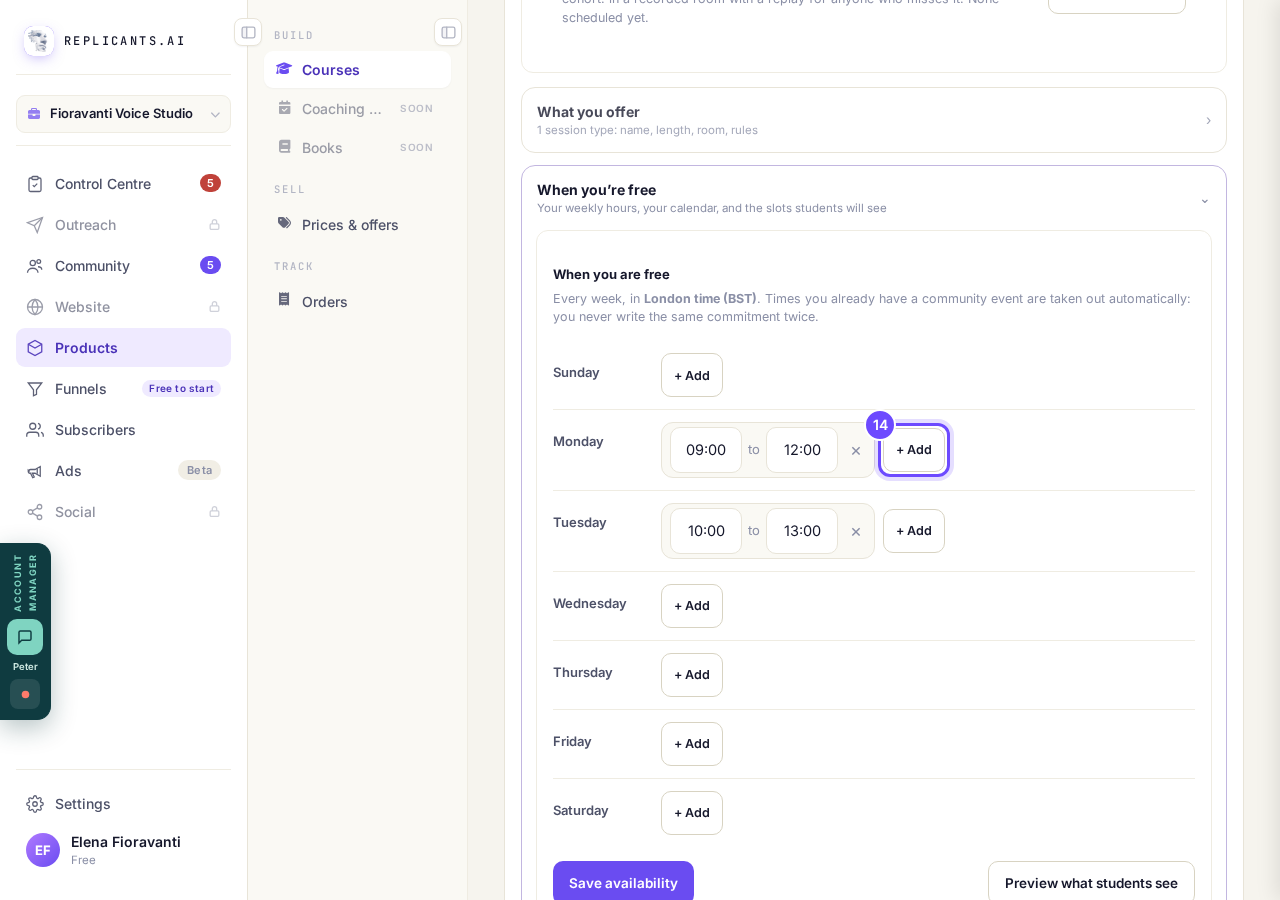
Press **+ Add** beside the day you want.
Type the times in the new row
A new row starts where that day's last one ends, here 12:00 to 15:00, so it never lands on top of another. Every change saves on its own. You do not need to press Save availability. If two times overlap, a line under the days says Not saved yet and which day to change.
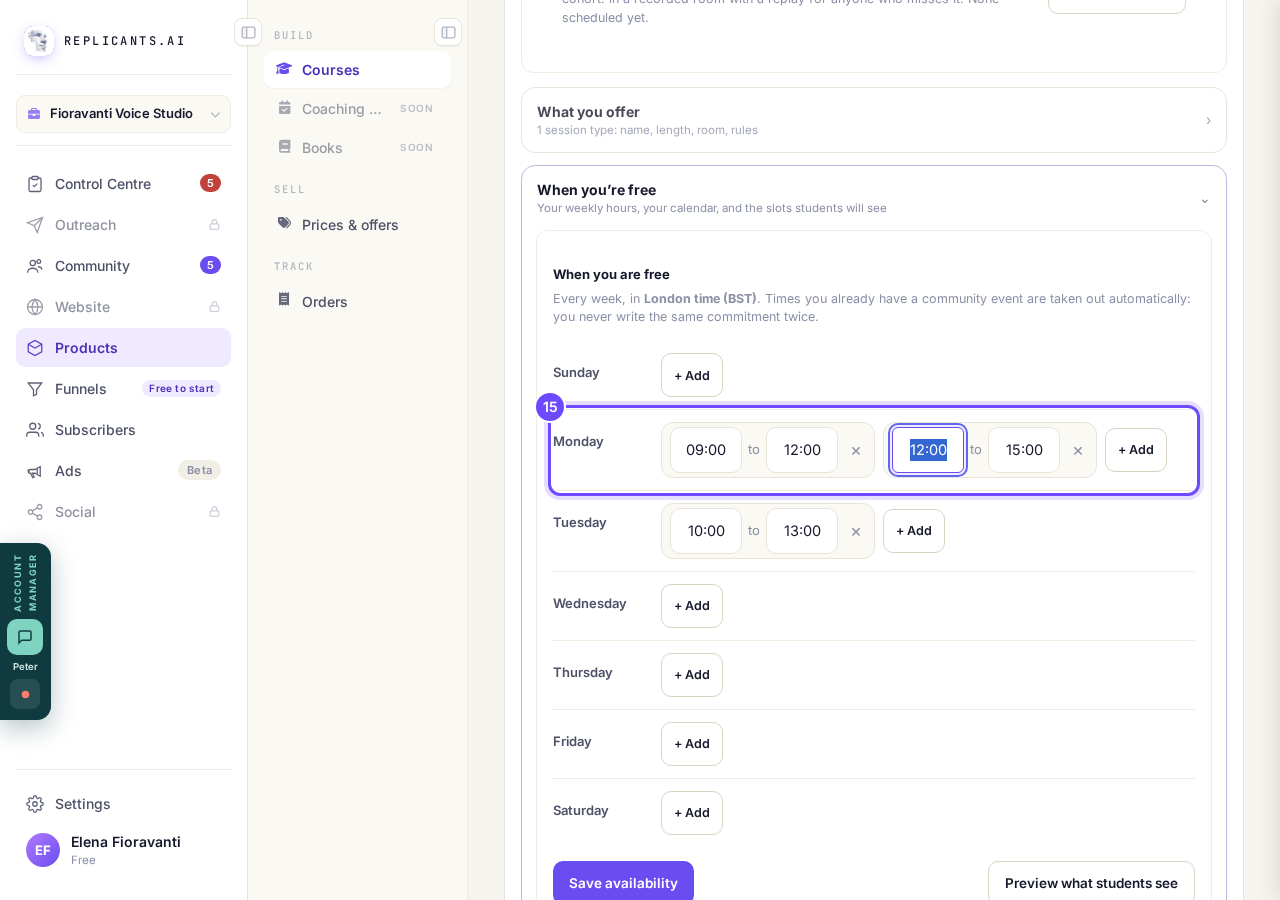
Type the times you want in the new row.


Related articles
How do I add, move or rename modules and lessons in my course?
Every course has a plan screen where you change its shape: add a module, move one, or rename a module or a lesson. It takes about two minutes.
How do I build a course, and what goes in it?
Maya builds it with you from six short questions. Open Products, then Courses, and press New course. She asks where you are starting from, then turns your answers into a plan of lessons that you approve before a word is written. You can speak your answers instead of typing them.
How do I email the students on my course?
Open your course, go to Students and press Email your students. Each student gets your words with their own first name, and an Open the course link that signs them straight in, with no password. About three minutes.