
Where do I find everything about my funnel, and how do I publish changes?
Each funnel has one home page with everything about it: what needs you, its emails, its numbers, its orders and its settings. There is one **Publish** button at the top for putting your changes live.
Updated 6 October 2026
Open Funnels
This lists all your funnels.
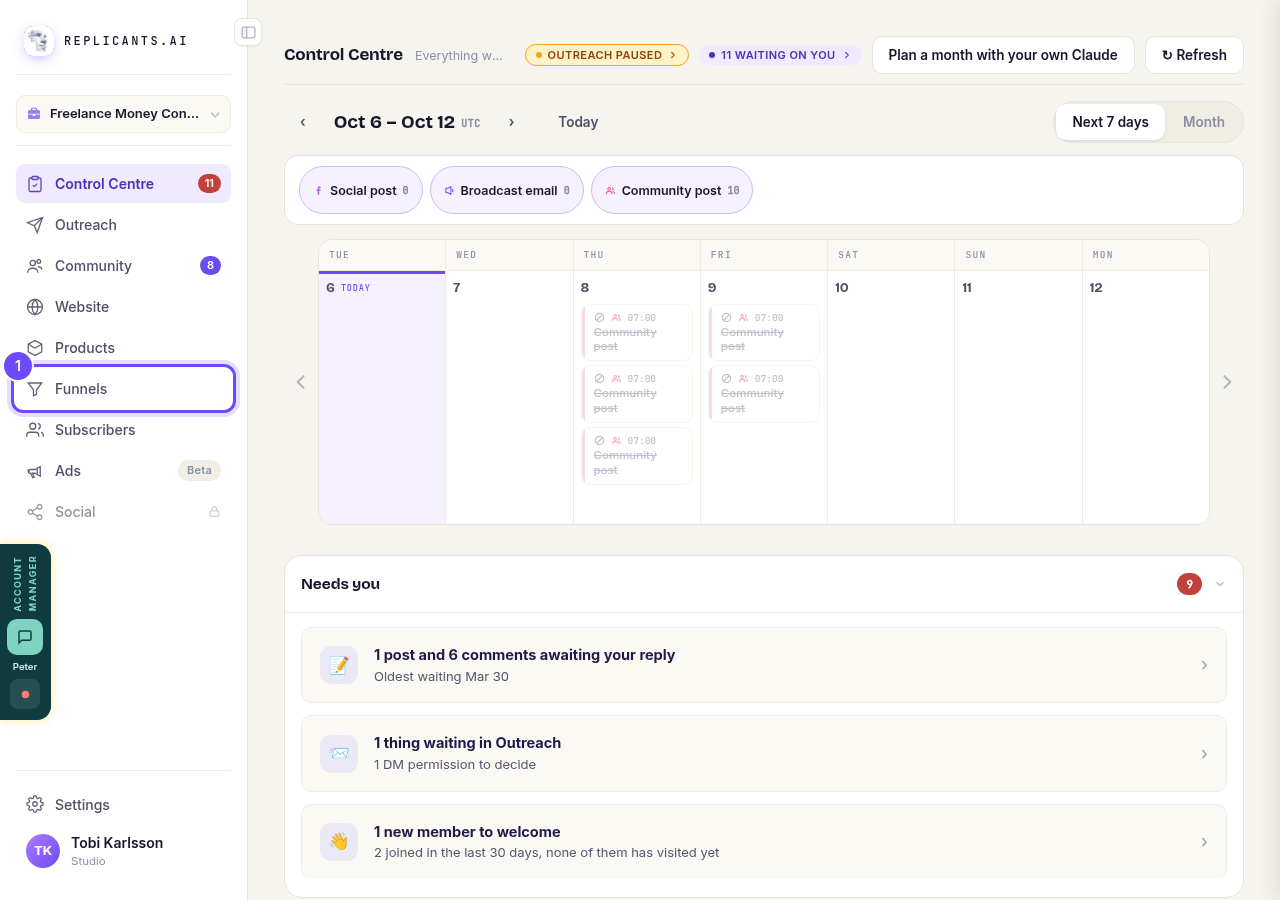
Press **Funnels** in the menu on the left.
Open your funnel
This opens the funnel's home page.
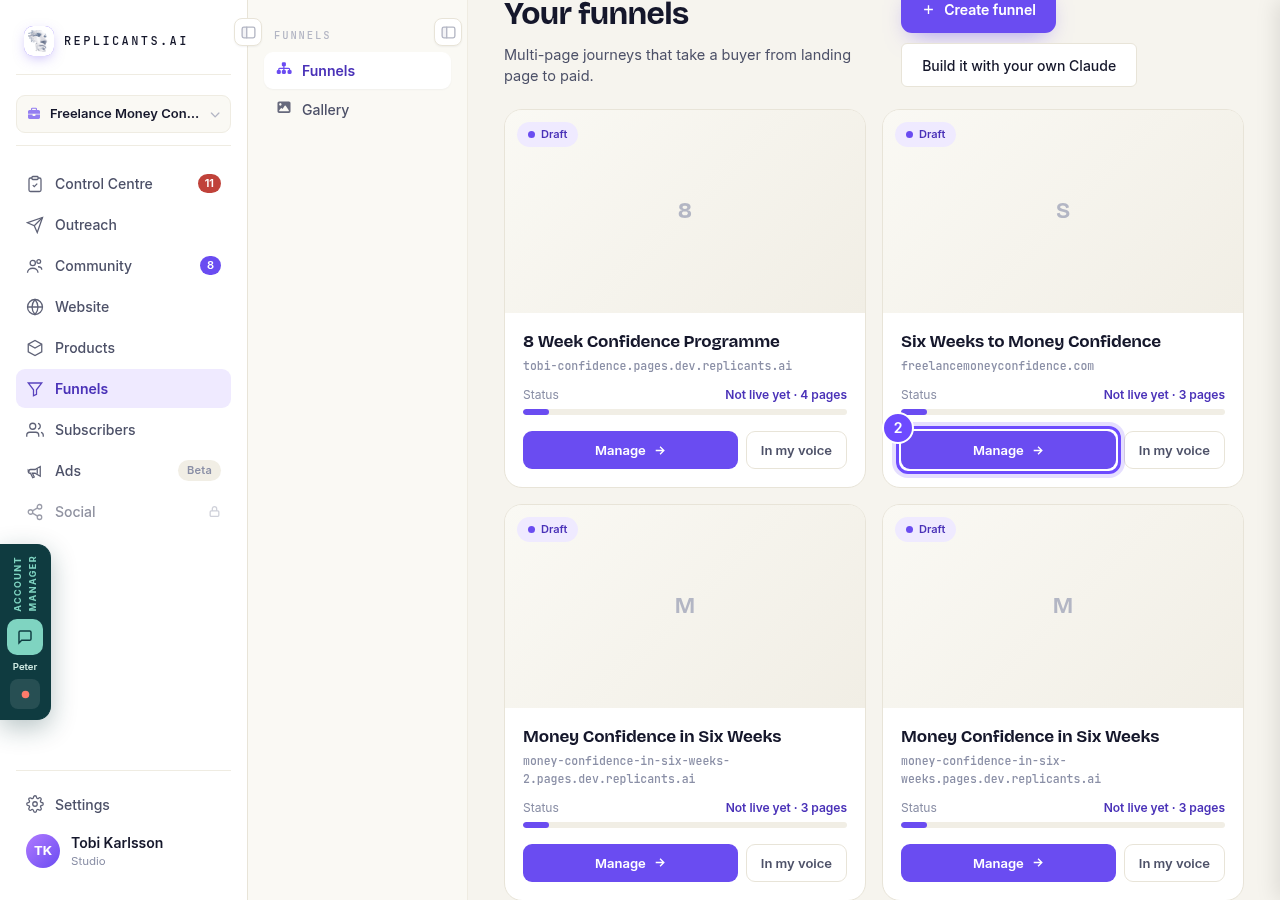
Press **Manage** on the funnel.
Publish it the first time
Until a funnel is live you see three tabs: Overview, Emails and Settings. Once every page is approved, the button at the top reads Publish it.
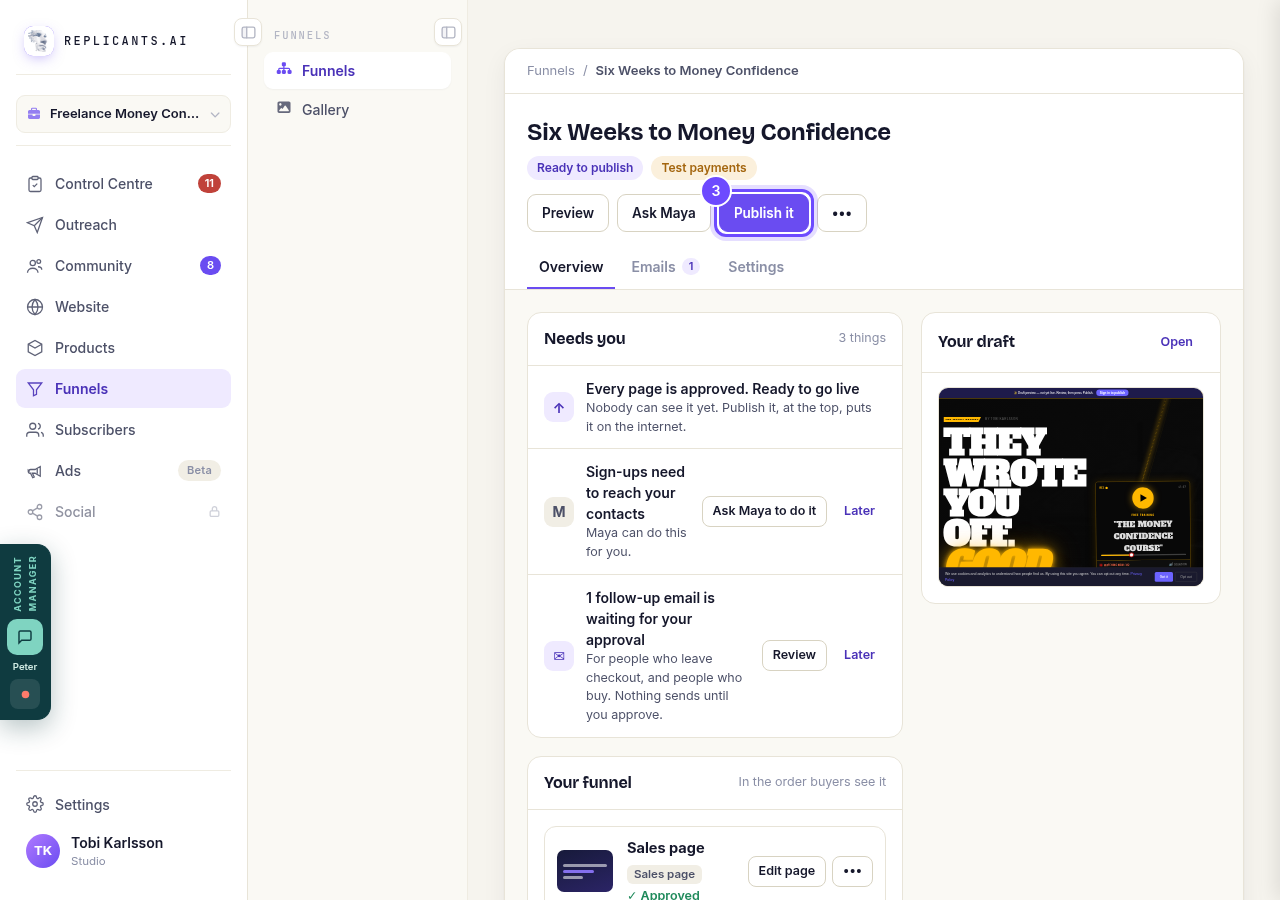
Press **Publish it**.
Say yes
Anyone with the link can now see it. Payments stay in test mode until you switch to real payments in Settings.
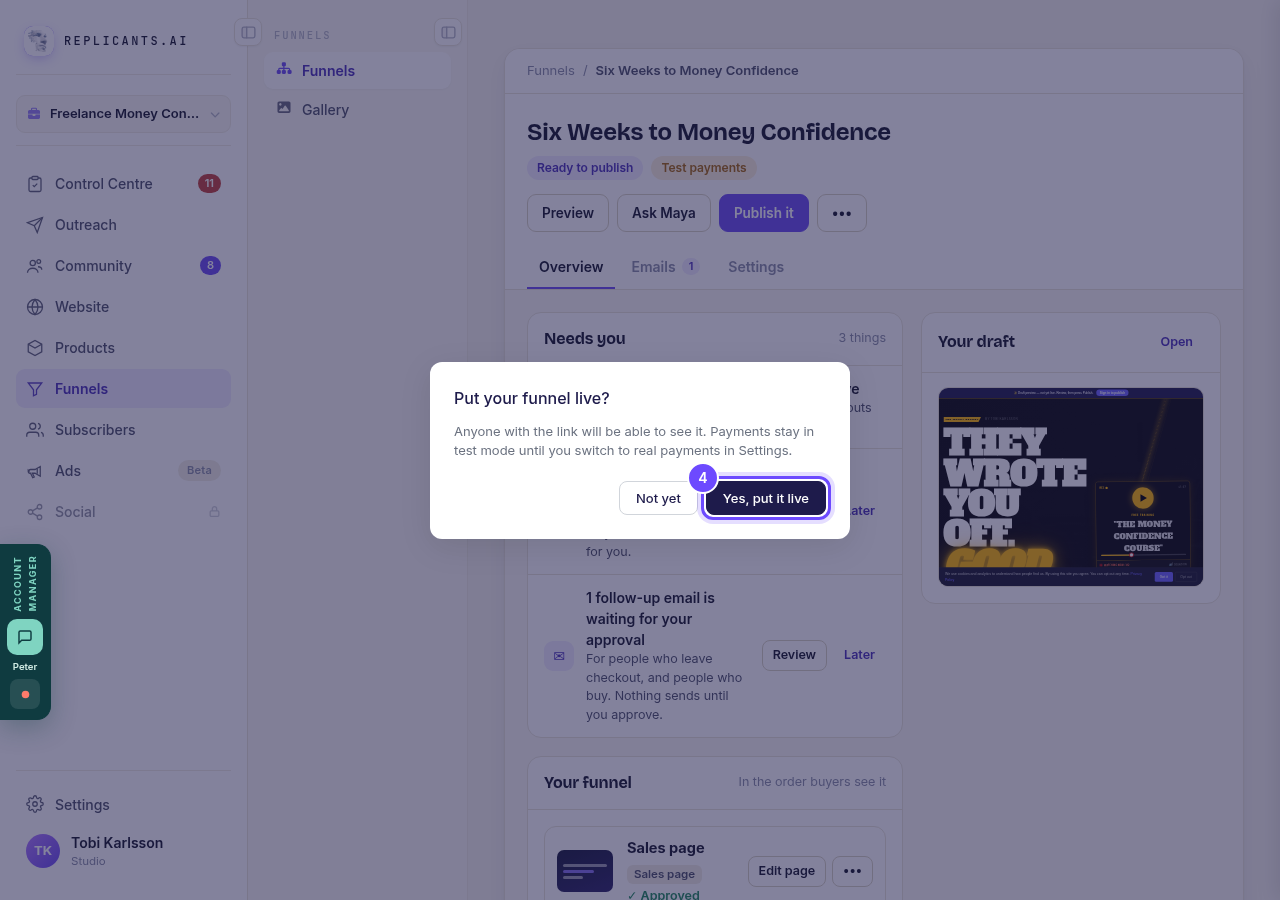
Press **Yes, put it live**.
Use Overview
Once it is live there are five tabs. Overview shows what needs you, how the funnel is doing, and your pages in the order buyers see them.
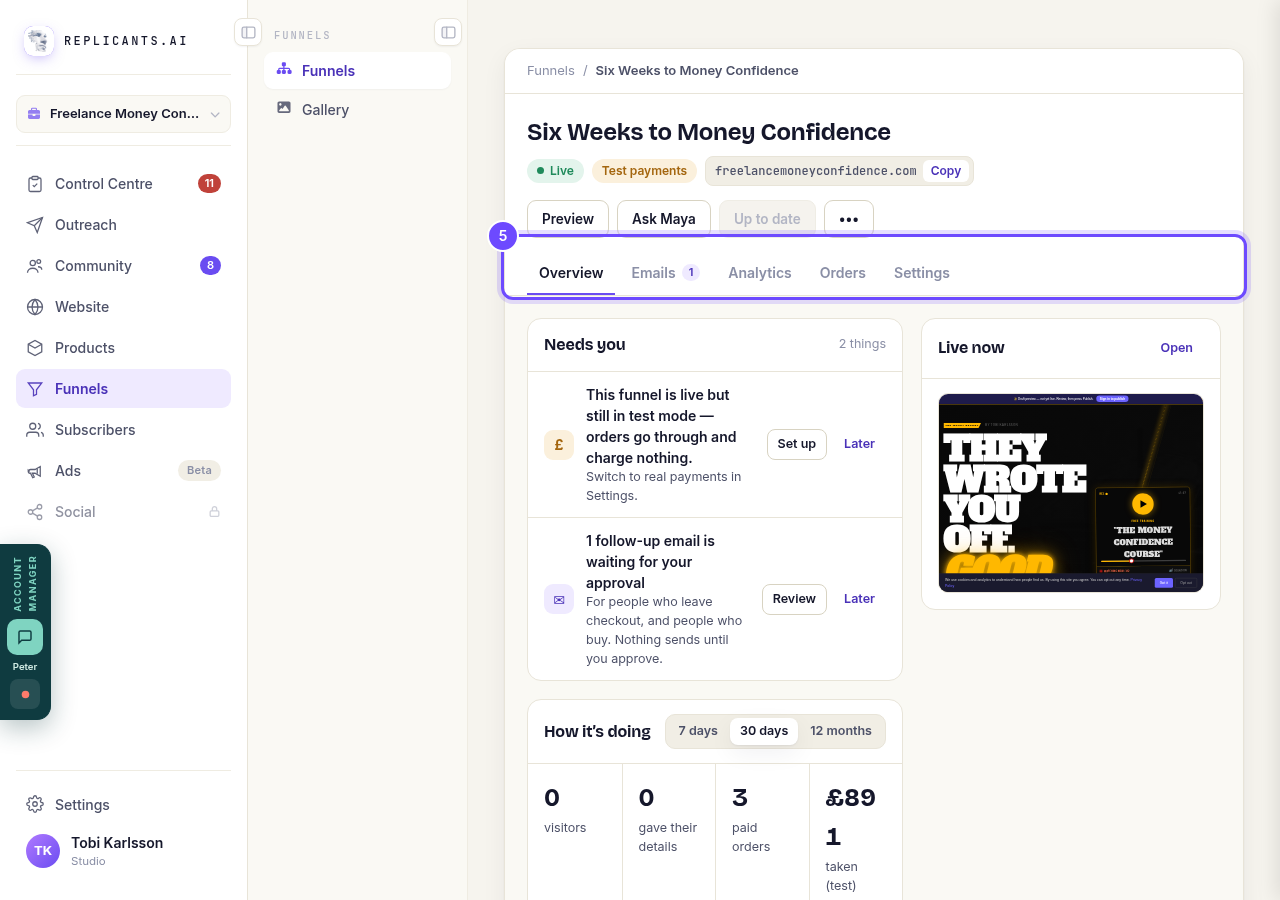
Press **Overview**.
Check Emails
The follow-up emails for people who leave checkout and for people who buy, plus the receipt. The number shows how many are waiting for your approval. Nothing sends until you approve it.
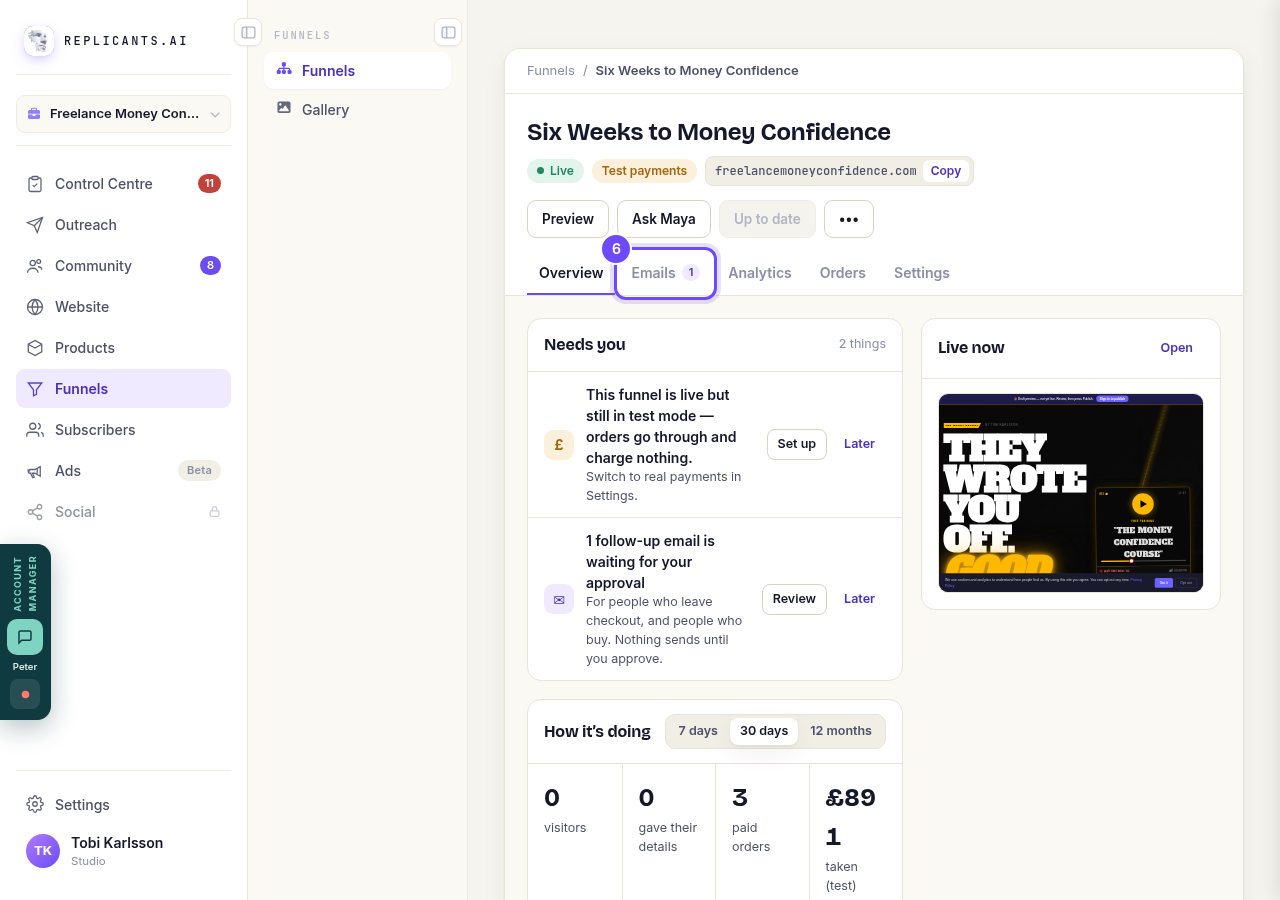
Press **Emails**.
Check Analytics
Visitors, sign-ups and sales, where people stop, and how each page is doing.
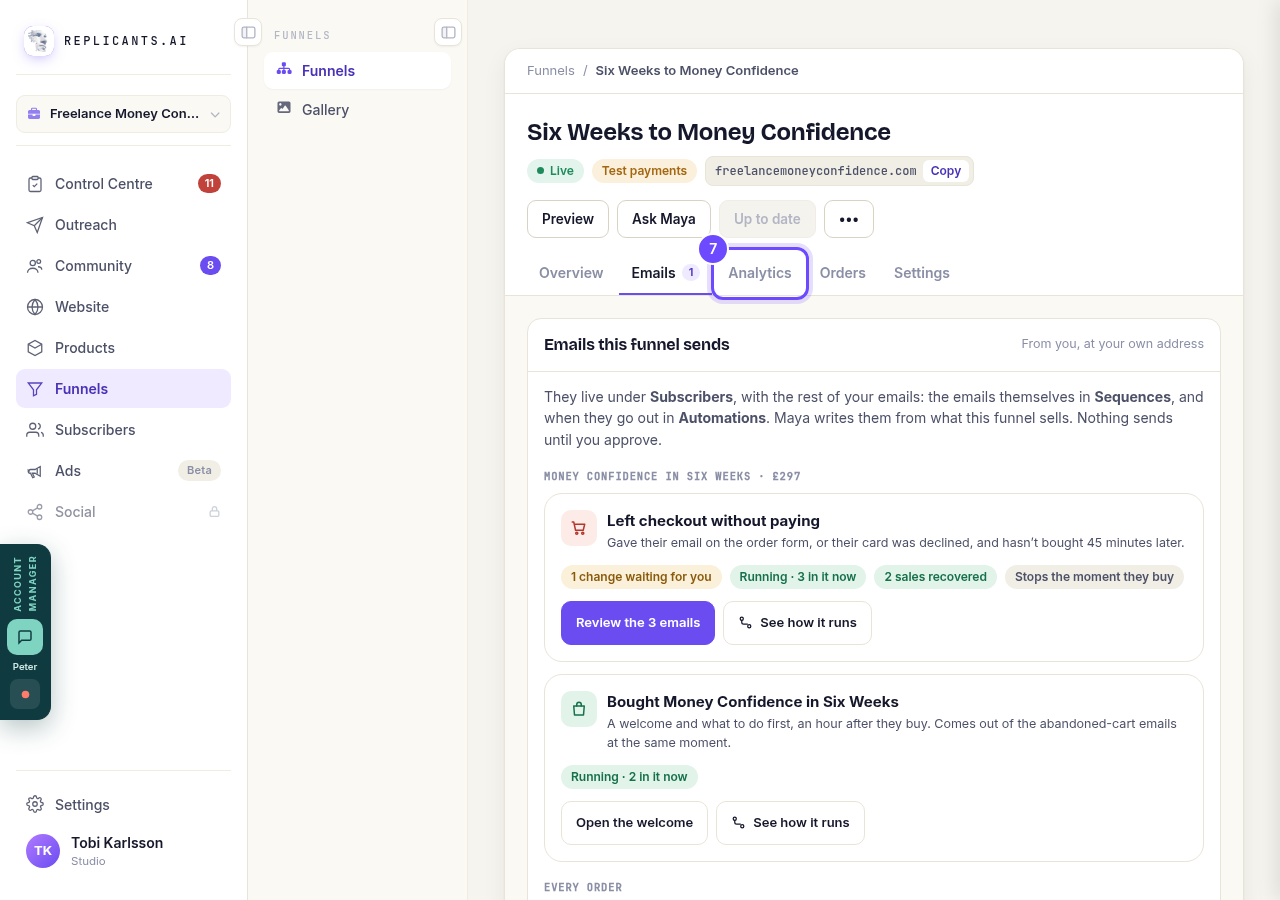
Press **Analytics**.
Check Orders
Everyone who has bought through this funnel.
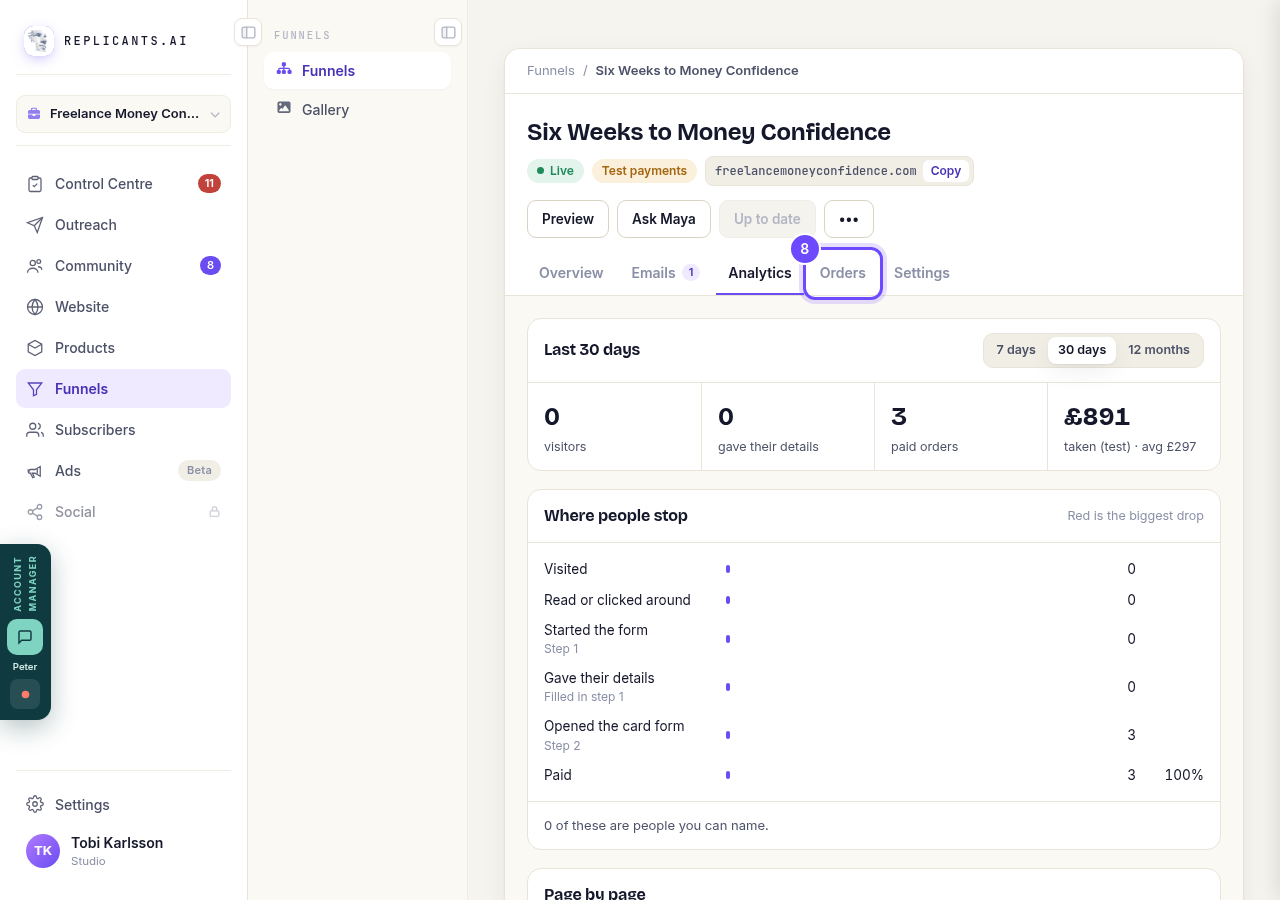
Press **Orders**.
Change Settings
The funnel's name, its web address, test or real payments, and the rest of its settings live here.
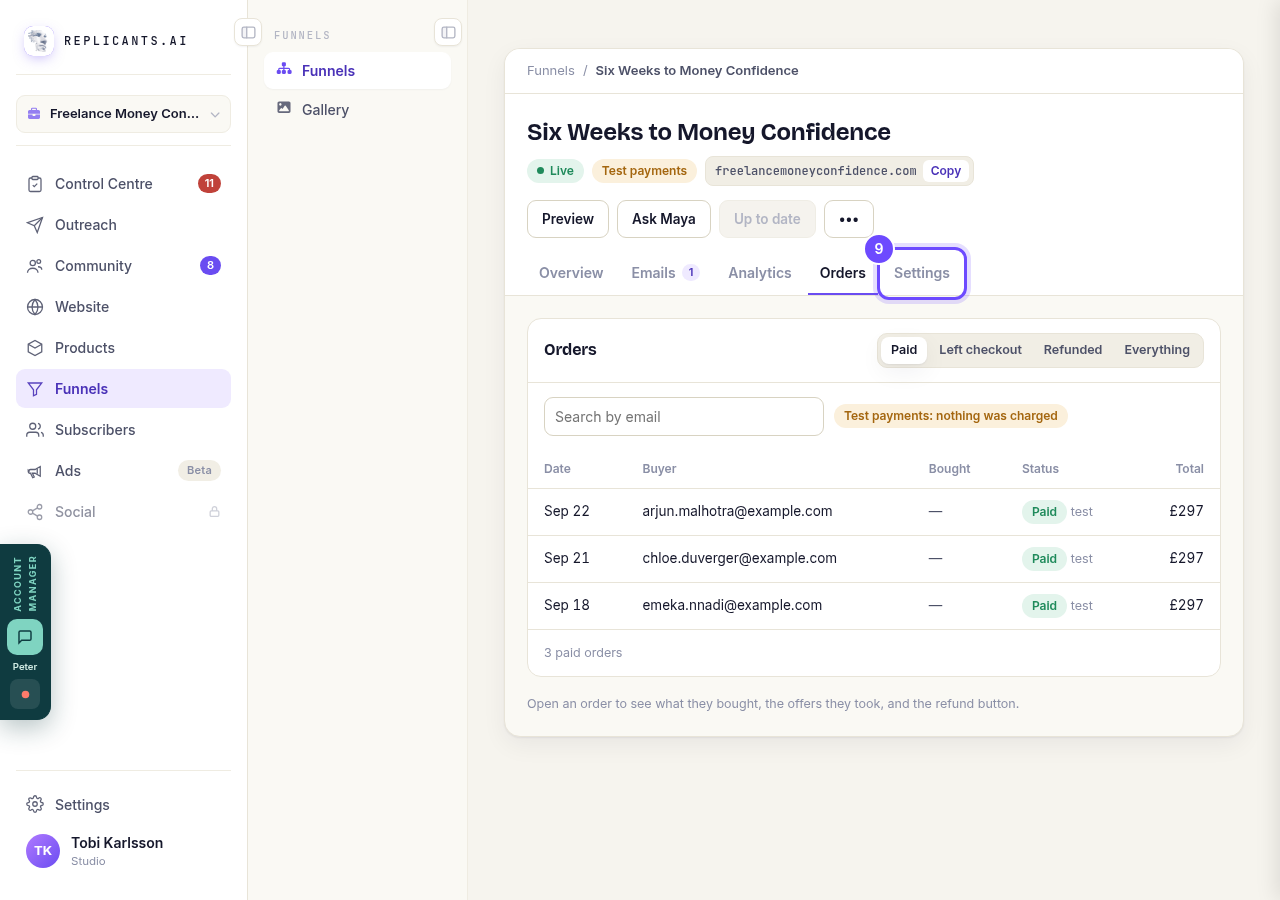
Press **Settings**.
Publish your changes
After you edit a page, this button reads Publish with the number of pages you changed. Press it to put them live.
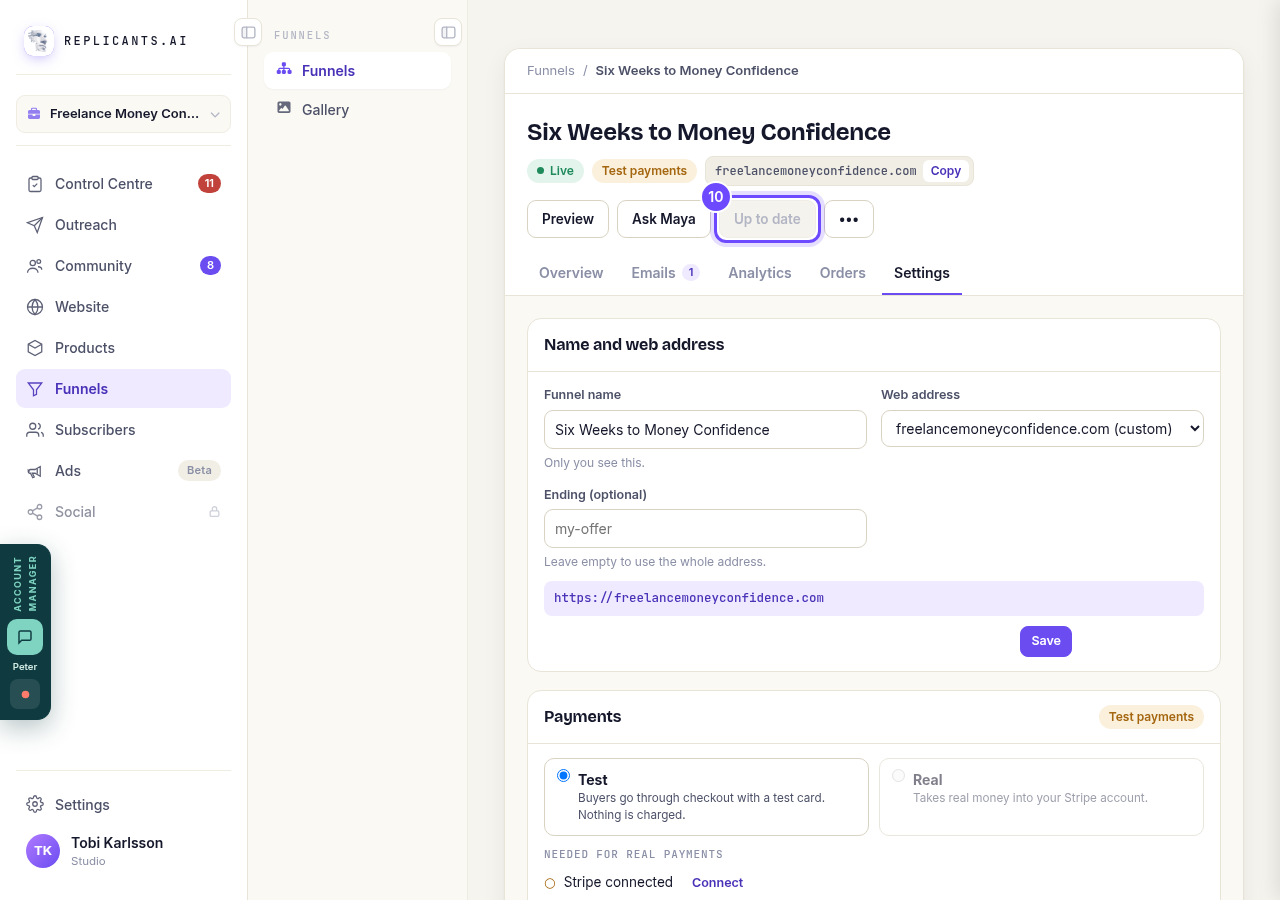
**Publish**, at the top. It reads **Up to date** when there is nothing new.


Related articles
Can I build a funnel before I pay?
Yes. Every account can open Funnels and build one finished page free. For the rest of the funnel, and to put it live, start the 14-day free trial.
How do I change the receipt my buyers get?
Every buyer gets a receipt with your business name at the top. You can give it your own heading and a message from you.
How do I get Maya to build my sales funnel from scratch?
Maya writes the whole funnel from what she knows about your business: the page that sells it, the order form, and the thank-you page. She reads what she already has first and only asks you for the gaps. You answer in your own words, read page one before she writes the rest, and press Publish. Without a plan, page one is free and the 14-day free trial covers the rest.