
How do I connect my LinkedIn to Outreach?
Connecting LinkedIn is the last step of setting up Outreach, and it starts on your Outreach dashboard. It takes about two minutes, on a computer, in Google Chrome.
Updated 6 October 2026
Open Outreach
Open Outreach and press Connect LinkedIn
When the earlier steps are done, opening Outreach takes you straight to the connect screens. If you closed them, the dashboard shows Last step: connect LinkedIn under Needs you. Press Connect LinkedIn there.
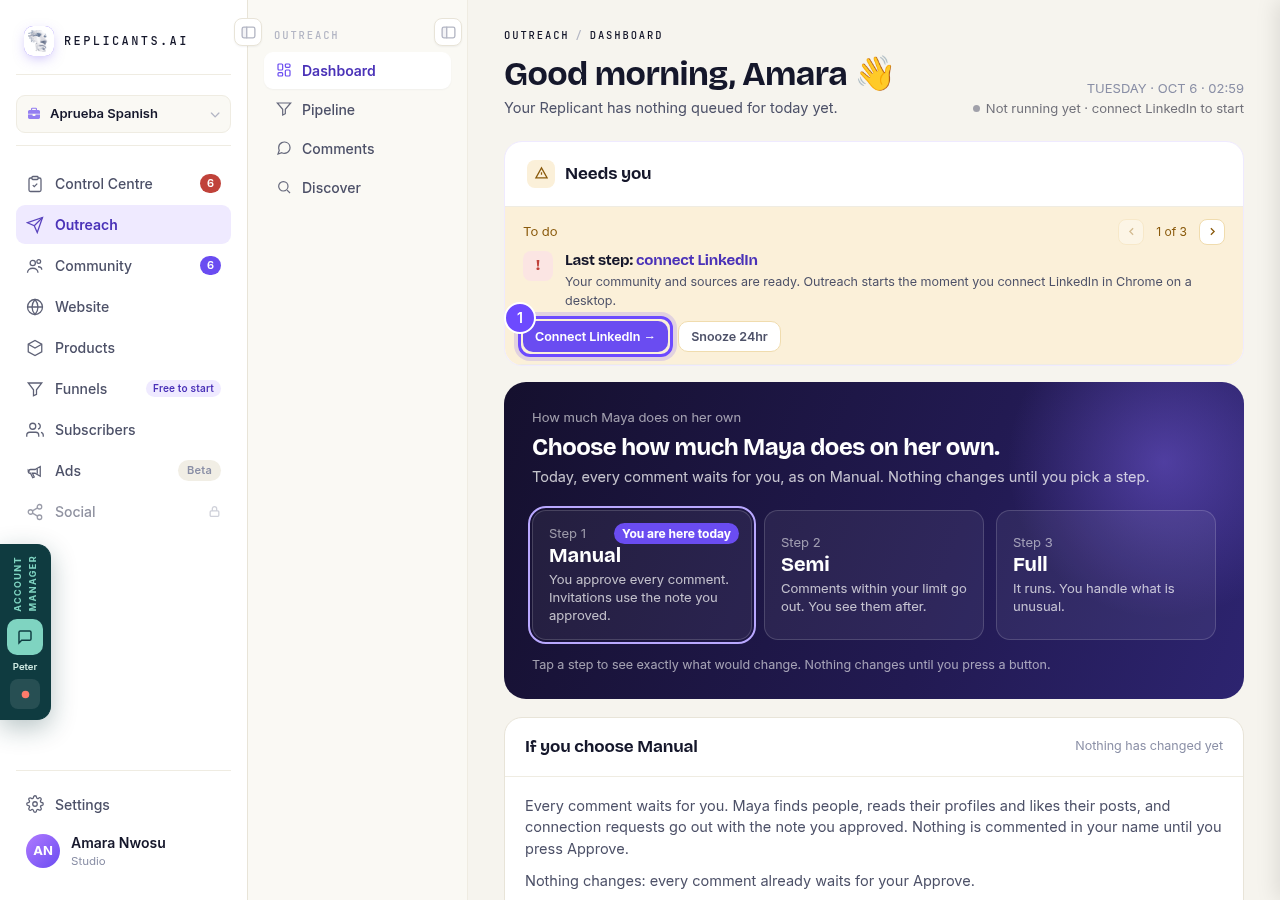
Last step: connect LinkedIn, with its Connect LinkedIn button.
Open OutreachRead your note and press These are my words
The first time, a page called Before anything goes out in your name comes first. It lists everything Outreach will do from your LinkedIn.
Press Read and edit your note. This is the note that goes with every connection request, in your name. Change any words you like, then press These are my words. Until you do, the connect button stays grey.
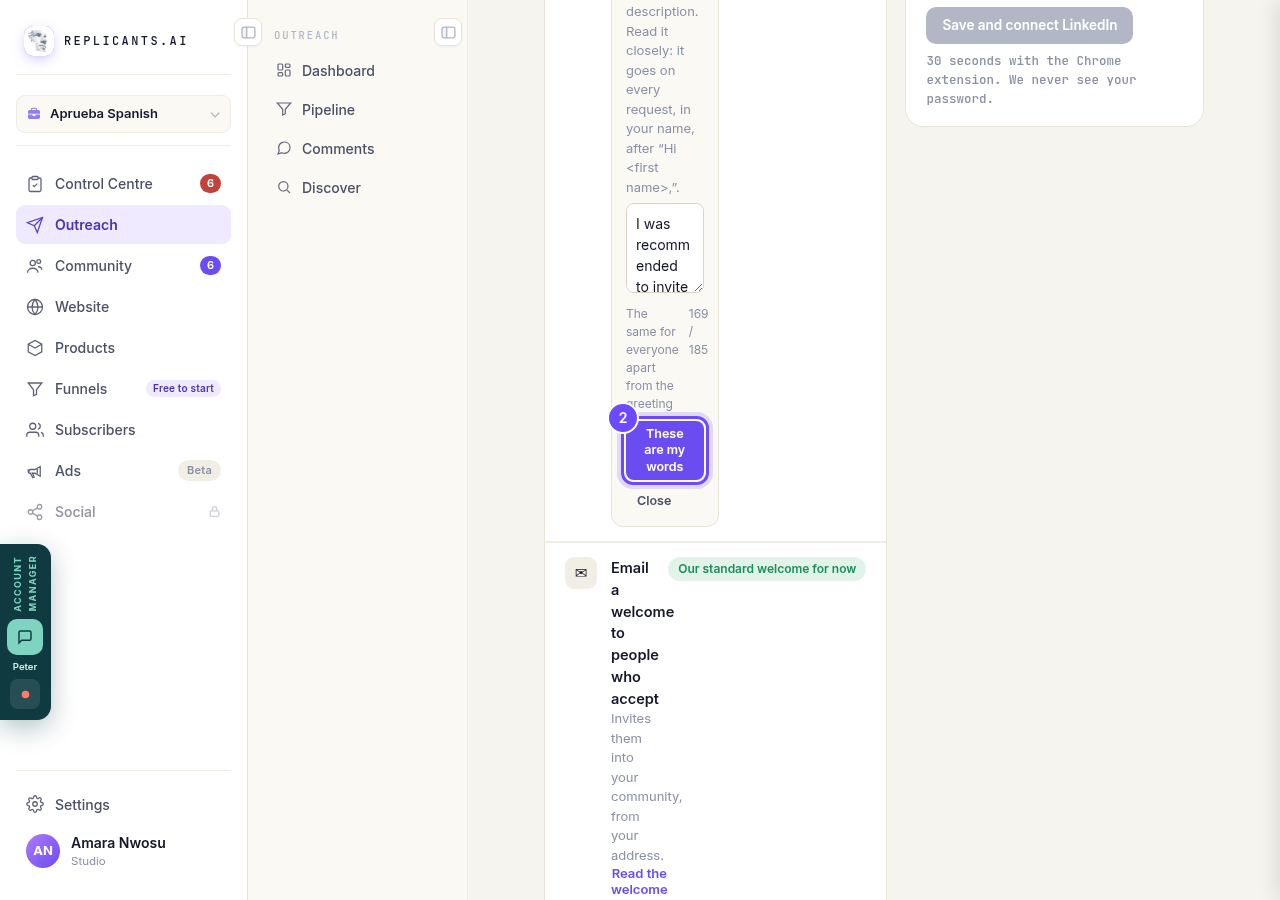
These are my words, under your connection note.
Press Save and connect LinkedIn
Once your note is saved, Save and connect LinkedIn turns purple. On the same page you can choose how much Maya does on her own; Manual, where every comment waits for you, is where most people start. Then press Save and connect LinkedIn.
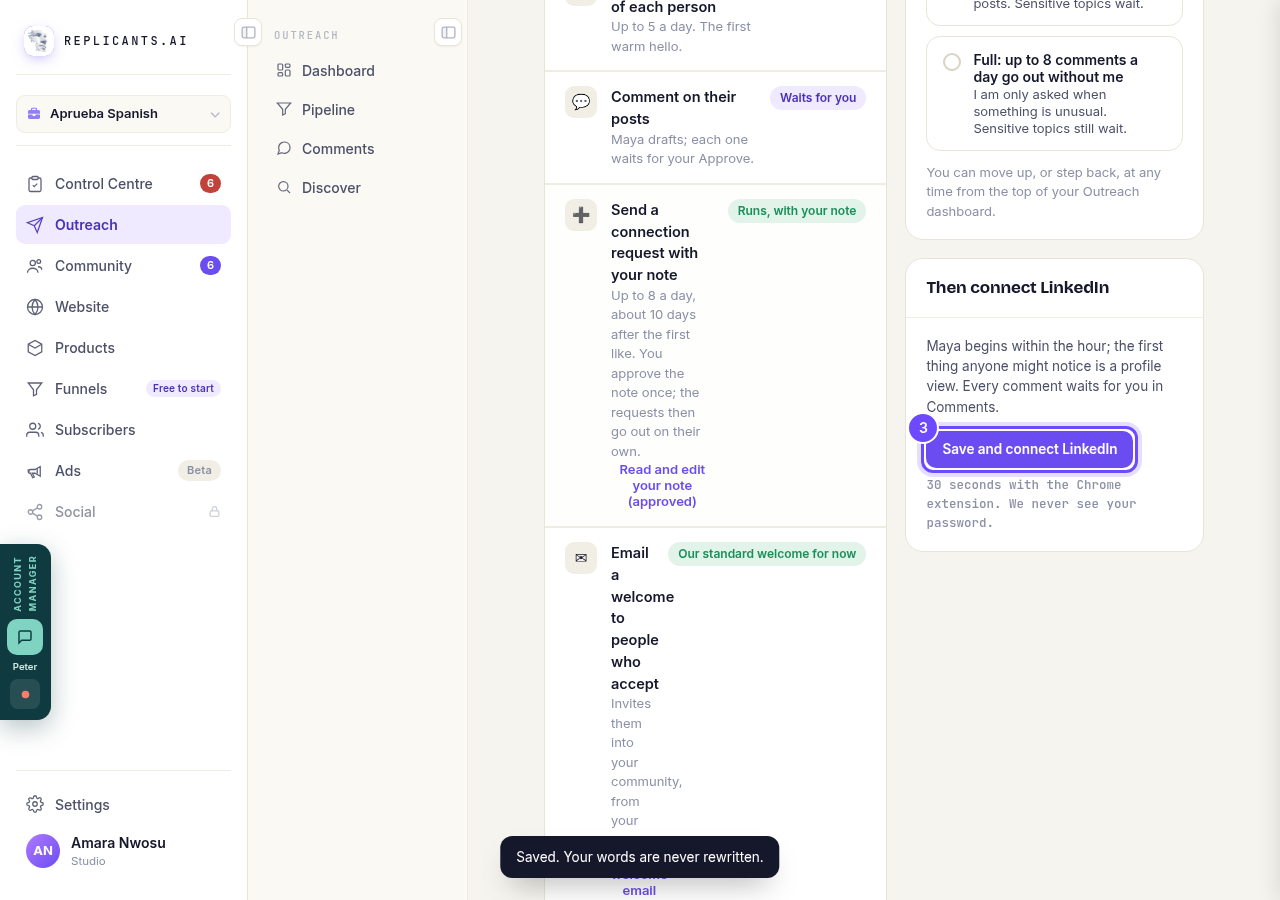
Save and connect LinkedIn, under Then connect LinkedIn.
Press Install Chrome extension
The screen says Last step: connect LinkedIn at the top. The Chrome Web Store opens in a new tab: add the Replicants extension there, then come back and press the button that now starts I've installed it, which refreshes the page.
If the extension is already in your Chrome, this screen is skipped.
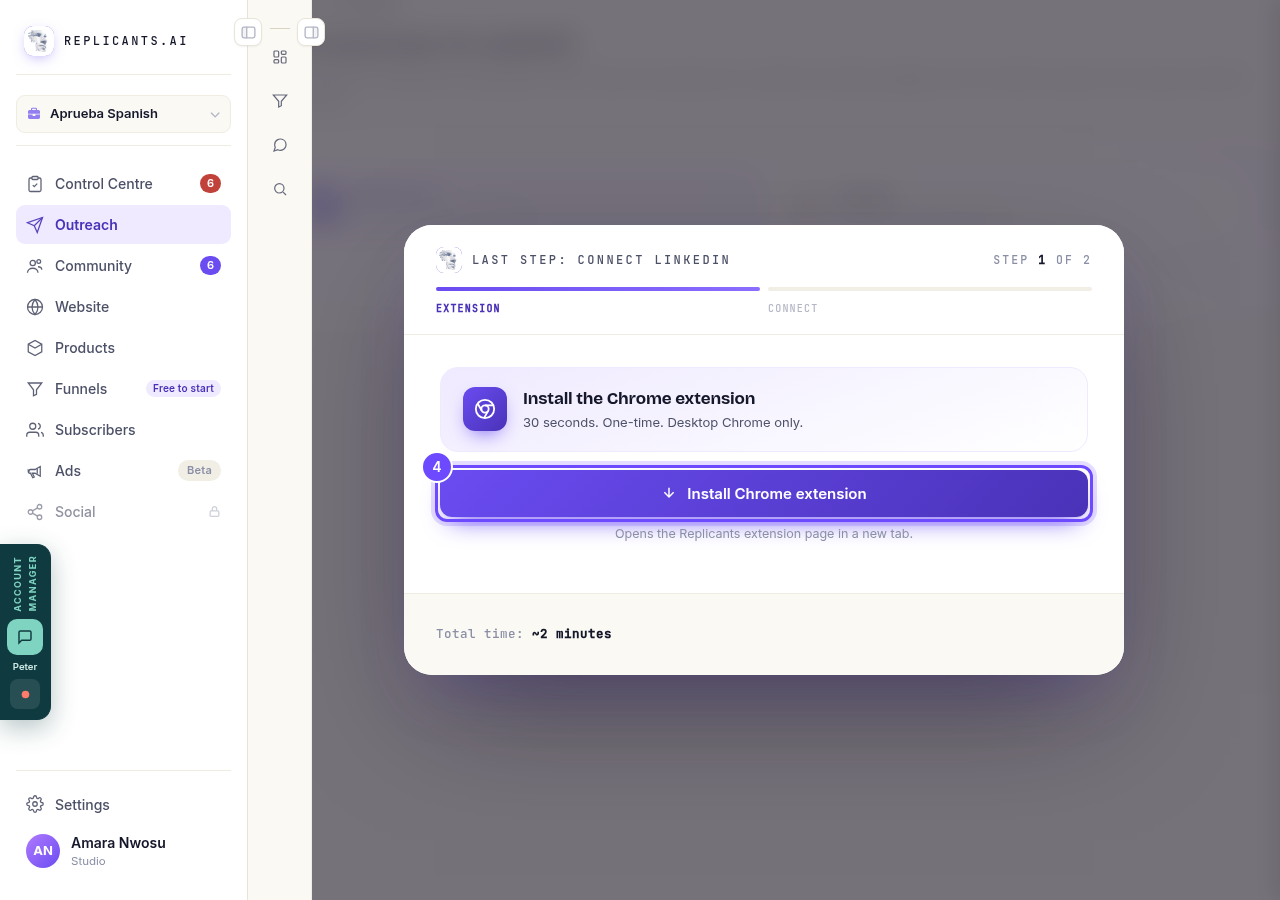
Install Chrome extension, the first of the two connect screens.
Press Open LinkedIn and sign in
With the extension in place, the screen shows Sign in to LinkedIn. Press Open LinkedIn: LinkedIn opens in a new tab. Sign in the way you always do, then come back. We never see your password.
The screen says Waiting for sign-in while it checks, and Check now checks straight away. If signing in will not work right now, it moves you on after three minutes, or press Skip & continue, and you can connect later from the dashboard.
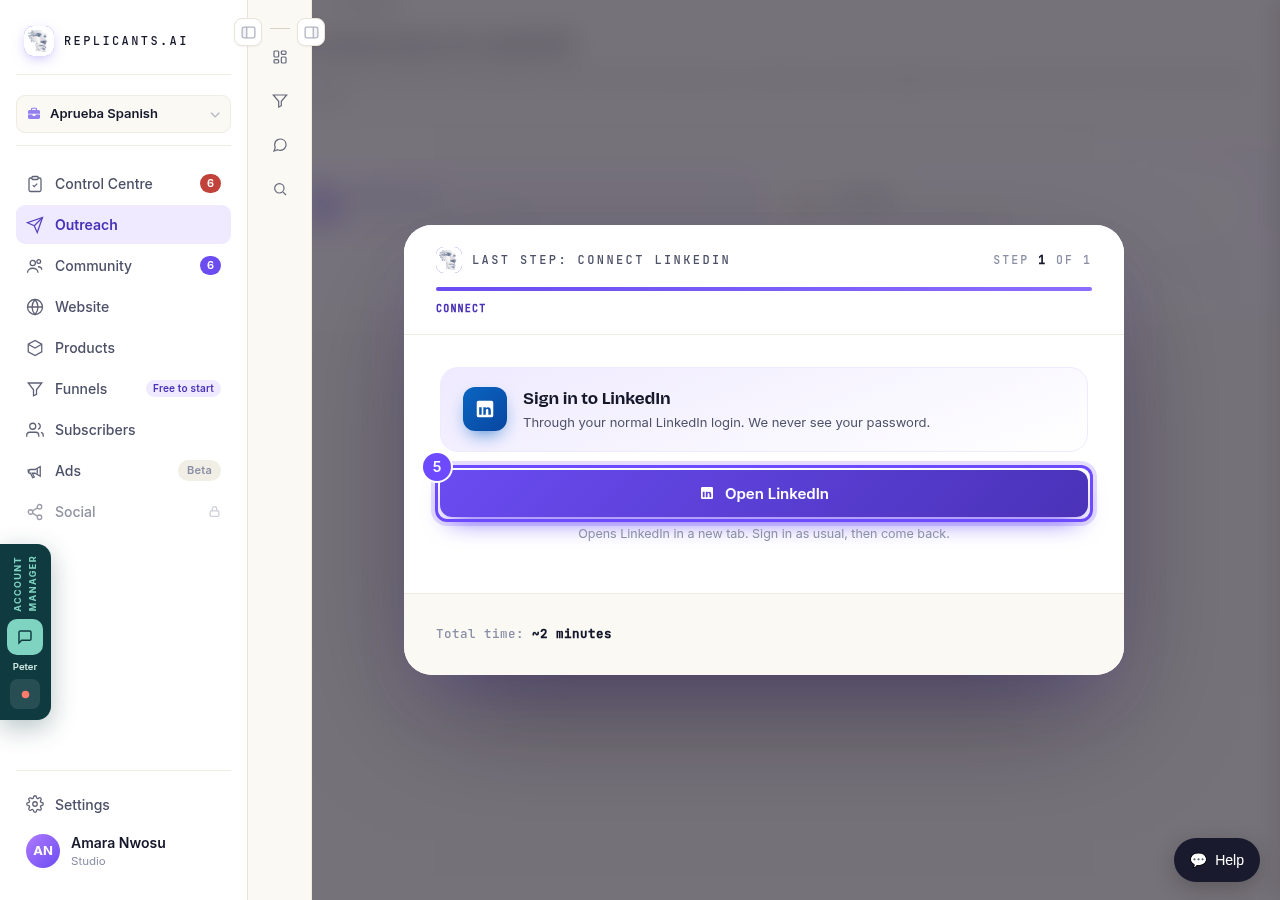
Open LinkedIn, on Sign in to LinkedIn.
Check that it worked
The screen says LinkedIn connected, then takes you to your Outreach dashboard. The line at the top right says Replicant active while Outreach is running.
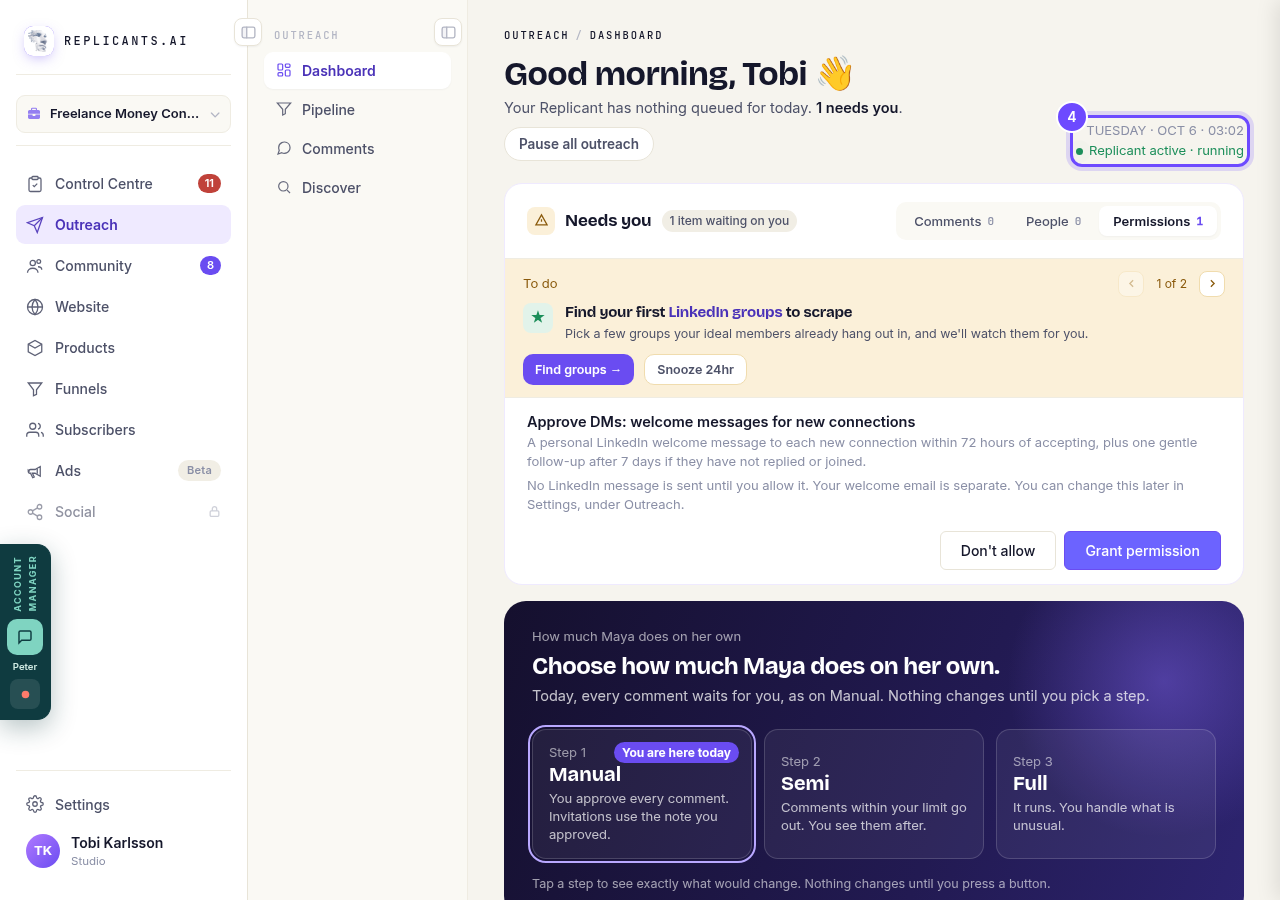
Replicant active, at the top right of the Outreach dashboard.
Related articles
Can I use Outreach on Instagram or X?
Not yet. Today Outreach works on LinkedIn only, through your own account. Instagram and X are coming soon, and nothing you set up now is wasted.
Do my new connections get a welcome email automatically?
Yes. If you use Outreach, every new connection gets a welcome email by itself, as soon as we have their email address. The LinkedIn welcome message is the one that waits for your go-ahead. One screen shows you both, in about two minutes.
How does Outreach turn strangers into community members?
Outreach finds people who have recently shown an interest in the problem you solve, gets your name in front of them on LinkedIn, and brings the ones who say yes into your community. Most of it runs by itself. Your part is a few minutes a day approving comments, and then making new members feel welcome.