
How do I send one email in a sequence only to some people?
Each email in a sequence can go to everyone, or only to people with (or without) a tag. Anyone it leaves out skips that email and gets the next one on its usual day. About two minutes.
Updated 9 October 2026
Open Subscribers, then Sequences
On a phone, press the menu button at the top right first, then Subscribers, then Sequences.
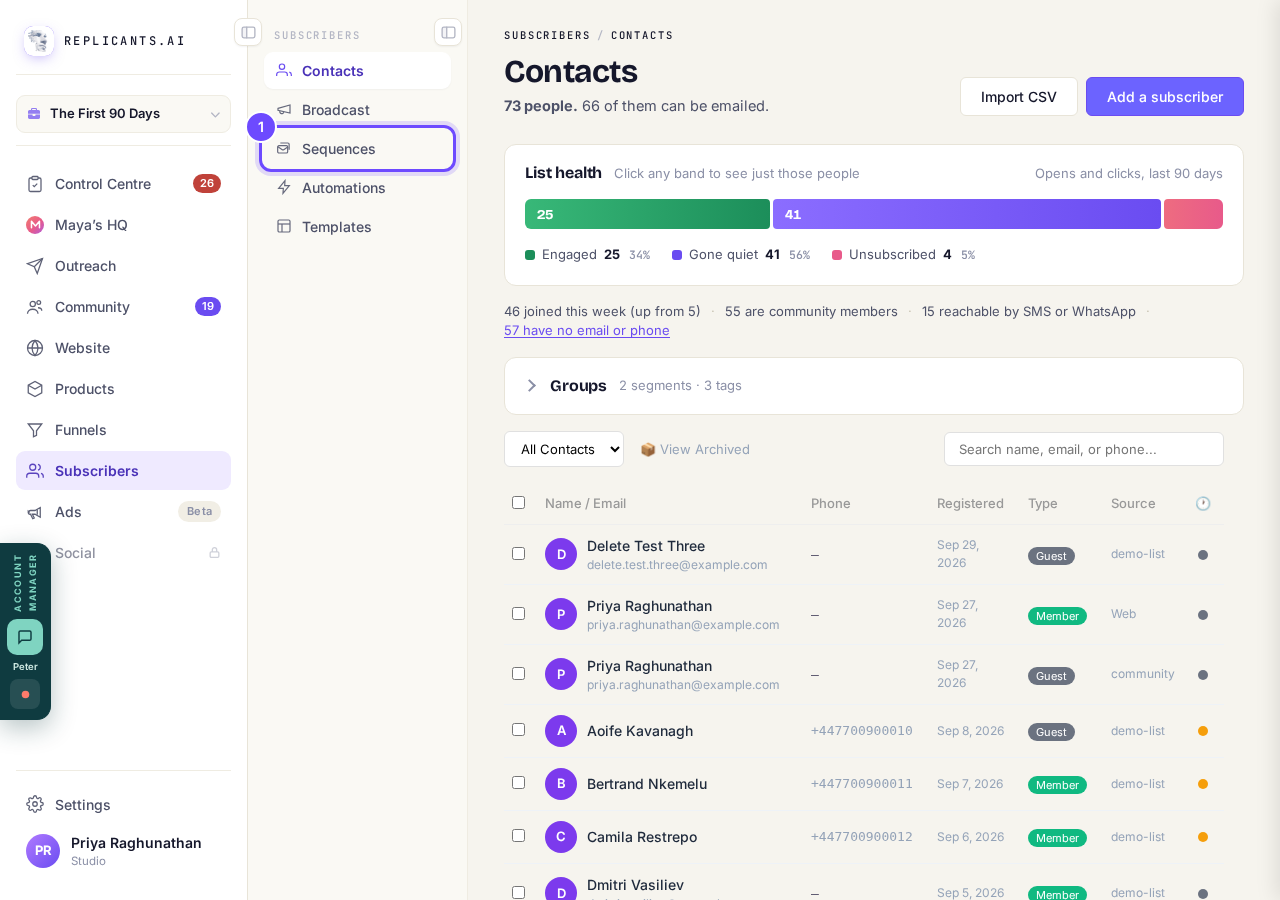
Sequences, under Subscribers.
Open SubscribersPress your sequence
It opens on its emails.
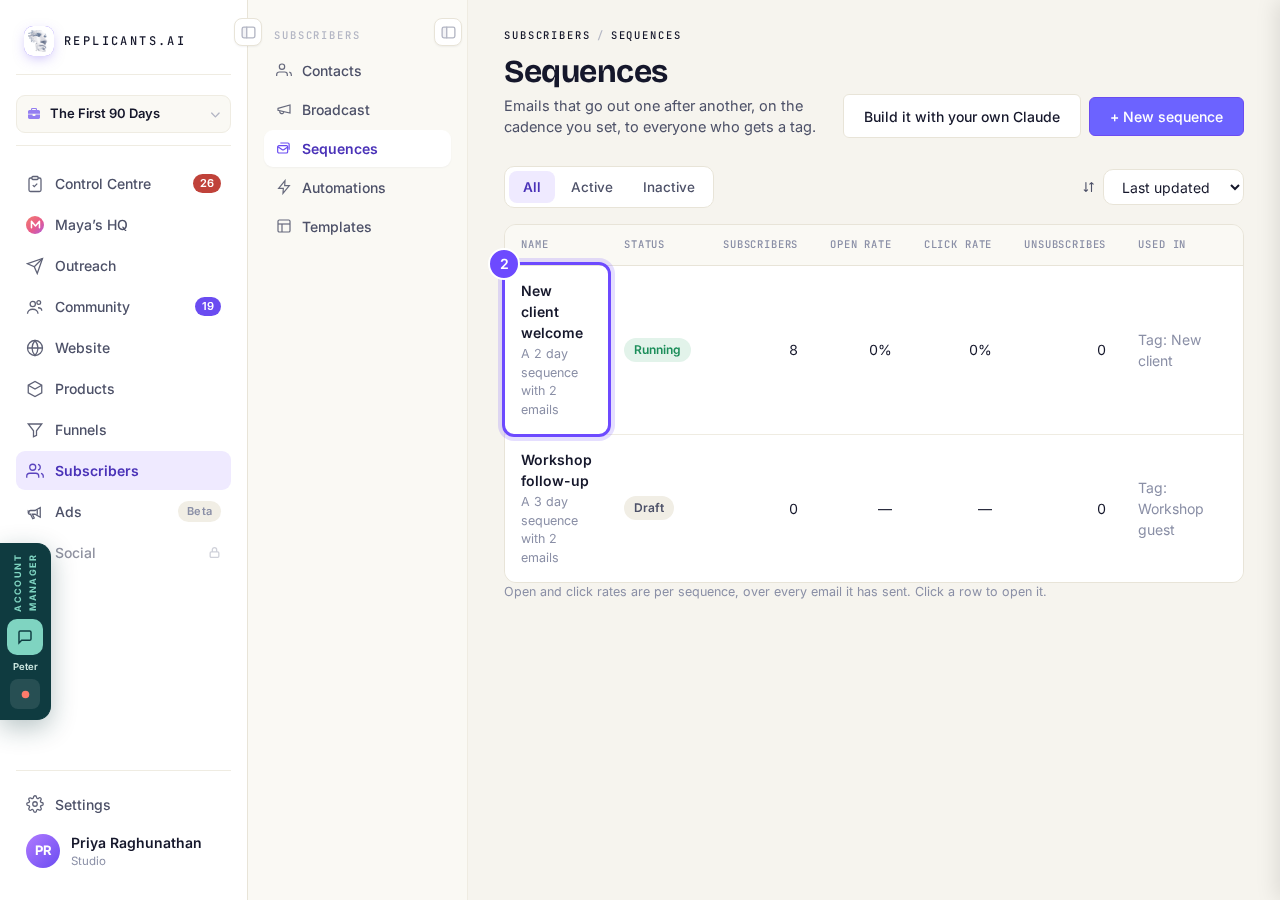
The sequence, in the list.
Press the email you want
The list of emails is on the right. On a phone, it is below the email you are looking at, so scroll down to it.
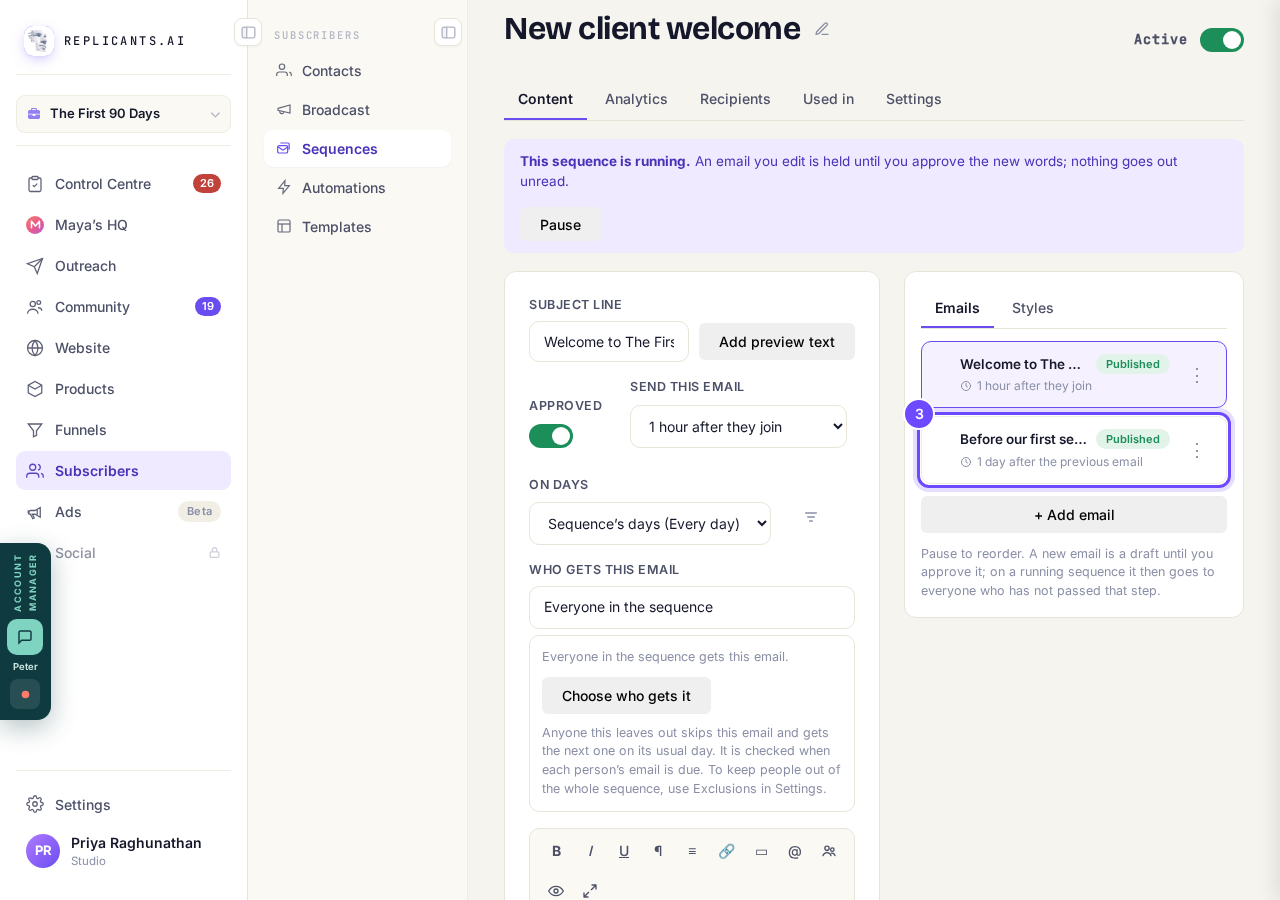
The email, in the list of emails.
Find Who gets this email
It is under On days, and says Everyone in the sequence until you choose.
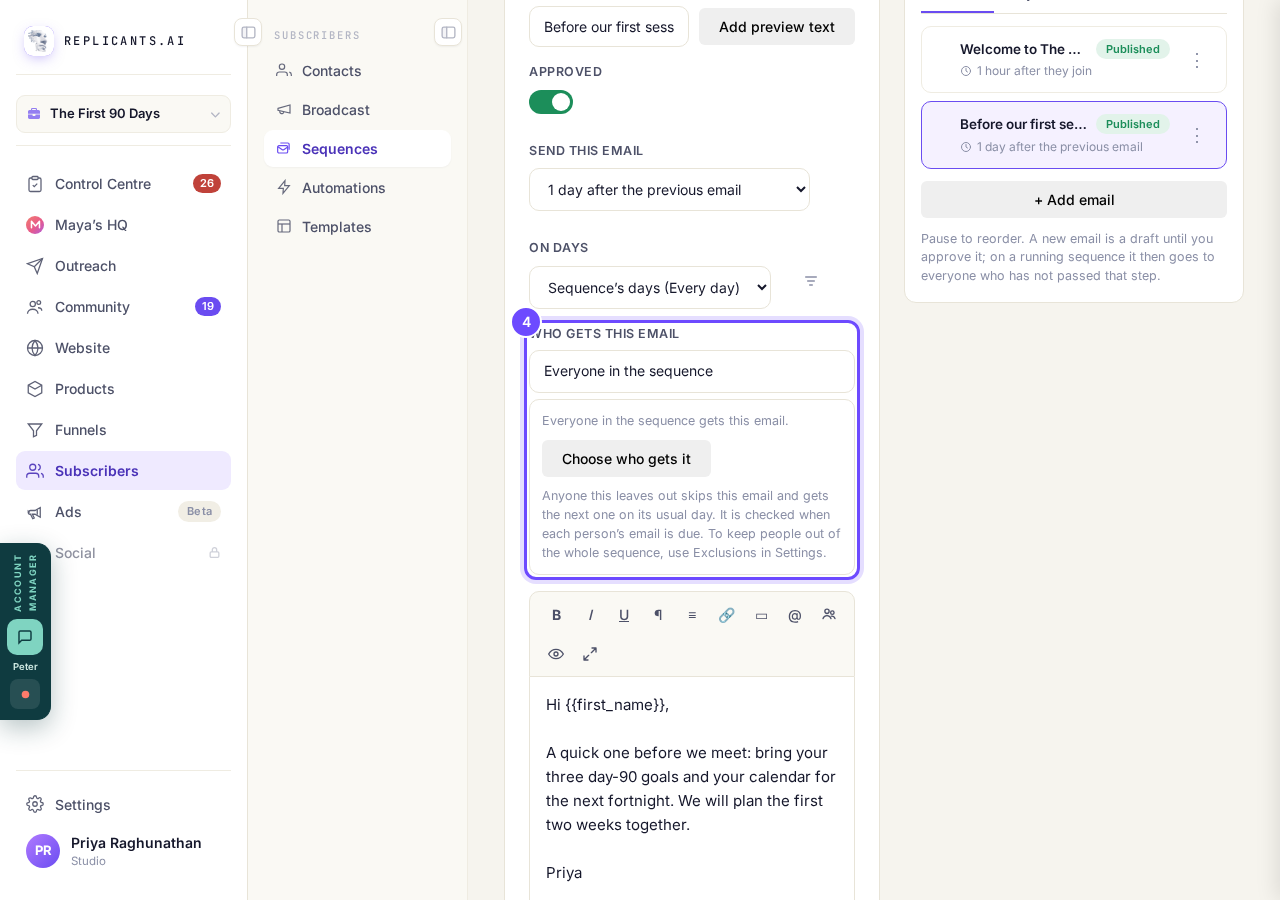
Who gets this email, under On days.
Press Choose who gets it
A window opens: Send this email to people who…
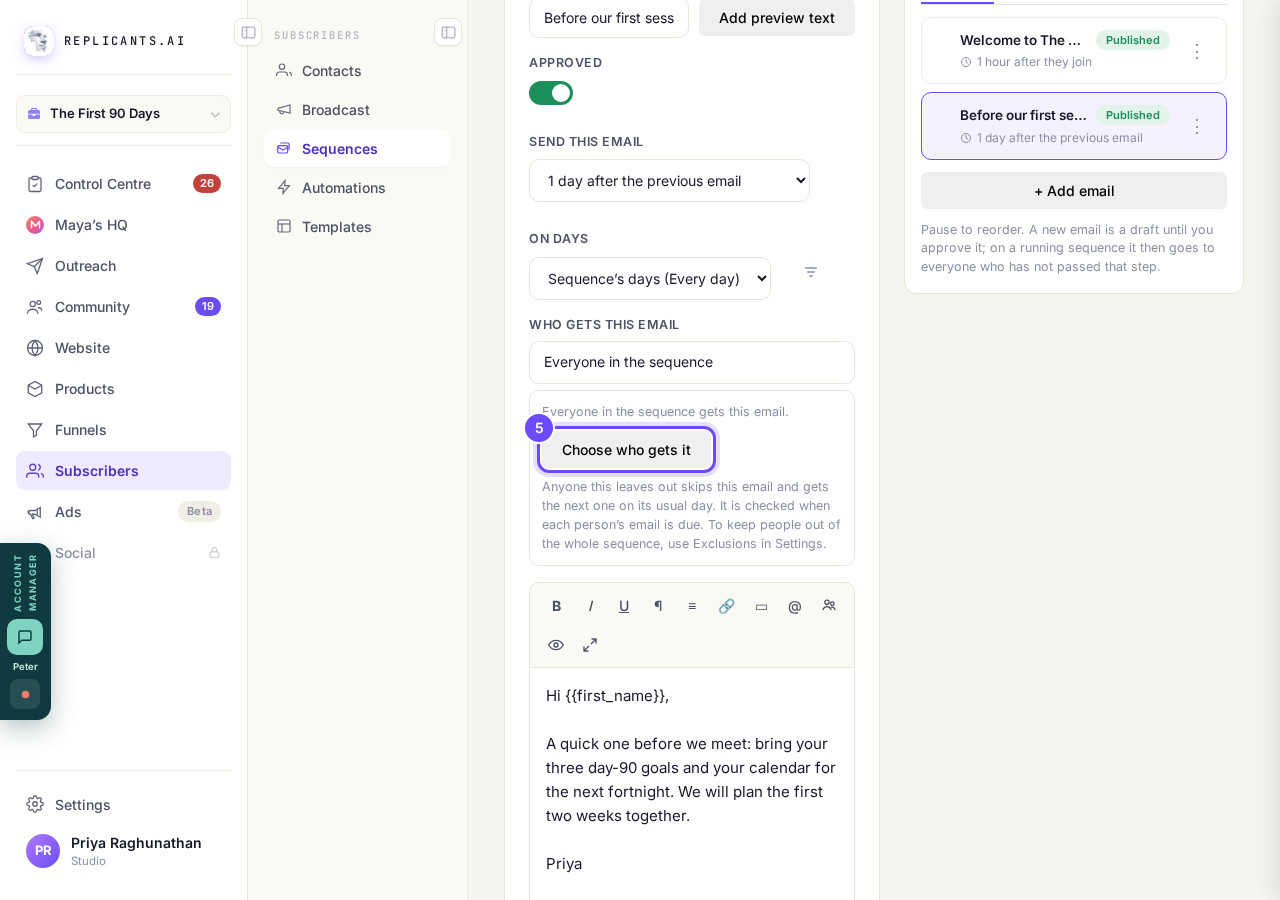
Choose who gets it.
Press Tags
It lists every tag in your account, with a number of people beside each. What they have done and Their details work the same way.
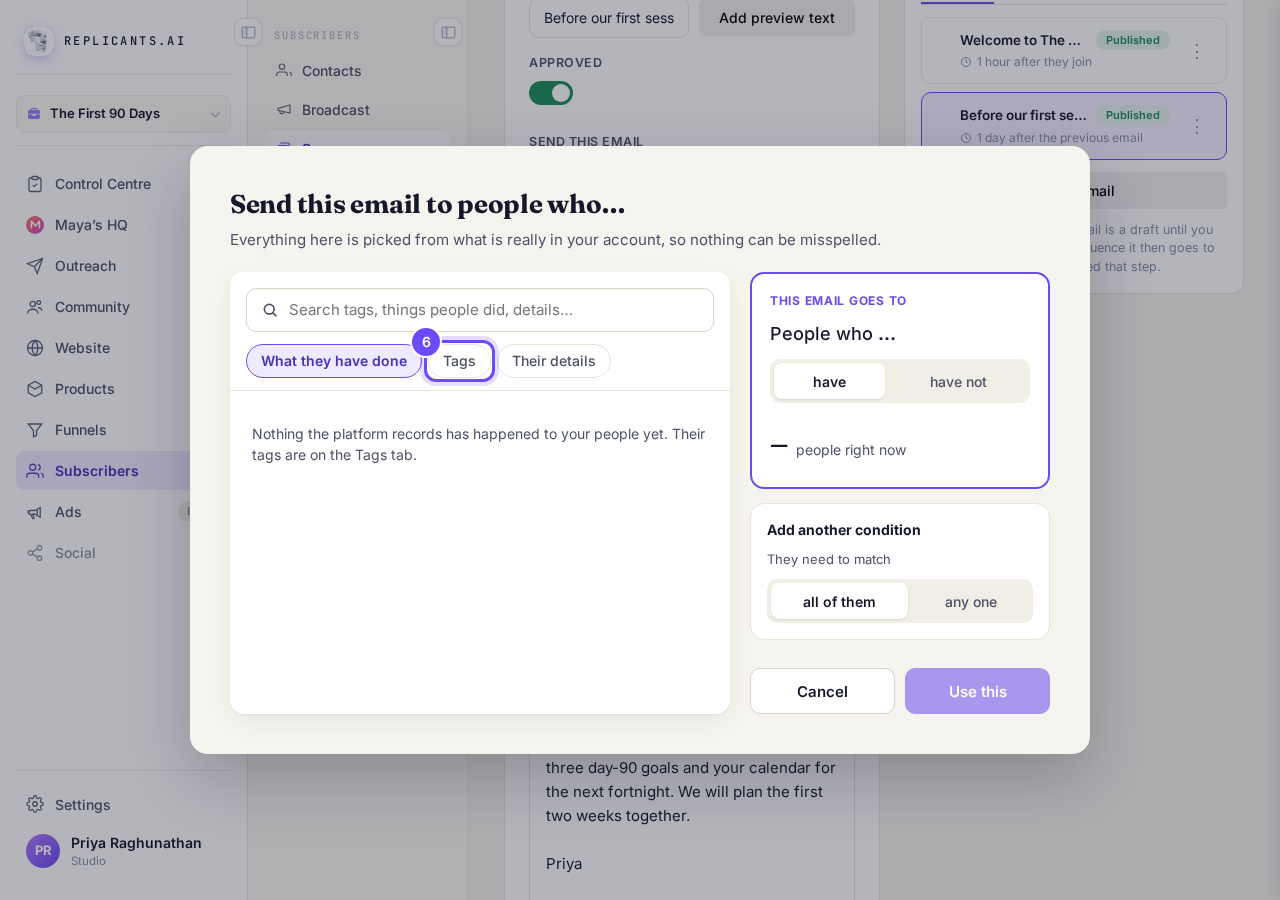
Tags, under the search box.
Press the tag
Here it is first-90-days, the tag for people already on the program.
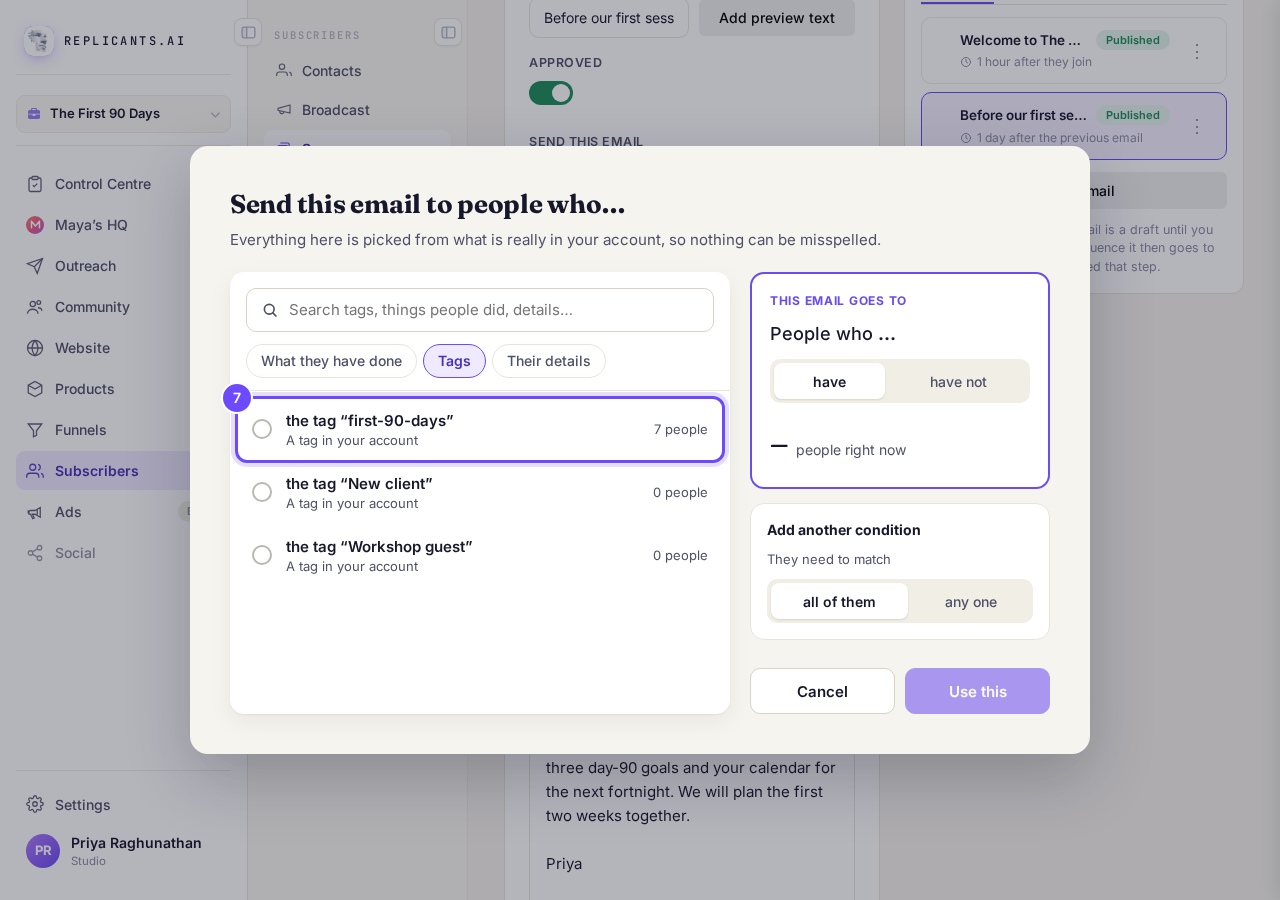
The tag, in the list of tags.
Press do not have (or have)
have sends the email only to people with the tag; do not have sends it to everyone else. The big number shows how many people that is right now.
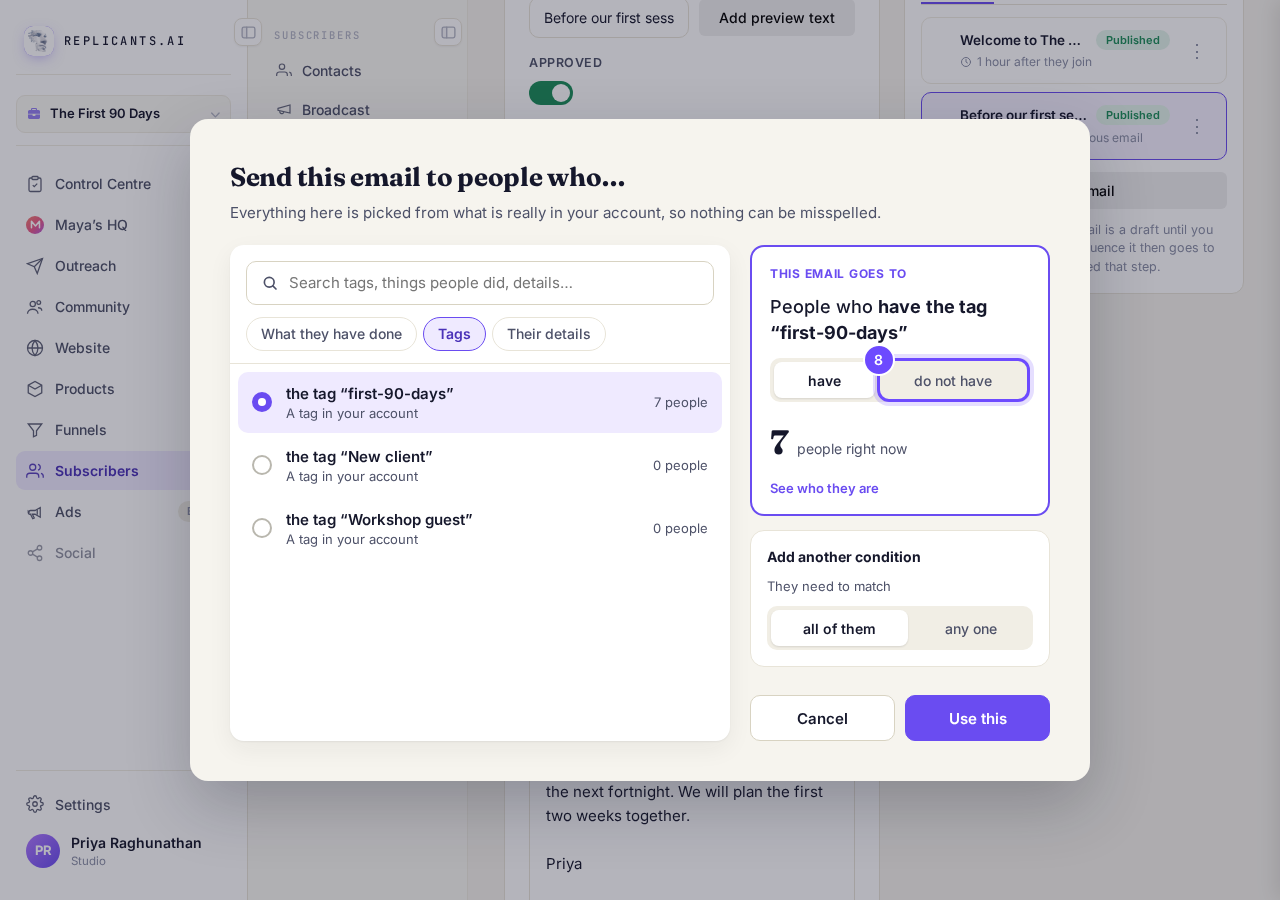
do not have, beside have.
Press Use this
It is saved straight away.
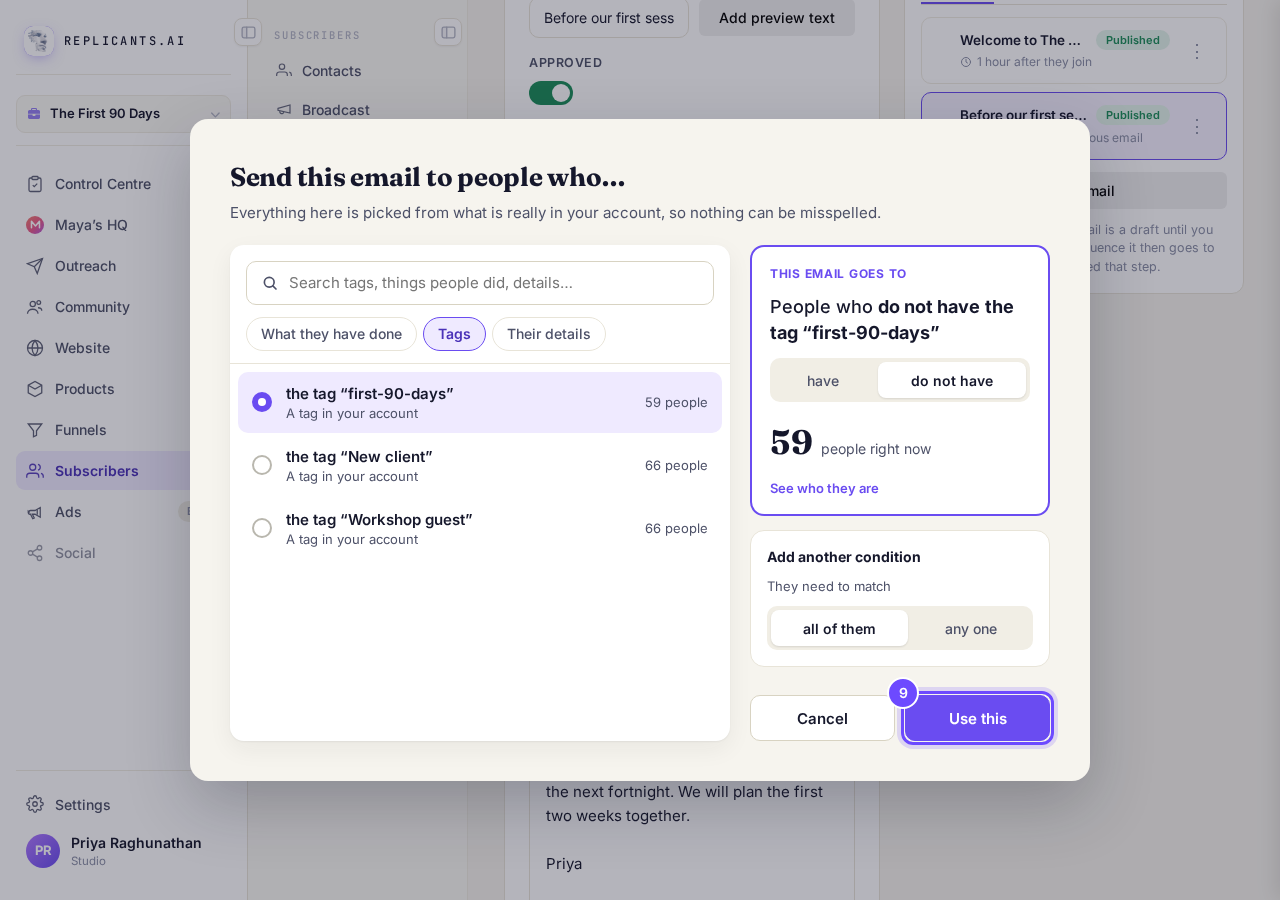
Use this, at the bottom right.
Check the box says who gets it
Here it says Only people who don’t have “first-90-days”. + and also… adds another condition. With two or more, choose all of these or any one. The × beside a condition takes it away, and Send to everyone takes the whole rule away.
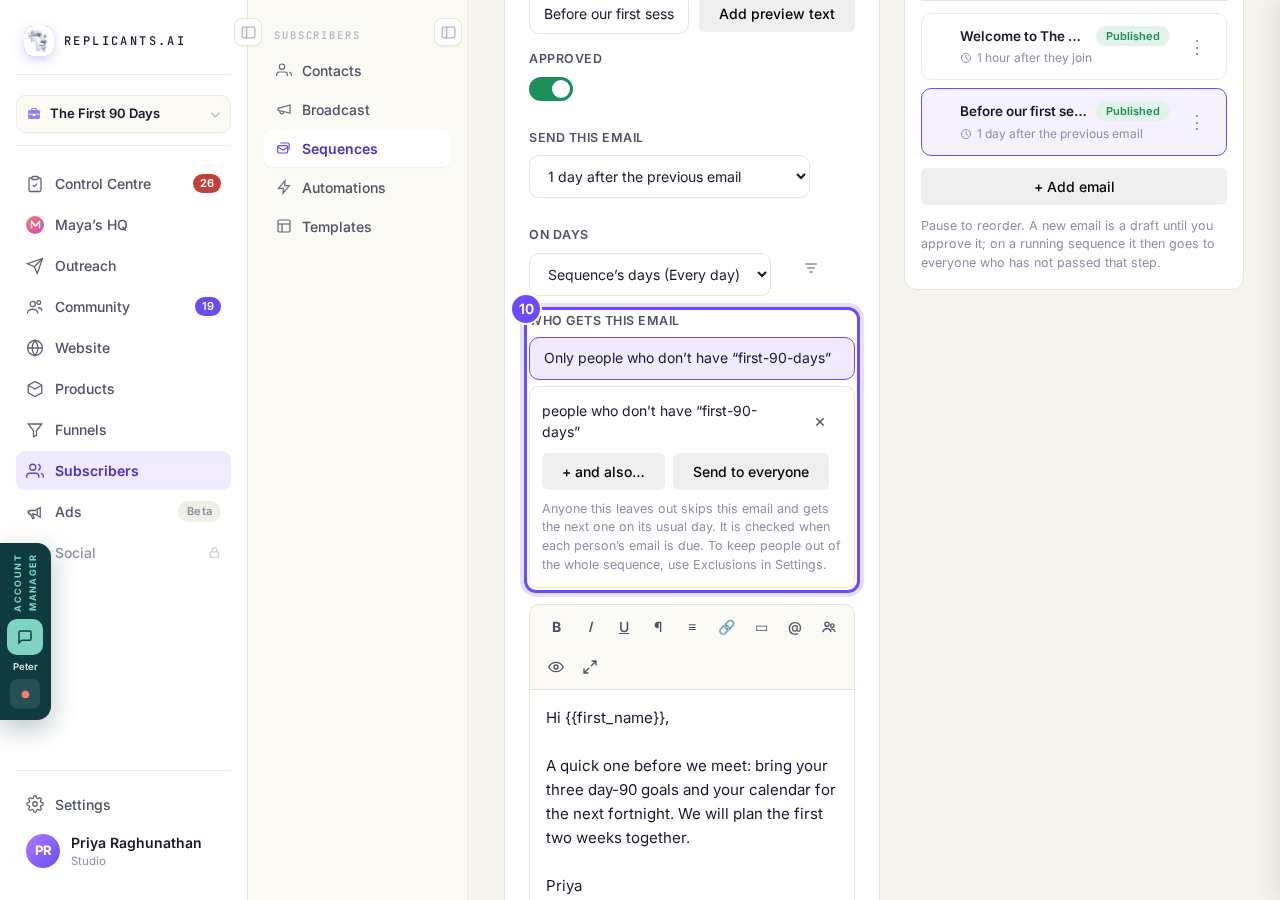
The rule, under Who gets this email.
Press Analytics
It is along the top of the sequence.
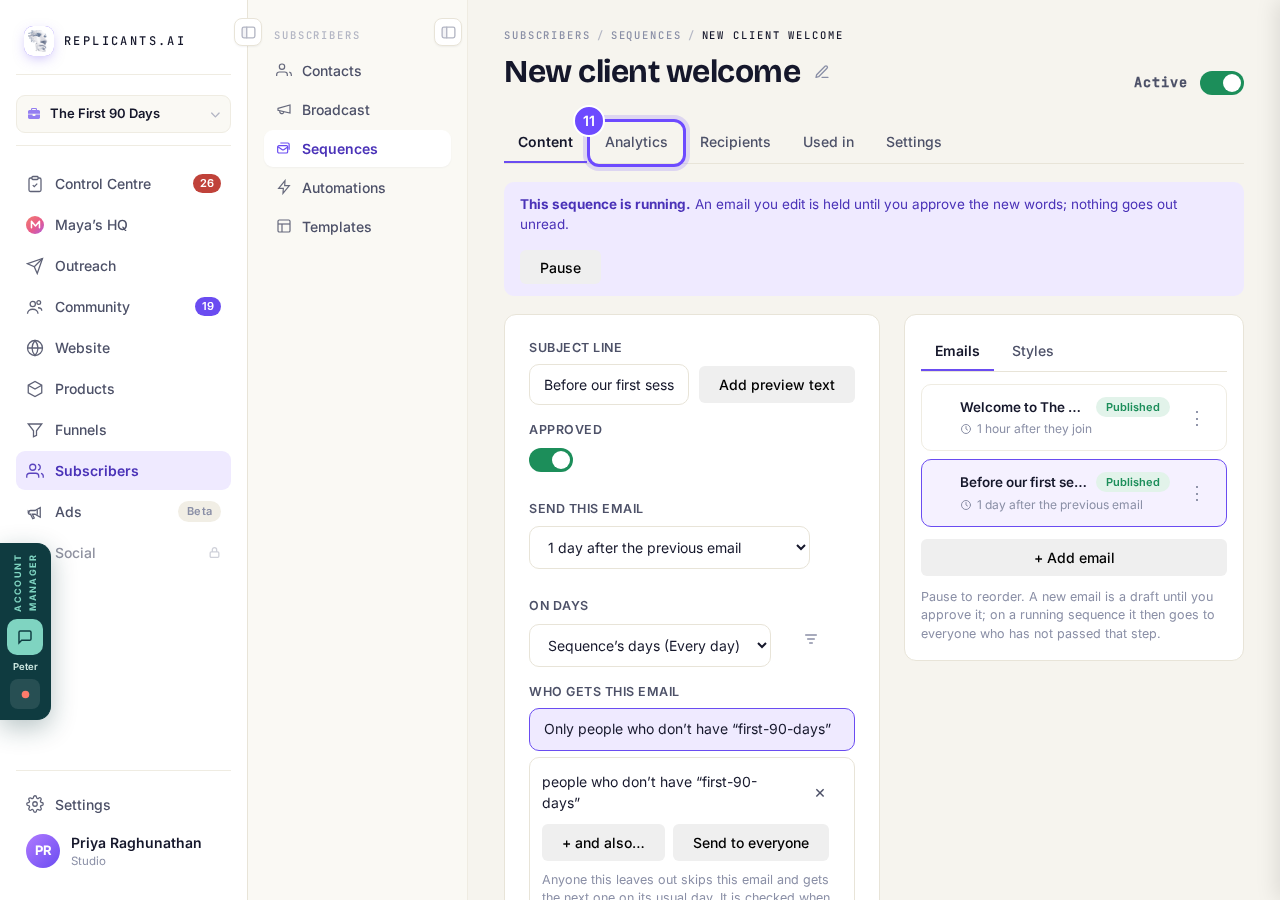
Analytics, along the top of the sequence.
Look at the Skipped column
It counts the people each email left out. They moved on to the next email. Press a number to see who they are. On a phone, slide the table sideways to reach it.
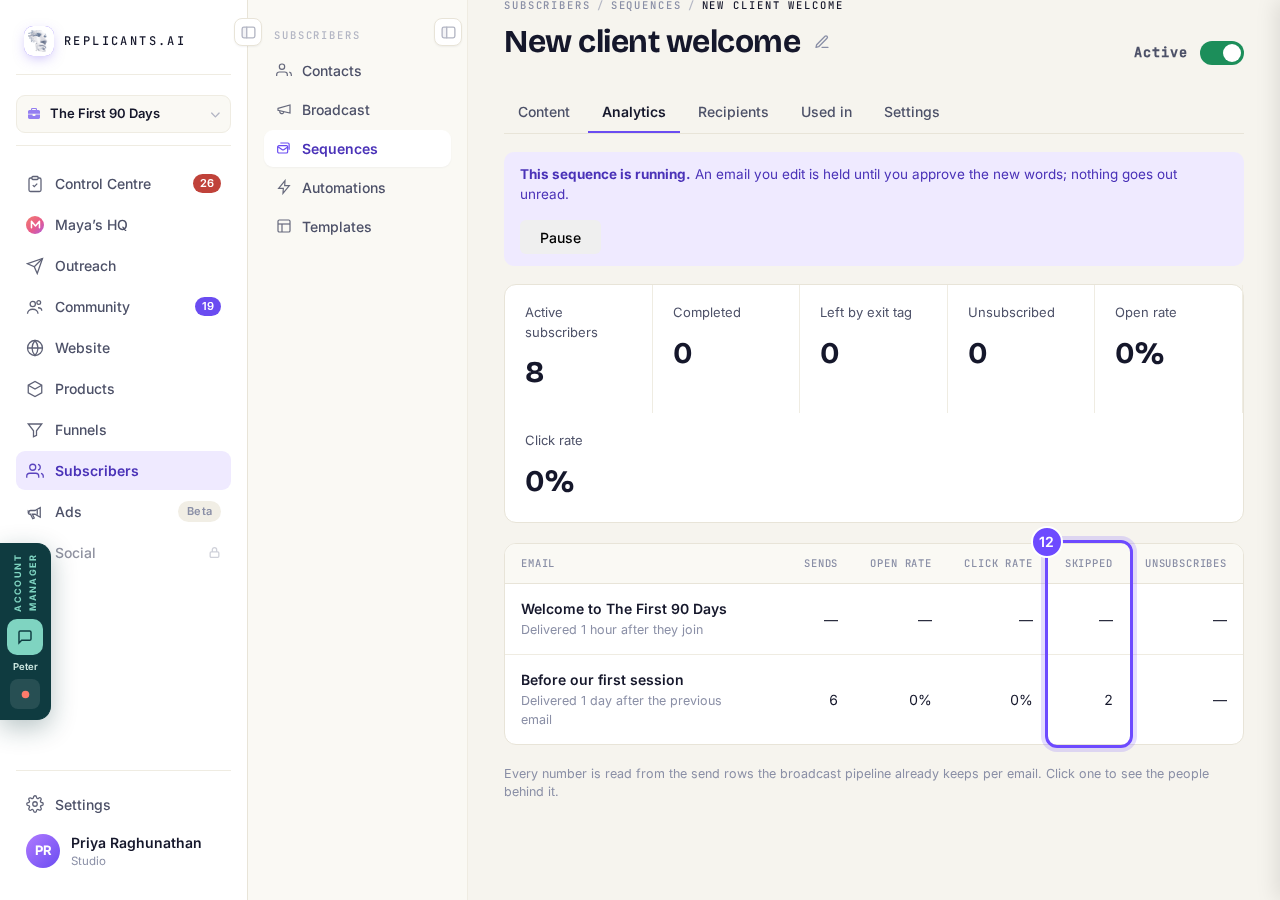
Skipped, on the email's row.
Press Recipients
It is next to Analytics, along the top of the sequence.
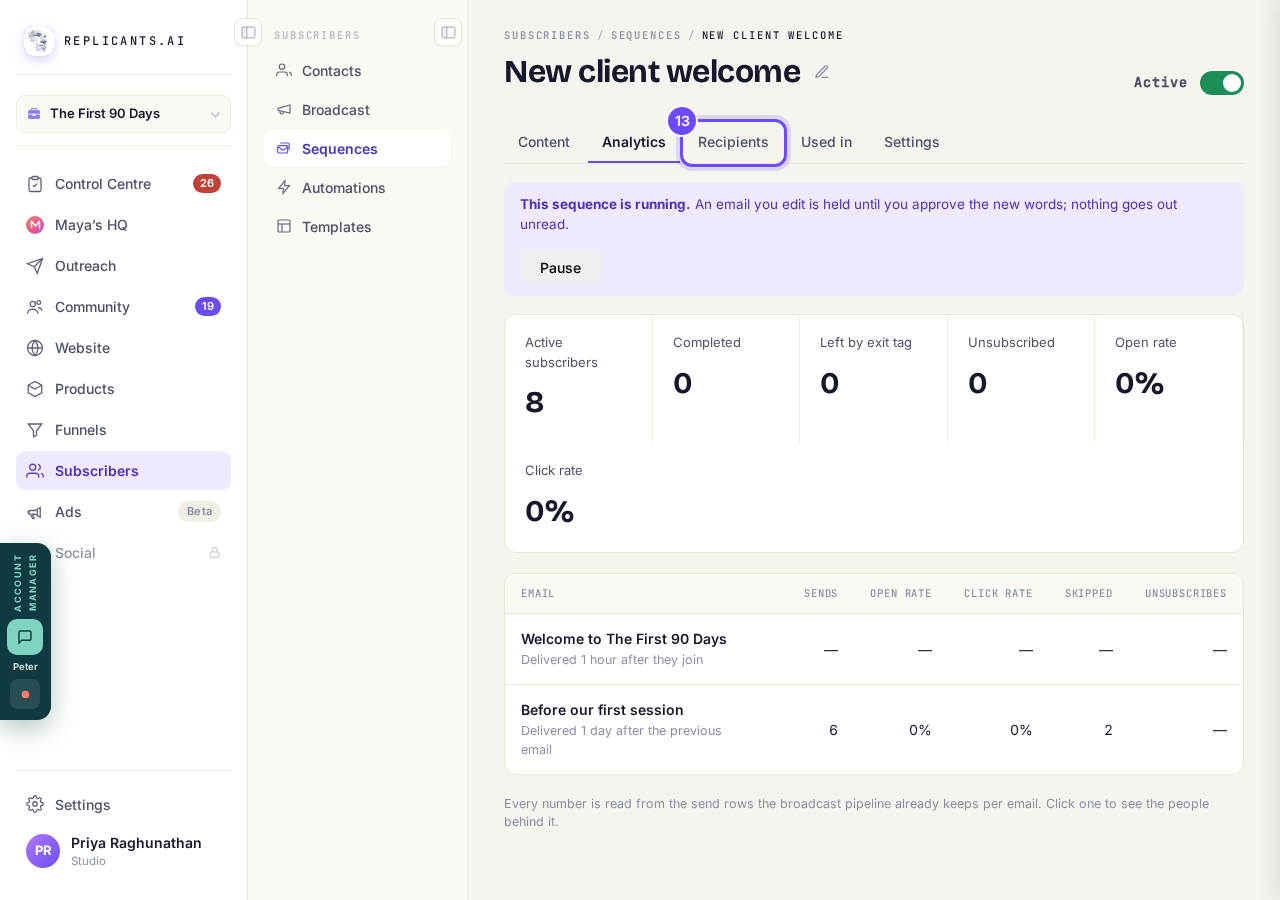
Recipients, along the top of the sequence.
Pick Skipped any email
It is in the box at the top of the list, and lists the people who were left out. With one email chosen, it says Skipped this email.
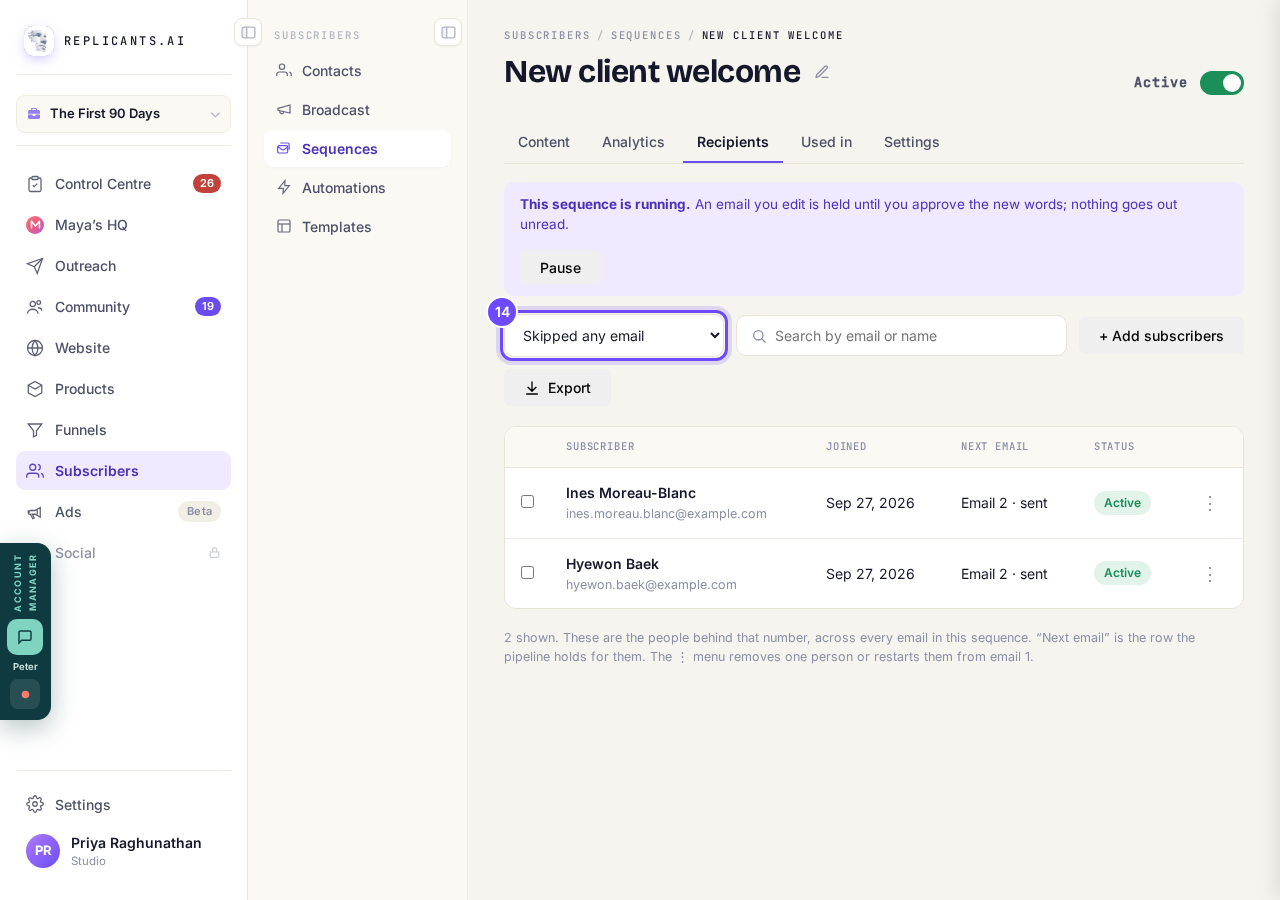
Skipped any email, and the people it left out.


How do I set up an email sequence?
Related articles
How do I choose what time of day my emails arrive?
When you send a broadcast you can spread it over a few hours, and let each person get it at the time they usually read their email. It is all on the last screen, **Schedule**.
How do I create a new tag?
A tag is a label you put on people so you can find them again. You make one by ticking the people it belongs on and naming it, in Subscribers, on the Contacts page.
How do I delete a contact?
Tick them on Contacts, press Delete, then type DELETE to confirm. Delete can't be undone. To hide someone and keep their details, Archive them instead.